XpressHive SaaS Overview
Latest
XpressHive SaaS is a highly scalable,
multi-tenant HR, Procurement, and Recruitment Management
platform. Powered by Laravel 12 and Stancl Tenancy, it enables
businesses to launch, scale, and manage a complete SaaS
workforce workspace under their own subdomains or custom
domains.
A core highlight of XpressHive SaaS is its unified
marketplace architecture. While internal HR,
task management, and payroll remain securely isolated for each
tenant, the recruitment (Talent) and procurement (Tenders)
workflows operate as shared ecosystems, connecting tenants with
a global pool of candidates and vendors.
Latest Version: 02 SEPTEMBER 2026 |
Platform: Web & Application |
Architecture: Single-Database Multi-Tenancy
(Stancl Tenancy)
🌐 Multi-Tenancy & SaaS Infrastructure
The system dynamically routes requests based on domains and
subdomains, ensuring secure logical isolation of tenant data
within a single database system.
Central Portal
The central application acts as the landing page and
administration hub. It hosts the plan selection, tenant
registration/sign-up forms, billing management, and the
central SaaS admin dashboard.
Tenant Domains
Each registered tenant organization accesses their
private workspace through dedicated subdomains (e.g.,
acme.yourdomain.com) or mapped custom
domains, with automatic tenant context initialization.
🤝 The Marketplace Ecosystem
XpressHive SaaS breaks down standard HR siloes by integrating
two powerful global marketplaces, maximizing value for both
tenants and external users:
💼 Talent / Recruitment Marketplace
Candidates register globally on the shared Talent
Application. When a tenant publishes a job posting
(Career) in their local recruitment module, it becomes
visible on the central job board. Candidates can apply to
multiple job posts from various tenants using a single
global profile.
🏗️ Tender / Procurement Marketplace
Vendors register globally on the shared Vendor
Application. When a tenant publishes a procurement tender,
it is listed on the central tender portal. Global vendors
can bid, submit quotes, upload documents, and track
multiple tenders across different tenants.
📦 System Modules
Modules are dynamically enabled or disabled for tenants based on
the subscription package they purchase.
HR Management
Employee records, attendance, leave, payroll, shifts, and
performance tracking.
Project & Task
Manage projects, assign tasks, track timesheets, and
collaborate with teams.
AI Assistant
Generate documents, write ticket responses, and automate
workflows using AI.
Support Ticketing
Manage client support tickets, SLAs, and assignment logs.
Recruitment (Talent)
Post job openings, track candidate pipeline, and schedule
interviews.
Finance & Billing
Manage expenses, invoice clients, record payments, and track
tax details.
Asset Management
Track company inventory, allocations, and hardware
assignments.
Central & Tenant Controls
Manage global plans/packages or local roles, permissions,
and settings.
Demo Access
Explore both the Central SaaS management panel and individual
tenant workspaces via our demo environment:
🔐 Login Credentials
| Role |
Email |
Password |
Access Environment & Platform |
| SaaS Admin (Central) |
sadmin@example.com |
abcd1234 |
Web (Central Administration Dashboard) |
| Super Admin (Tenant) |
admin@example.com |
abcd1234 |
Web & Mobile App (Tenant-specific Domain) |
| HR |
hr@example.com |
abcd1234 |
Web & Mobile App (Tenant-specific Domain) |
| Employee |
employee@example.com |
abcd1234 |
Web & Mobile App (Tenant-specific Domain) |
| Client |
client@example.com |
abcd1234 |
Web & Mobile App (Tenant-specific Domain) |
| Candidate (Talent) |
candidate@example.com |
abcd1234 |
Mobile Application (Shared Job Board Portal) |
| Vendor |
vendor@example.com |
abcd1234 |
Mobile Application (Shared Tender Portal) |
👥 User Roles & Permissions
SaaS Admin (Central Super Admin)
Manages the parent SaaS system including Tenants, Custom
Domains, Subscription Packages, Payment Gateways (Stripe,
Razorpay, etc.), Offline Payments Verification, Central
Reports, and site CMS.
Super Admin (Tenant Admin)
Has full control within their own tenant workspace. Manages
local departments, schedules, sub-users (HR, Employee),
billing/plan upgrades, and mapped custom domains.
HR
Manages employees, attendance tracking, payroll, leave
requests, appraisals, and recruitment workflows within the
tenant space.
Employee
Accesses local dashboard to clock in/out, view shifts,
request leaves, track assigned tasks, and check payroll.
Client
External stakeholders associated with a tenant who can view
assigned project logs, billing invoices, and support
tickets.
Candidate (Talent)
Global users participating in the recruitment marketplace.
They build their candidate profile, upload resumes, and
track their applications across multiple tenant career
postings.
Vendor
Global business entities participating in the tendering
marketplace. They build their profile, upload compliance
documents, and bid for tender listings published by any
tenant.
Note
The demo environment is reset periodically. Some payment
sandbox items and configuration settings may have limited
access to prevent misuse.
📱 System Applications
| Application |
Type |
Description |
Key Features |
Access Role |
Android |
iOS |
| HR / Employee Application |
Internal Tenant
|
Dedicated workspace app for employees and HR teams of a
specific tenant.
|
- Attendance & Shift Management
- Task & Project Tracking
- Leave & Loan Management
- Payroll & Salary Slips
- Performance & Appraisals
|
HR / Employee |
Download APK
|
Download APK
|
| Talent Application |
Global Marketplace
|
Global platform connecting job seekers to career
opportunities posted by all active tenants.
|
- Search & Filter Job Openings
- Global Profile & CV Builder
- One-click Apply
- Interview & Application Tracking
|
Candidate |
Download APK
|
Download
APK
|
| Vendor Application |
Global Marketplace
|
Global procurement hub connecting vendor suppliers to
tenders published by all tenants.
|
- Centralized Tender Listing
- Bid Proposal & Quote Submission
- Vendor Verification & Profile
- Document Upload & Status Tracking
|
Vendor |
Download APK
|
Download
APK
|
🌐 Dynamic SaaS Central Website
CMS & Site Management
The main landing website is fully customizable via the SaaS
Admin dashboard, allowing code-free layout updates.
-
Pricing plan list, package rules, and sign-up integration
-
Customizable sections for Solutions, Features, and
Testimonials
-
Dynamic FAQ, About Us, Contact forms, and Services updates
- Global public-facing Tender Board and Job Board portals
-
Fully responsive, optimized for SEO, and translation-ready
⚙️ Additional Platform Capabilities
-
Multi-payment gateway support (Stripe, Razorpay, MyFatoorah,
Paystack, Flutterwave, PayPal, and manual Offline bank
transfers)
-
Tenant subscription package limits (Max Employees, Max
Storage, Allowed Modules, Max Job Posts, Max Tenders)
-
Super Admin activity logging, logs auditing, and system
updates
-
Modular expandability via central marketplace Add-on Plugins
Multi-Tenant File &
Media Management
XpressHive SaaS provides isolated file storage directories for
each tenant. Profile pictures, document attachments, and
verification files are structured under separate sub-folders for
each tenant namespace.
Isolated Media
Storage
All uploaded files are organized through a tenant-scoped
Media Library, securing operational assets and ensuring GDPR
compliance.
- Tenant-scoped media library upload and retrieval
-
Secure download links for invoices, receipts, candidate
resumes, and tender documentation
-
Dynamic file storage limits linked directly to the tenant's
purchased subscription plan
⚠️ Image & Assets Disclaimer
Important
Notice
All images and media designs displayed in the central
landing site preview or local dashboards are for
demonstrative purposes. The source package contains
standardized template placeholders.
Technical Requirements
Before installing XpressHive SaaS, please
ensure your server meets the following requirements for smooth
performance and stability.
🖥️ Server Requirements
Compatible with Shared Hosting or VPS (cPanel or similar control
panel supported)
- Framework: Laravel 12
- PHP Version: 8.4 or higher
- Database: MySQL 8.0 or higher
-
Node.js: Required for frontend asset
compilation
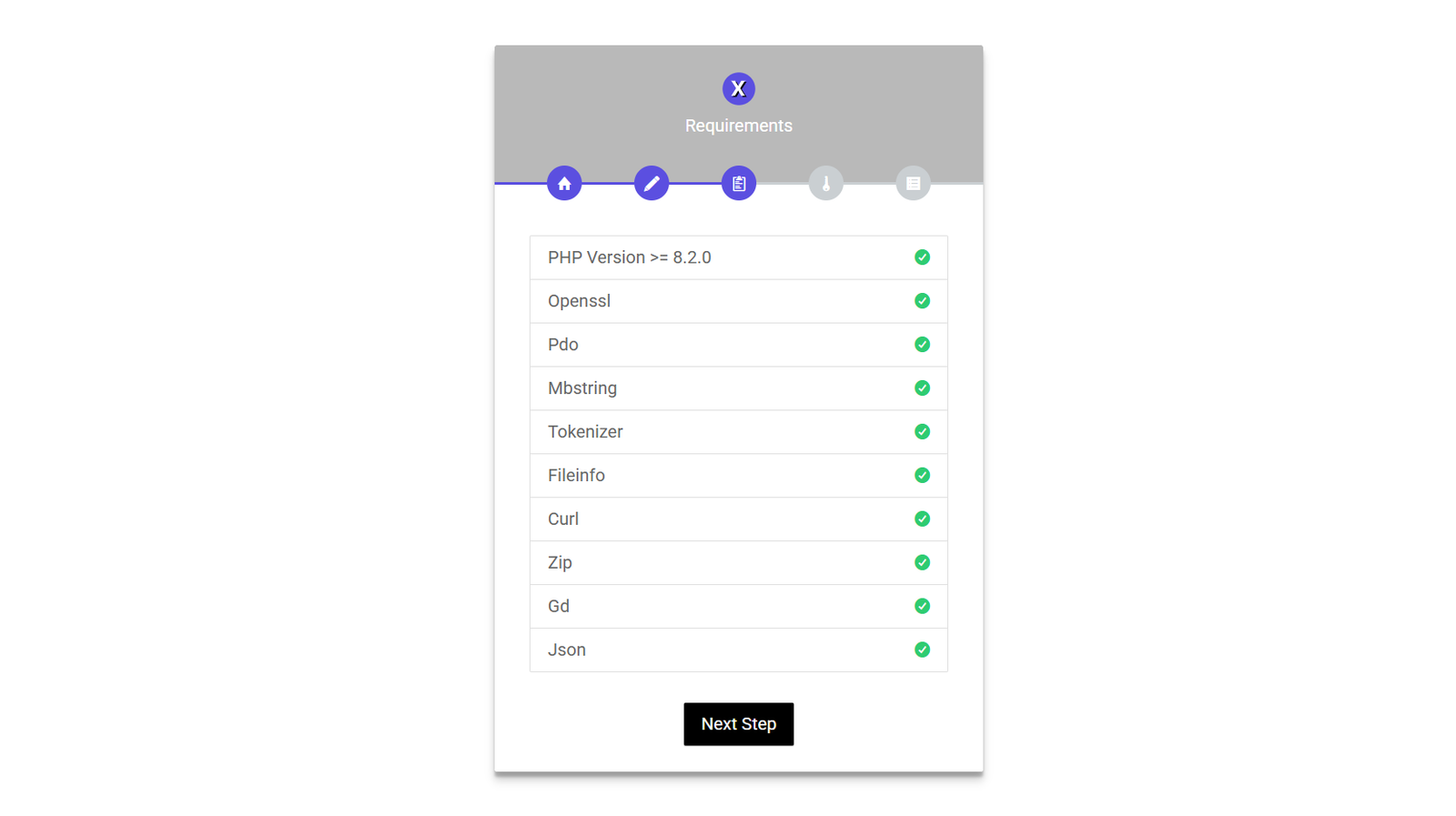
Required PHP Extensions:
- PDO
- OpenSSL
- mbstring
- fileinfo
- Zip
- GD
- JSON
- Tokenizer
- cURL
Apache & PHP
Extension Requirements
Ensure the PHP Sodium extension is enabled
for secure encryption and authentication features.
Ensure the Apache mod_rewrite module is
enabled for proper URL routing and clean URLs.
🌐 Wildcard Subdomain & DNS Requirements
Since XpressHive SaaS operates on a dynamic multi-tenancy
architecture, you must configure a wildcard subdomain to allow
tenant registration and workspace access without manual server
setup.
1. DNS Record Configuration
Create a wildcard A Record in your
domain's DNS manager:
Host: * |
Value: [Your Server IP]
This forwards traffic from any subdomain (e.g.,
tenant.yourdomain.com) to your web server.
2. SSL Certificate (Wildcard SSL)
A wildcard SSL certificate (e.g., via Let's Encrypt)
covering both yourdomain.com and
*.yourdomain.com is required. This secures
all dynamically generated tenant subdomains automatically
under HTTPS.
Web Server Virtual Host
Setup
Ensure your web server virtual host is configured to listen
to wildcard domains:
-
Apache VirtualHost: Add
ServerAlias *.yourdomain.com under the
primary domain configuration.
-
Nginx Server Block: Set
server_name yourdomain.com *.yourdomain.com;
in your site configuration file.
-
cPanel / Shared Hosting: Add a subdomain
named
* in the cPanel "Subdomains" section,
and ensure its document root points to the same directory
as your primary domain (pointing to the
/public directory of the codebase).
⚙️ Backend Dependencies
XpressHive SaaS uses modern backend libraries to provide
security, performance, and advanced functionality.
Composer Version: 2.8.12 or higher
-
Core: PHP 8.4+, Laravel 12, Sanctum
Authentication
- PDF & Reports: PDF & report generation
-
Performance: Queue handling and caching
support
-
Media Handling: File upload and media
management system
📱 Mobile Apps
Flutter SDK 3.41.7
XCode : XCode version 26.4
Android SDK : SDK 36
Java Version: JDK version 17
🎨 Frontend & Build Tools
The frontend is powered by modern tools to ensure a fast and
responsive user experience.
Node.js Version: 20.x or higher recommended
- Modern asset bundling with Vite
- Responsive UI using Bootstrap 5
- Interactive components with JavaScript and jQuery
- Charts, calendars, and dynamic UI elements
npm run build (used to compile frontend assets)
📊 Supported Features
- Dynamic dashboards and reports
- Data tables and analytics
- Form handling and validations
- Interactive charts and graphs
- Calendar and scheduling tools
⚡ Recommended PHP Configuration
For optimal performance, update the following values in your
php.ini file:
                  memory_limit = 512M

                  max_execution_time = 300
Important
Note
Make sure your server meets all the above requirements
before installation to avoid compatibility issues and ensure
smooth system performance.
3. Database Setup (Local)
Step 1: Open PHPMyAdmin & Create Database

Save the database name, username, and password for later use
during installation. Make sure to grant all privileges to the
database user for proper functionality.(In local setup, username
is usually root with no password)
3. Database Setup (cPanel)
Step 1: Login to cPanel

Step 2: Open MySQL Databases

Step 3: Create Database

Step 4: Create Database User

Step 5: Assign Database to User

Step 6: Set All Privileges

4. Install Application (Local)
Step 1: Copy .env.example file to env file
Copy .env.example to .env before
starting.
Step 2: Run server command
visit php artisan serve to install the application
Open in browser:
visit http://127.0.0.1:8000
Step 3: Database Configuration
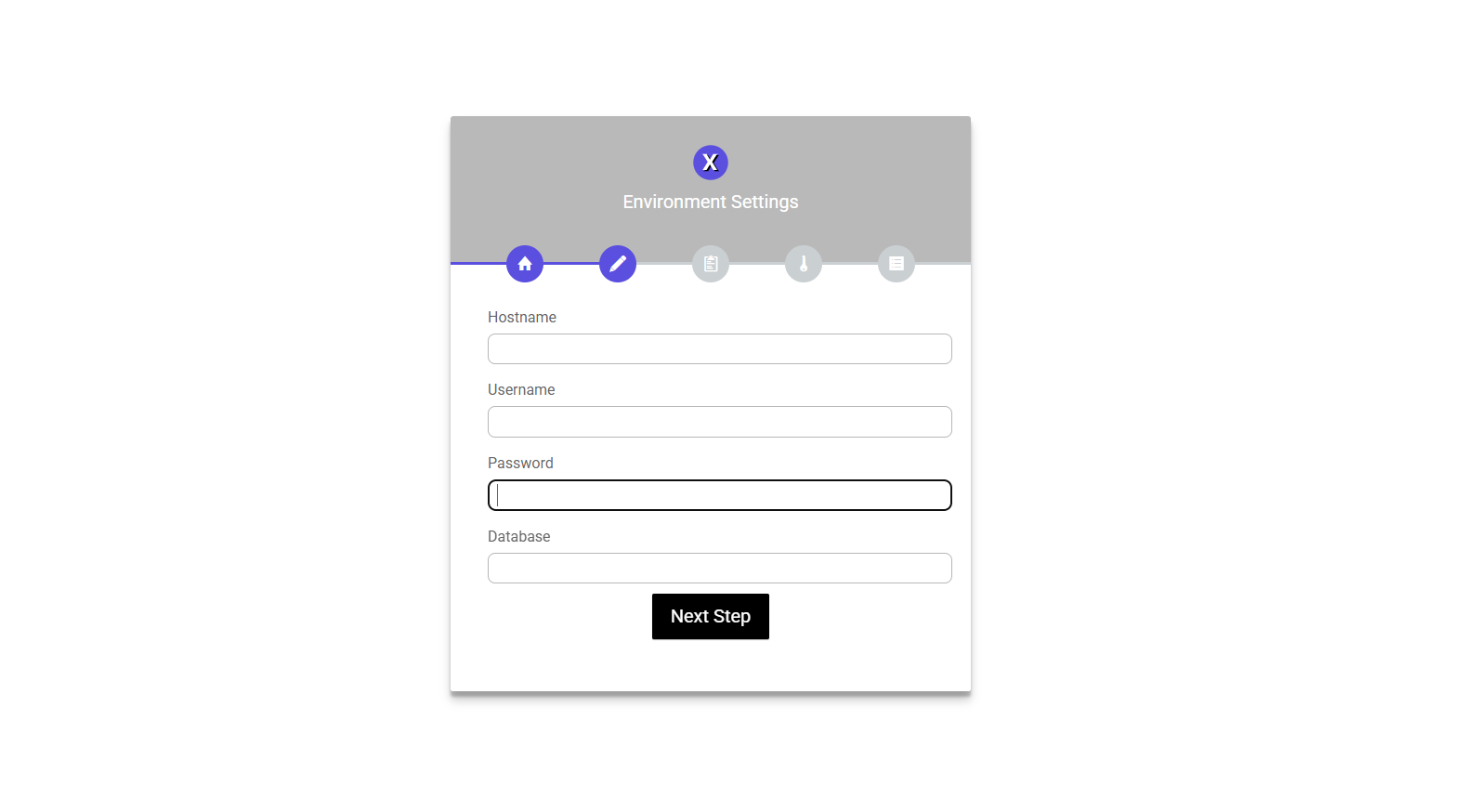
Use the database
credentials you created in the previous step to fill in the
database configuration form.
-
Hostname →
127.0.0.1 or localhost
-
Username →
Your database username
-
Database →
Your database password
-
Database Name →
Your database name
Step 4: Server Requirements
Step 5: Folder Permission Check

Required Permissions
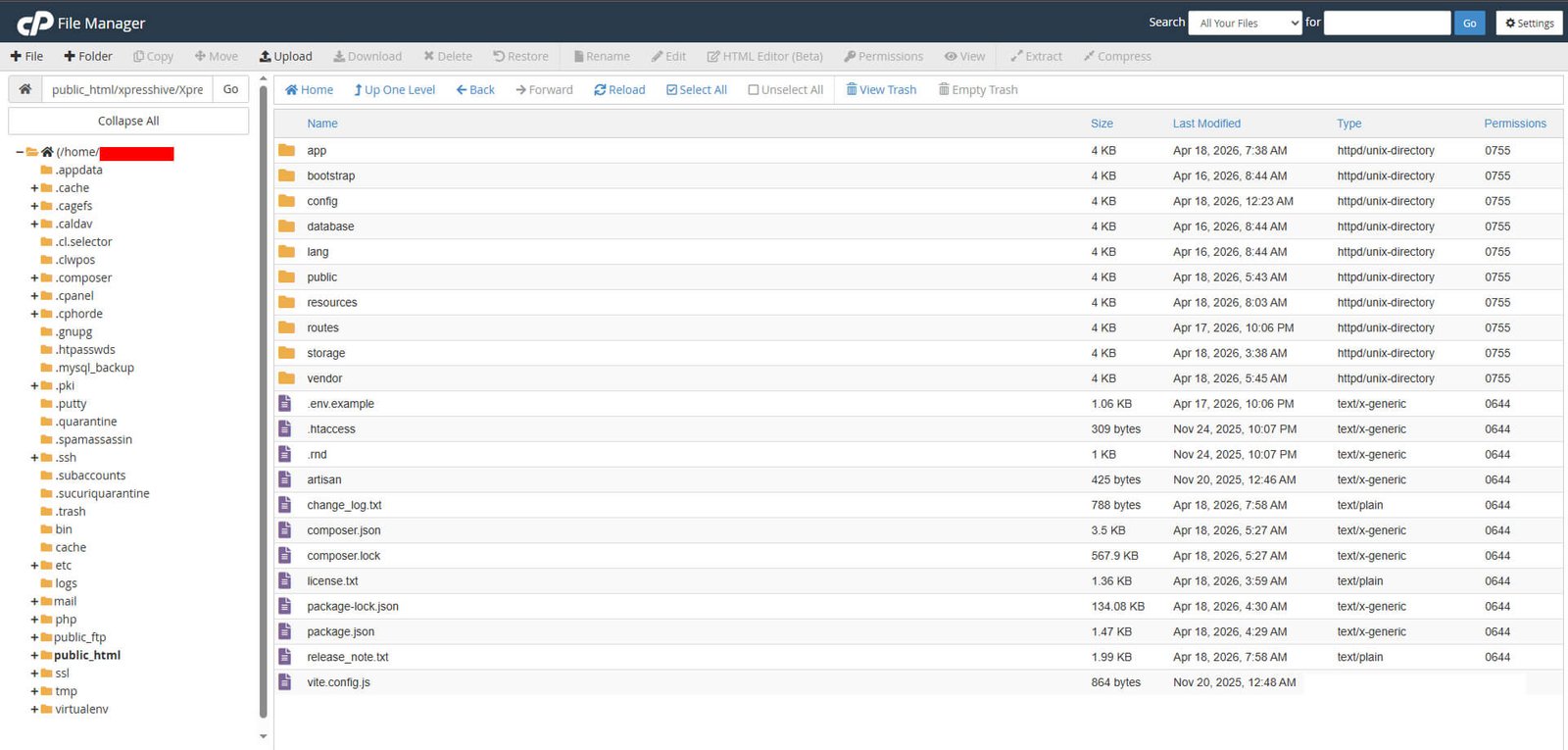
/storage/app → for uploads/storage/framework → cache & sessions/storage/logs → logs/bootstrap/cache → system cache
5. Install Application
Step 1: Copy .env.example file to env file
Copy .env.example to .env before
starting.
Step 2: Go to your domain/subdomain
visit http://your-domain.in/install to install the
application
#Must be run project root directory, and also check your
domain/subdomain url
Step 3: Database Configuration
Use the database
credentials you created in the previous step to fill in the
database configuration form.
-
Hostname →
127.0.0.1 or localhost
-
Username →
Your database username
-
Database →
Your database password
-
Database Name →
Your database name
Step 4: Server Requirements
Step 5: Folder Permission Check
Required Permissions
/storage/app → for uploads/storage/framework → cache & sessions/storage/logs → logs/bootstrap/cache → system cache
Installation Complete

Success
Your system is successfully installed and ready to use.
You are ready to run your App
http://your-domain.in/admin/login
Setup Cron Job (Queue Worker)

Cron Job Setup
To ensure background jobs (emails, notifications, etc.) are
processed, you need to configure a cron job on your server.
Steps to Add Cron Job:
- Login to your hosting panel (e.g., Hostinger).
- Go to Advanced → Cron Jobs.
- Click on Create New Cron Job.
- Select PHP as the command type.
- Enter the following command:
/usr/bin/php
/home/your-username/public_html/your-project/artisan
queue:work --once --tries=3 --timeout=90
- Set cron timing (Recommended: Every 1 minute).
- Click Save.
Done
Your cron job is now configured. The system will
automatically process queued tasks.
1. Backend Setup (Laravel) - For Local
Follow the steps below to set up the backend application.
Before You Start
Before starting the installation process, make sure your
server meets all the minimum requirements listed below.
Server Requirements
- PHP: Version 8.4 or higher
- Composer: Version 2.8.12 or higher
- MySQL: Version 8.0 or higher
Enable PHP Sodium Extension
XpressHive SaaS requires the
PHP Sodium extension for secure encryption
and authentication features.
You can verify whether the extension is enabled by checking
your PHP configuration using phpinfo();.
If the Sodium extension is disabled, enable it by adding the
following line to your php.ini file:
extension=sodium
Verify Installed Versions
Run the following commands in Terminal or Command Prompt to
verify your installed PHP and Composer versions:
php -v
composer --version
Project Installation
After downloading and extracting the project files into your
XAMPP - htdocs or
WAMP - www directory, open Terminal or
Command Prompt and navigate to the project root directory.
Run the following command to install all required
dependencies:
composer install
Next, create the environment configuration file:
cp .env.example .env
Make sure all commands are executed from the project's root
directory where the composer.json file is
located. Once the installation is completed successfully,
upload the project files to your hosting server and start
installation.
-
Install dependencies:
composer install
-
Copy environment file:
cp .env.example .env
-
Generate application key: (Optional)
php artisan key:generate
-
Run the server:
php artisan serve
-
Open in browser:
http://127.0.0.1:8000
1. Backend Setup (Laravel) - For Live
Before You Start
Before starting the installation process, make sure your
server meets all the minimum requirements listed below.
Server Requirements
- PHP: Version 8.4 or higher
- Composer: Version 2.8.12 or higher
- MySQL: Version 8.0 or higher
Enable PHP Sodium Extension
XpressHive SaaS requires the
PHP Sodium extension for secure encryption
and authentication features.
You can verify whether the extension is enabled by checking
your PHP configuration using phpinfo();.
If the Sodium extension is disabled, enable it by adding the
following line to your php.ini file:
extension=sodium
Verify Installed Versions
Run the following commands in Terminal or Command Prompt to
verify your installed PHP and Composer versions:
php -v
composer --version
Project Installation
After downloading and extracting the project files into your
XAMPP - htdocs or
WAMP - www directory, open Terminal or
Command Prompt and navigate to the project root directory.
Run the following command to install all required
dependencies:
composer install
Next, create the environment configuration file:
cp .env.example .env
Make sure all commands are executed from the project's root
directory where the composer.json file is
located. Once the installation is completed successfully,
upload the project files to your hosting server and start
installation.
-
Install dependencies:
composer install
-
Copy environment file:
cp .env.example .env
-
After Composer installation, compress project folder to .zip
and upload to server:
yourname.zip
2. Frontend Setup (Vite)
The frontend uses modern build tools for styling and
interactivity.
-
Install dependencies:
npm install
-
Start development server:
npm run dev
-
Build assets for production:
npm run build
3. Server Setup Notes
Using VPS / SSH
-
Copy
.env.example to .env
- Run
php artisan key:generate
- Update database and mail configuration
Using Shared Hosting
-
A pre-configured
.env file is available in the
shared_hosting folder
- Update only database and mail settings
-
Do not change APP_KEY
(it may break the application)
Important
Always ensure your environment meets the technical
requirements before setup.
Login

- Enter your admin email
- Enter your password
- Use credentials created during installation
SaaS Profile Settings
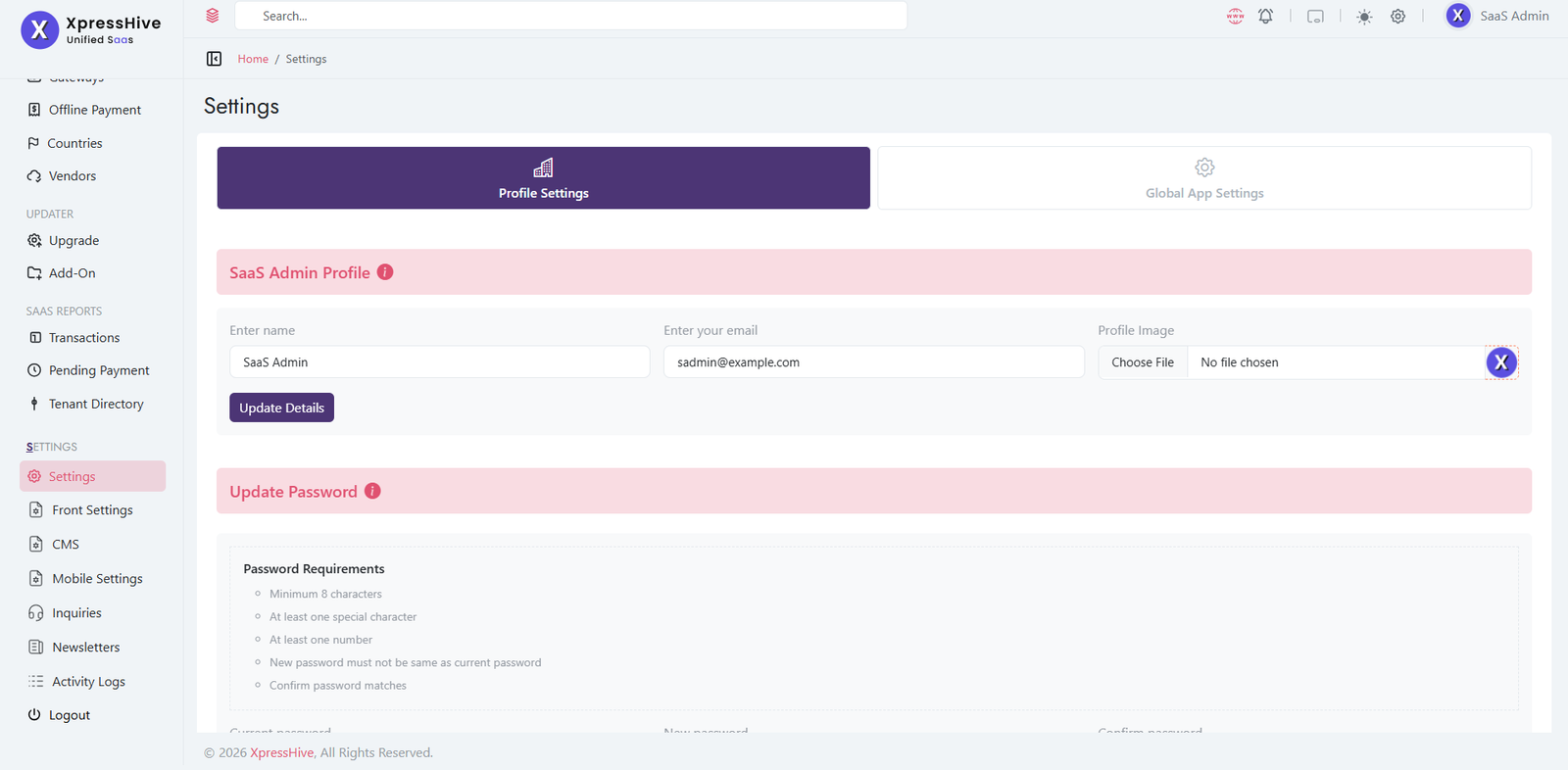
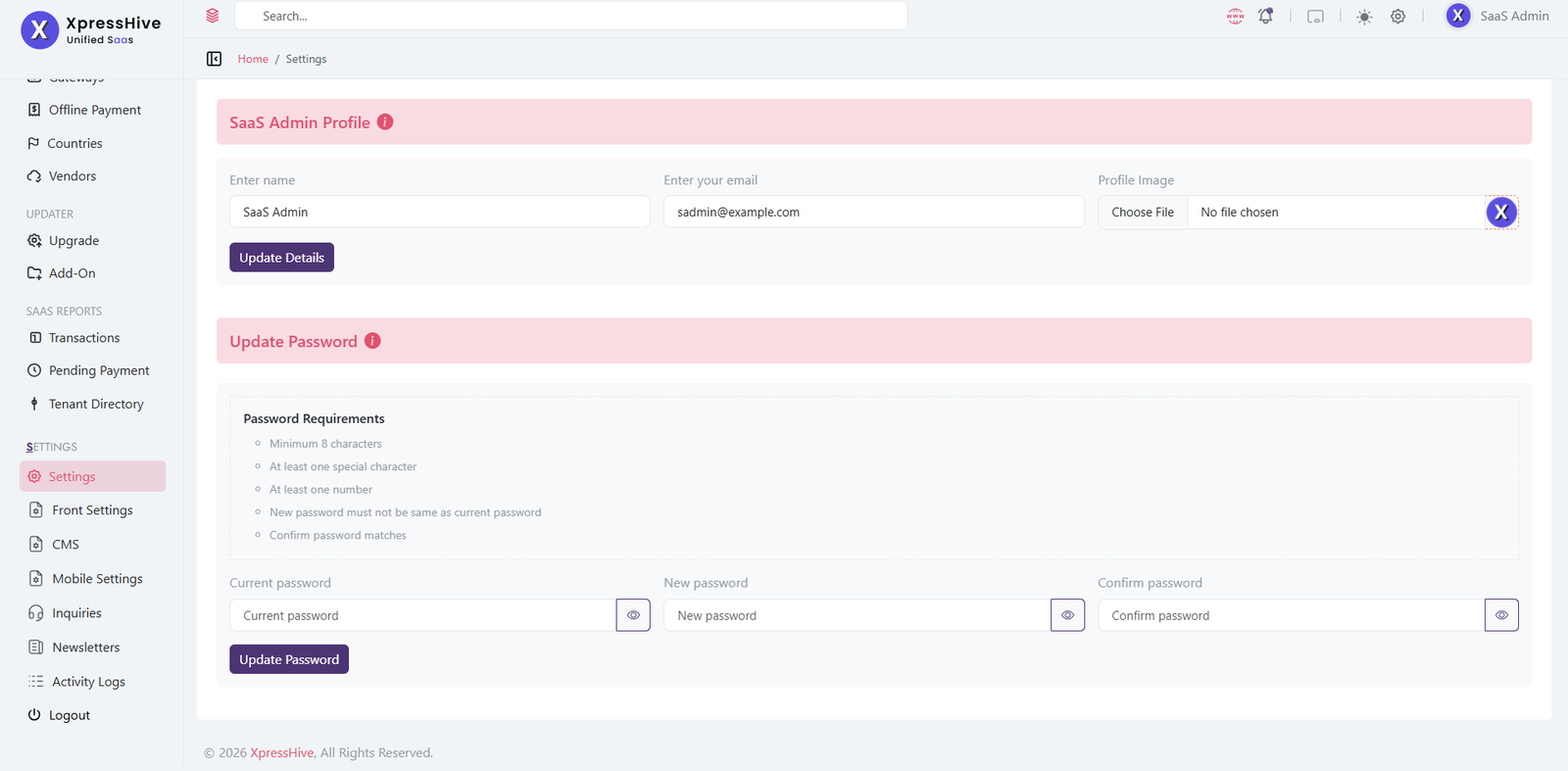
The Profile Settings section allows the SaaS administrator to manage
personal account information, upload a profile image, and securely update
the account password. Keeping your profile information up to date helps
maintain account security and identification across the platform.
-
Name
Update the administrator's display name.
- Displayed throughout the admin dashboard.
- Used to identify the logged-in administrator.
-
Email Address
Update the administrator's email address.
- Used as the primary login credential.
- Receives system notifications and password recovery emails.
-
Profile Image
Upload or replace the administrator profile picture.
- Displayed in the navigation bar and user profile.
- Use a clear square image for the best appearance.
- Supported image formats depend on system configuration.
-
Update Details
Save changes made to your profile information.
- Updates the administrator profile immediately.
- Ensure all information is correct before saving.
-
Current Password
Enter your existing password before changing it.
- Required to verify your identity.
- Must match your current account password.
-
New Password
Enter a strong password for your account.
- Minimum 8 characters.
- Include at least one number.
- Include at least one special character.
- Should not be the same as your current password.
-
Confirm Password
Re-enter the new password for confirmation.
- Must exactly match the new password.
- Prevents accidental password entry mistakes.
-
Update Password
Click Update Password to save your new password.
- Password changes take effect immediately.
- Use a unique and secure password for better account protection.
- Keep your password confidential and avoid sharing it.
Global App Settings
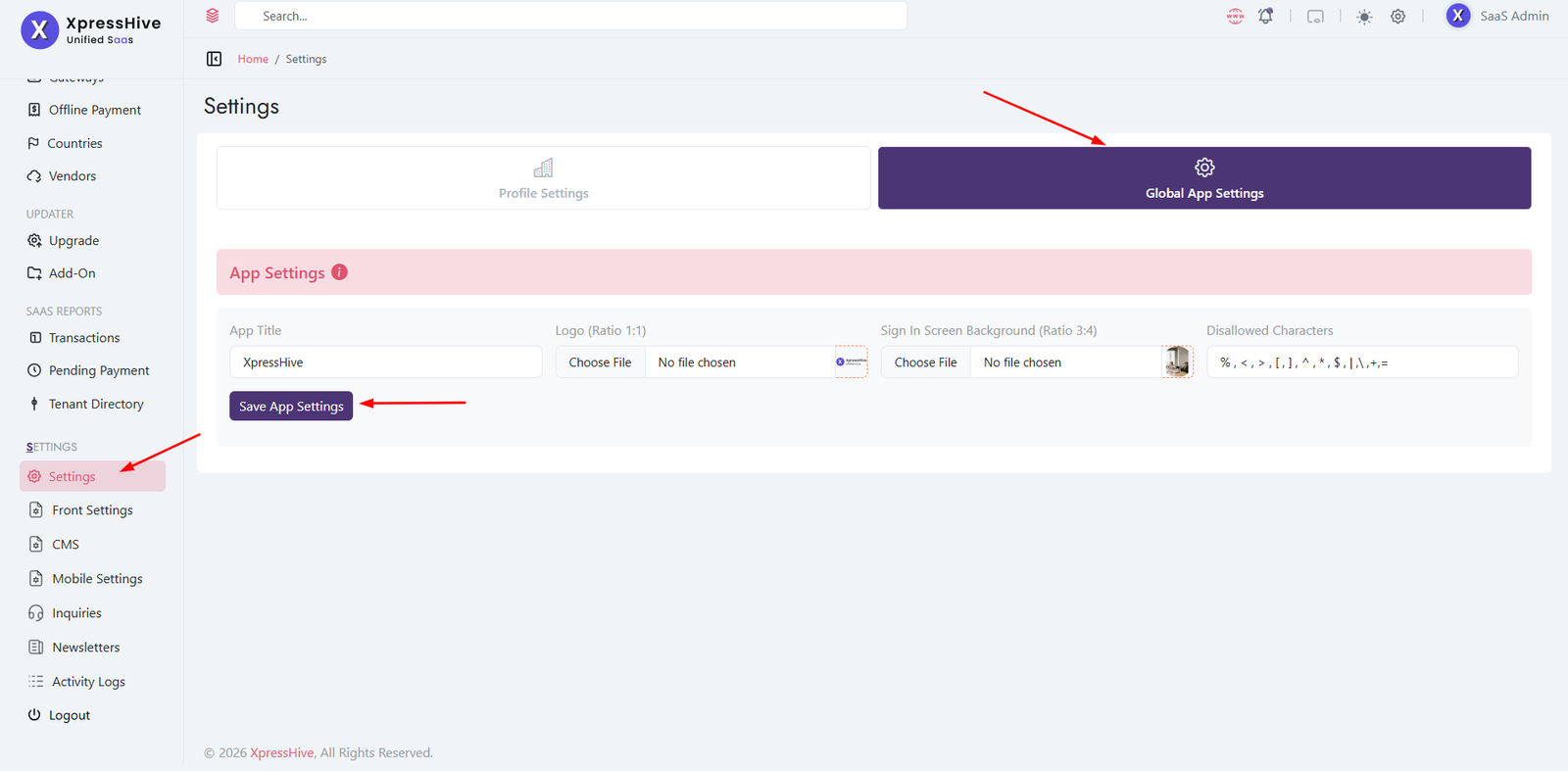
The Global App Settings section allows administrators to configure the
application's branding and general system preferences. These settings are
applied throughout the SaaS platform and help maintain a consistent user
experience.
-
App Title
Specifies the name of the SaaS application displayed throughout the
system.
- Appears in the browser title and application header.
- Represents your organization's branding.
-
Logo (Ratio 1:1)
Upload the primary application logo.
- Recommended aspect ratio: 1:1 (Square).
- Recommended sizes: 200×200 or 512×512 pixels.
- Displayed in the application header and login pages.
-
Sign In Screen Background (Ratio 3:4)
Upload the background image displayed on the sign-in page.
- Recommended aspect ratio: 3:4.
- Recommended sizes: 600×800 or higher.
- Enhances the appearance of the login screen.
-
Disallowed Characters
Define characters that are restricted from user input across the
application.
% , < , > , [ , ] , / , ^ , * , $ , | , \ , { , } , + , =
- Helps prevent invalid or unsafe input.
- Improves application security and data validation.
- Applied wherever input validation is enabled.
-
Save App Settings
After making changes, click Save App Settings to
apply the updated configuration.
- Changes are applied immediately after saving.
- Verify uploaded images before saving.
Frontend Theme Settings
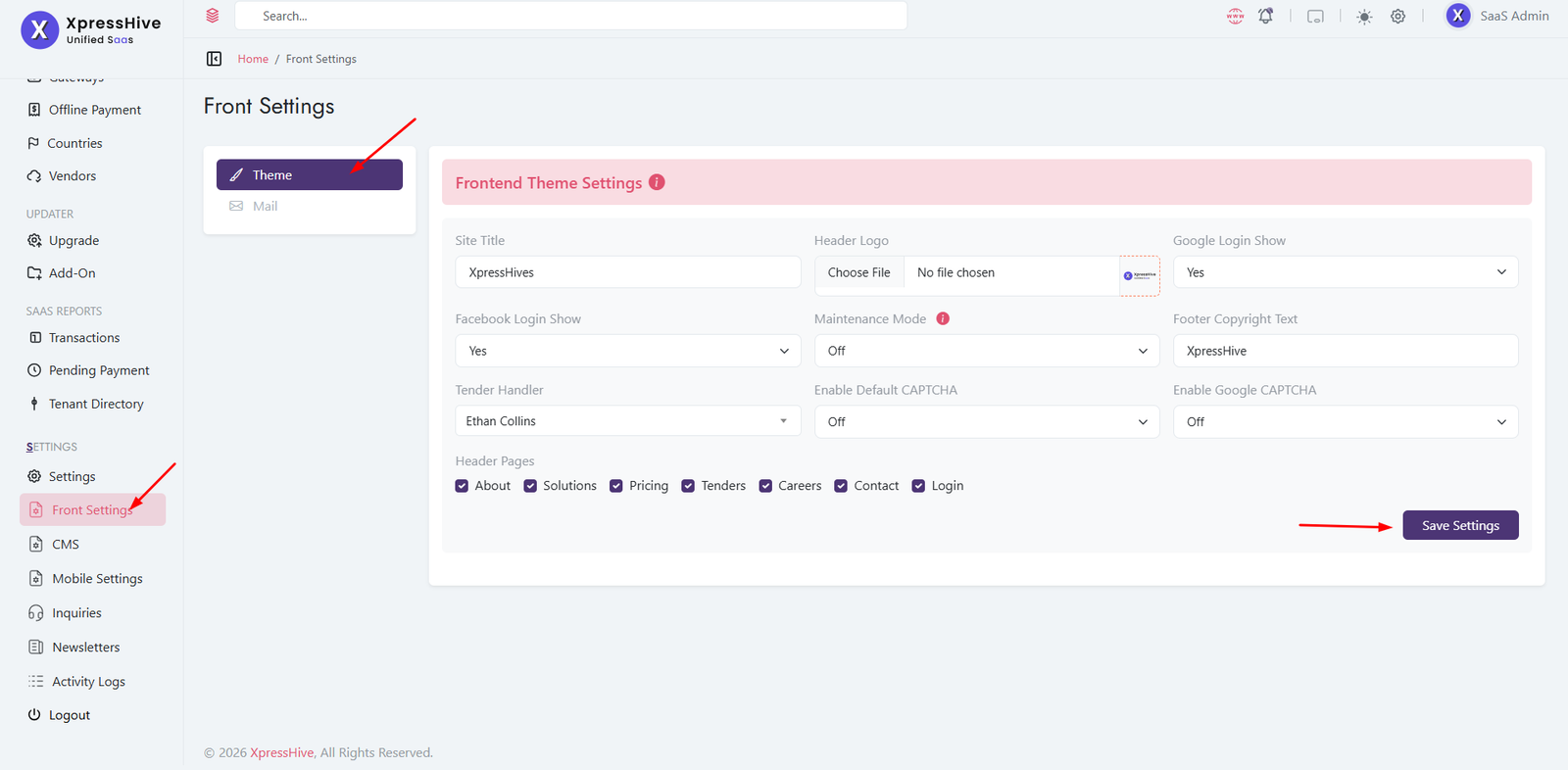
The Frontend Theme Settings section allows administrators to configure the
appearance, branding, navigation, authentication options, CAPTCHA, and
maintenance mode for the public website. These settings help customize the
visitor experience without modifying the application code.
-
Site Title
Defines the name displayed across the frontend website.
- Appears in the browser title and website branding.
- Represents your organization's public identity.
-
Header Logo
Upload the logo displayed in the website header.
- Use a high-quality transparent image.
- Displayed on all frontend pages.
-
Google Login
Enable or disable Google Sign-In for users.
- Allows users to authenticate using their Google account.
- Requires Google OAuth configuration.
-
Facebook Login
Enable or disable Facebook Sign-In.
- Allows users to log in using Facebook.
- Requires Facebook Developer credentials.
-
Maintenance Mode
Temporarily disable public access to the frontend website.
- Useful during maintenance or deployments.
- Administrators can continue managing the application.
-
Footer Copyright Text
Customize the copyright text displayed in the website footer.
- Supports your company or brand name.
- Visible on every frontend page.
-
Tender Handler
Select the default person responsible for handling website inquiries
related to tenders.
- Displayed where applicable on the website.
- Can be changed at any time.
-
Default CAPTCHA
Enable or disable the built-in CAPTCHA verification.
- Protects forms from spam submissions.
- Recommended when Google CAPTCHA is not configured.
-
Google CAPTCHA
Enable Google reCAPTCHA protection for frontend forms.
- Provides advanced bot protection.
- Requires Google reCAPTCHA API credentials.
-
Header Pages
Control which navigation links appear in the website header.
- Show or hide pages such as About, Solutions, Pricing, Tenders, Careers, Contact, and Login.
- Allows easy customization of the website navigation menu.
-
Save Settings
After making changes, click Save to apply the updated
frontend configuration.
- Changes are reflected immediately on the frontend website.
- Review all settings before saving.
Google reCAPTCHA Configuration
Google reCAPTCHA helps protect your application from spam and
automated abuse. Follow the steps below to generate
Site Key and Secret Key and
configure them in your system.
Step 1: Open Google reCAPTCHA Console
Go to:
https://www.google.com/recaptcha/admin/create
Step 2: Register a New Site

- Enter Label (your project name)
- Select reCAPTCHA v2
- Choose "I'm not a robot" Checkbox
- Add your domain (e.g.
yourdomain.com)
- Accept terms and click Submit
Step 3: Get Site Key & Secret Key
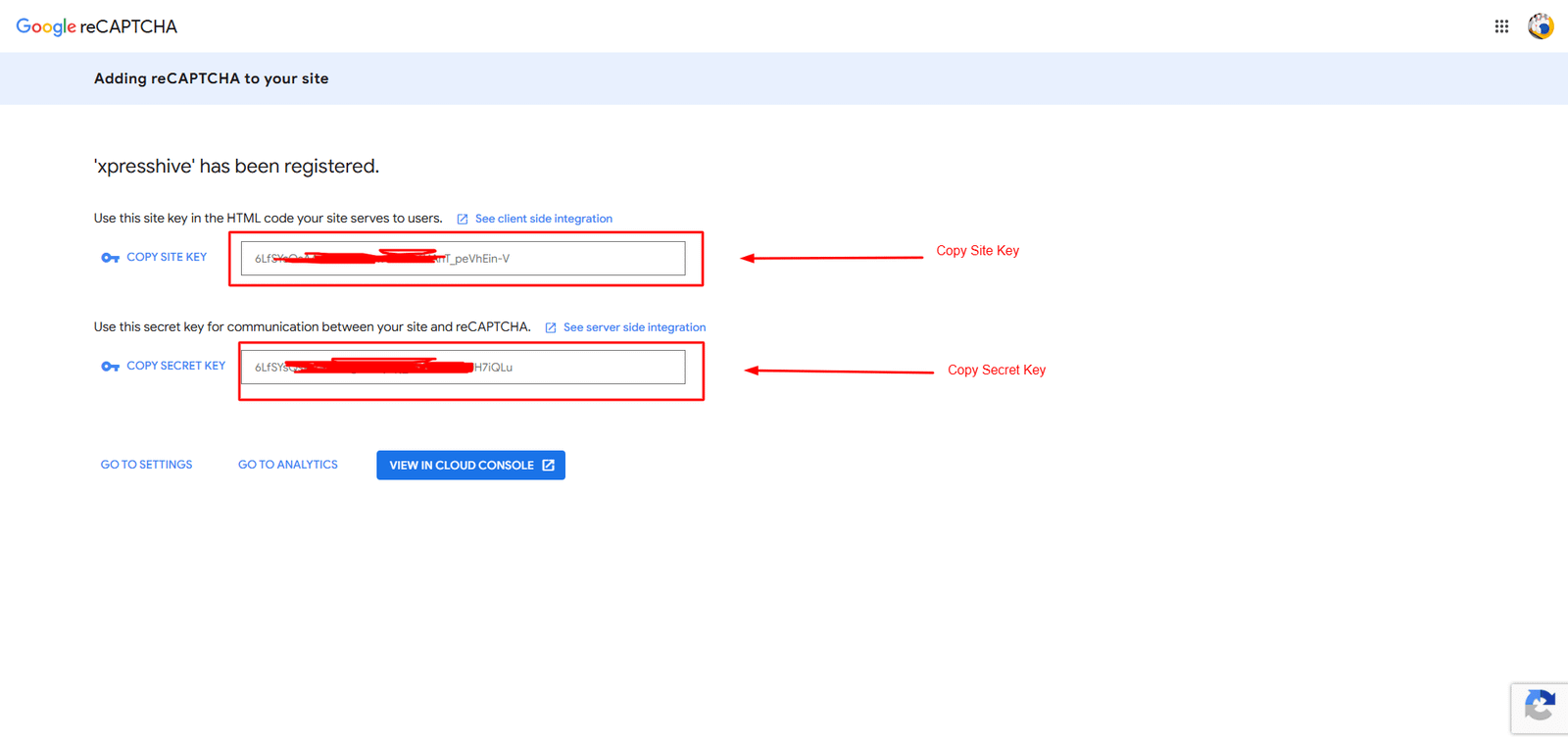
- After submission, Google will generate:
- Site Key
- Secret Key
- Copy both keys
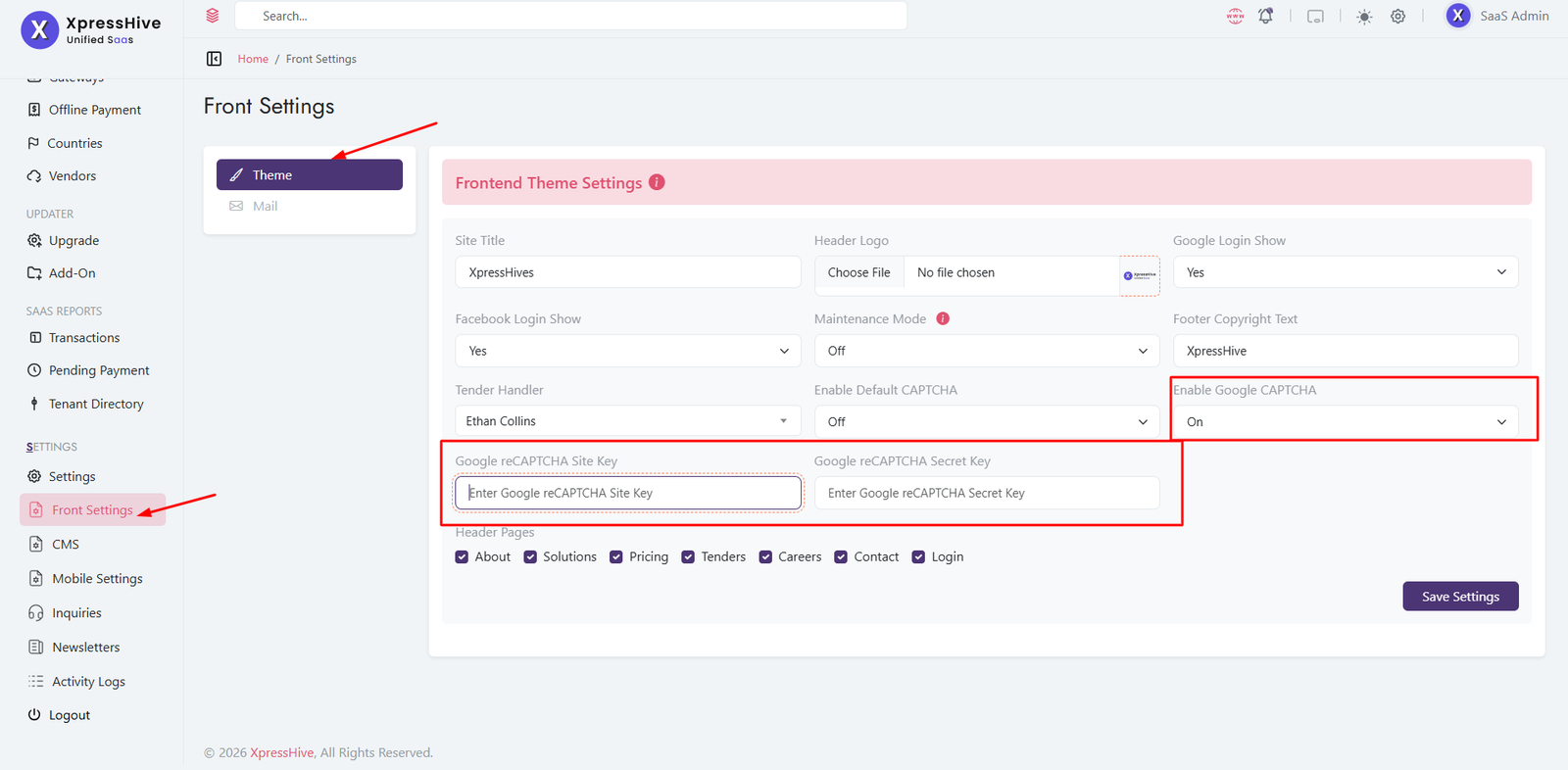
Step 4: Add Keys in XpressHive
-
Go to Admin Panel → Front Settings → Theme
- Enable Google CAPTCHA
- Enter the following:
- Google reCAPTCHA Site Key
- Google reCAPTCHA Secret Key
- Click Save Settings
Step 5: Verify Integration
- Open your login or form page
- Check if reCAPTCHA checkbox is visible
- Submit form to ensure validation works
Important Note
Make sure your domain is correctly added in the reCAPTCHA
settings. Otherwise, the CAPTCHA will not work properly.
Frontend Mail Settings
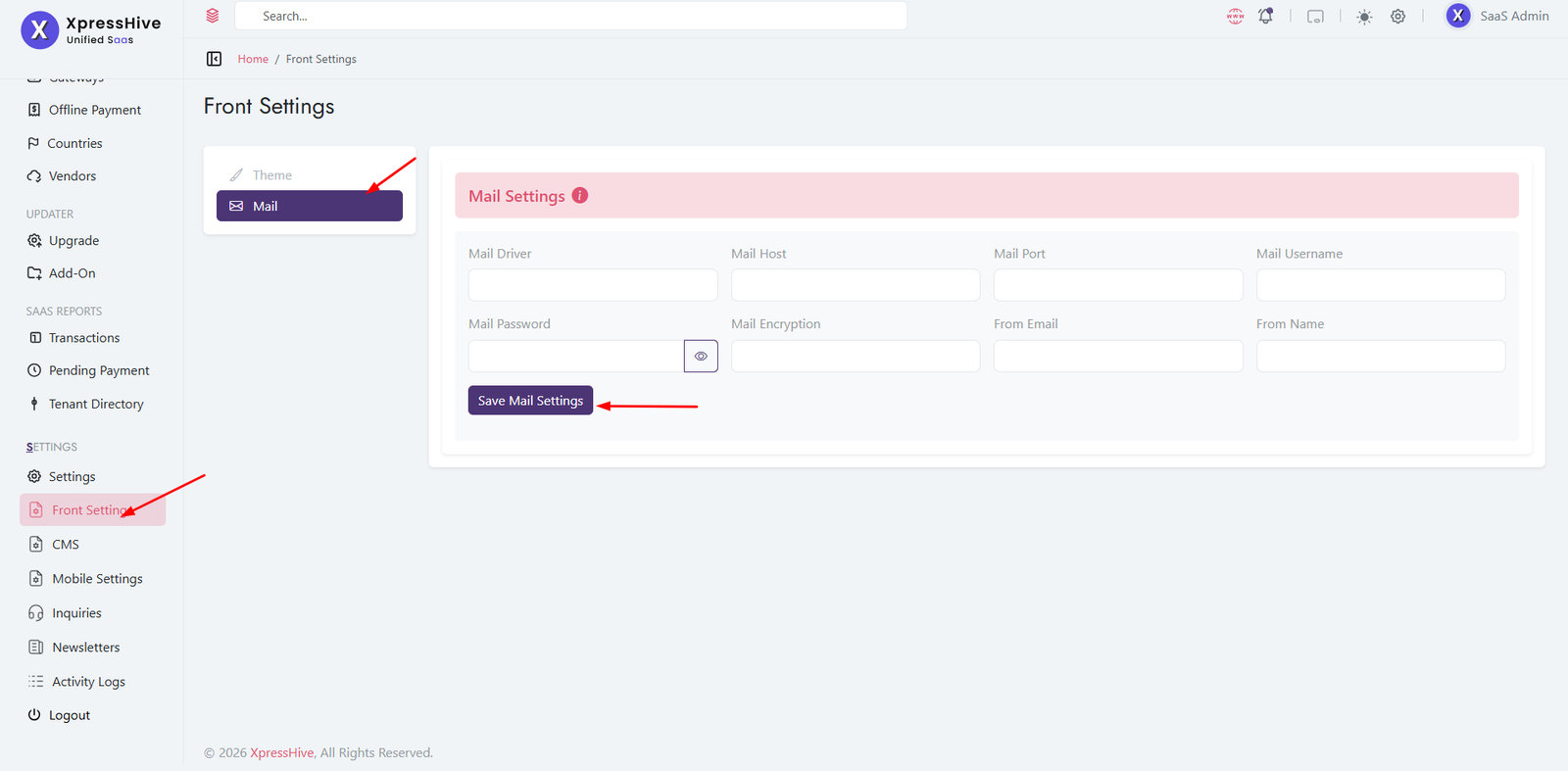
The Frontend Mail Settings section allows the SaaS administrator to
configure the SMTP server used for system-generated emails. These settings
are responsible for sending welcome emails, billing notifications, contact
form messages, password reset emails, newsletters, and other frontend email
communications.
-
Mail Driver
Select the mail transport method used by the application.
- Common values include SMTP, Sendmail, or other supported drivers.
- SMTP is the recommended option for production environments.
-
Mail Host
Specify the SMTP server hostname.
- Example:
smtp.gmail.com
- Must match your email provider's SMTP server.
-
Mail Port
Enter the SMTP server port.
- Common ports are 465 (SSL) and 587 (TLS).
- Use the port recommended by your mail provider.
-
Mail Username
Enter the email account used for SMTP authentication.
- Usually your full email address.
- Must have permission to send emails.
-
Mail Password
Enter the password or application-specific password for the SMTP account.
- Keep this credential secure.
- Some providers require an App Password instead of the account password.
-
Mail Encryption
Select the encryption protocol used for secure email transmission.
- Supported values typically include TLS and SSL.
- Choose the option recommended by your SMTP provider.
-
From Email
Specify the sender email address that appears in outgoing emails.
- Example:
noreply@yourdomain.com
- Should belong to your organization's domain.
-
From Name
Enter the sender name displayed to email recipients.
- Example: XpressHive
- Improves brand recognition in customer inboxes.
-
Save Mail Settings
Click Save Mail Settings after completing the SMTP
configuration.
- The new configuration is applied immediately.
- Verify all SMTP credentials before saving.
- Use these settings to ensure reliable email delivery.
Currency Management
Currency List
The Currency Management module allows administrators to create and
manage the currencies available throughout the SaaS platform. These
currencies are used for package pricing, tenant billing, payment
processing, and financial transactions.
-
Currency List
Displays all configured currencies in a searchable table.
- View currency name, code, symbol, exchange rate, default status, and availability.
- Use search and pagination to quickly locate currencies.
-
Exchange Rate
Defines the conversion value against the system's base currency.
- Used when calculating package prices and payment amounts.
- Should be updated whenever exchange rates change.
-
Default Currency
Indicates the primary currency used by the SaaS platform.
- Only one currency can be marked as the default.
- All default pricing calculations use this currency.
-
Status
Controls whether a currency is available for use.
- Active currencies can be assigned to packages and transactions.
- Inactive currencies are hidden from selection.
-
Actions
Manage each currency directly from the listing.
- Edit currency information.
- Delete currencies that are no longer required.
Add Currency

-
Currency Name
Enter the full name of the currency.
- Example: US Dollar, Euro, Indian Rupee.
-
Currency Code
Specify the ISO currency code.
- Examples: USD, INR, EUR, GBP.
-
Currency Symbol
Enter the symbol used for the currency.
-
Exchange Rate
Specify the conversion rate relative to the default currency.
- Used for automatic pricing and payment calculations.
-
Status
Select whether the currency should be Active or Inactive.
- Only active currencies are available throughout the application.
-
Set as Default Currency
Enable this option to make the currency the system's default.
- Only one default currency can exist at any time.
- Changing the default affects future pricing calculations.
-
Create Currency
Click Create Currency to save the new currency.
- The currency becomes available immediately after creation.
- Ensure all values are entered correctly before saving.
Payment Gateways
Payment Gateway List
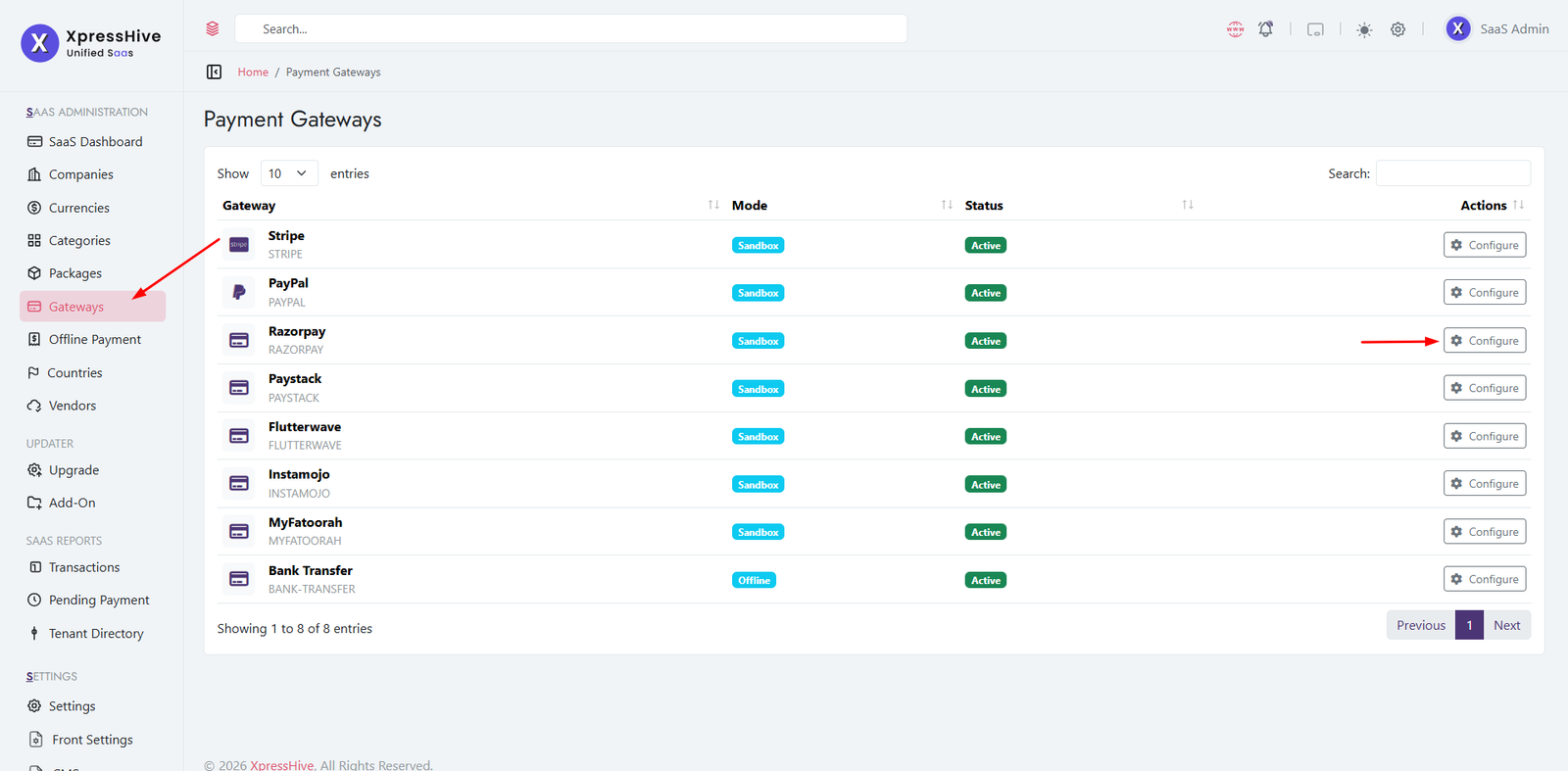
The Payment Gateways module allows administrators to configure and
manage online payment providers used for tenant subscriptions and
package purchases. Each gateway can be enabled, configured, and switched
between testing and live environments.
-
Gateway List
Displays all supported payment providers.
- View gateway name, environment mode, and current status.
- Supported gateways include Stripe, PayPal, Razorpay, Paystack, Flutterwave, Instamojo,
MyFatoorah, and Bank Transfer.
-
Environment Mode
Indicates whether the gateway is running in Sandbox or Live mode.
- Sandbox mode is recommended for testing.
- Live mode processes real customer payments.
-
Status
Controls whether the payment gateway is available for customers.
- Only active gateways appear during checkout.
- Inactive gateways are hidden from payment options.
-
Configure
Click the Configure button to update gateway credentials and settings.
Configure Payment Gateway
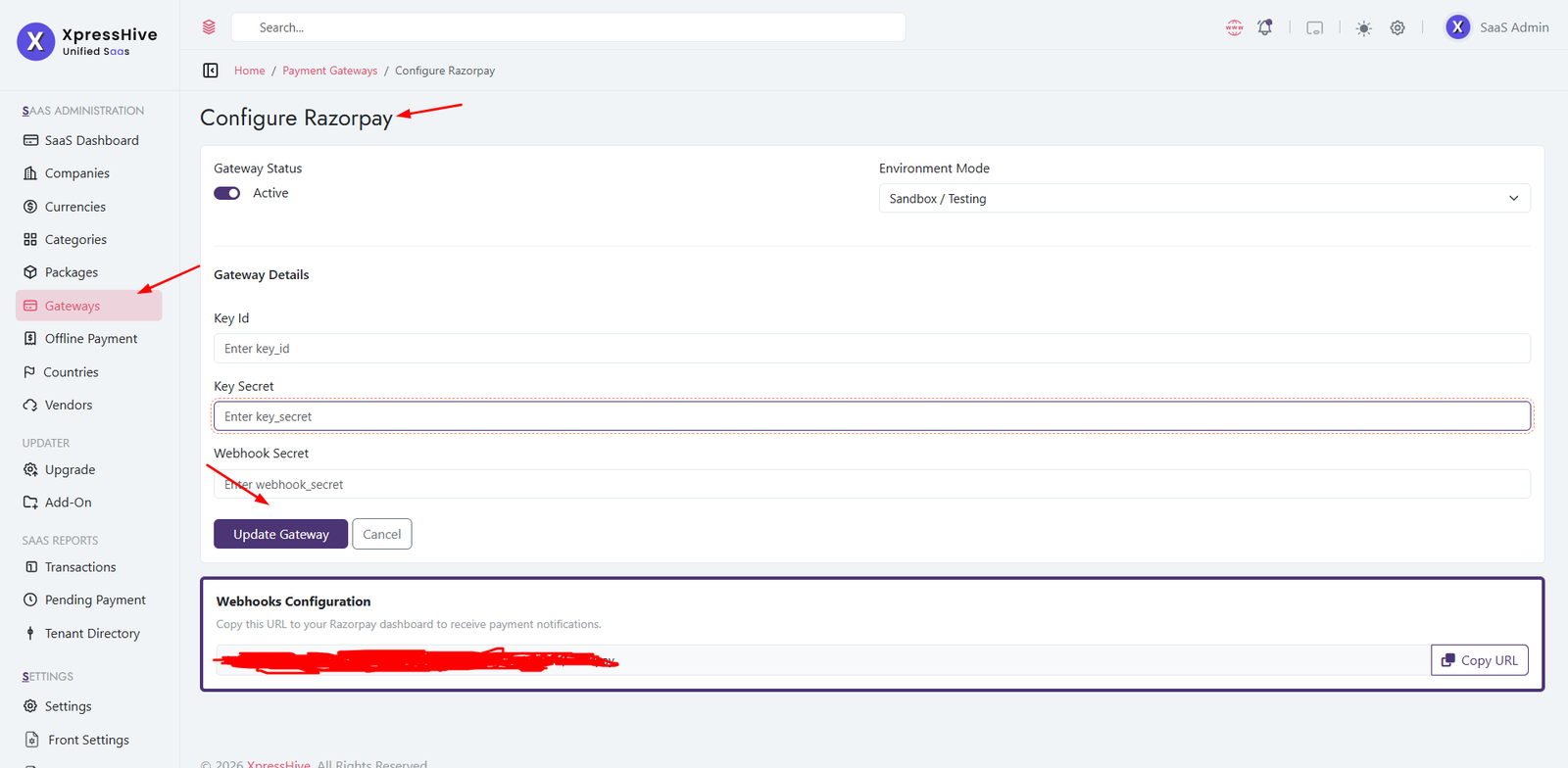
-
Gateway Status
Enable or disable the selected payment gateway.
- Only enabled gateways can process payments.
-
Environment Mode
Select the operating environment.
- Sandbox / Testing – Used for testing transactions.
- Live / Production – Used for real customer payments.
-
Gateway Credentials
Enter the API credentials provided by the payment service.
- API Key / Key ID
- API Secret / Secret Key
- Webhook Secret (if supported)
-
Webhook Configuration
Copy the generated webhook URL and configure it in your payment provider's dashboard.
- Used to receive payment confirmations automatically.
- Ensures subscription status is updated after successful payments.
-
Update Gateway
Click Update Gateway to save the configuration.
- Verify all credentials before switching to Live mode.
- Perform a test transaction after updating the configuration.
Package Management
Package List

The Package Management module allows SaaS administrators to create,
manage, and organize subscription plans offered to tenants. Each package
defines pricing, usage limits, available modules, storage allocation,
and publishing preferences.
-
Package List
Displays all available subscription packages.
- View package name, pricing, limits, and current status.
- Search, edit, or delete packages from the listing.
-
Pricing
Shows monthly and yearly subscription prices along with any
discounted pricing.
- Supports both monthly and yearly billing plans.
- Discounted prices can be configured independently.
-
Usage Limits
Displays the resource limits assigned to each package.
- Employee limit.
- Tender publishing limit.
- Job posting limit.
-
Status
Indicates whether the package is currently available for purchase.
- Only active packages are visible to customers.
-
Actions
Manage packages directly from the listing.
- Edit existing packages.
- Delete unused packages.
Create Package
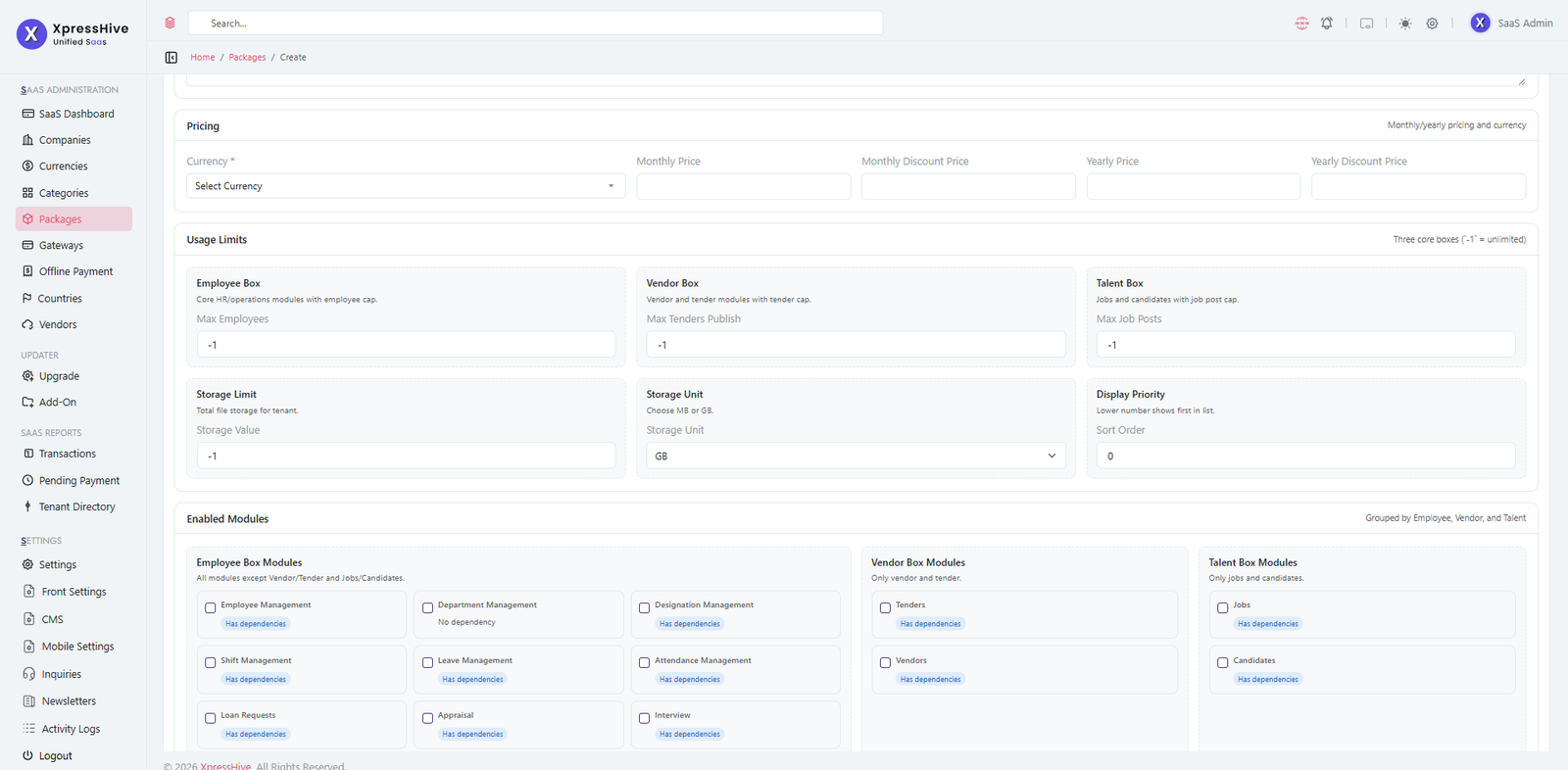
-
Basic Details
Enter the basic information for the subscription package.
- Package Name.
- Description.
-
Pricing
Configure subscription pricing.
- Select the billing currency.
- Monthly Price.
- Monthly Discount Price.
- Yearly Price.
- Yearly Discount Price.
-
Usage Limits
Define resource limits available for tenants using this package.
- Maximum Employees.
- Maximum Tender Publications.
- Maximum Job Posts.
- Storage Limit.
- Storage Unit (MB or GB).
- Display Priority (Sort Order).
- Enter -1 for unlimited usage.
-
Enabled Modules
Select which modules are included in the package.
- Employee Modules (HR, Payroll, Projects, Attendance, etc.).
- Vendor Modules (Vendors and Tenders).
- Talent Modules (Jobs and Candidates).
- Modules with dependencies automatically indicate related requirements.
-
Publishing Settings
Configure package visibility.
- Set the package as Active or Inactive.
- Mark the package as Recommended to highlight it on the pricing page.
-
Create Package
Click Create Package to save the package.
- The package becomes available immediately if marked Active.
- Verify pricing, limits, and selected modules before saving.
Category
Category List
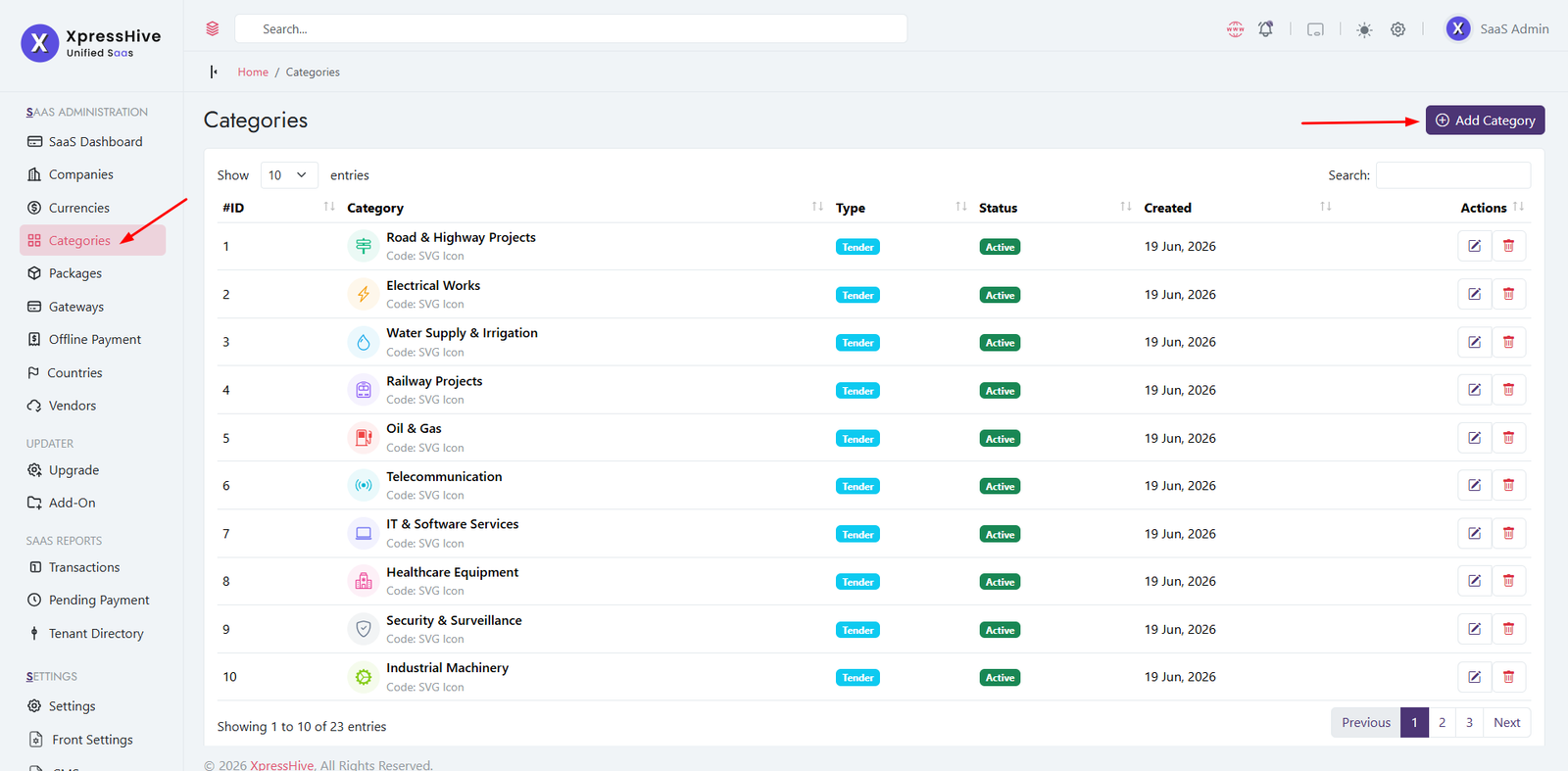
The Category module allows administrators to create and
organize categories used throughout the application. Categories help
classify records such as tenders and jobs, making information easier to
manage, search, and filter.
-
Category List
Displays all available categories in a searchable table.
- View the category name, icon, type, status, and creation date.
- Search categories using the search box.
- Navigate through records using pagination.
-
Category Type
Indicates where the category is used within the application.
- Tender categories organize published tenders.
- Job categories organize job postings.
-
Status
Shows whether the category is available for use.
- Active categories are available throughout the application.
- Inactive categories are hidden from selection lists.
-
Actions
Manage categories directly from the listing.
- Edit existing category information.
- Delete categories that are no longer required.
Add Category
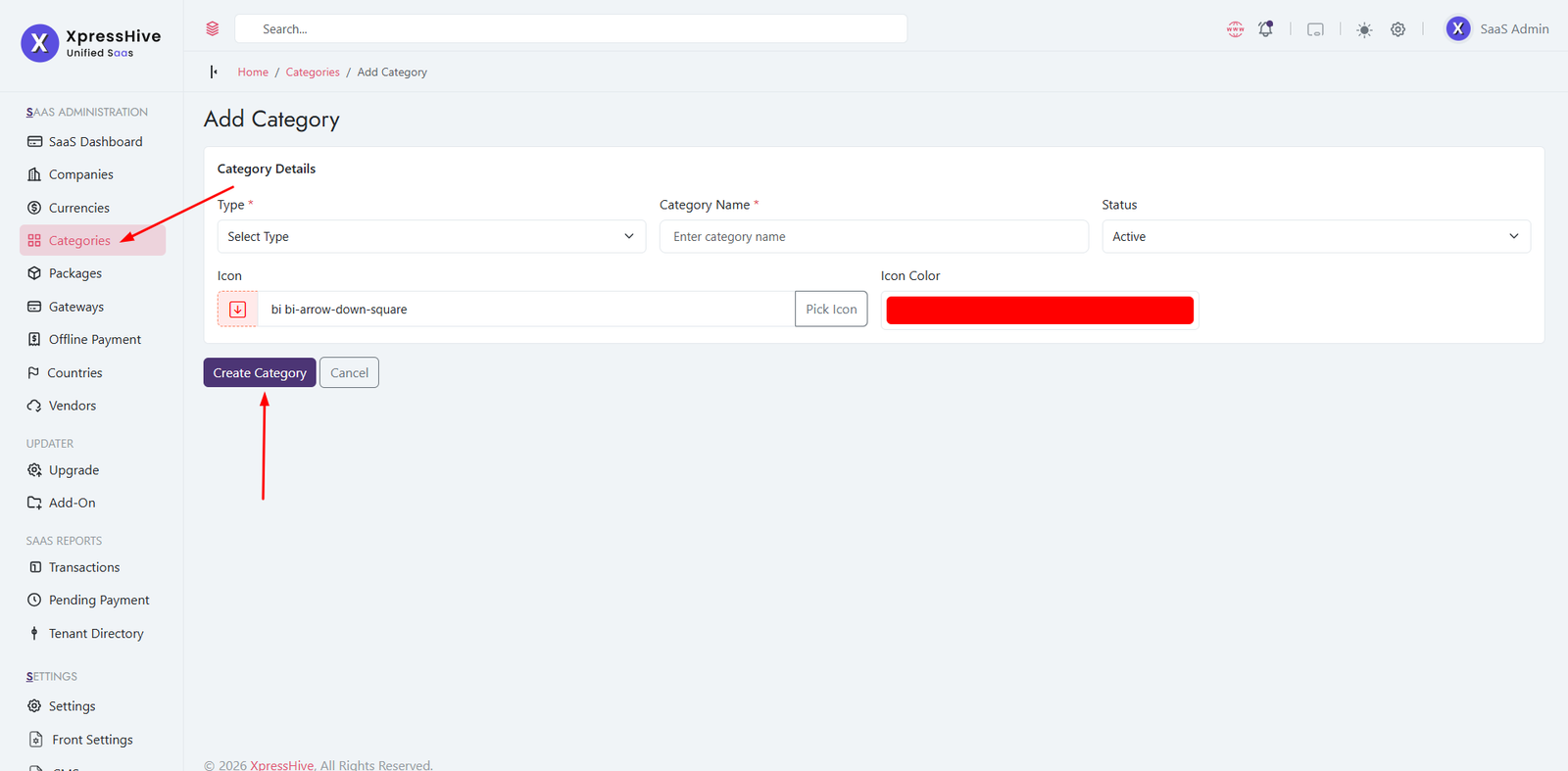
-
Type
Select the module where this category will be used.
- Available options include Tender and Job.
- The selected type determines where the category appears.
-
Category Name
Enter a descriptive name for the category.
- Use clear and meaningful names.
- Avoid duplicate category names within the same type.
-
Status
Choose whether the category should be Active or Inactive.
- Only active categories are available for selection.
-
Category Icon
Assign an icon to visually represent the category.
- Click Pick Icon to choose an icon.
- The selected icon appears wherever the category is displayed.
-
Icon Color
Choose the display color for the selected icon.
- Helps visually distinguish categories.
- Select a color that matches your branding or preference.
-
Create Category
Click Create Category to save the new category.
- The category becomes available immediately if marked Active.
- Review all information before saving.
Offline Payments
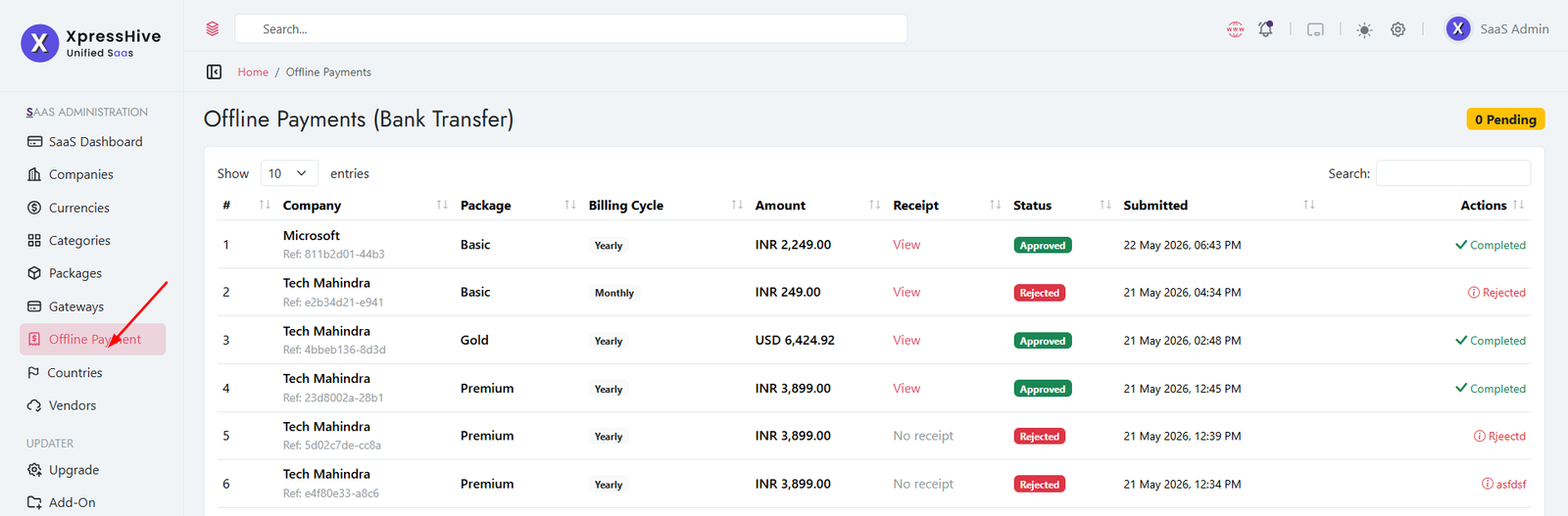
-
1. Company Selects a Subscription Package
The company chooses a subscription package and selects
Bank Transfer (Offline Payment) during checkout.
-
2. Payment is Submitted
After completing the bank transfer, the company uploads the
payment receipt and submits the payment request.
-
3. Administrator Reviews the Payment
The SaaS administrator verifies the submitted payment details and
reviews the uploaded receipt.
-
4. Approve or Reject
The administrator decides whether the payment is valid.
- Approve – Activates the subscription.
- Reject – Rejects the payment request with an optional reason.
-
5. Subscription Activation
Once the payment is approved, the system automatically activates
the selected subscription package.
- The subscription starts immediately.
- The selected billing cycle (Monthly or Yearly) is applied.
- Package limits become effective.
- Enabled modules are assigned to the company.
- The tenant can immediately access all purchased features.
Countries
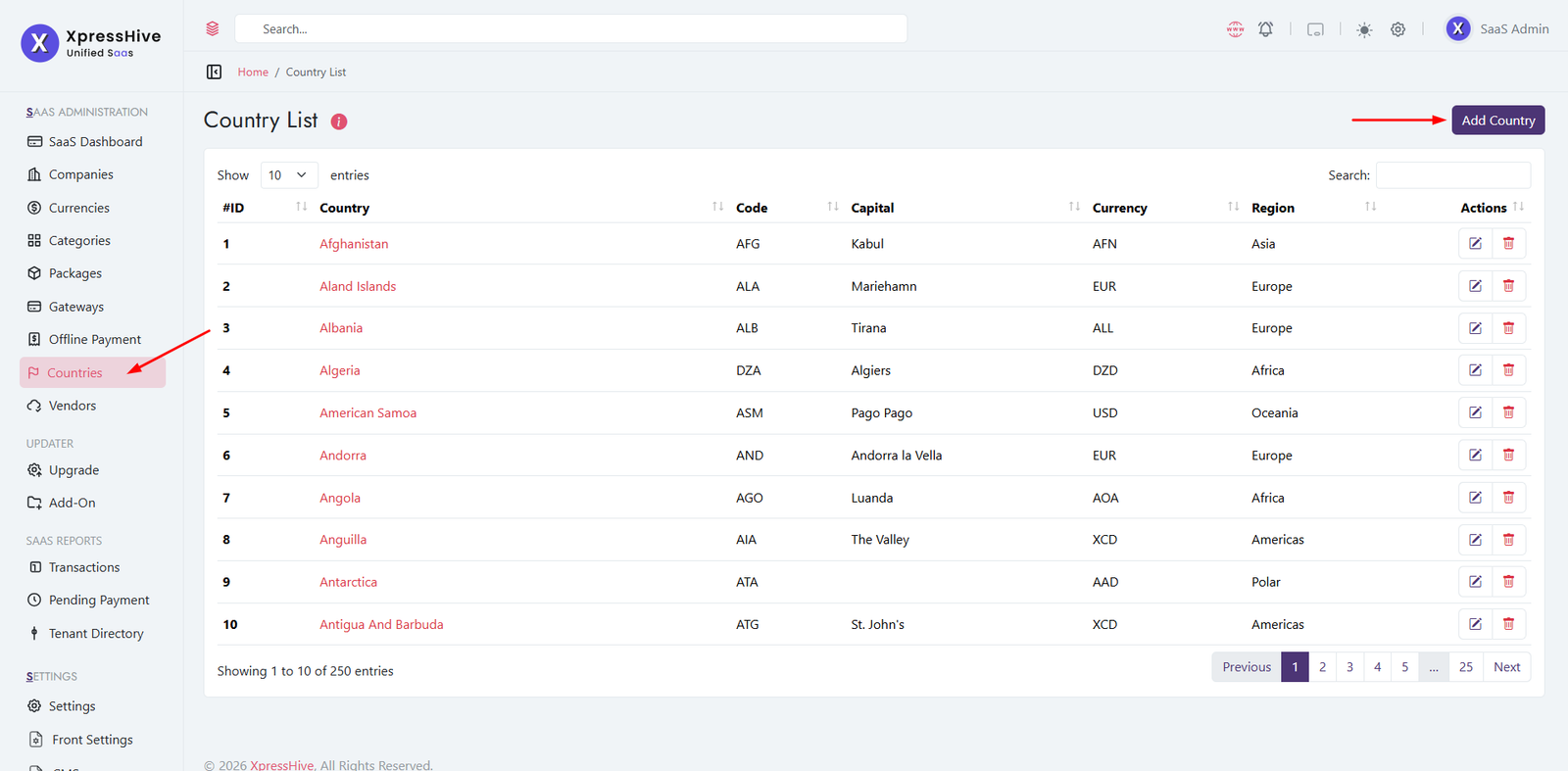
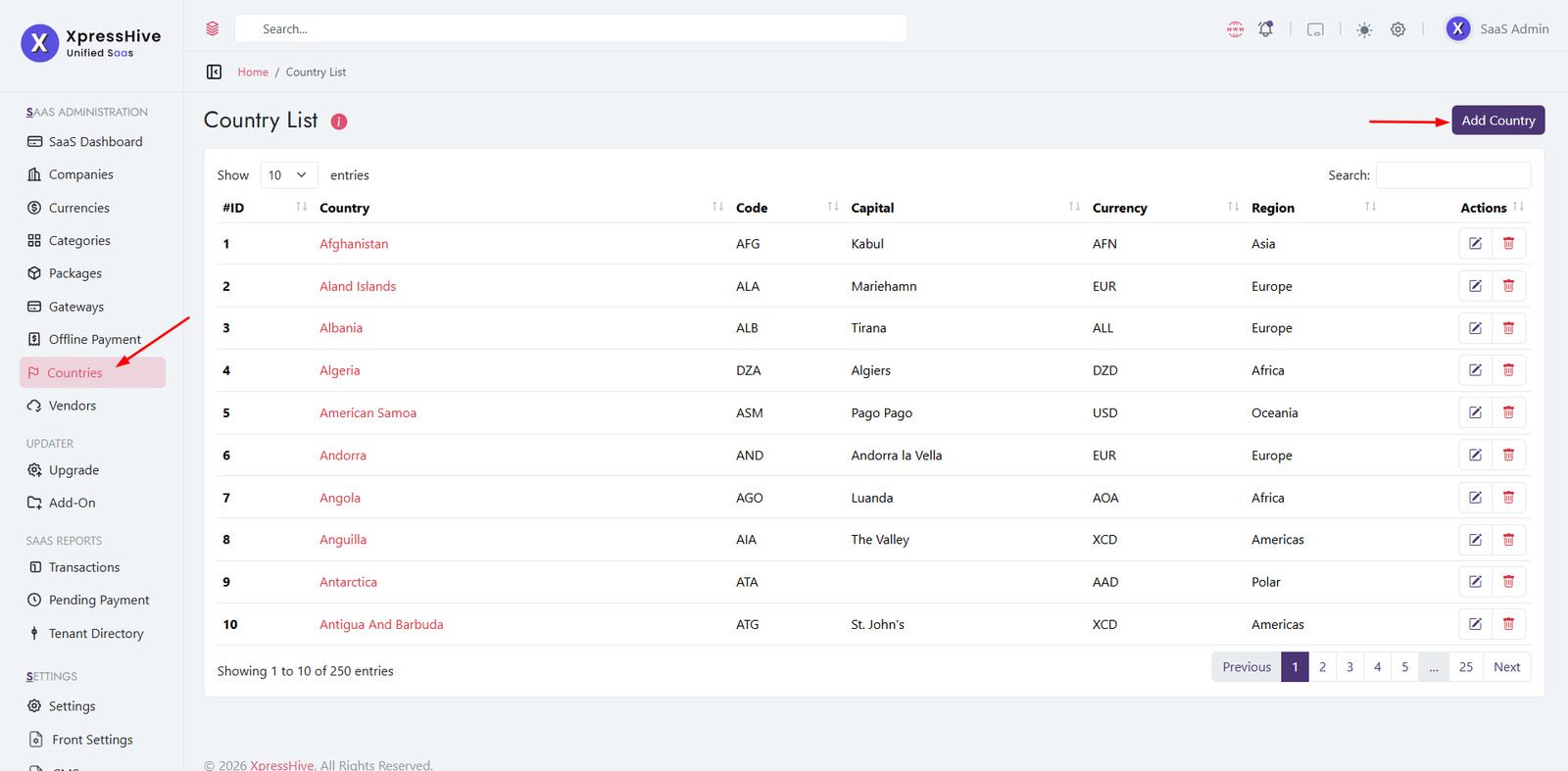
The Countries module manages the master list of countries used throughout
the SaaS platform. It stores country-specific information such as currency,
region, phone codes, capitals, and timezone data, ensuring consistent
information across all tenants.
-
View Countries
The country list displays all available countries configured in
the system.
- View country name and ISO code.
- Display capital city and default currency.
- View geographical region.
- Search and paginate through countries.
-
Add New Country
Administrators can create a new country by providing complete
country information.
- Country Name
- ISO Code and ISO2 Code
- Numeric Country Code
- Phone Code
- Capital City
- Currency Name, Code, and Symbol
- Region and Sub Region
- Latitude and Longitude
- Timezone Information
- Native Name and Emoji
-
Edit Country
Existing country information can be updated whenever required.
- Modify geographical information.
- Update currency or phone codes.
- Maintain accurate timezone details.
-
Delete Country
Remove countries that are no longer required by the system.
- Deletion should only be performed if the country is not referenced by other records.
-
Search & Navigation
The listing page provides quick navigation for large datasets.
- Search countries instantly.
- Sortable columns.
- Pagination for efficient browsing.
-
System Usage
Country information is shared across multiple SaaS modules.
- Company Registration
- Employee Profiles
- Vendor Management
- Customer Information
- Address Management
- Currency & Localization
Companies


The Companies module is the core tenant management feature of the XpressHive SaaS
platform. Every organization that registers on the platform is created as an
independent company (tenant) with its own administrator, subscription,
domain/subdomain, settings, and isolated workspace.
-
Company Listing
The Companies page provides a complete overview of all registered
tenants within the SaaS platform.
- View company logo and company name.
- Display company email and phone number.
- View account status (Active/Inactive).
- Display company creation date.
- Search companies instantly.
- View, edit, or delete companies using action buttons.
-
Create Company
Administrators can register a new tenant by providing company and
administrator information.
- Company Name
- Company Email Address
- Company Phone Number
- Company Website (Optional)
- Subdomain or Custom Domain
- Default Currency
- Default Timezone
- Country
- Company Status
- Company Logo
- Company Address
- Administrator Full Name
- Administrator Email Address
- Administrator Password
-
Company Details
Each company has a dedicated profile page containing business,
administrator, subscription, and domain information.
- View company profile and branding.
- Display company contact information.
- View country, currency, and timezone.
- Display administrator account details.
- View company status.
- Monitor company creation date.
-
Subscription Management
Manage package assignments and renewals directly from the company
profile.
- Assign a package to the company.
- Upgrade or downgrade existing plans.
- Select Monthly or Yearly billing cycle.
- Add optional invoice reference.
- Activate subscriptions immediately.
- Display the currently active package.
-
Subscription History
Maintain a complete history of all subscriptions purchased by the
company.
- View purchased package.
- Display billing cycle.
- View payment amount.
- Display subscription duration.
- Track Active, Current, and Expired plans.
- Download payment receipts.
- Force Activate expired subscriptions.
- Force Deactivate current subscriptions.
-
Administrator Information
Displays the primary administrator responsible for managing the
company's workspace.
- Administrator Name
- Administrator Email
- Account Status
- Last Login Information
-
Domain Management
Configure tenant domains or subdomains for accessing the company
workspace.
- Add a custom domain.
- Add a tenant subdomain.
- View all attached domains.
- Manage multiple domains for a company.
-
Action Center
Perform important administrative actions for the selected company.
- Edit company configuration.
- Update company settings and logo.
- Terminate company access when required.
-
Edit Company
Company information can be modified at any time.
- Update business information.
- Modify company logo.
- Change currency or timezone.
- Update contact details.
- Change company status.
-
Delete Company
Remove companies that are no longer required.
- Delete inactive or unused companies.
- Ensure important company data has been backed up before deletion.
-
Search & Navigation
Quickly locate companies using the built-in search and navigation
features.
- Search by company name.
- Search by email address.
- Browse companies using pagination.
- Access company actions directly from the listing page.
CMS - Frontend Website Content Management
CMS Dashboard
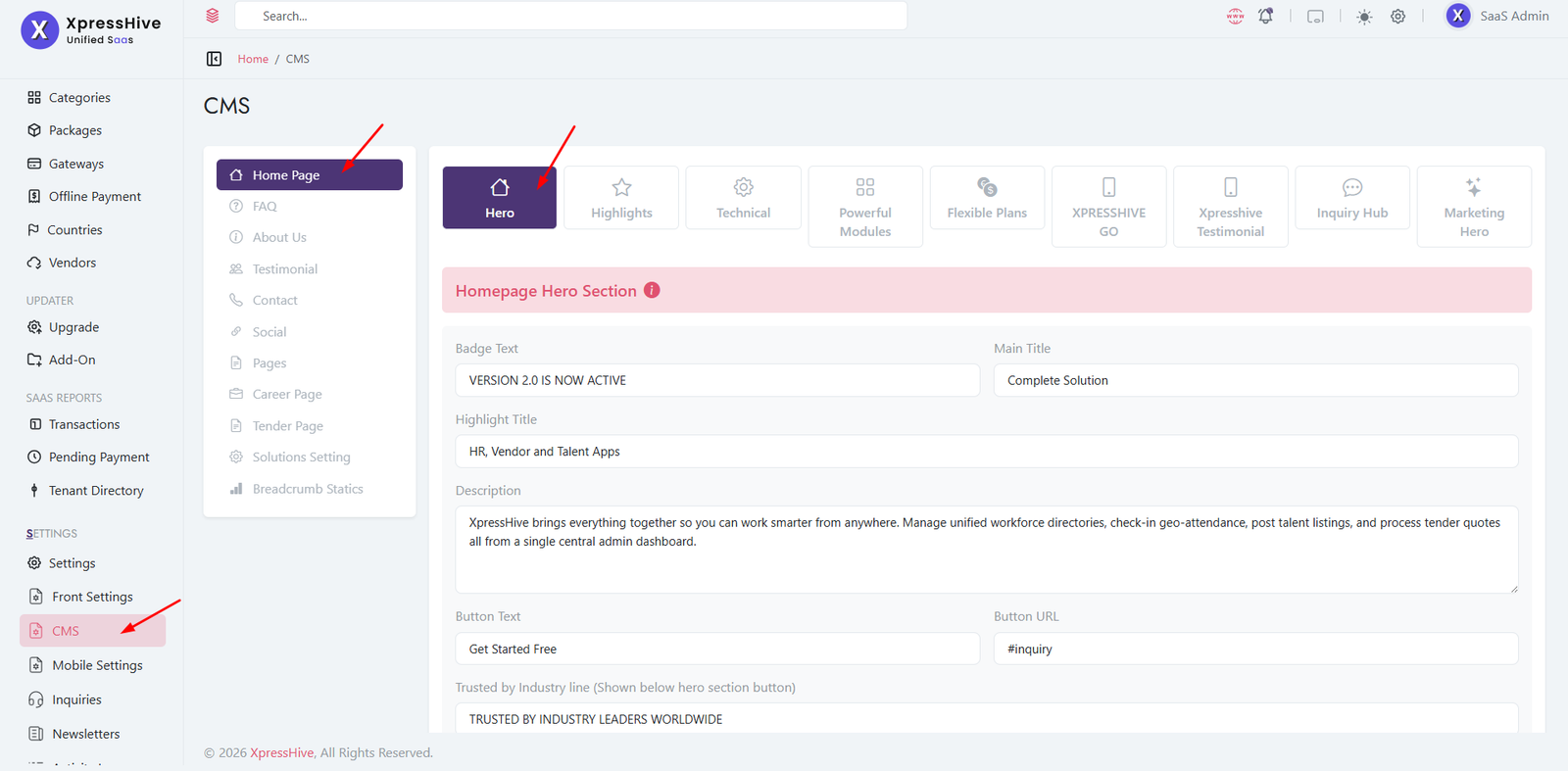
-
The CMS module allows administrators to manage all frontend
website content without modifying the source code.
-
Content can be updated instantly through the admin panel and
reflected on the website.
-
Each website section has dedicated settings for text, images,
buttons, and display content.
-
This makes it easy to maintain marketing pages, landing pages,
and company information.
Available CMS Sections
-
Hero: Update homepage banner title, subtitle,
badge, description, buttons, and images.
-
Highlights: Manage feature cards, statistics,
and key business highlights displayed on the homepage.
-
Technical: Configure technical feature
content, icons, descriptions, and supporting information.
-
Powerful Modules: Display available software
modules with icons, titles, and descriptions.
-
Flexible Plans: Manage pricing section
titles, plan descriptions, and related content.
-
XpressHive GO: Update mobile application
section including headings, descriptions, screenshots, and
download links.
-
XpressHive Testimonial: Add, edit, or remove
customer testimonials, ratings, and profile information.
-
Inquiry Hub: Configure inquiry/contact
section content and call-to-action details.
-
Marketing Hero: Manage promotional banner
content, marketing headlines, and action buttons.
How to Update Content
-
Select the required CMS section from the available tabs.
-
Modify text, titles, descriptions, images, icons, or buttons.
- Upload new images where applicable.
- Review the entered content carefully.
-
Click Save to publish the changes on the
frontend website.
Features
- Manage homepage content without coding.
-
Update images, titles, descriptions, and call-to-action
buttons.
-
Maintain a consistent website layout through predefined
sections.
- Quickly publish content updates from the admin panel.
- Supports dynamic frontend content management.
Important Notes
- Use high-quality images with recommended dimensions.
- Keep headings concise and descriptions informative.
- Preview content after making changes.
-
Click Save before leaving the page to avoid
losing updates.
Mobile Settings - Mobile app settings
Update page headings and app store links from one place.
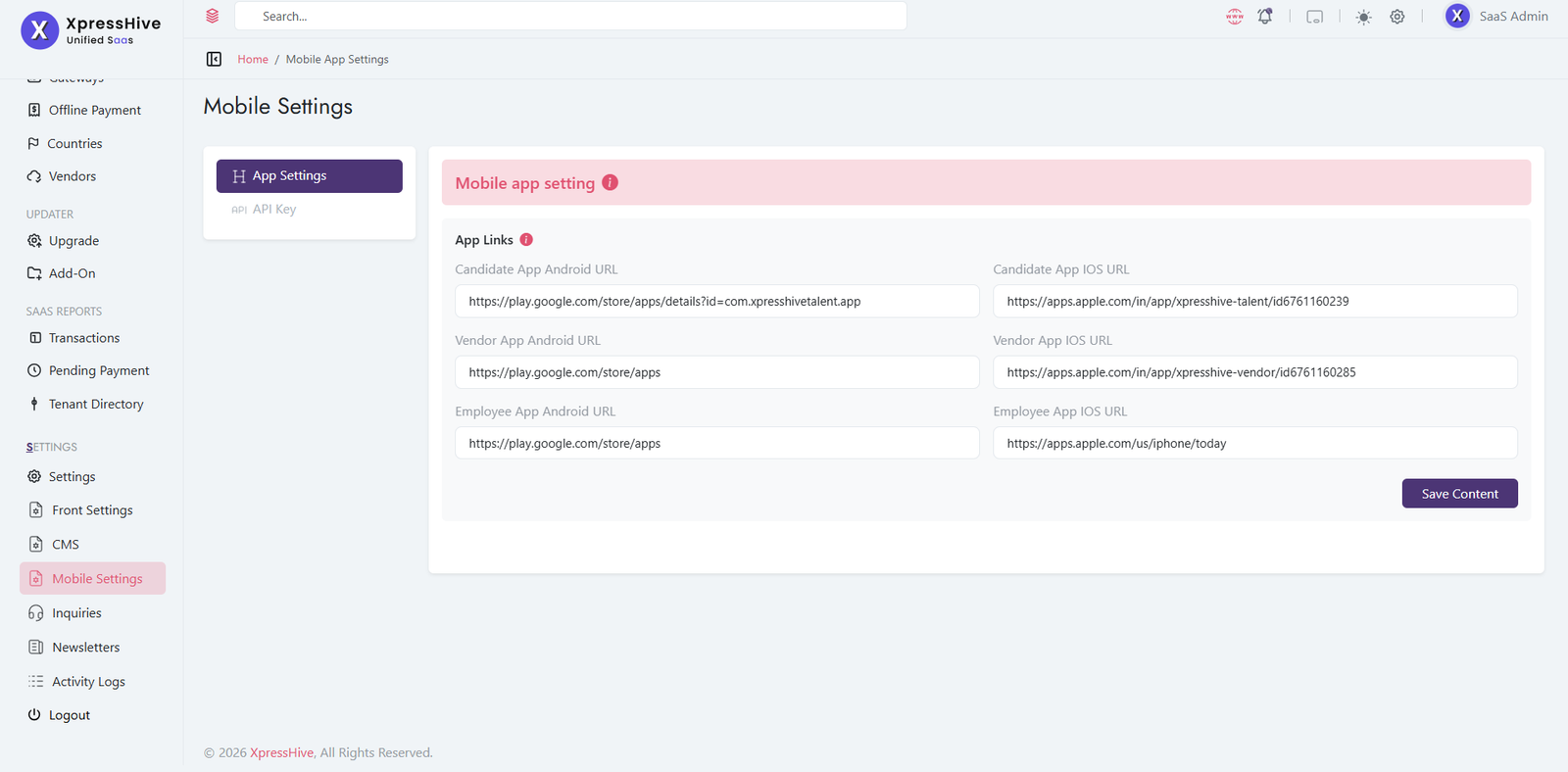
- Manage mobile application link dynamic.
Mobile Settings - Manage API Key
Create API Key
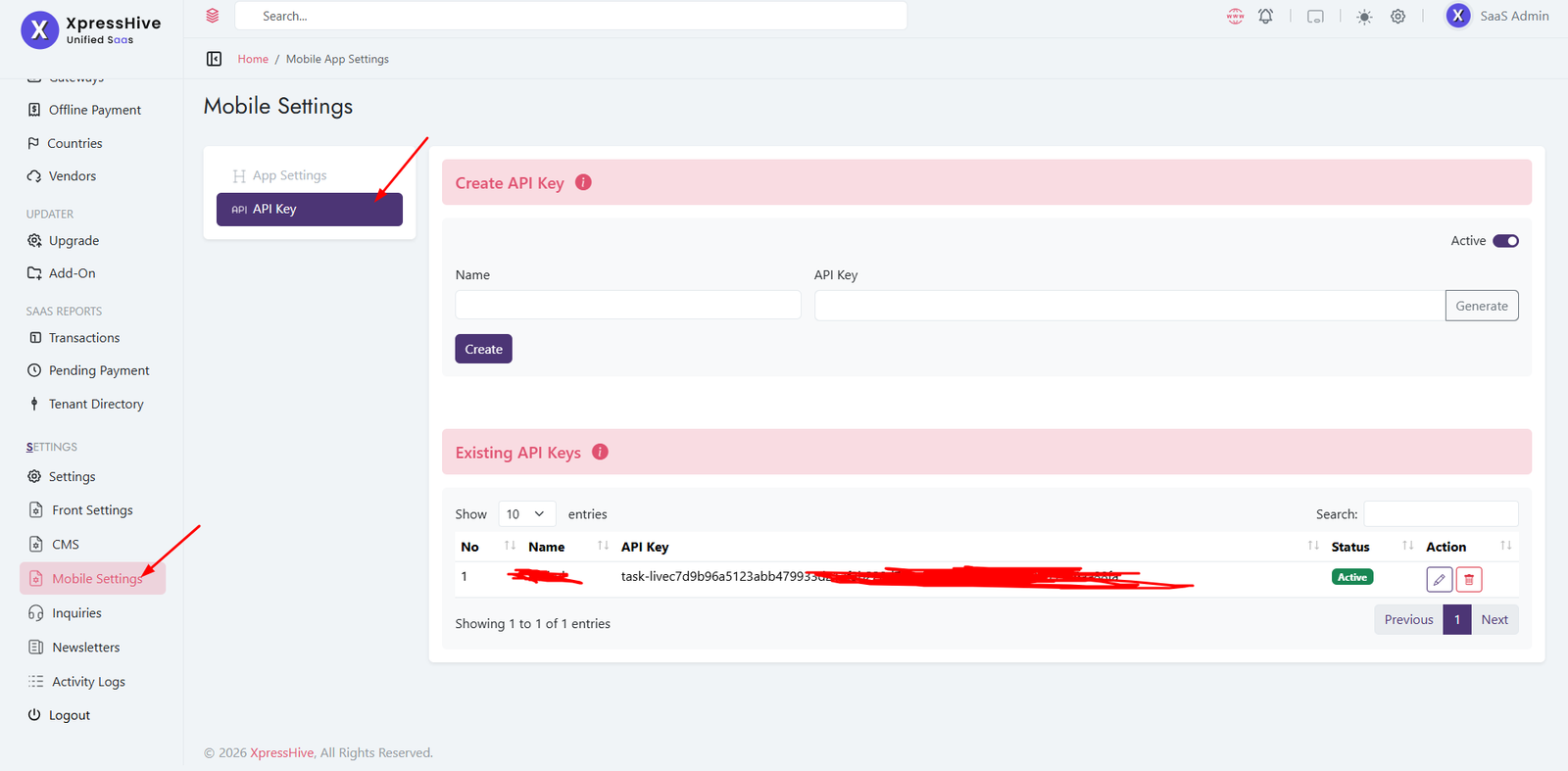
-
The Manage API Key section allows you to generate and manage
API keys for mobile app access
-
API keys are used to securely connect the mobile app with the
backend system
- Each key is unique and can be activated or deactivated
- This ensures controlled and secure API usage
Create API Key
-
Name: Enter a label for the API key (e.g.,
Mobile App, Admin App)
-
API Key: Click Generate to
auto-create a unique key
- Status: Set Active or Inactive
- Create: Click to save the API key
Existing API Keys
- View all generated API keys in a table
- Check name, key value, and status
- Edit or delete API keys anytime
- Deactivate keys to block access instantly
Usage
- Used for authenticating mobile app API requests
- Ensures only authorized apps can access the system
- Helps manage multiple app integrations
Important Notes
- Keep API keys secure and do not expose publicly
- Regenerate keys if compromised
- Use different keys for different applications
- Always save changes after generating a key
Firebase Configuration (Google & Facebook Login)
Firebase is required to enable
Google and Facebook social login. Follow the
steps below to configure it properly.
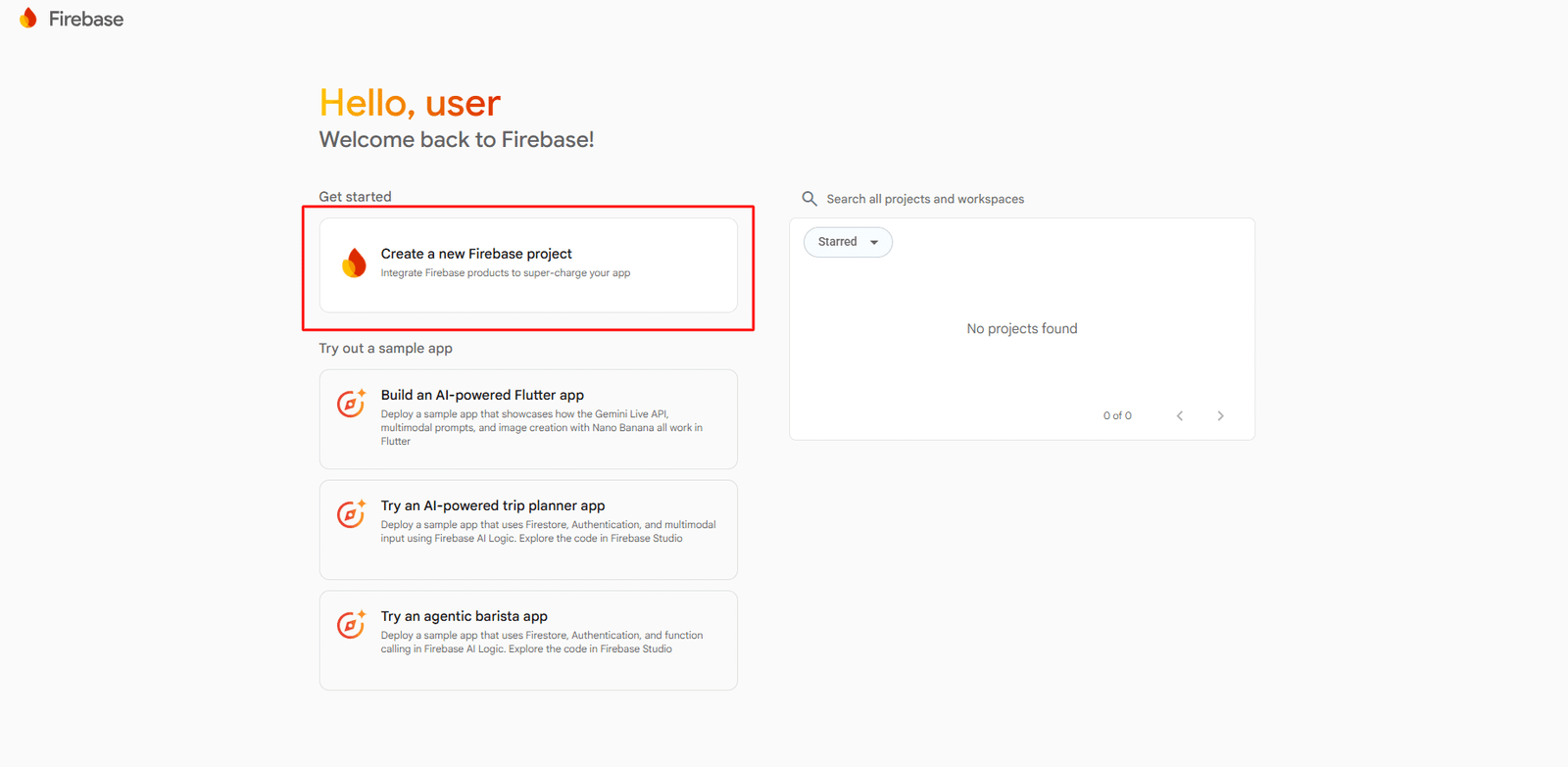
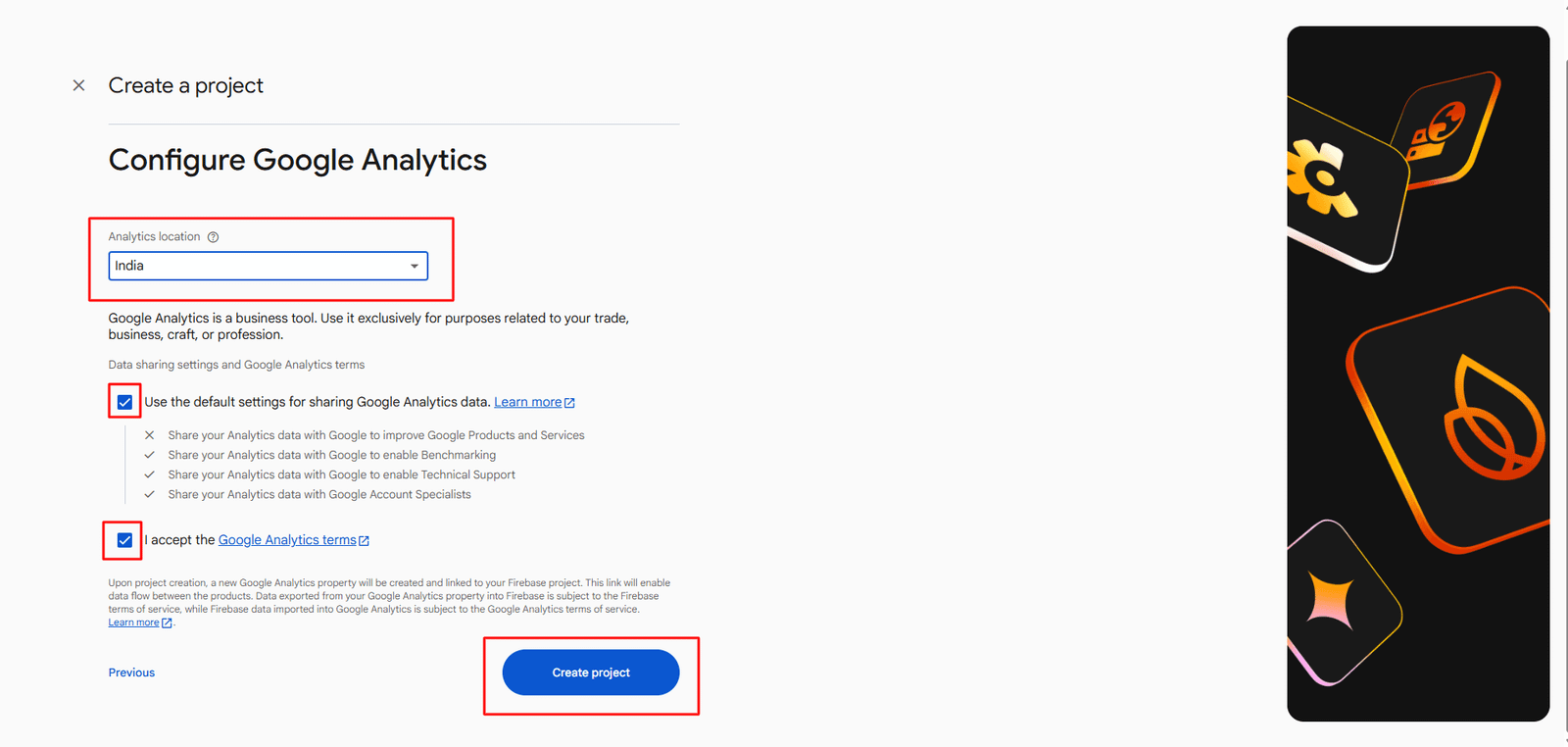
Step 1: Create Firebase Project
-
Open
Firebase Console
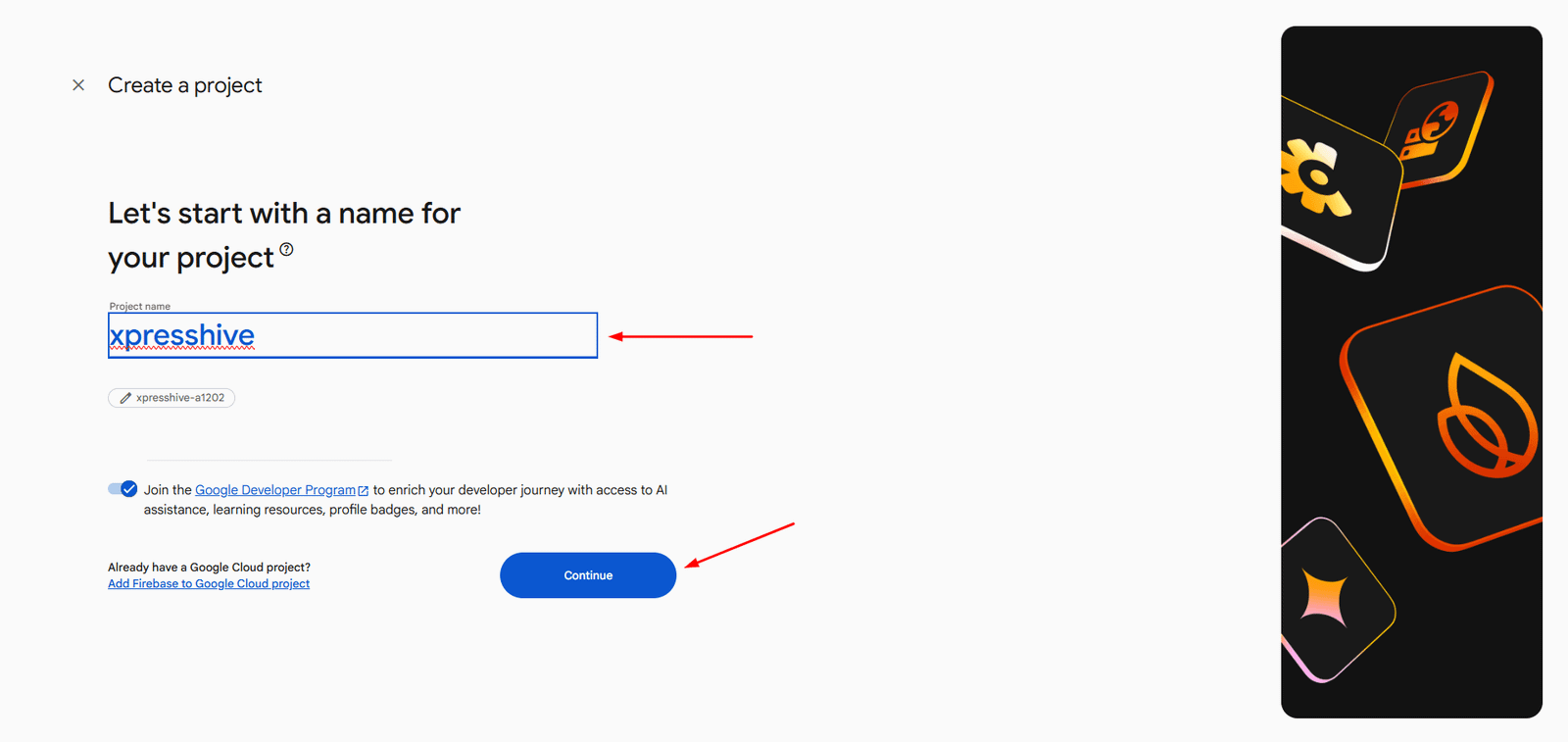
- Click Create a project
- Enter project name (e.g.,
xpresshive)
- Click Continue
Step 2: Add App (Web / Android)
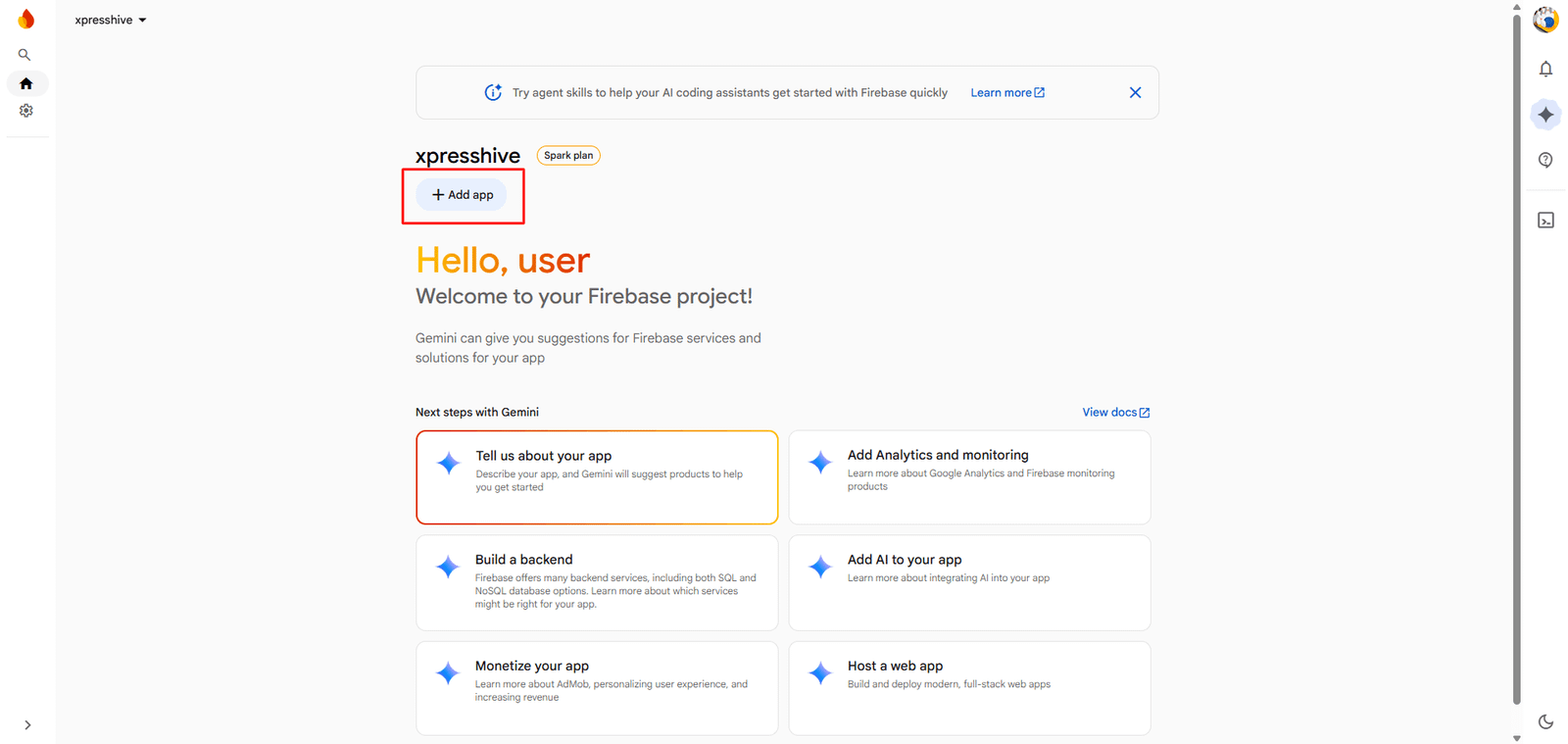
- Click Add App
- Select Web ( </> ) or Android
- Enter app nickname
- Click Register app
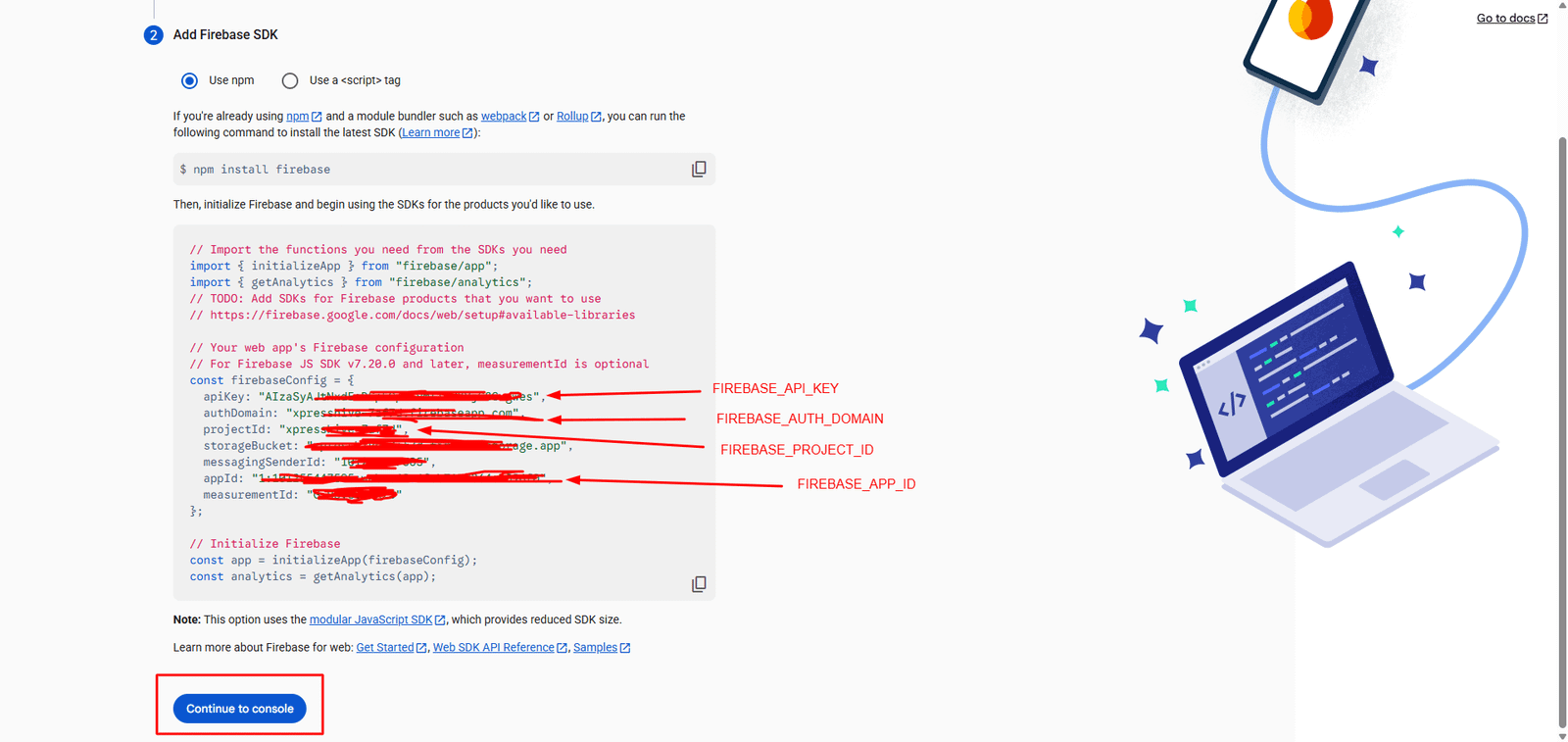
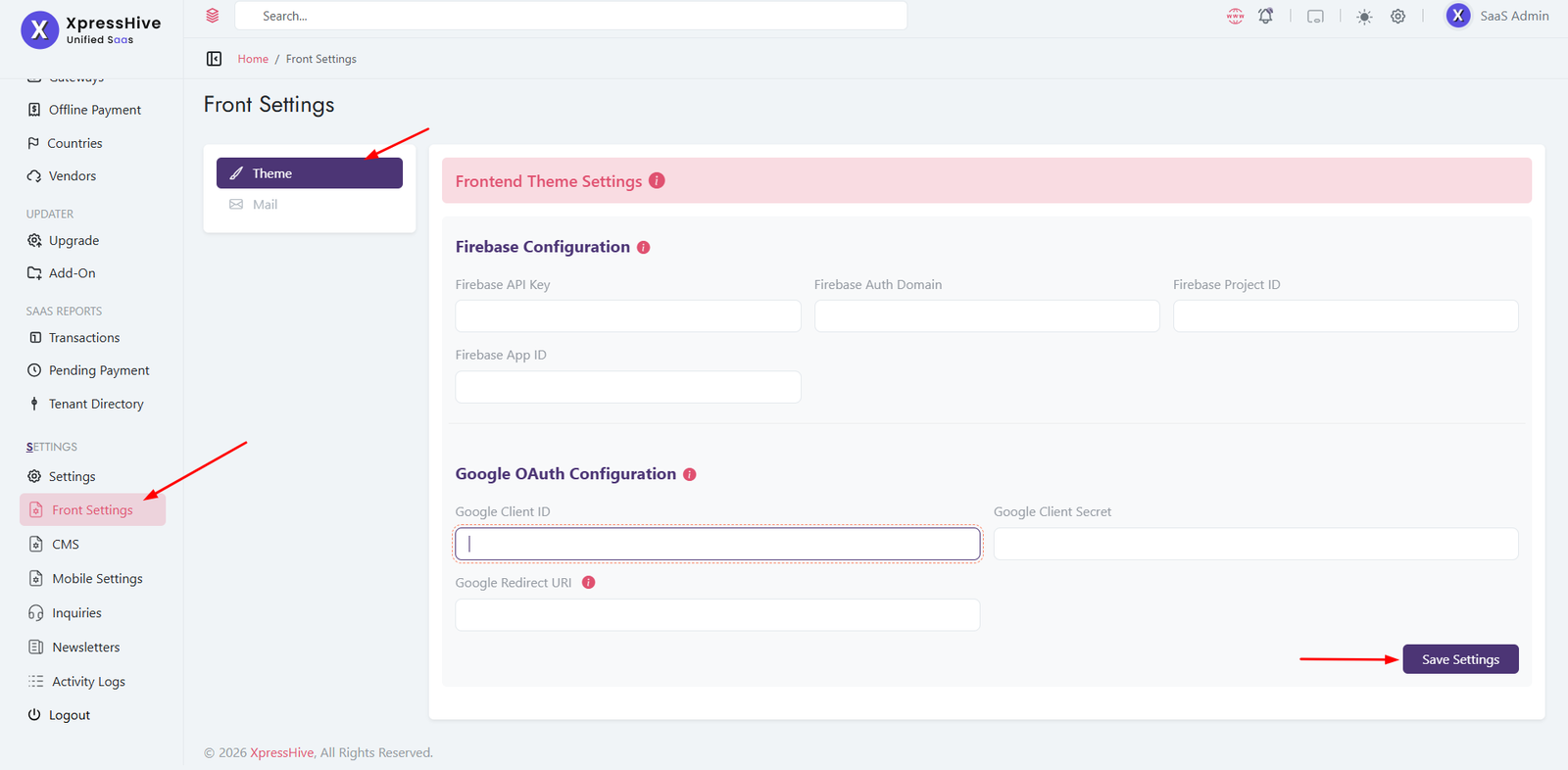
Step 3: Copy Firebase Keys and added to admin panel
apiKeyauthDomainprojectIdappId
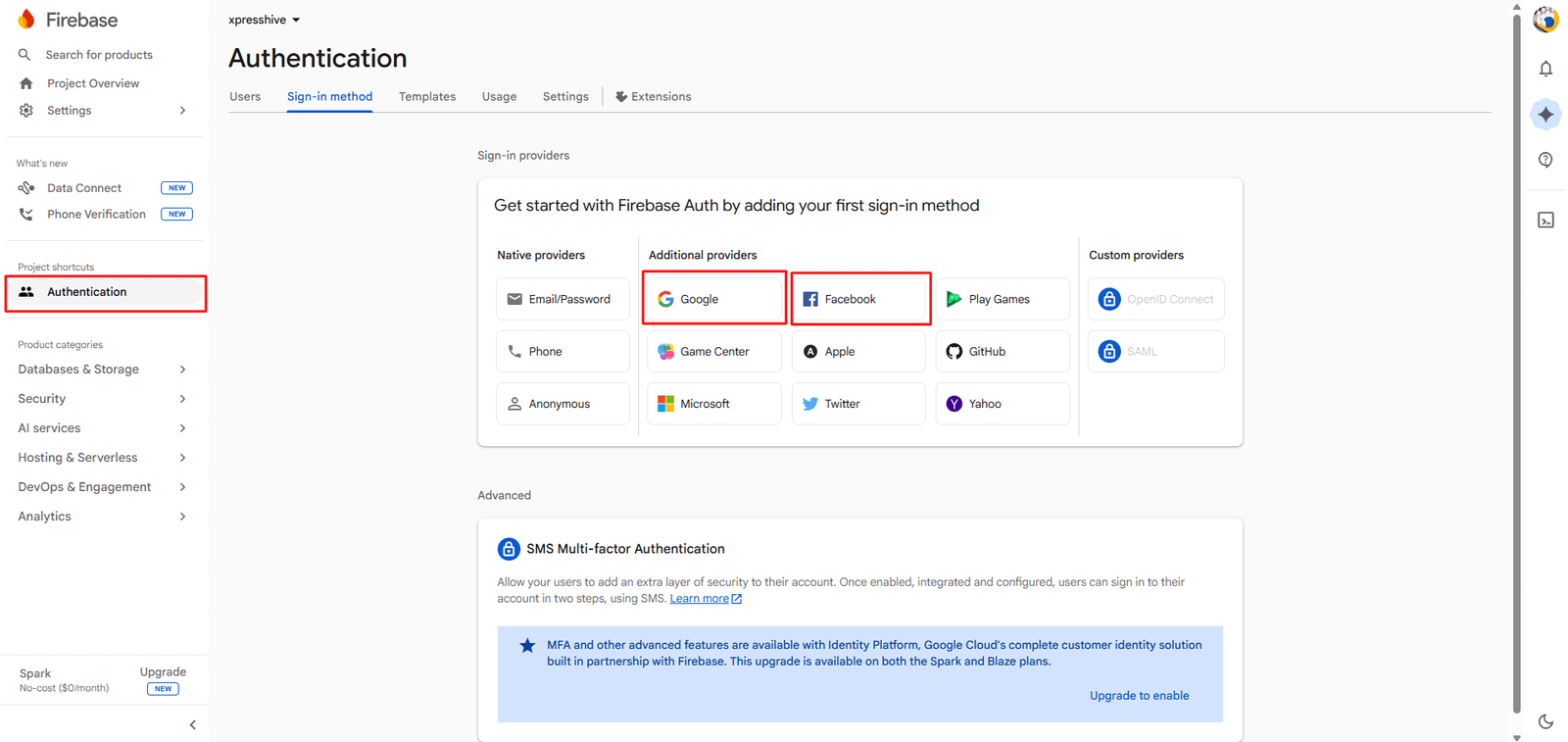
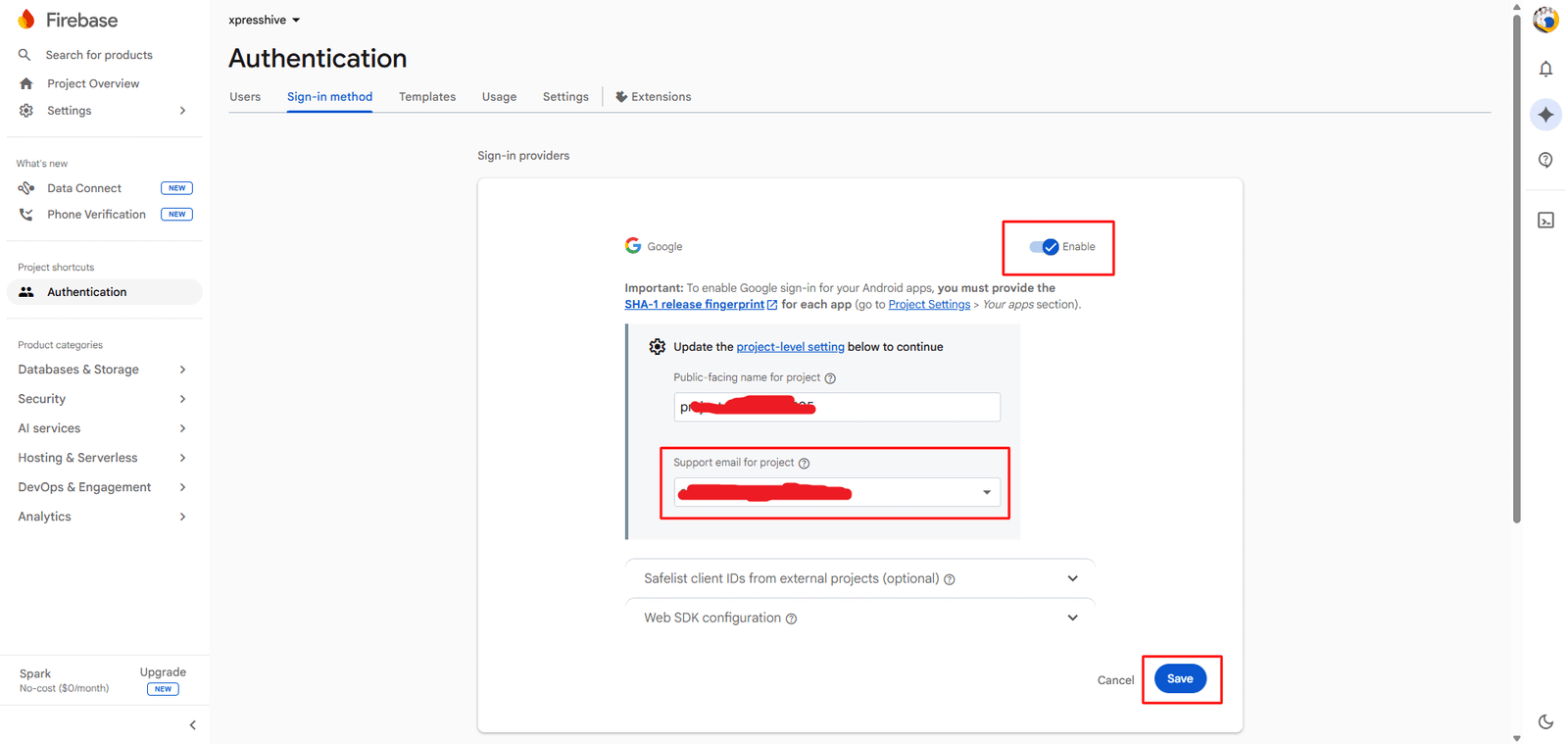
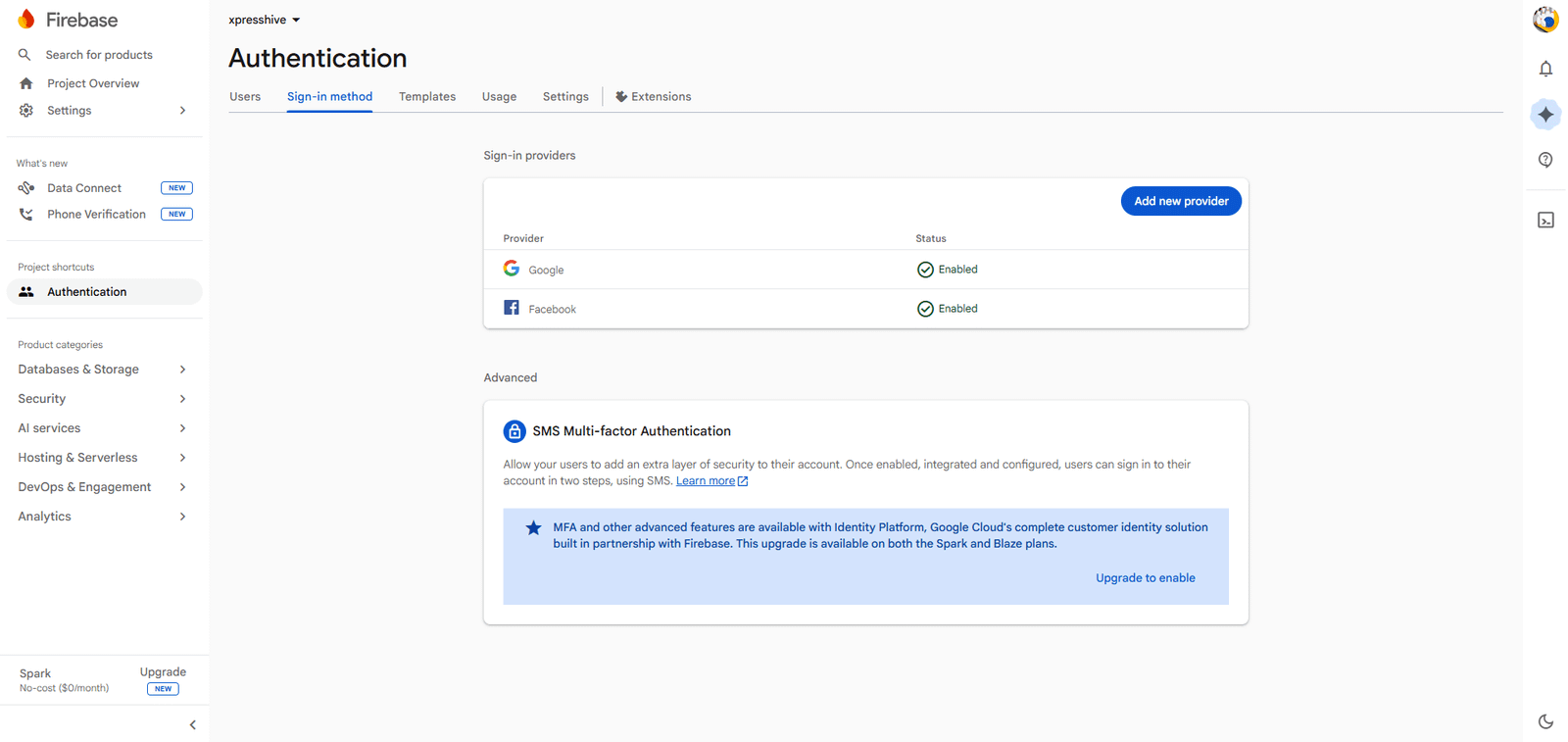
Step 4: Enable Google Authentication
- Go to Authentication → Sign-in method
- Enable Google
- Select support email
- Click Save
Step 5: Facebook App Setup & Integration
Follow the steps below to create and configure your Facebook App
and connect it with Firebase Authentication.
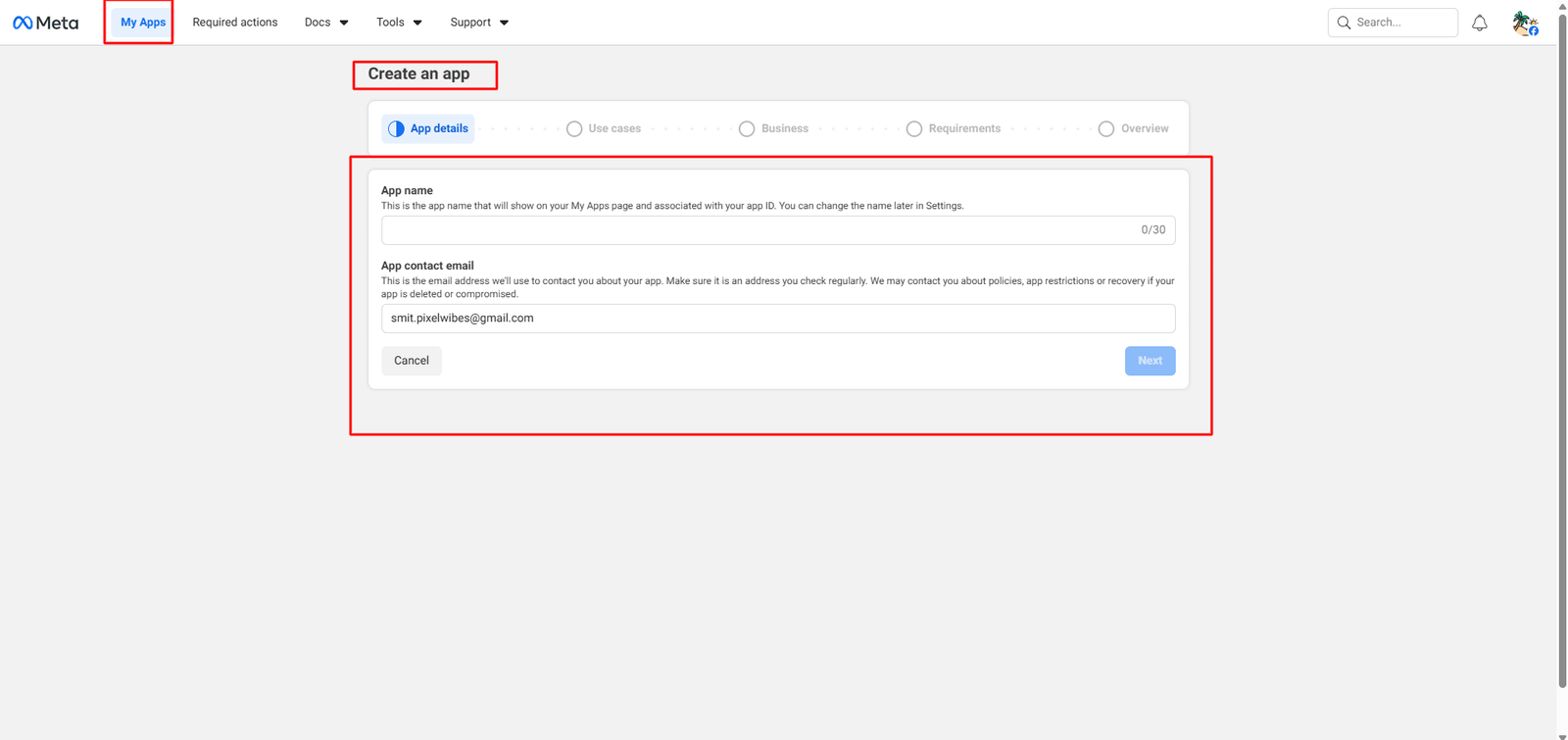
Step 1: Create Facebook App
- Go to Meta Developer Console
- Click My Apps → Create App
-
Enter App Name and Email
- Click Next
Step 2: Select Use Case
-
Select
Authenticate and request data from users with Facebook
Login
- Click Next
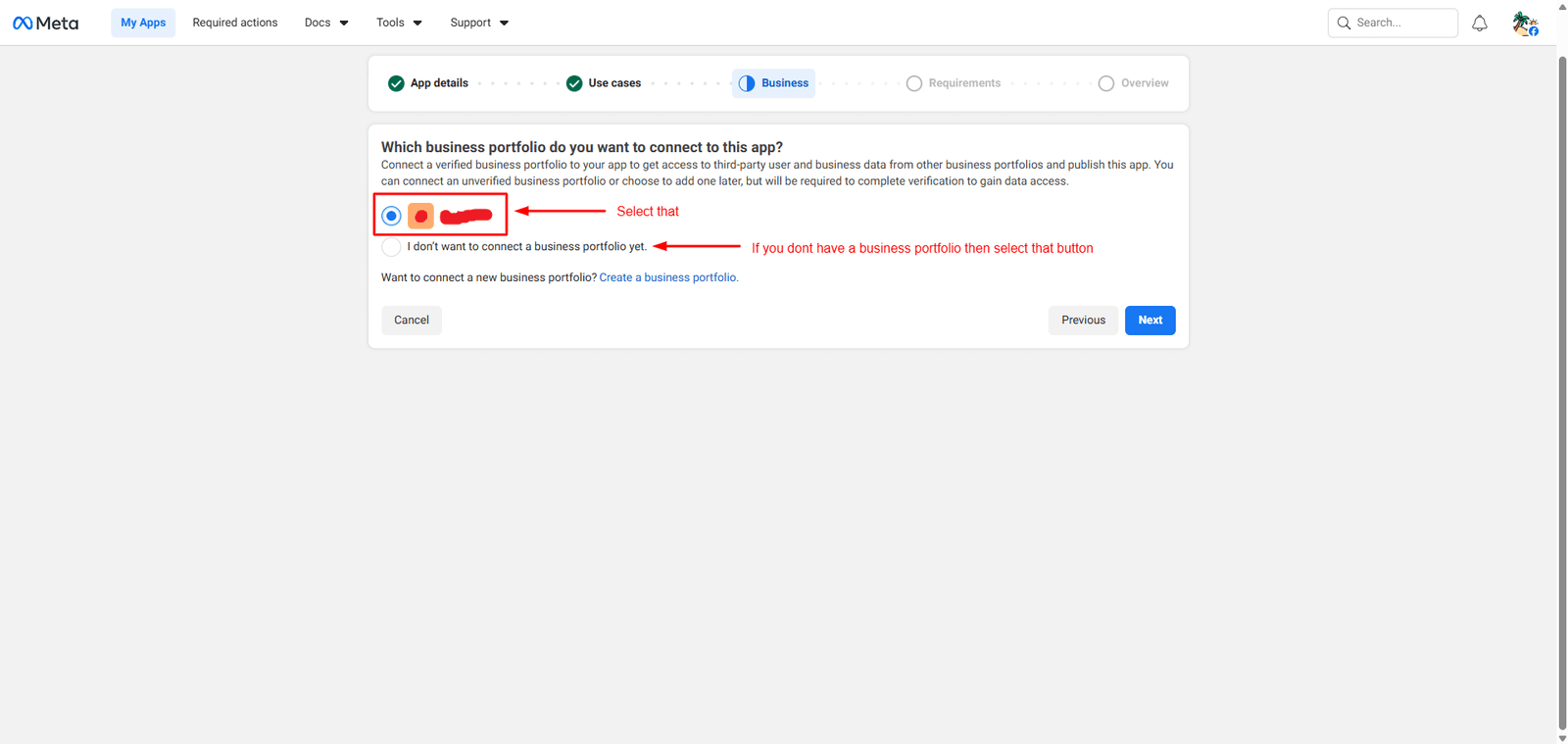
Step 3: Business Selection
- Select your Business Account
-
Or select
I don’t want to connect a business portfolio
- Click Next
Step 4: Complete App Creation
- Review details
- Click Create App
Step 5: Open Dashboard Setup
- Go to Dashboard
- Click Customize Facebook Login
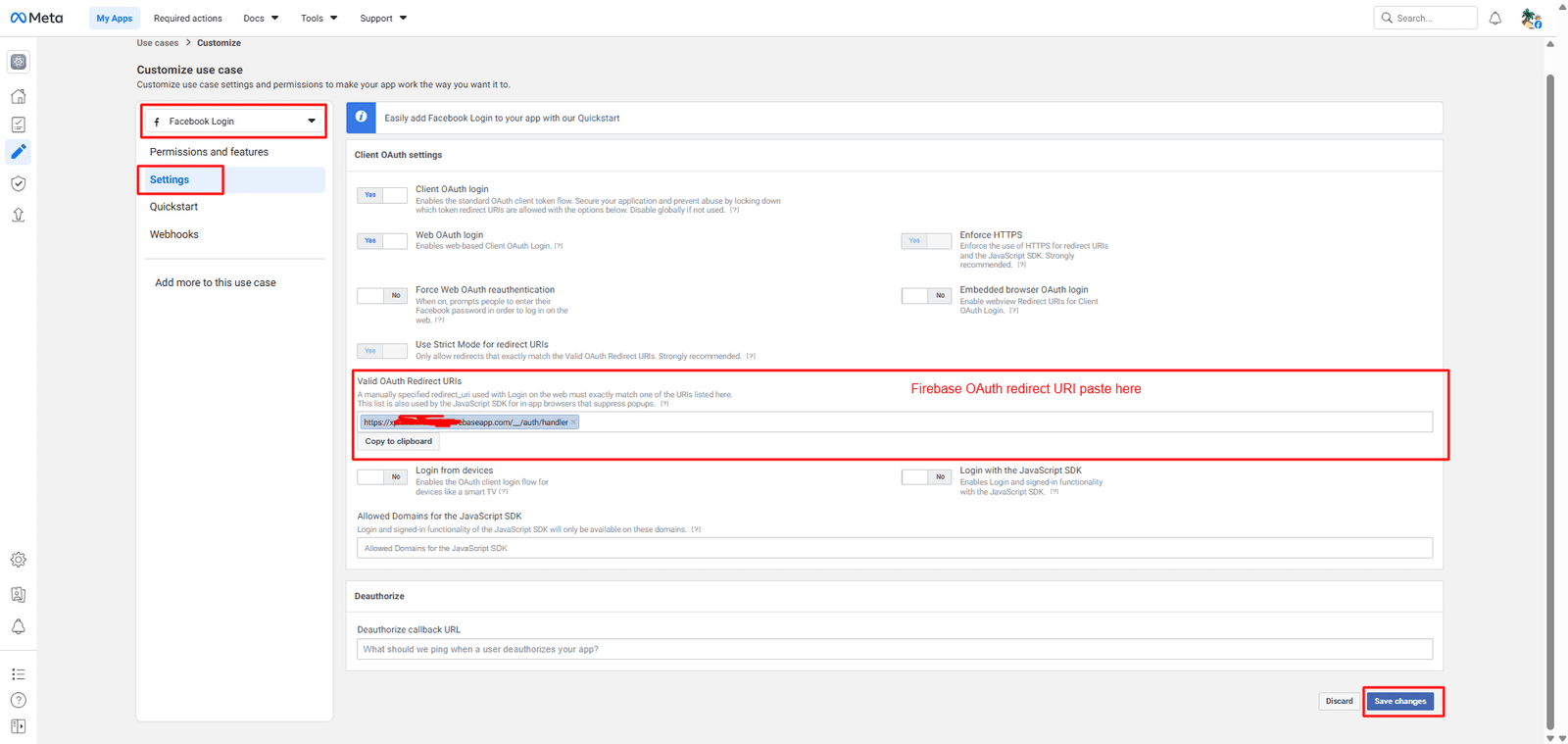
Step 6: Configure OAuth Redirect URL
- Go to Facebook Login → Settings
- Find Valid OAuth Redirect URIs
- Paste Firebase Redirect URL
- Click Save Changes
Step 7: Go to app setting -> basic
- Go to App Setting
- Get Facebook App ID Copy
-
Get
Facebook App Secret using show button click and enter
password then get secret key
Copy
🔹 Step 8: Enable in Firebase
-
Go to Firebase Console → Authentication
- Open Sign-in method
- Enable Facebook
-
Paste App ID and App Secret
- Click Save
Step 6: Backend Setup
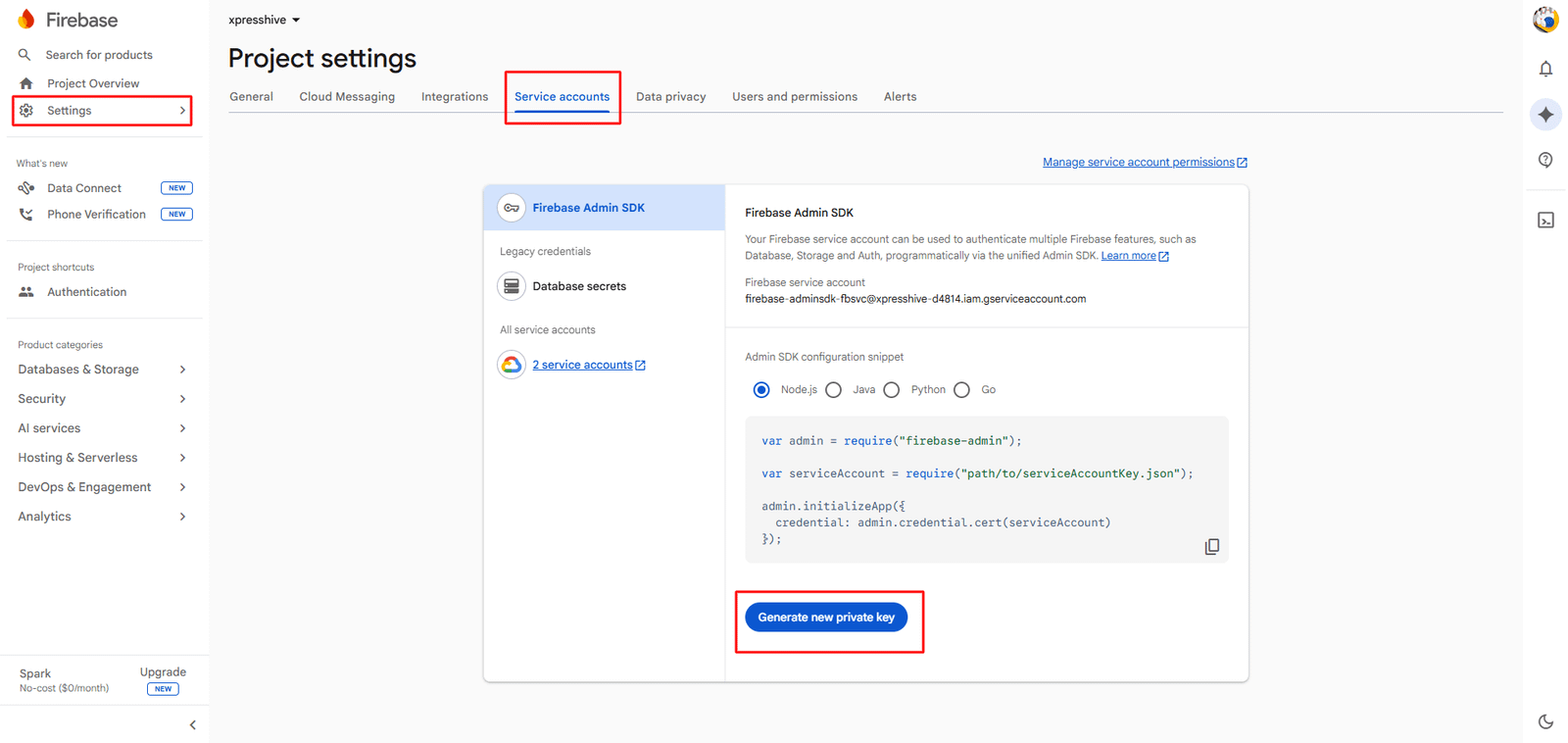
-
Download Firebase Service Account Key
Go to
Firebase Console → Project Settings → Service
                    Accounts
and click on
"Generate new private key".
This will download a JSON file (e.g.,
service-account.json).
-
Upload File to Server
Place the downloaded file inside your Laravel project at:
storage/app/firebase/service-account.json
-
Configure Environment Variable
Open your .env file and add:
FIREBASE_CREDENTIALS=storage/app/firebase/service-account.json
Note:
- Ensure the file path is correct and accessible
-
Do not commit the JSON file to version control (add it to
.gitignore)
- Set proper permissions so Laravel can read the file
Google Client Key Configuration
Follow the steps below to generate
Google Client ID and
Client Secret for integration.
Note: This setup is used for Google APIs
(Calendar, Meet, etc.) and is different from Firebase social
login.
📌 Open google console:
🔗 Google Cloud Console
Step 1: Create New Project
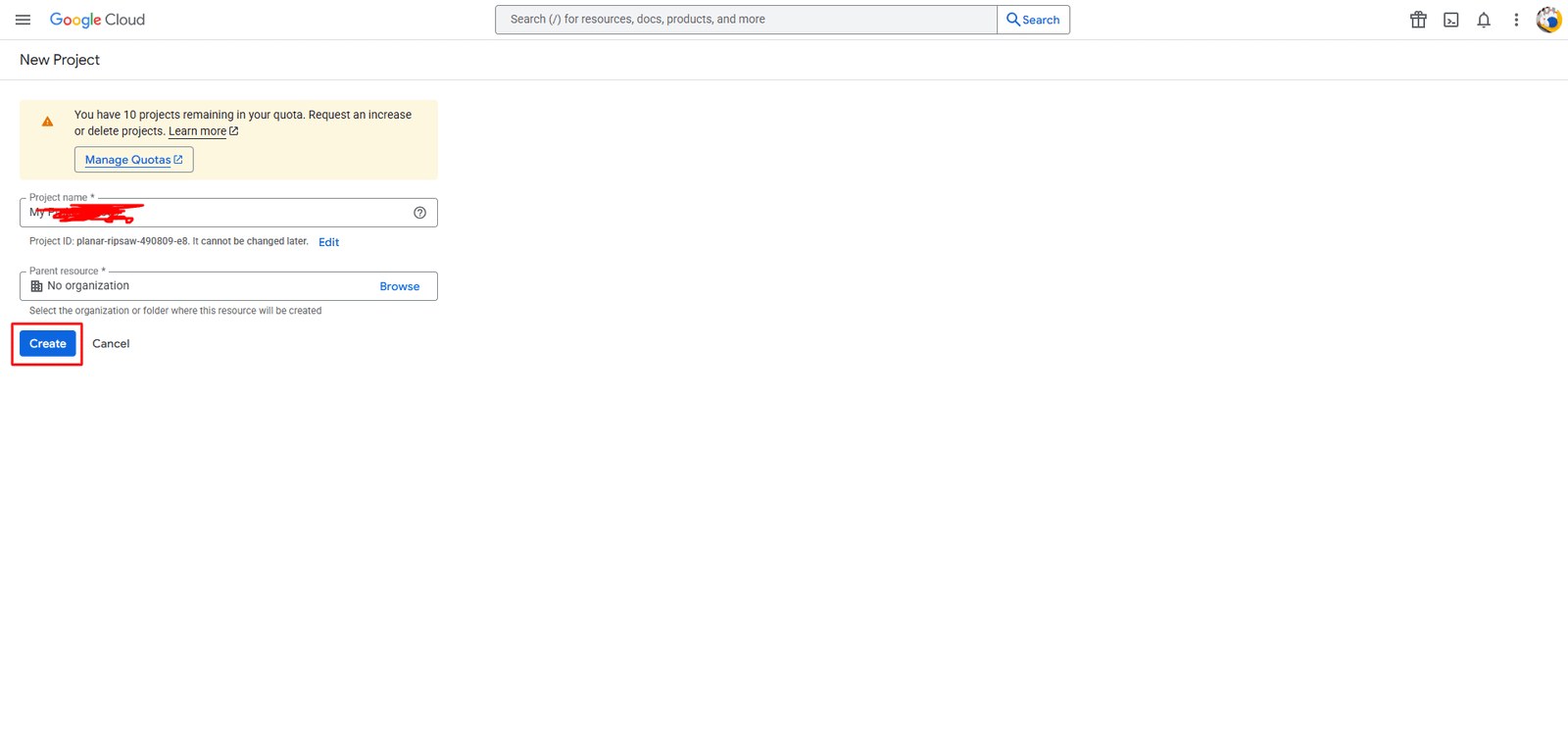
Open Google Cloud Console → Click
Select Project → New Project, enter project
name and click Create.
Step 2: Go to APIs & Services
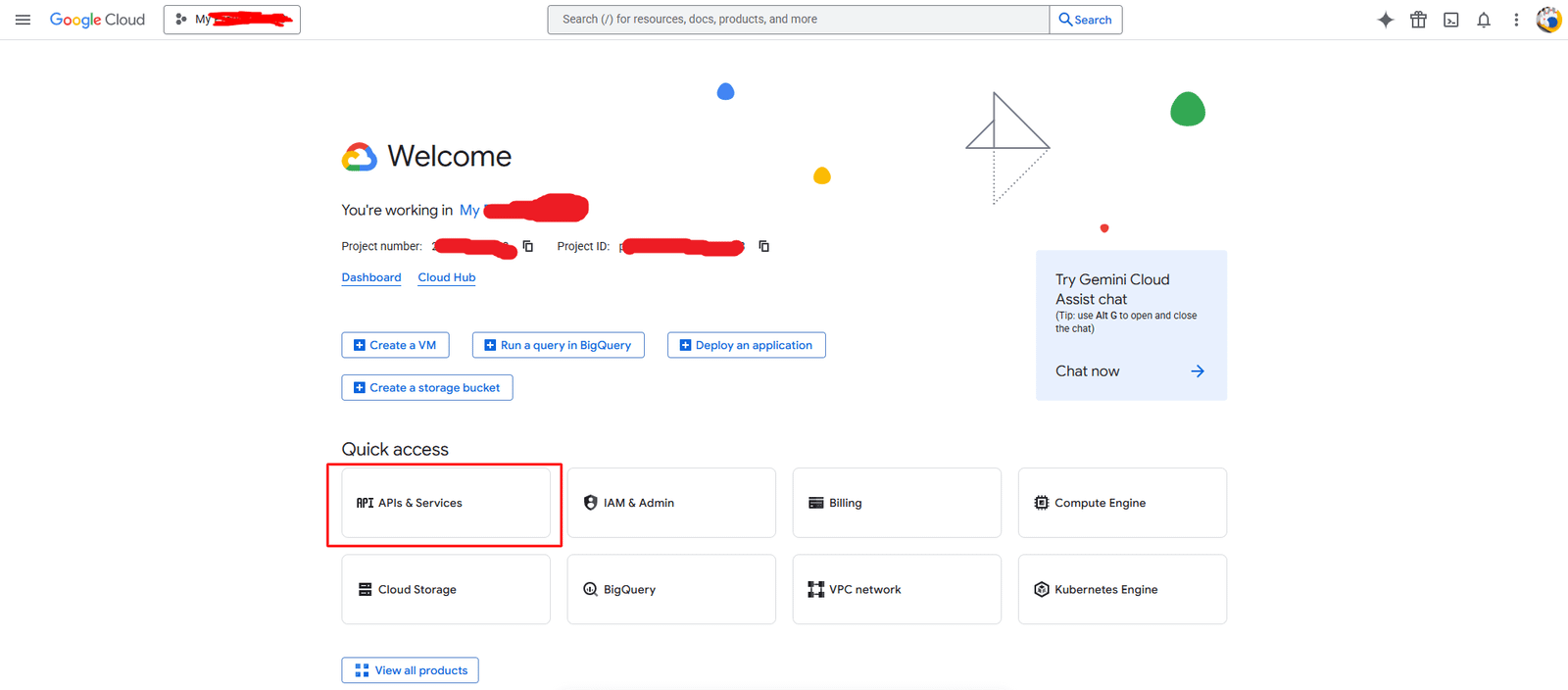
After project creation, open dashboard and click
APIs & Services.
Step 3: Open OAuth Consent Screen
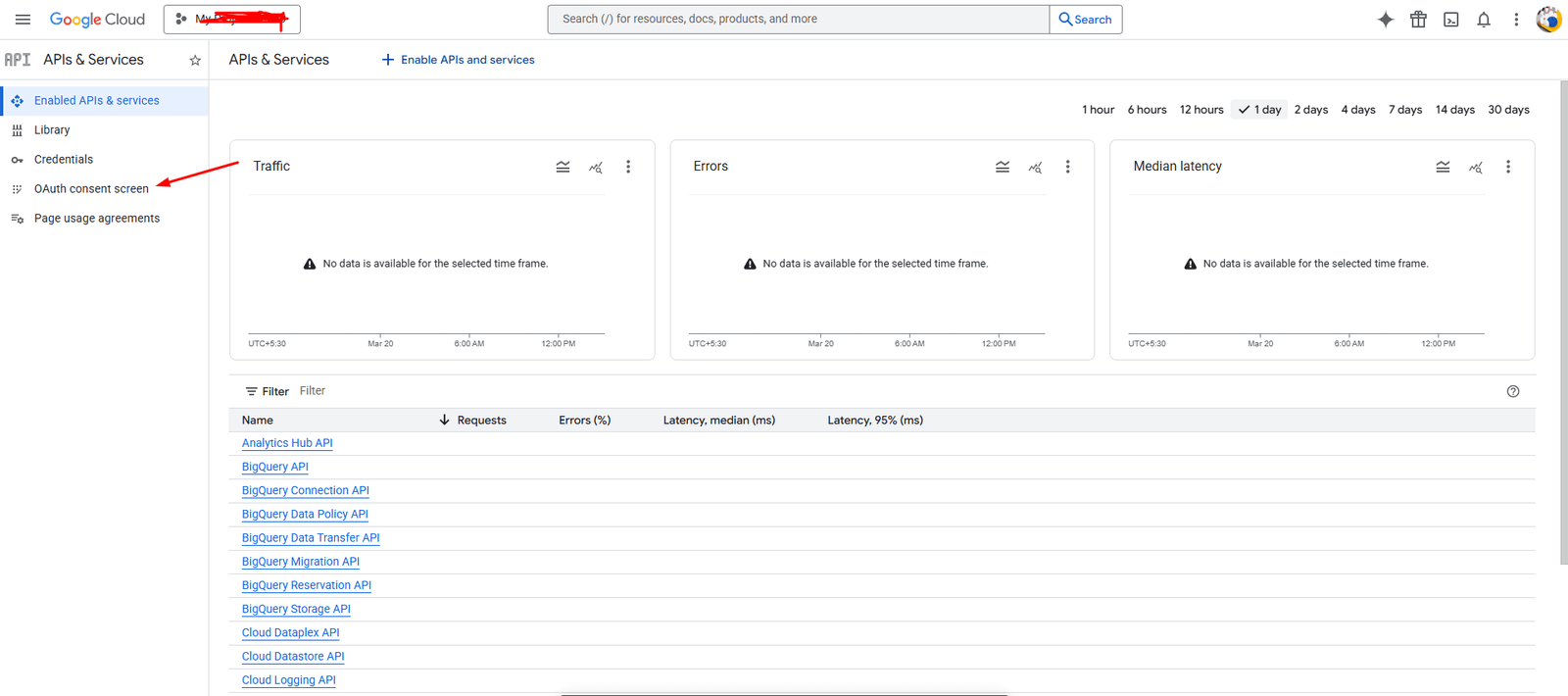
Click on OAuth consent screen from the left
sidebar.
Step 4: Fill OAuth Consent Form

- Enter App Name
- Select User Support Email
- Click Create / Save
Step 5: Create OAuth Credentials
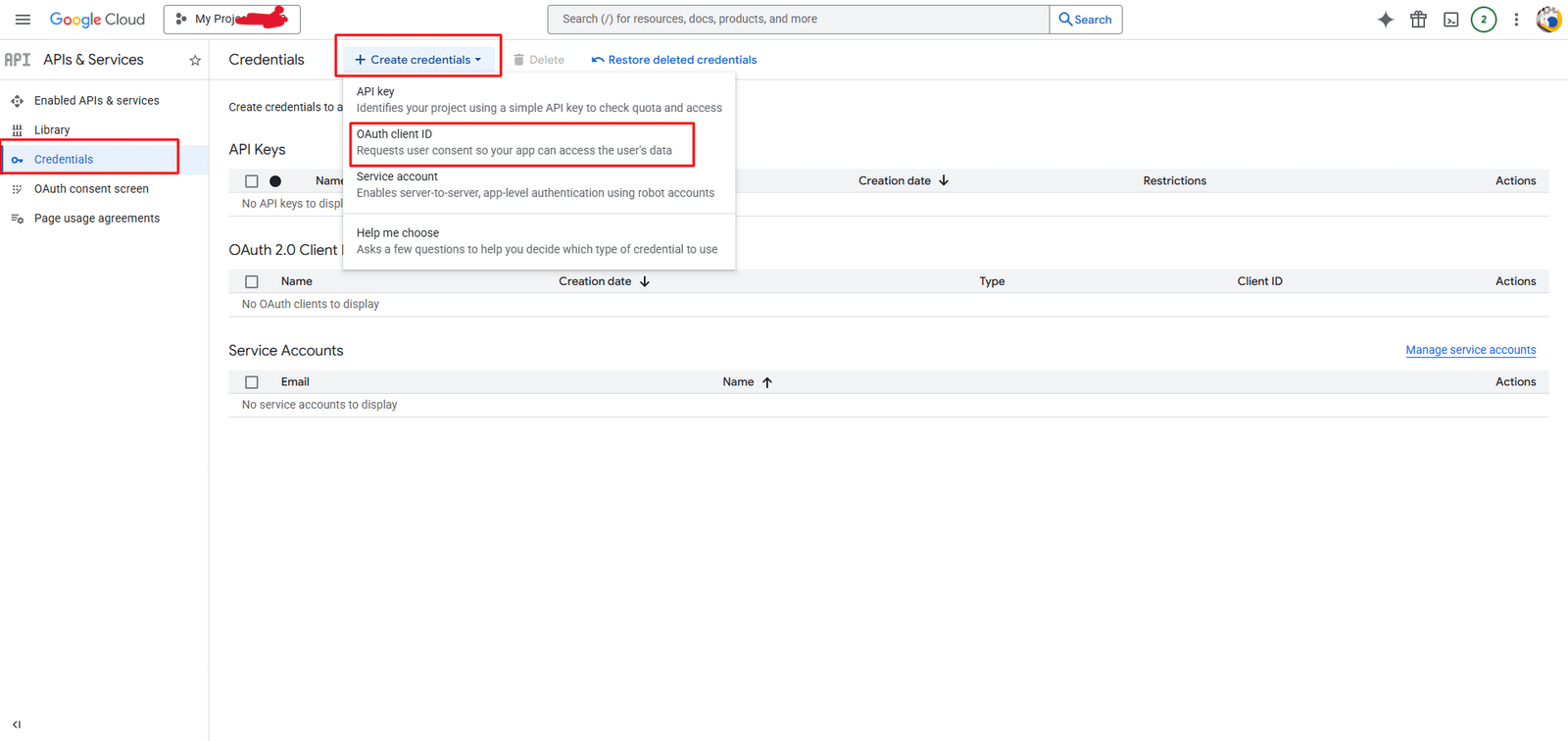
Go to Credentials → Click
Create Credentials → OAuth Client ID.
Step 6: Configure OAuth Client
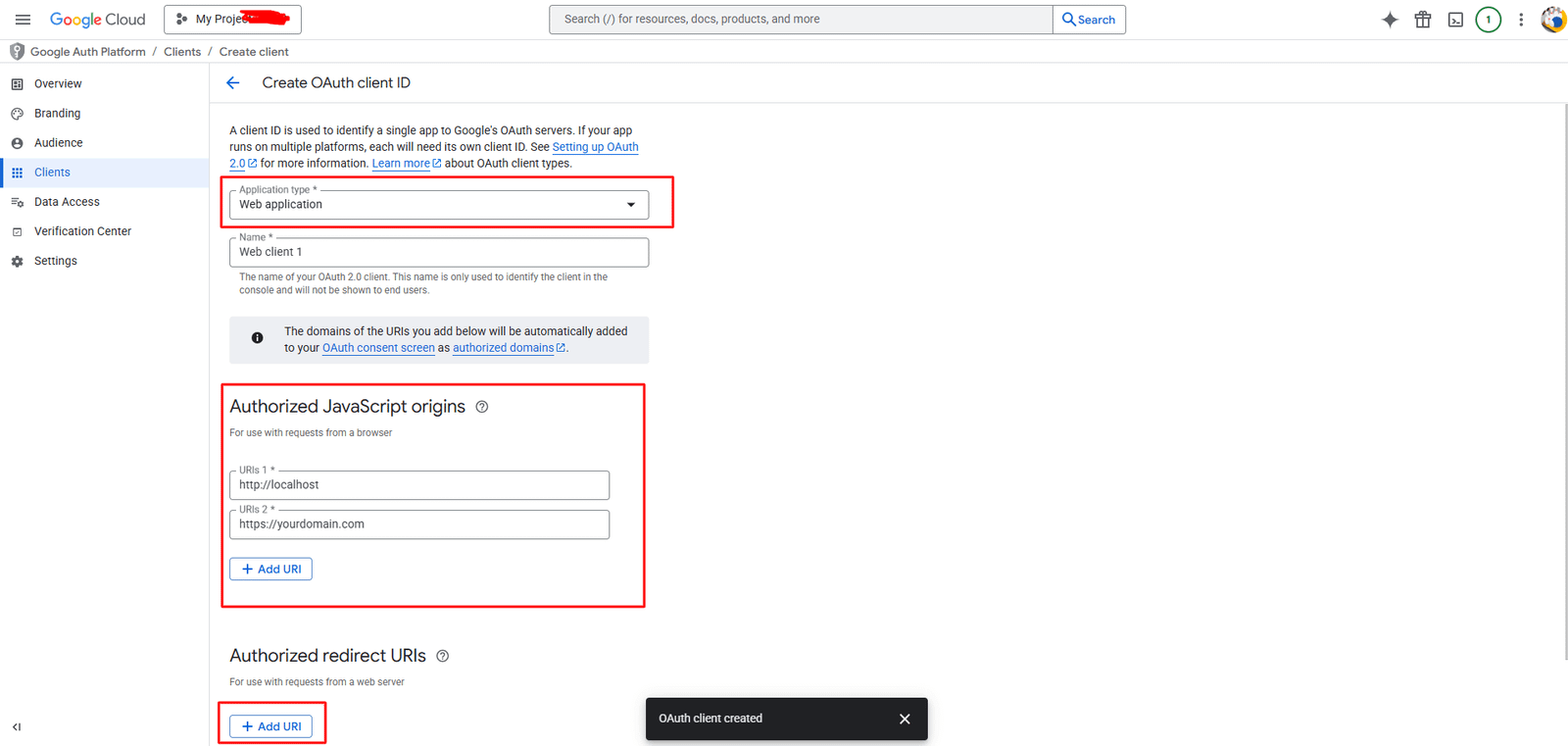
-
Select Application Type: Web Application
-
Add in Authorized JavaScript Origins:
https://yourdomain.com
-
Add in Authorized Redirect URIs:
https://yourdomain.com/google/callback
⚠️ Make sure the redirect URL exactly matches your backend route
(including http/https). Otherwise, you will get
redirect_uri_mismatch error.
Step 7: Copy Client ID & Secret
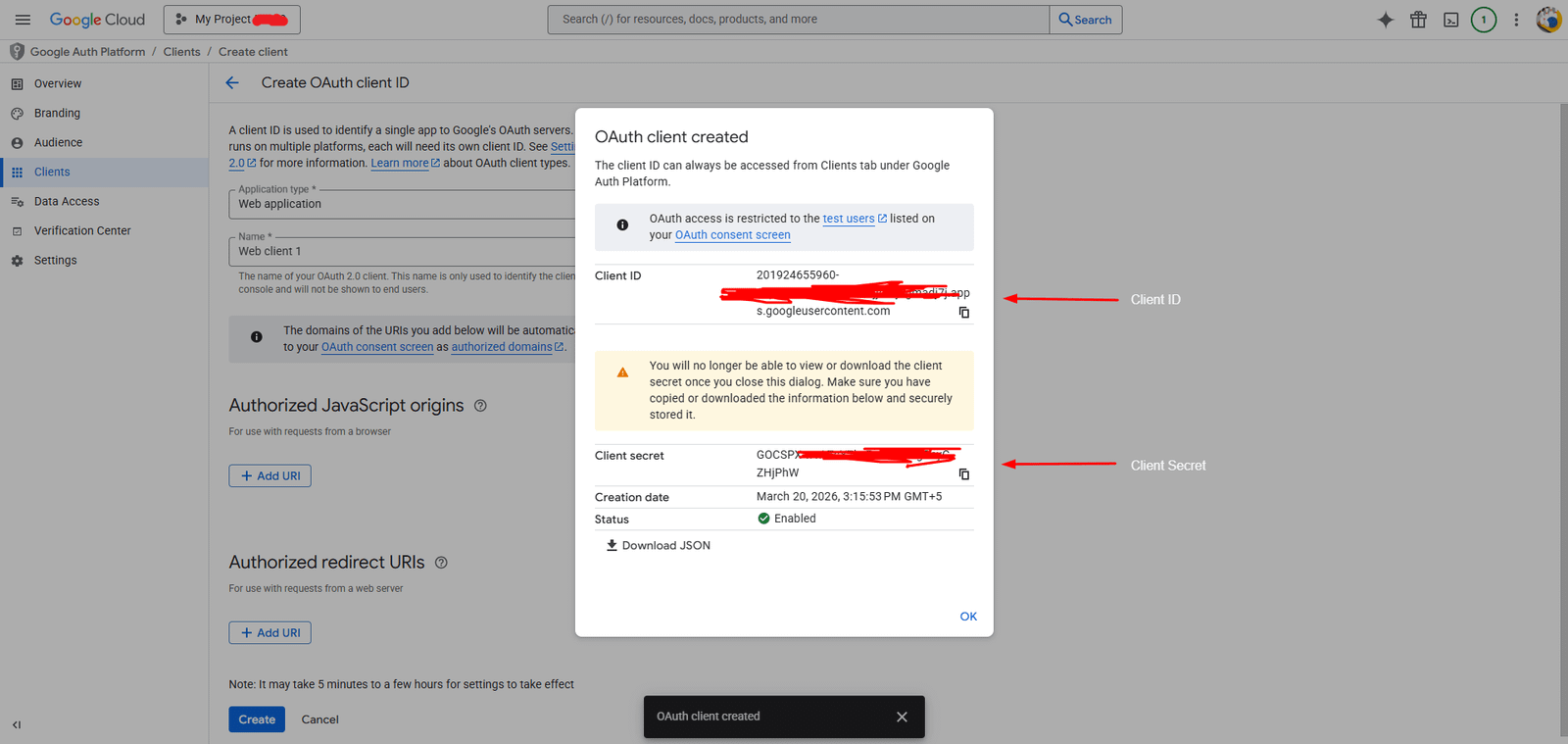
After creation, copy your Client ID and
Client Secret.
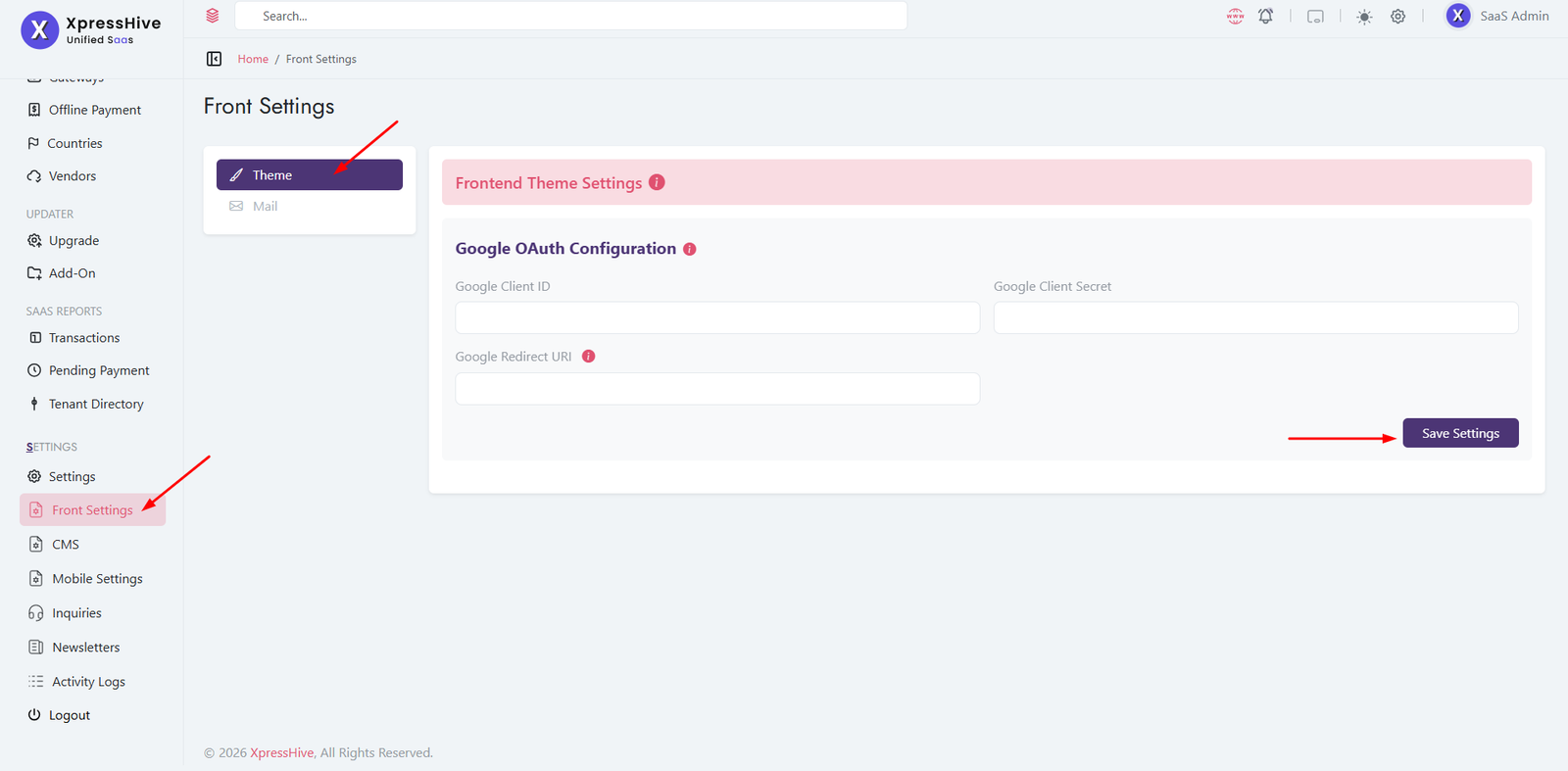
Step 8: Add Keys in XpressHive
-
Go to Admin Panel → Front Settings → Theme
- Enter:
- Google Client ID
- Google Client Secret
-
Google Redirect URI -
https://yourdomain.com/google/callback
- Click Save Settings
Important Note
Firebase is used for social login (Google/Facebook login),
while Google Client credentials are used for Google API
integrations.
System Update
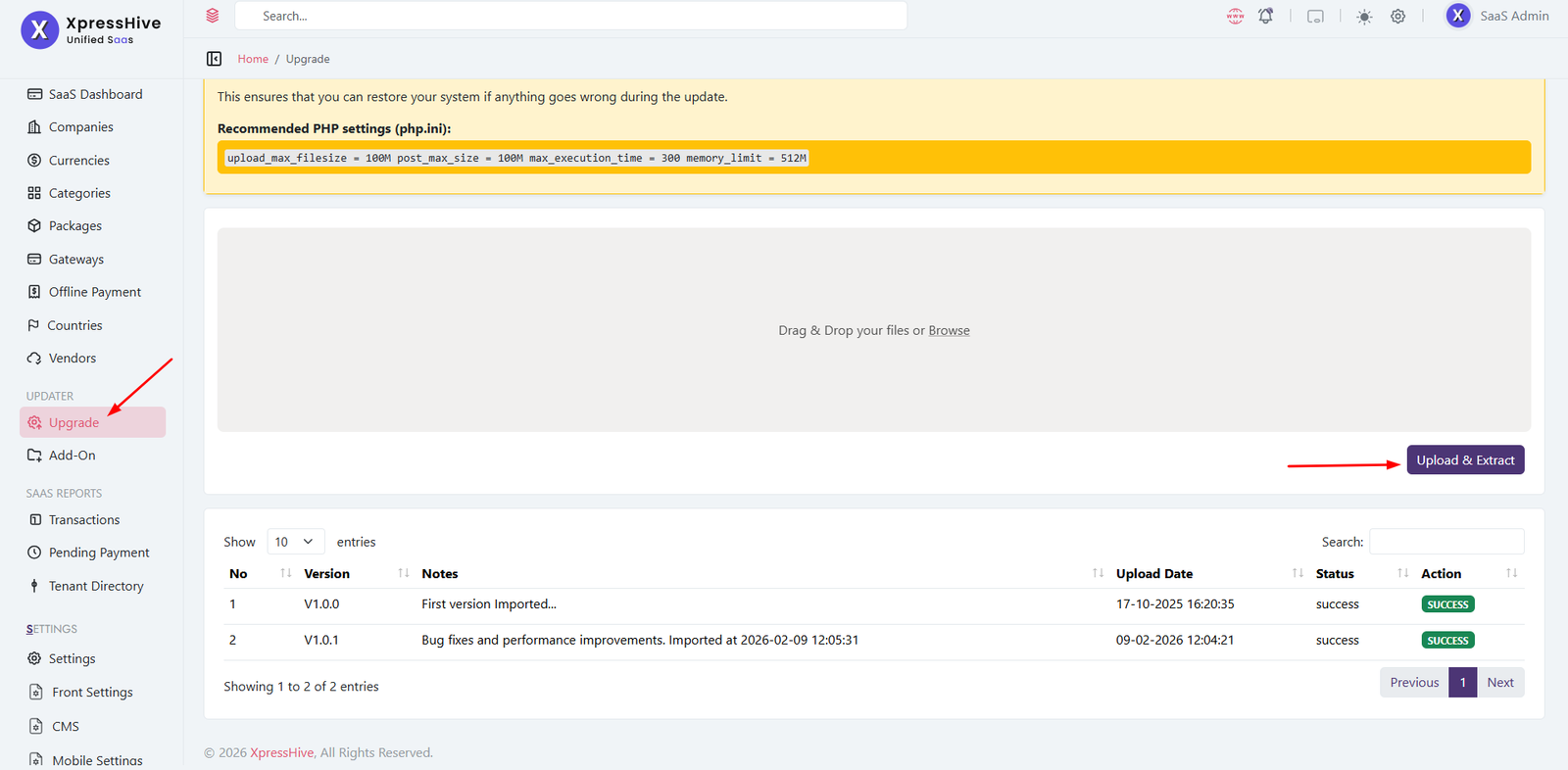
Use the built-in updater panel to upgrade your system easily.
Important Notes
Before
Updating
Always update sequentially and avoid skipping versions.
-
Full Backup: Take complete system backup
-
Code Backup: Save all files including custom
changes
-
Database Backup: Export database safely
Recommended PHP Settings
upload_max_filesize = 100M
post_max_size = 100M
max_execution_time = 300
memory_limit = 512M
Update Process
- Download the latest XpressHive SaaS update package
-
Locate update file:
upgrade from vX.X to vX.X.X.zip
- Open:
http://yourdomain.com/add-on-plugin
- Upload:
update.zip
- Click Upload & Extract
- Enter your purchase code
- Click Import
- System will update automatically
- 🎉 Update completed successfully
Success
Your system is now updated to the latest version.
Troubleshooting
- White Screen: php artisan config:clear
-
Permission Issues: Check storage & cache
folders
- Update Failed: Retry upload process
Plugin Add-On
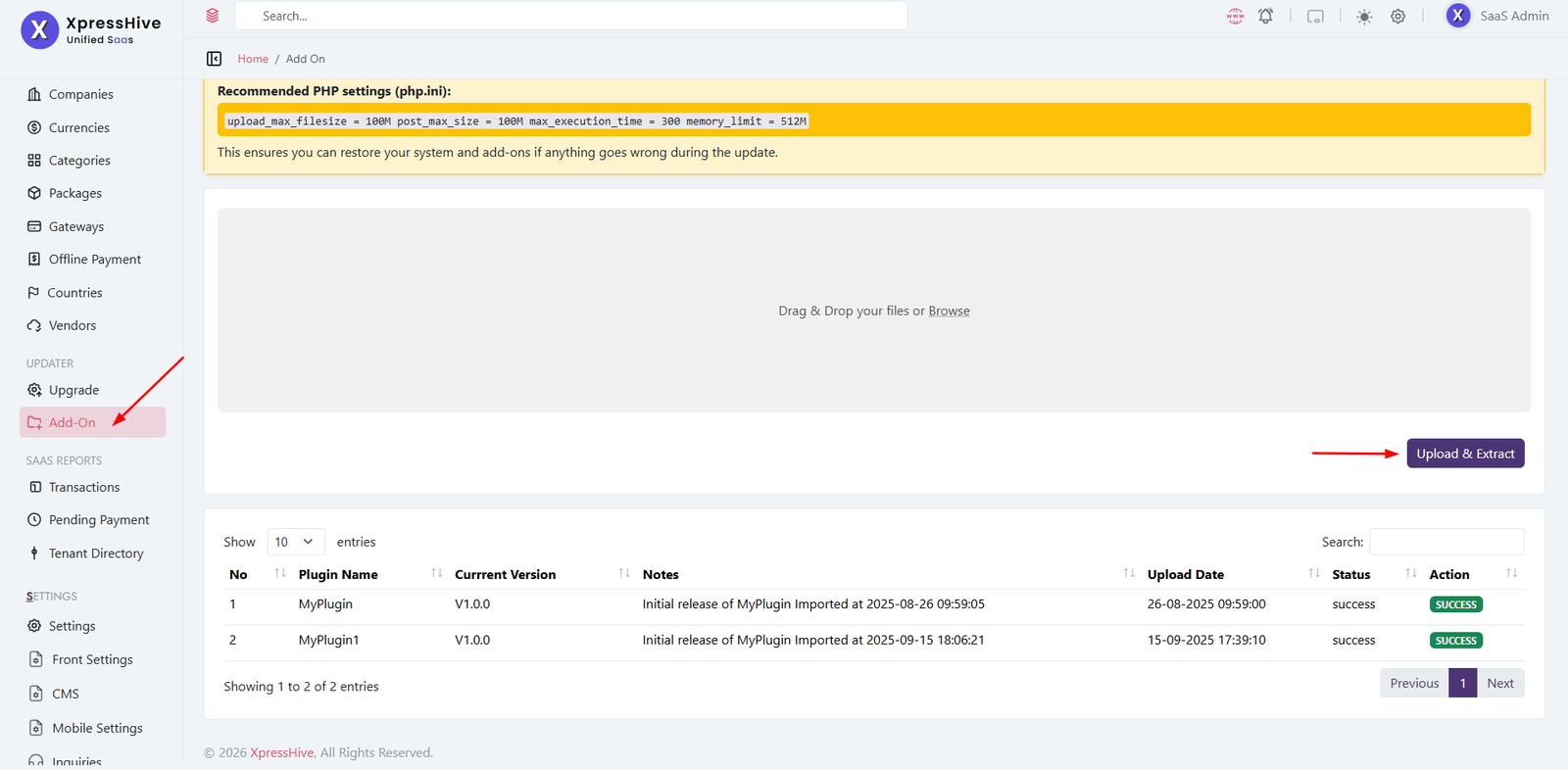
Install and manage plugins from the add-on panel.
Important Notes
Before
Installing
Ensure compatibility and always backup your system.
- Take full system backup
- Check plugin compatibility
- Install plugins one by one
- Clear cache after installation
Recommended PHP Settings
upload_max_filesize = 100M
post_max_size = 100M
max_execution_time = 300
memory_limit = 512M
Installation Process
- Download plugin package
- Open:
http://yourdomain.com/add-on-plugin
- Upload:
plugin.zip
- Click Upload & Extract
- Enter purchase code
- Click Import
- 🎉 Plugin installed successfully
Success
Plugin is ready to use from the admin panel.
Troubleshooting
- Upload failed → increase PHP limits
- Plugin not working → check compatibility
- Error → clear cache
Profile & General Settings
Company Details
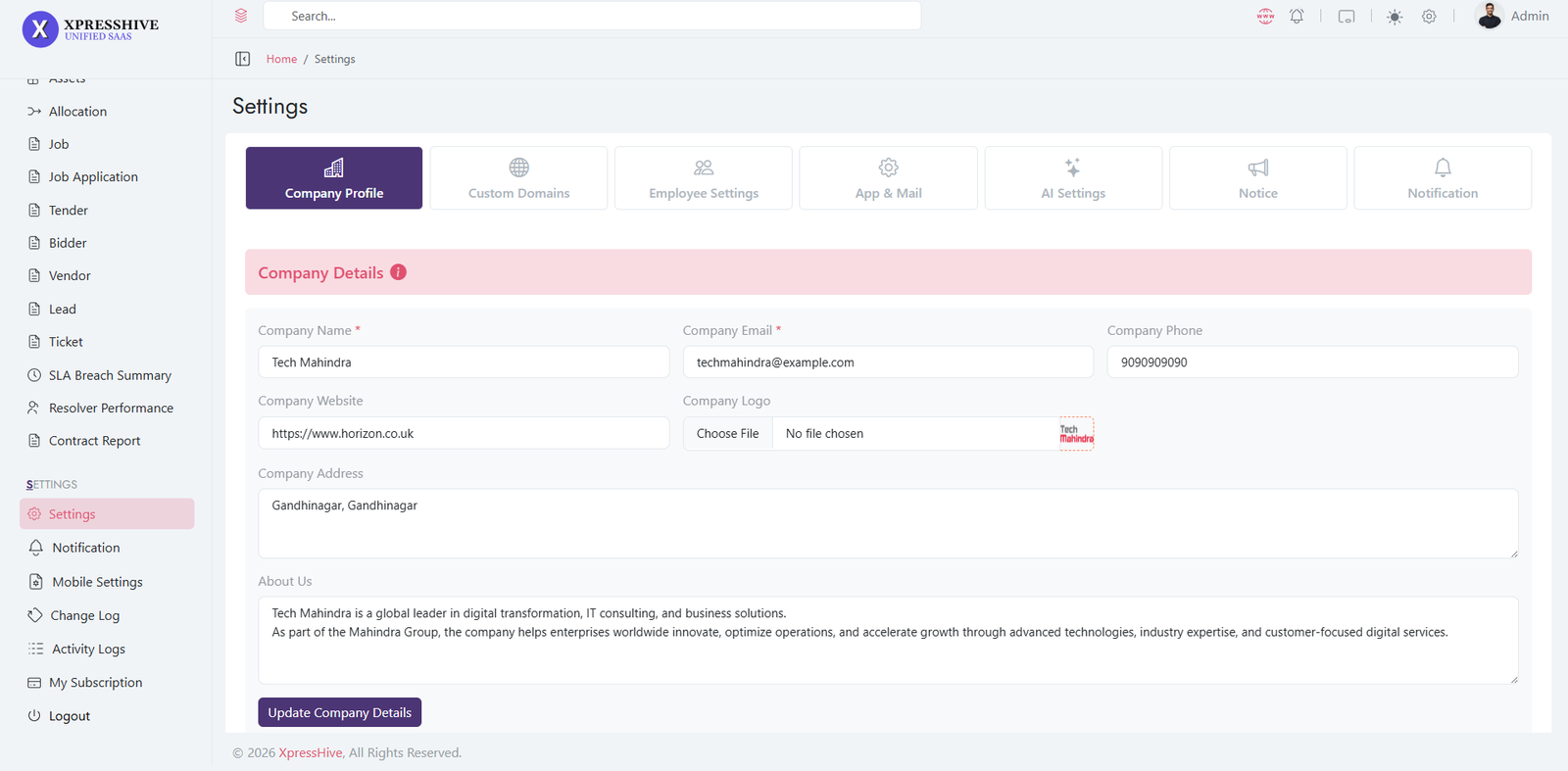
Profile Settings & Password
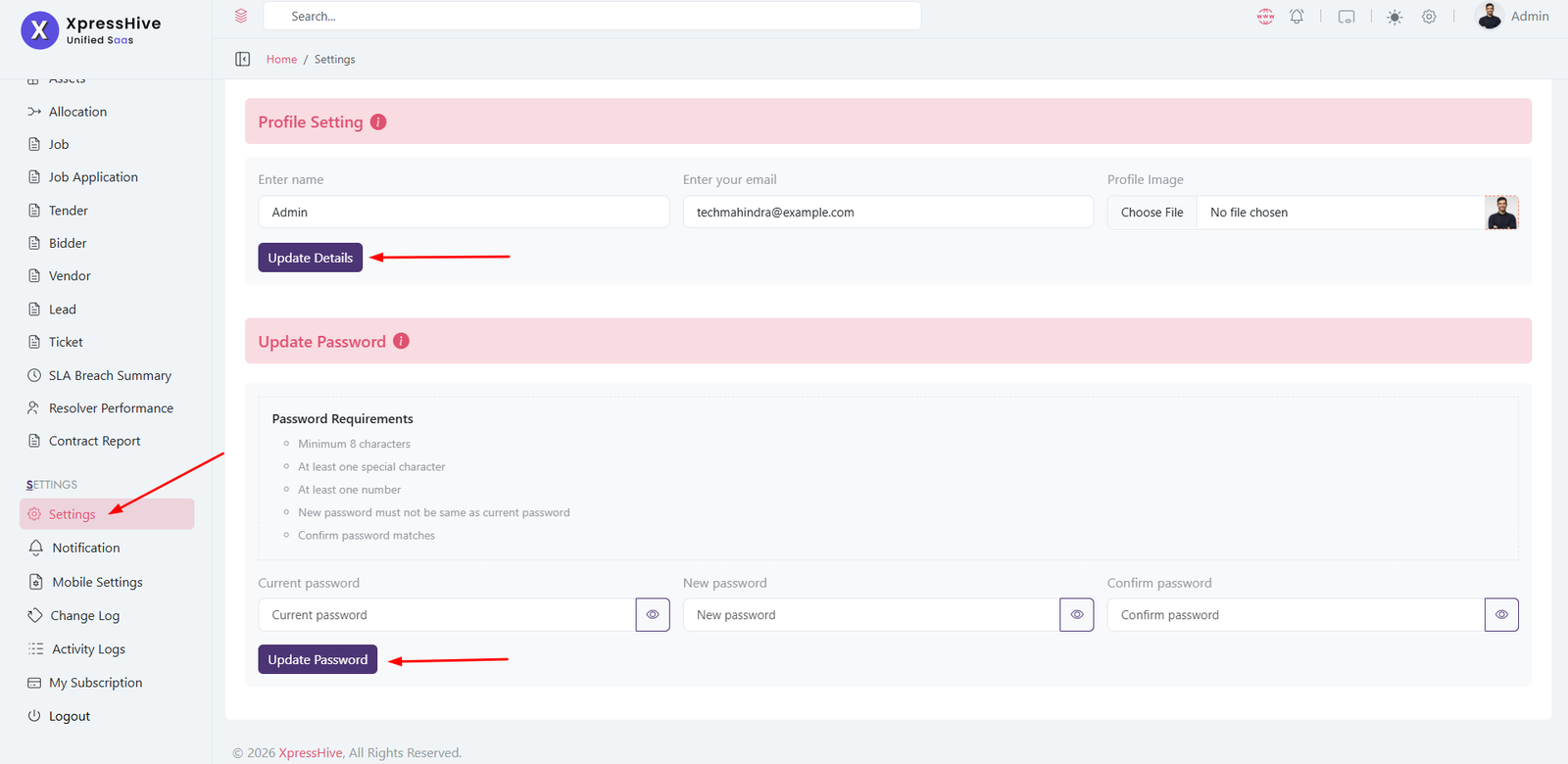
The Profile & General Settings module allows administrators to manage company
information, personal profile details, and account security. These settings
help keep organization information accurate while ensuring administrator
accounts remain secure.
-
Company Details
Manage the primary information displayed for your company across
the platform.
- Update Company Name.
- Modify Company Email Address.
- Update Company Phone Number.
- Change Company Website.
- Upload or replace the Company Logo.
- Update Company Address.
- Edit the company About Us description.
-
Profile Settings
Administrators can update their personal account information from
the Profile Settings section.
- Update administrator name.
- Change login email address.
- Upload or change profile image.
- Save profile changes instantly.
-
Update Password
Change your account password to improve account security.
- Enter the current password for verification.
- Create a new secure password.
- Confirm the new password.
- Passwords must satisfy the minimum security requirements.
-
Password Requirements
The system validates passwords before allowing changes.
- Minimum 8 characters.
- At least one special character.
- At least one numeric value.
- New password cannot match the current password.
- Confirmation password must match the new password.
-
Best Practices
Keep your account and company information up to date for better
security and communication.
- Use a strong and unique password.
- Update company contact information whenever it changes.
- Keep the company logo and profile image current.
- Review company details periodically.
Custom Domain Settings
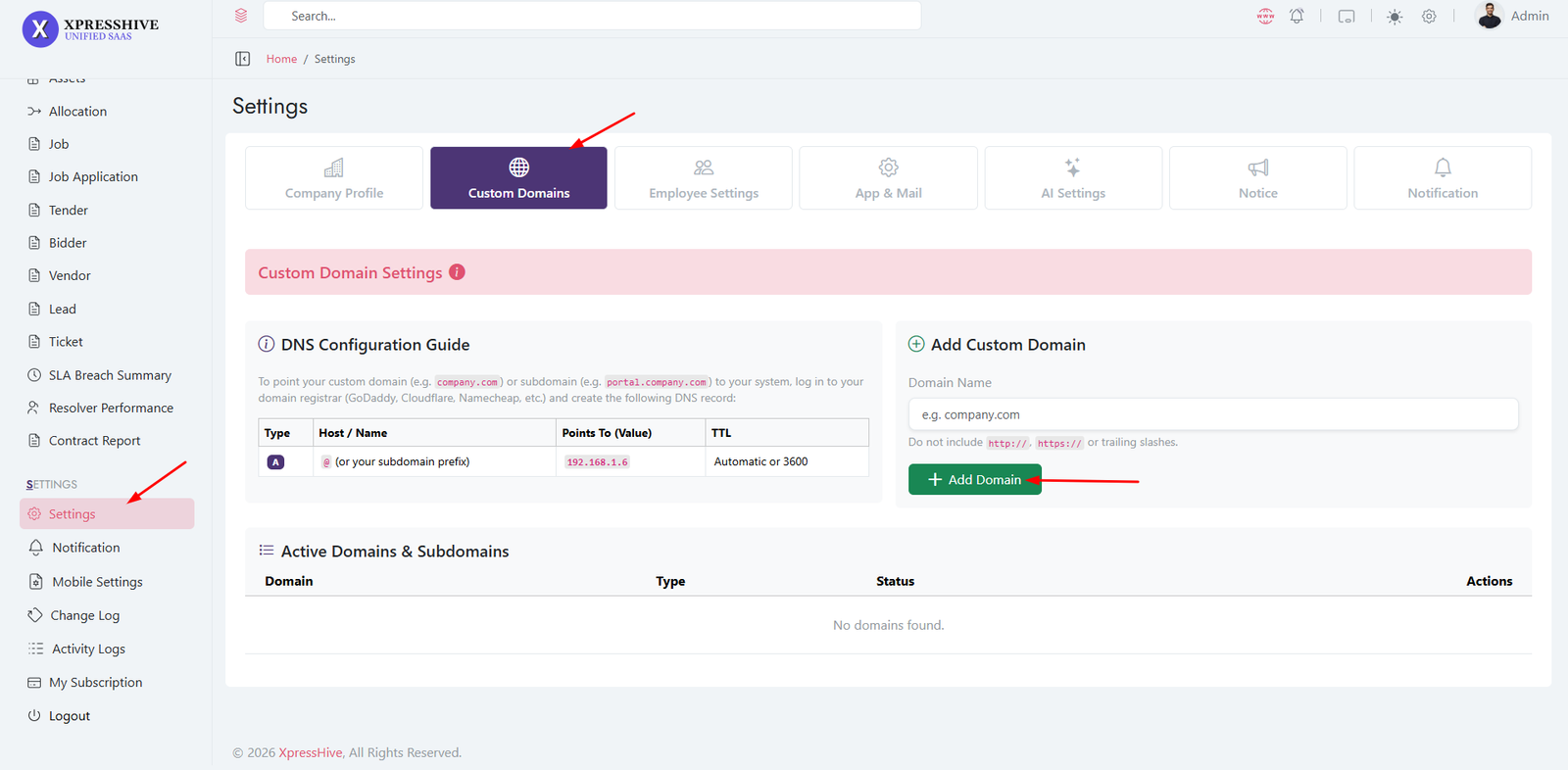
The Custom Domain Settings module allows companies to connect their own
domain or subdomain to their XpressHive SaaS workspace. It also provides
DNS configuration instructions and displays all active domains associated
with the tenant.
-
DNS Configuration Guide
Before adding a custom domain, configure your DNS provider using
the values provided by the system.
- View the required DNS record type.
- Copy the Host/Name value.
- Configure the Points To (IP Address).
- Set the recommended TTL value.
- Update DNS records with your domain registrar or DNS provider.
-
Add Custom Domain
Connect your own domain or subdomain to access your company portal.
- Enter the domain name (example: company.com).
- Do not include
http:// or https://.
- Do not include trailing slashes.
- Click Add Domain to register the domain.
-
Active Domains & Subdomains
Displays all domains currently attached to the company.
- View registered domain or subdomain.
- Identify whether it is a domain or subdomain.
- Check domain status.
- Manage existing domain entries.
-
Domain Validation
The system validates domain information before activation.
- Only valid domain names are accepted.
- Duplicate domains cannot be added.
- DNS must correctly point to the server before the domain becomes accessible.
-
Best Practices
Follow these recommendations to ensure successful domain mapping.
- Verify DNS propagation before testing.
- Always remove
http:// and https:// when entering the domain.
- Use the exact DNS values provided by the system.
- Keep old DNS records removed to avoid conflicts.
Application Settings
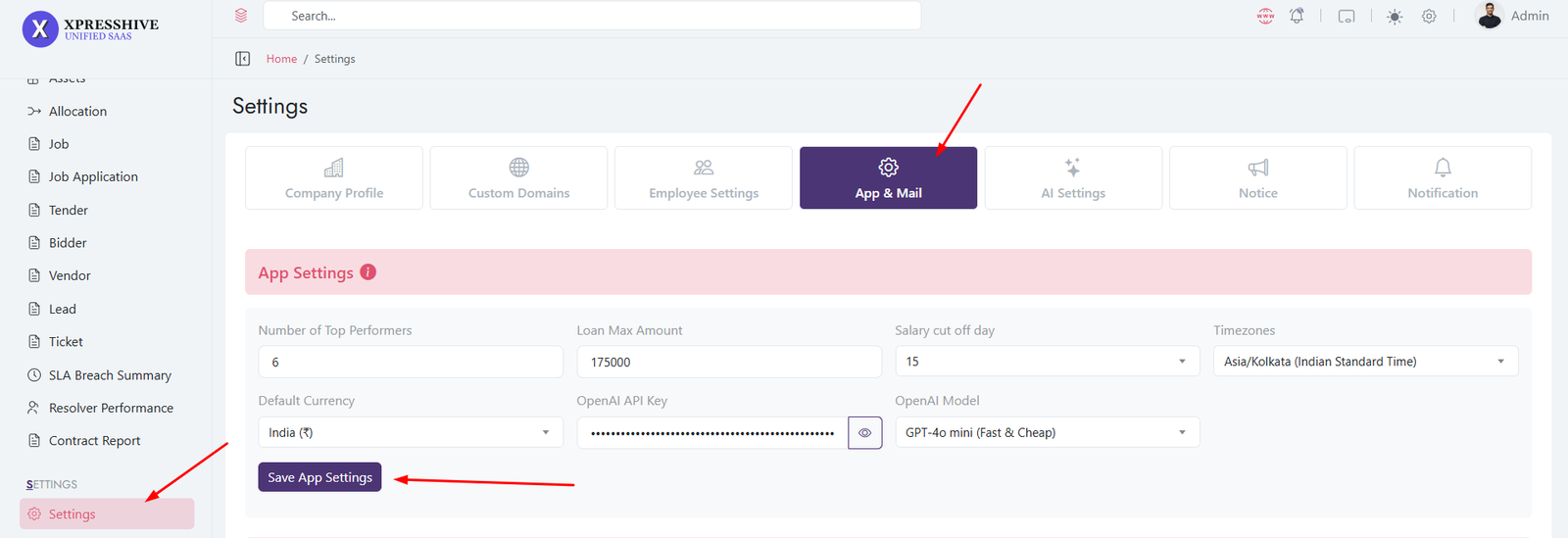
The application settings allow you to configure system-wide
behavior, branding, financial rules, and AI features. These
settings are essential for proper system functionality.
-
Number of Top Performers: 6
Defines how many employees will be highlighted as top
performers.
- Used in reports and dashboards
- Helps identify high-performing employees
-
Loan Max Amount: 175,000
Sets the maximum loan amount an employee can request.
- Controls financial limits within the system
- Used in loan approval workflows
-
Salary Cut Off Day: 7
Determines the payroll calculation cycle.
-
Salary is calculated based on this date each month
- Important for attendance and payroll reports
-
Timezones: Asia/Kolkata (Indian Standard Time)
Sets the default timezone for the entire application.
- Affects timestamps, reports, and scheduling
- Ensure this matches your business location
-
Default Currency: India (₹)
Defines the currency used across financial modules.
- Used in payroll, expenses, invoices, and reports
- Ensures consistent financial calculations
-
OpenAI API Key
Used to enable AI-powered features in the system.
- Generate project SRS documents
- Create Employee descriptions automatically
- Generate employee CVs
- Provide smart ticket responses
- Enable AI-based content generation
-
OpenAI Model
Used to choose which AI model to use.
Mail Settings
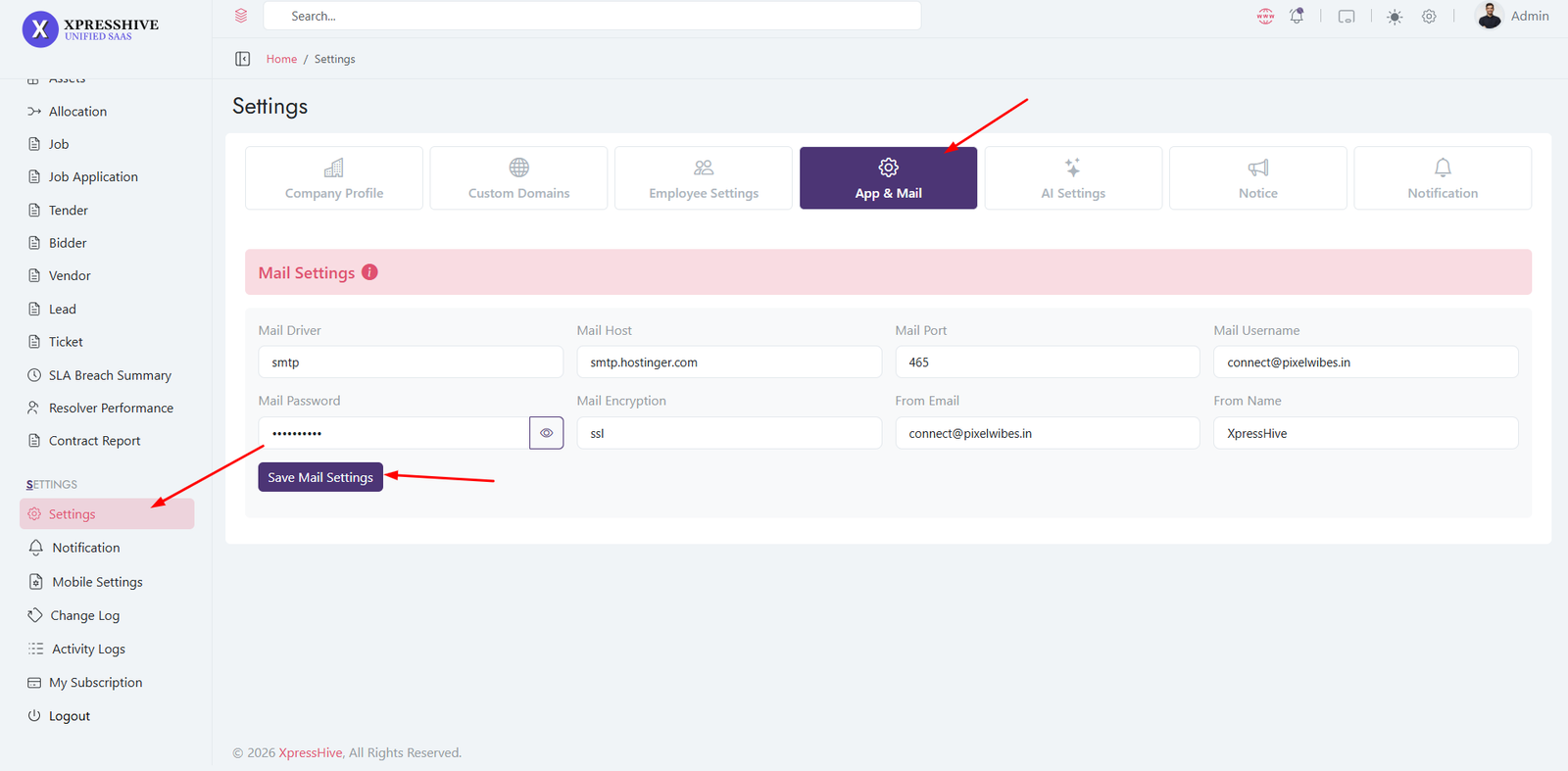
- Configure SMTP settings
- Set email and password
- Required for password reset and notifications
Important
Email configuration is required for system notifications and
password recovery.
AI Settings
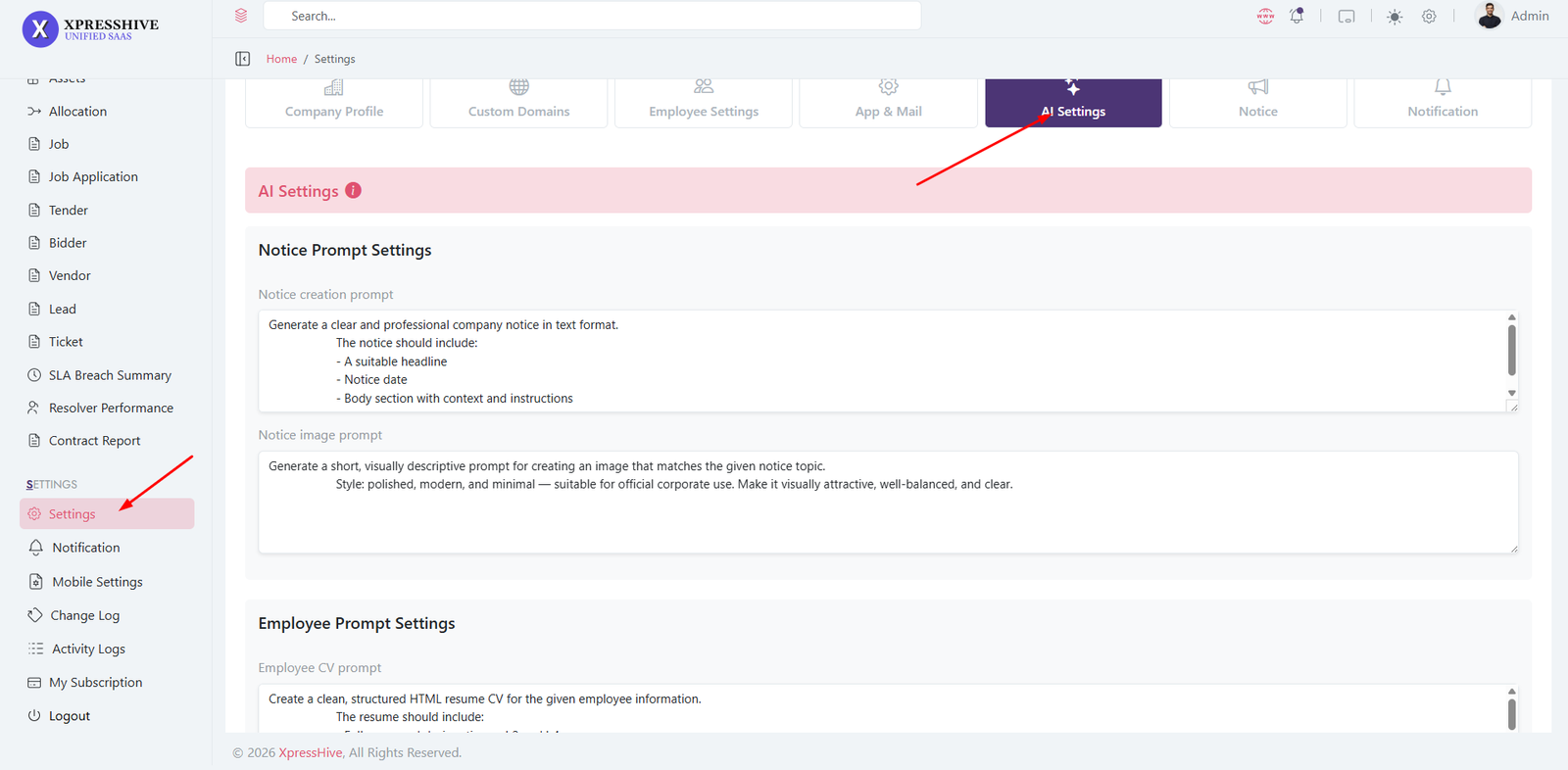
- Configure AI prompts for modules
- Customize AI behavior
- Enable smart automation features
Shift Management
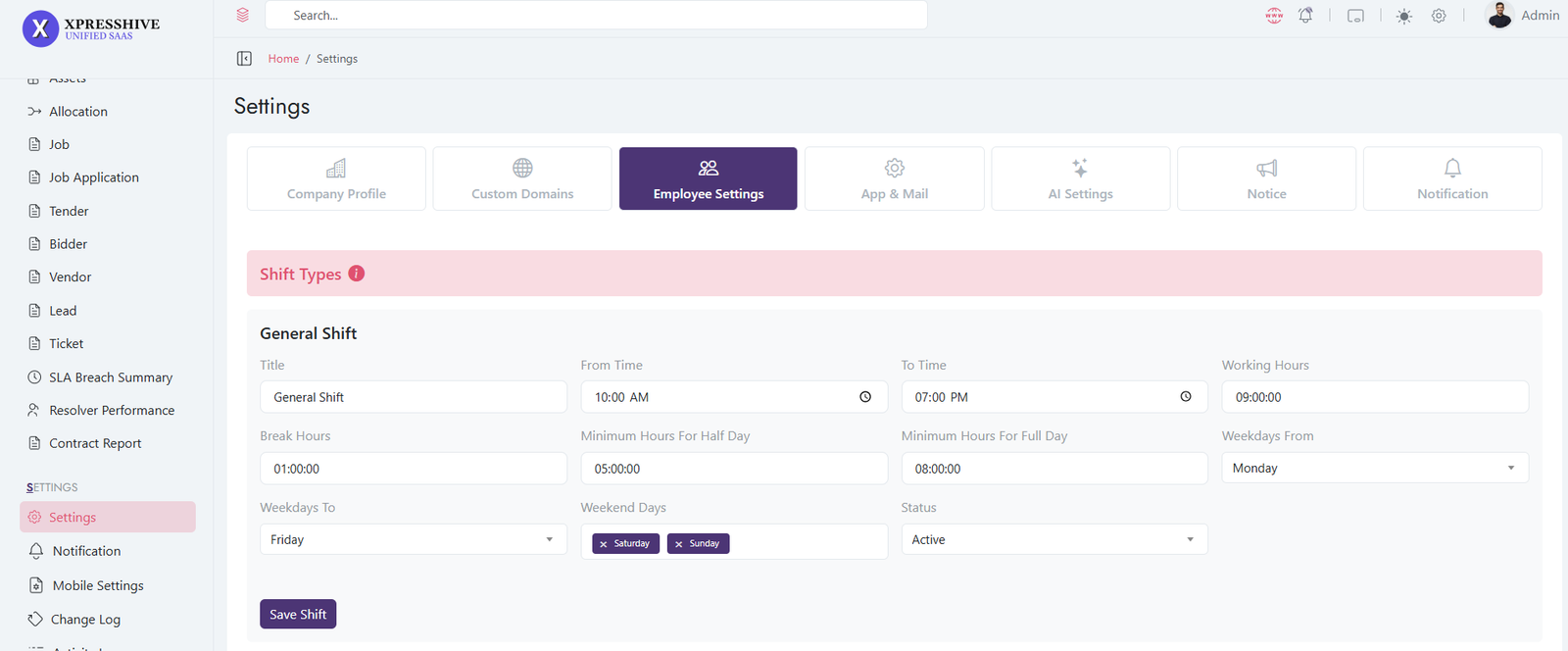
- Define working hours and break time
- Set minimum hours for attendance
- Configure working days and weekends
- Required when creating employees
Leave Management
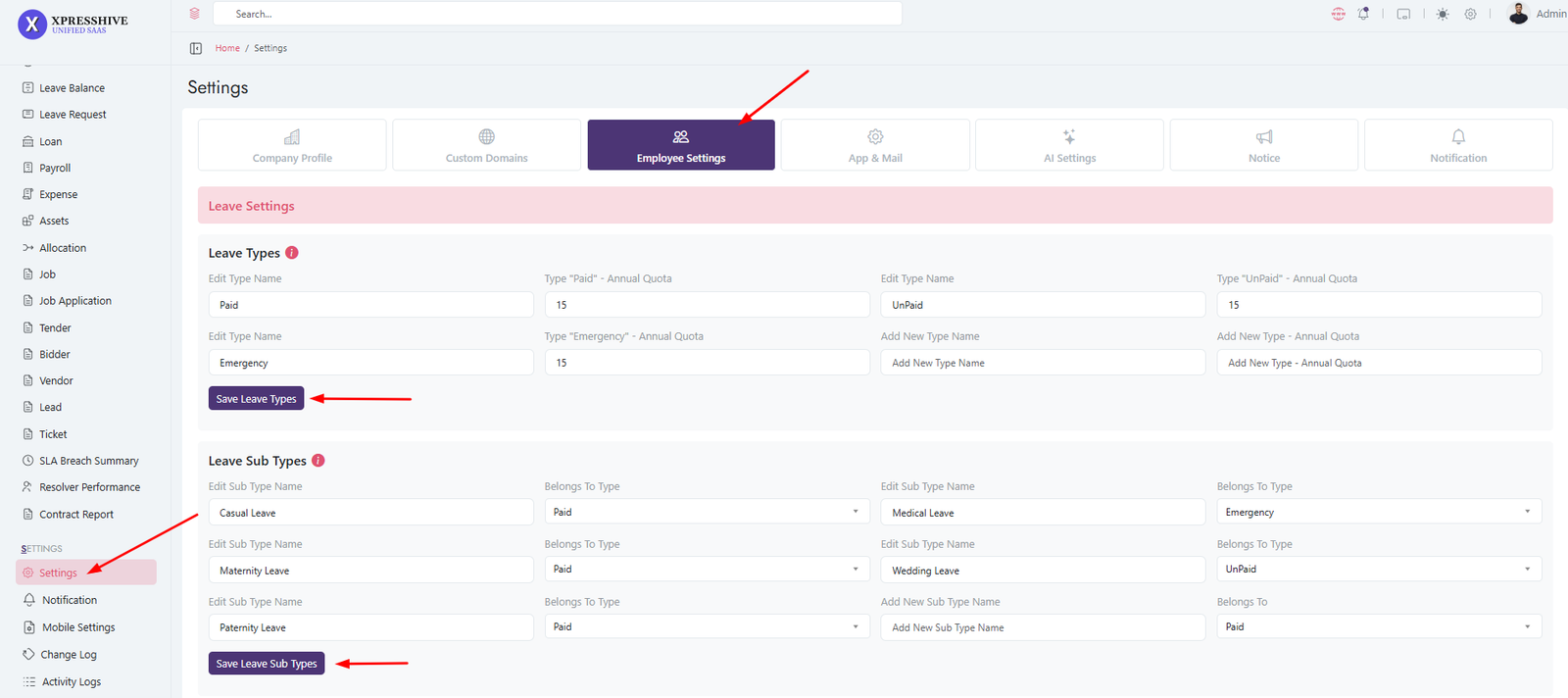
- Create leave types (Paid, Unpaid, etc.)
- Set annual quotas
- Create sub-types for better categorization
- Required for employee leave requests
Appraisal Management
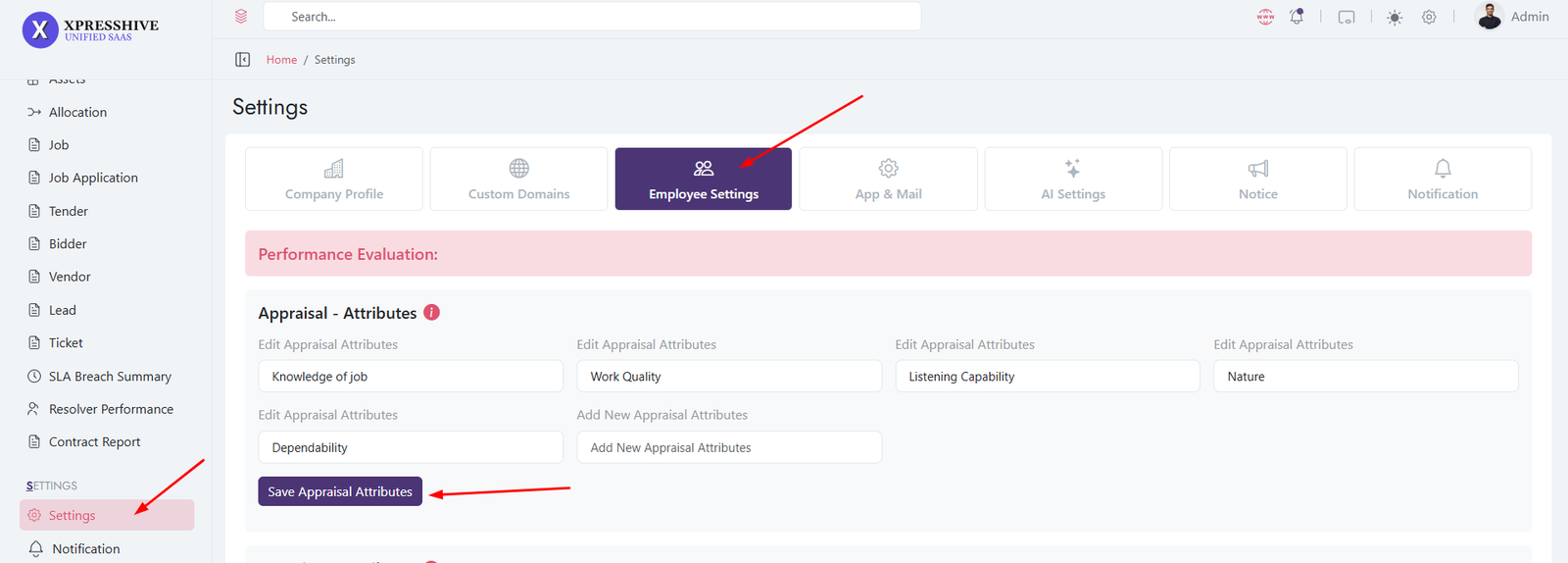
- Define performance criteria
- Evaluate employees systematically
Interview Management
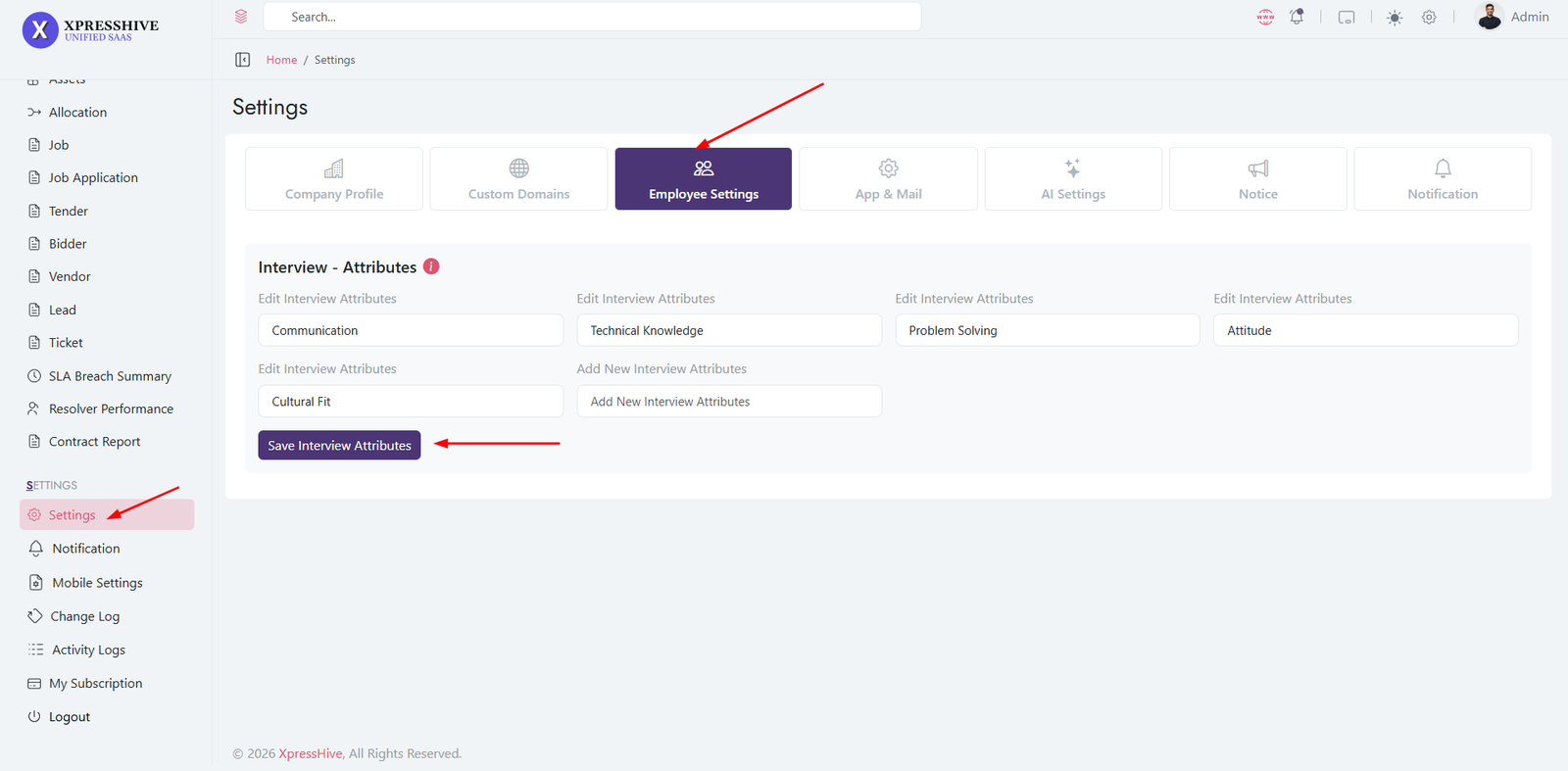
- Define interview evaluation criteria
- Score candidates effectively
- Standardize hiring process
Login & Secure Access
- Download the app
- Sign in using credentials
-
Access account securely through authentication controls
- Maintain account security from profile settings
View Dashboard
- Access employee statistics and activity summaries
- View attendance information and work status
- View notifications
- Quickly access frequently used modules
Manage Attendance
- View daily attendance records
- Monitor punch-in and punch-out history
- Review attendance reports and summaries
- Submit attendance update requests when required
Create & Manage Timesheets
- Create auto & manual timesheet entries
- Select projects, tasks, and work tags
- Track working hours using live timers
- Review completed and active timesheet records
- Monitor productivity and work history
Manage Projects
- View assigned projects
- Monitor project progress and milestones
- Access project information and updates
- Download project files and documents
Manage Tasks
- Create and update tasks
- Set priorities and due dates
- Attach files, documents, and images
- Track task progress and completion status
- Collaborate with team members on assigned work
Leave Management
- Submit leave requests
- Select leave types and date ranges
- Track approval statuses
- Review leave balances and leave history
- Monitor upcoming approved leaves
Loan Management
- Submit employee loan requests
- Specify amount, duration, and purpose
- Track approval progress
- View loan history and repayment information
- Monitor active loan balances
Lead Management
- Create lead and assign lead to employee
- Edit Lead / Update Lead / Delete Lead
- Lead Follow-up & lead notes management
- View Leads and lead related information
Employee Directory
- Browse employee records
- Search employees by name or department
- View contact information and designations
Performance & Appraisals
- View appraisal records and evaluations
- Review employee performance ratings
Support Tickets
- Create support tickets and requests
- Upload supporting documents
- Track ticket statuses and updates
- Communicate with support teams
- Review previous ticket history
Notifications & Notices
- Receive attendance and leave updates
- Get project and task notifications
- View appraisal and approval alerts
- Stay informed about company notices
Profile Management
- View personal and employment information
- Update profile details
Account Security & Device Management
- Change account passwords
- Reset forgotten passwords
- Manage active devices and login sessions
- Log out from unauthorized devices
Employee Features
- Attendance management
- Timesheet tracking
- Project management
- Task management
- Leave requests & approvals
- Lead management
- Loan requests & tracking
- Attendance update requests
- Employee directory
- Performance appraisals
- Support ticket system
- Notifications & announcements
- Profile management
- Secure authentication
Download & Register
- Download the app
- Register using email address and company information
- Verify account using OTP authentication
- Securely log in to access vendor services
Complete Vendor Profile
- Enter company name and business information
- Add contact person details
- Provide business address and website information
-
Enter tax registration and company identification details
- Save profile information for tender applications
Discover Tenders
- Browse available tenders published by departments
- Search tenders using keywords
- Filter tenders by department, category, and status
- View recently published opportunities
Review Tender Details
- View tender descriptions and requirements
- Check project values and submission deadlines
- Download tender-related documents
- Access department contact information
Apply for Tenders
- Submit applications using company information
- Attach required business and tax details
Manage Tender Activities
- Save important tenders for future review
- Track submitted tender applications
- Monitor application statuses and updates
- View approved and successful tenders
Receive Notifications
- Get alerts for new tender opportunities
- Receive application status updates
- View notifications
Manage Vendor Profile
- Update company information and contacts
- Modify business addresses and website details
- Maintain tax and registration information
- Keep vendor records up to date
Account Security & Device Management
- Change account passwords
- Reset forgotten passwords
- Manage active devices and login sessions
- Log out from unauthorized devices
Vendor Features
- Tender search & filtering
- Tender document downloads
- Tender application management
- Saved tenders
- Application tracking
- Approved tender monitoring
- Notification center
- Vendor profile management
- Device & session management
- Secure authentication
Download & Register
- Download the Talent App
- Create a new account using personal information
- Register with email address and mobile number
- Verify account using OTP authentication
- Securely log in to access job opportunities
Account Verification
- Receive OTP verification code via email
- Verify account during registration
- Resend OTP when required
- Activate account securely before accessing services
Job Listing
- Browse available job opportunities
- Search jobs using keywords and job titles
-
Filter jobs by category, location, and experience level
- View recently posted openings
Review Job Details
- View complete job descriptions
- Check required skills and qualifications
- Review salary information and benefits
- View company details and job requirements
Apply for Jobs
- Submit job applications directly from the app
- Upload resume
- Apply using profile information
- Track application submissions
Manage Job Activities
- Save jobs for future applications
- Track applied jobs
- Monitor application statuses
- View shortlisted and rejected applications
- Track interview schedules and updates
Profile Management
- Update personal information
- Manage profile photo and contact details
- Update experience information
- Manage current and expected CTC details
- Maintain address and professional information
Receive Notifications
- Get alerts for new job opportunities
- Receive interview invitations
- View application status updates
- Access notification history
Account Security & Device Management
- Change account passwords
- Reset forgotten passwords using OTP verification
- Manage active devices and login sessions
- View device activity information
- Log out from unauthorized devices remotely
Talent Features
- Job search & filtering
- Job application management
- Resume management
- Saved jobs
- Applied jobs tracking
- Interview tracking
- Application status monitoring
- Profile management
- Notification center
- Device & session management
- Password recovery & reset
- Secure authentication
Setup, Installation & System Management
- Install and configure the application
- Manage system settings and preferences
- Configure company information
- Perform system updates and maintenance
Authentication & Access Control
- Administrator login and authentication
- Role-based access control
- User permissions management
- Session monitoring and security
- Password reset
Organization Management
- Create and manage departments
- Manage designations and job roles
- Organize teams and reporting structures
- Maintain employee records
- Manage workforce information centrally
Attendance & Timesheet Management
- Employee attendance tracking
- Check-in and check-out monitoring
- Timesheet management
- Working hours calculation
- Attendance reporting and analytics
Leave Management
- Create leave policies
- Submit and approve leave requests
- Track leave balances
- Monitor employee absences
- Generate leave reports
Payroll & Salary Management
- Salary structure management
- Payroll processing automation
- Payslip generation
- Allowance and deduction management
- Payroll reporting and records
Project & Task Management
- Create and manage projects
- Assign tasks to employees
- Track project progress
- Monitor task completion
- Manage project documentation
Support Ticket System
- Create support tickets
- Assign tickets to team members
- Track ticket status
- Manage customer support requests
- Monitor service performance
Asset Management
- Manage company assets
- Track assets records
- Allocate assets to employees
- Monitor asset usage history
- Generate asset reports
Recruitment & Careers
- Create job openings
- Manage candidate applications
- Schedule interviews
- Track hiring processes
- Manage recruitment records
CRM & Lead Management
- Capture and manage leads
- Track customer interactions
- Manage sales opportunities
- Schedule follow-ups
- Monitor lead conversion activities
Contracts & Document Generation
- Create business documents
- Generate contracts and letters
- Use document templates
- Manage digital signatures
- Store generated documents securely
Purchase & Procurement
- Create purchase requests
- Manage purchase orders
- Track vendor transactions
- Manage bills and payments
- Monitor procurement activities
Notifications & Communication
- Send system notifications
- Publish announcements
- Configure communication channels
- Track notification delivery
AI Powered Features
- AI content generation
- Smart assistance tools
- Automated ticket reply responses
- AI-powered document creation
Reports & Analytics
- Employee performance reports
- Attendance analytics
- Payroll reports
- Project and task insights
- Business performance dashboards
Department Management

-
Create departments such as Finance and Accounts, IT, Sales,
etc.
- Each employee must be assigned to a department
- Edit or update department details anytime
- Delete unused departments
-
This is required before creating designations and employees
Designation Management
Designation List

Create Designation

-
Create roles such as Manager, Developer, HR Executive, etc.
- Each designation is linked to a department
- Edit or update designation details anytime
- Delete unused designations
- Used during employee creation and system structure
Employee Management
Employee List

Create Employee

Employee Profile
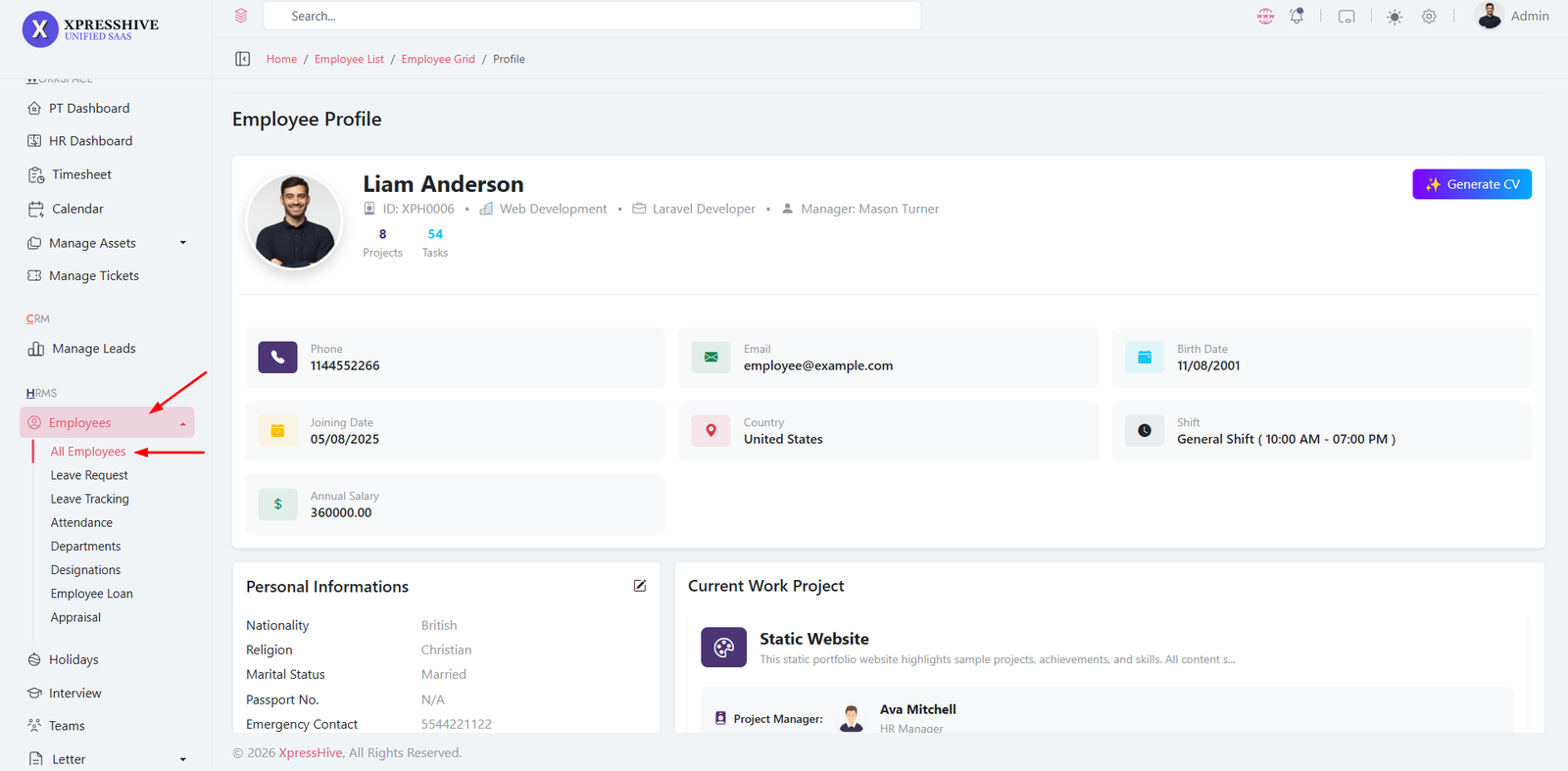
- Add new employees with required details
- Assign department, designation, and shift
- Edit or update employee information anytime
- View complete employee details
- Delete inactive or unnecessary employee records
- AI Feature: Generate employee CV using AI
Timesheet Management
Timesheet Dashboard

-
Track daily working hours against projects and tasks in a
structured way
-
Start and stop a live timer to automatically calculate working
duration
-
Select project and task dynamically (tasks load based on
selected project)
-
Switch between tasks while tracking without losing recorded
time
-
Manual time entry option available for past or offline work
-
Add descriptions to explain the work performed during the time
entry
-
Use personal tags to categorize and organize timesheet entries
-
Billable indicator automatically reflects based on selected
task
-
System resumes running timer automatically after page refresh
-
Only one active timer is allowed per user to maintain accurate
tracking
-
Edit or update time entries, including duration, task, and
tags
- Delete incorrect or unnecessary time records
- View weekly summaries and total tracked hours
-
Supports filtering by date, project, and task for better
visibility
-
Helps generate productivity insights and billing reports
Calendar & Event Management
Calendar Overview
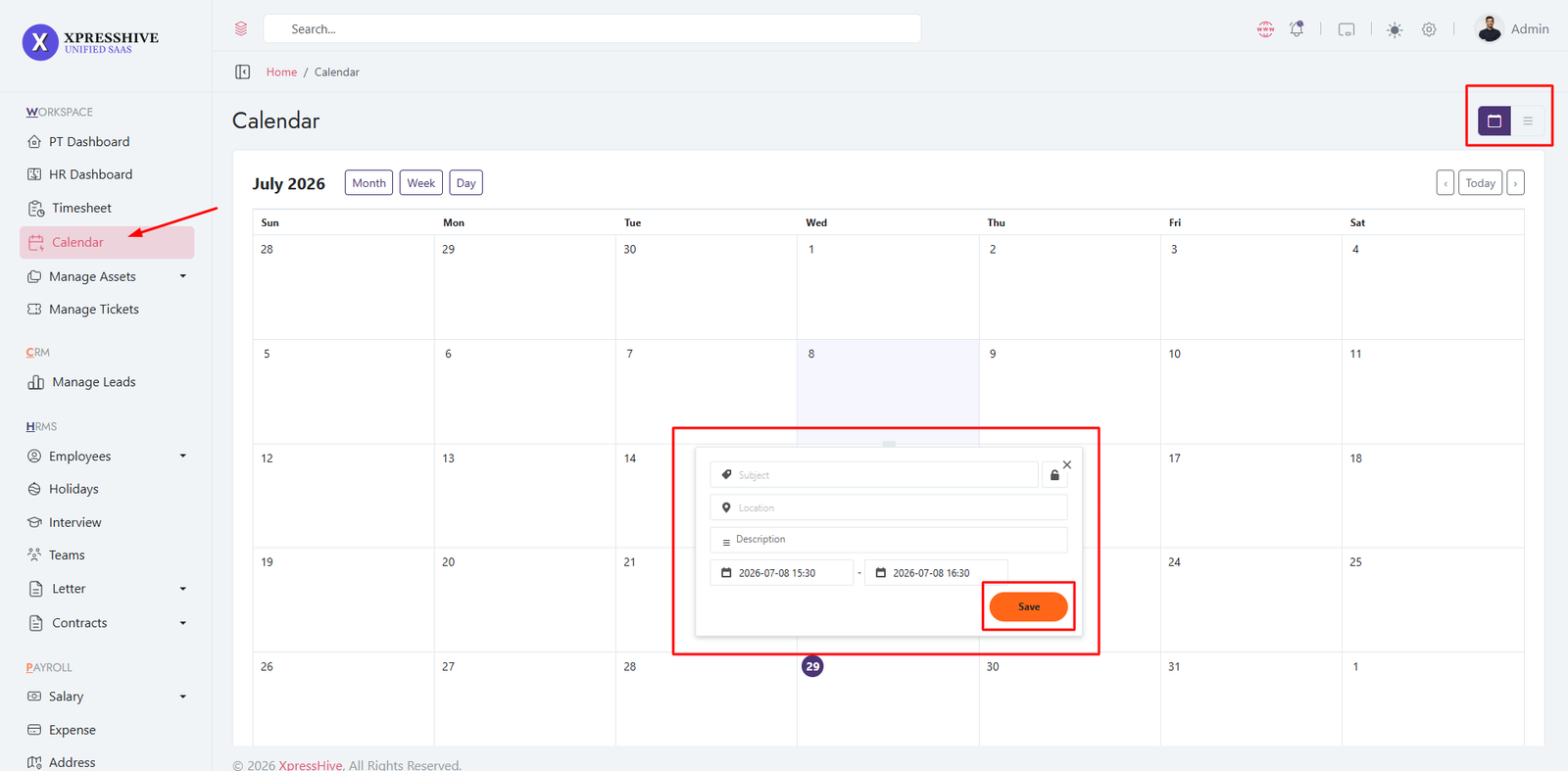
Create Event
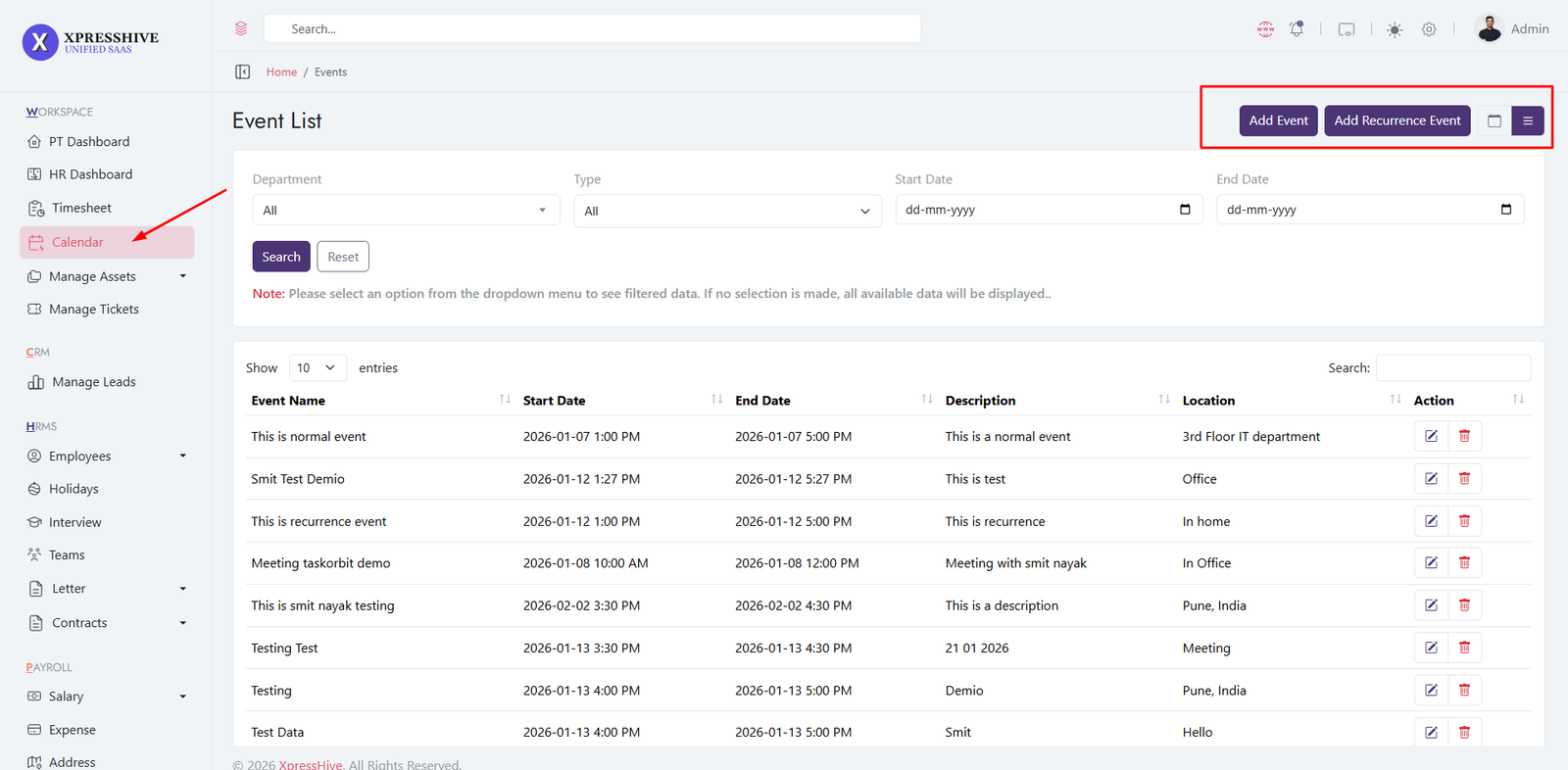
-
View and manage schedules using calendar views (Month, Week,
Day)
-
Create events by clicking on a date or using the quick add
option
-
Add event details including title, location, description, and
time
- Assign events to specific users or departments
-
Set recurring events (daily, weekly, monthly) with custom
intervals
- Integrate Google Meet links for online meetings
- Mark events as private to restrict visibility
- Overlay holidays automatically for better planning
- Edit or update events anytime from the calendar view
- Delete events or manage recurring series efficiently
- Receive notifications for assigned or updated events
-
Dynamic event loading using calendar feed for real-time
updates
Leave Request Management
The Leave Request module allows employees to submit leave applications by selecting
the leave type, date range, and leave reason. The system automatically calculates
the total leave duration based on the selected day configuration (Full Day, First Half,
or Second Half). Administrators can review, approve, reject, or update submitted requests.
Leave Request List
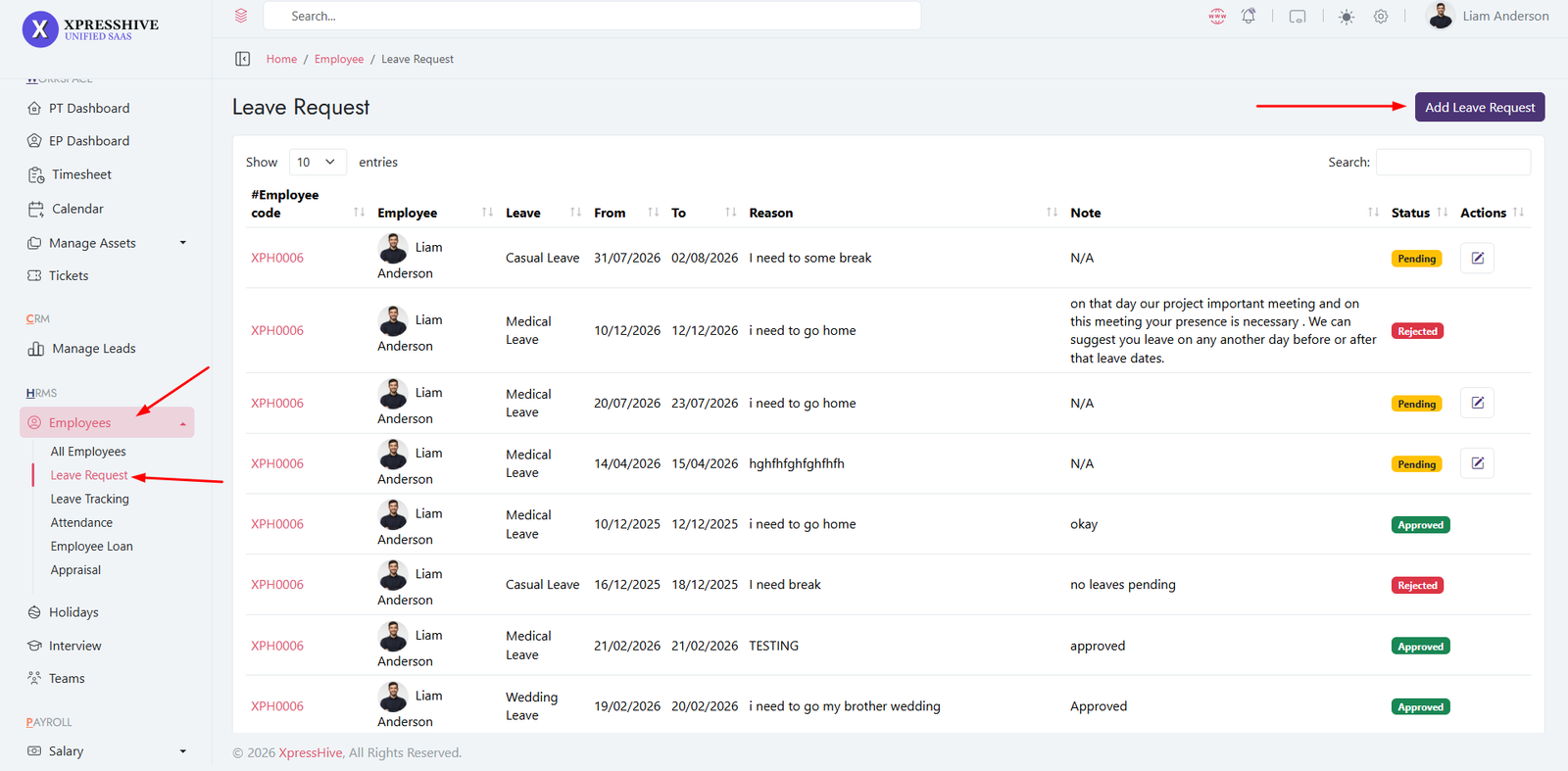
- View all leave requests in a centralized list.
- Search, sort, and paginate leave records.
- Display employee information, leave type, duration, reason, note, and current status.
- Track request status with color-coded badges (Pending, Approved, Rejected).
- Edit leave requests when permitted.
Create Leave Request
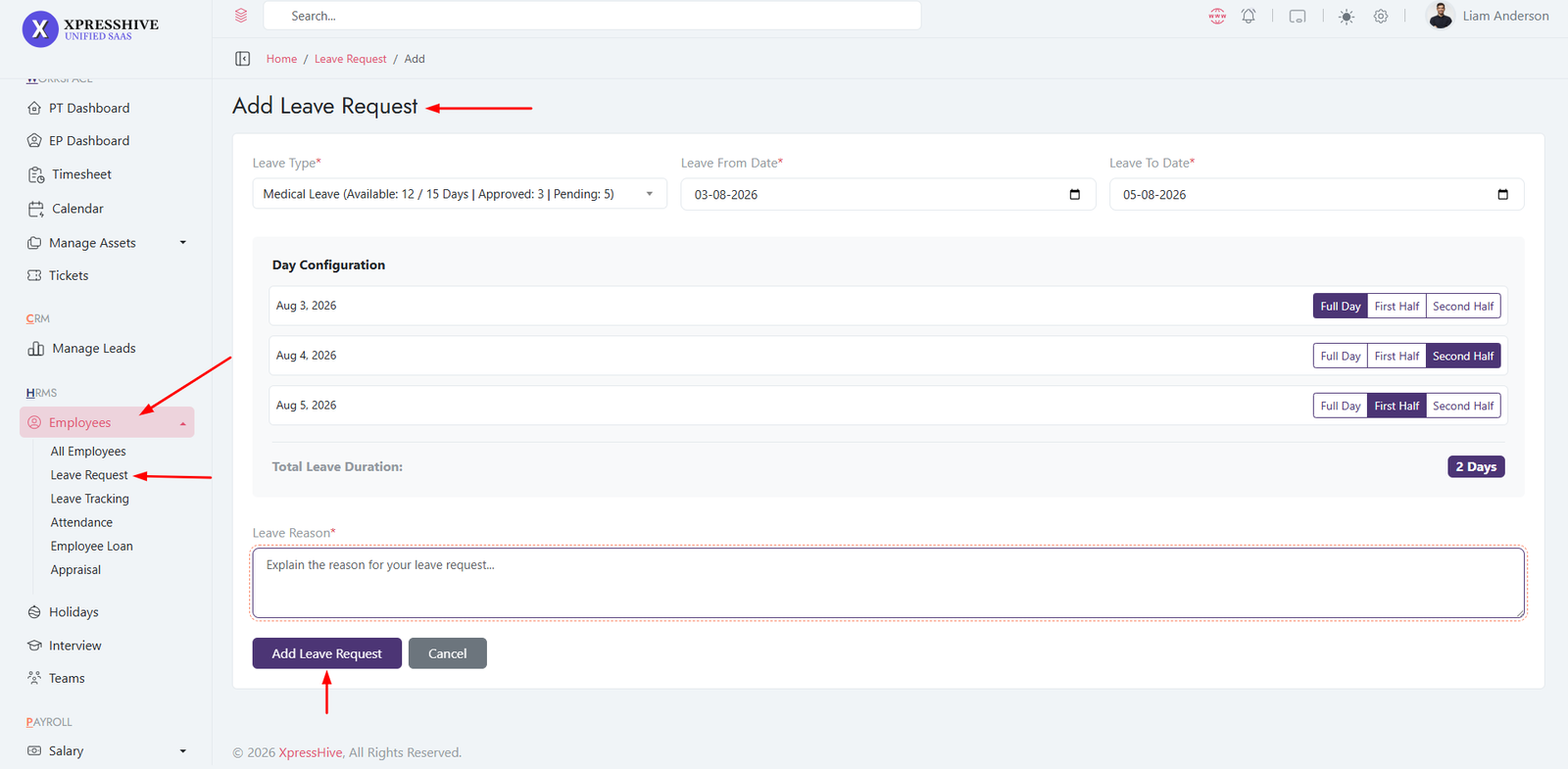
- Select the desired leave type.
- View available leave balance, approved leaves, and pending requests.
- Choose the leave start and end dates.
- The system automatically generates the day configuration for each selected date.
- Specify the leave reason before submitting the request.
Day Configuration
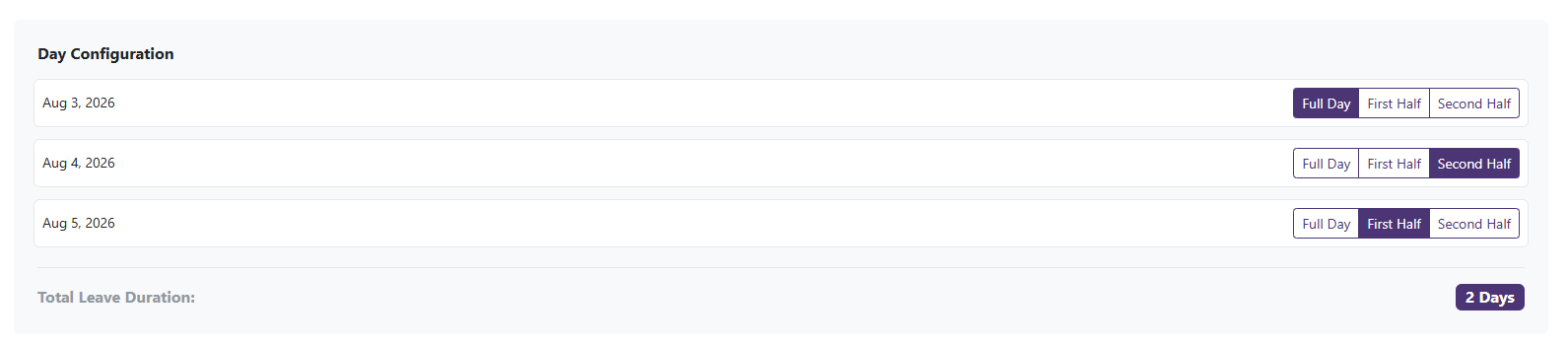
- Configure each selected date individually.
- Choose one of the following options for every leave day:
- Full Day
- First Half
- Second Half
- The system recalculates the total leave duration instantly based on the selected configuration.
- Half-day selections are counted as 0.5 day, while Full Day counts as 1
day.
- Review the calculated total leave duration before submitting the request.
Consumed Leave Management
Consumed Leave List
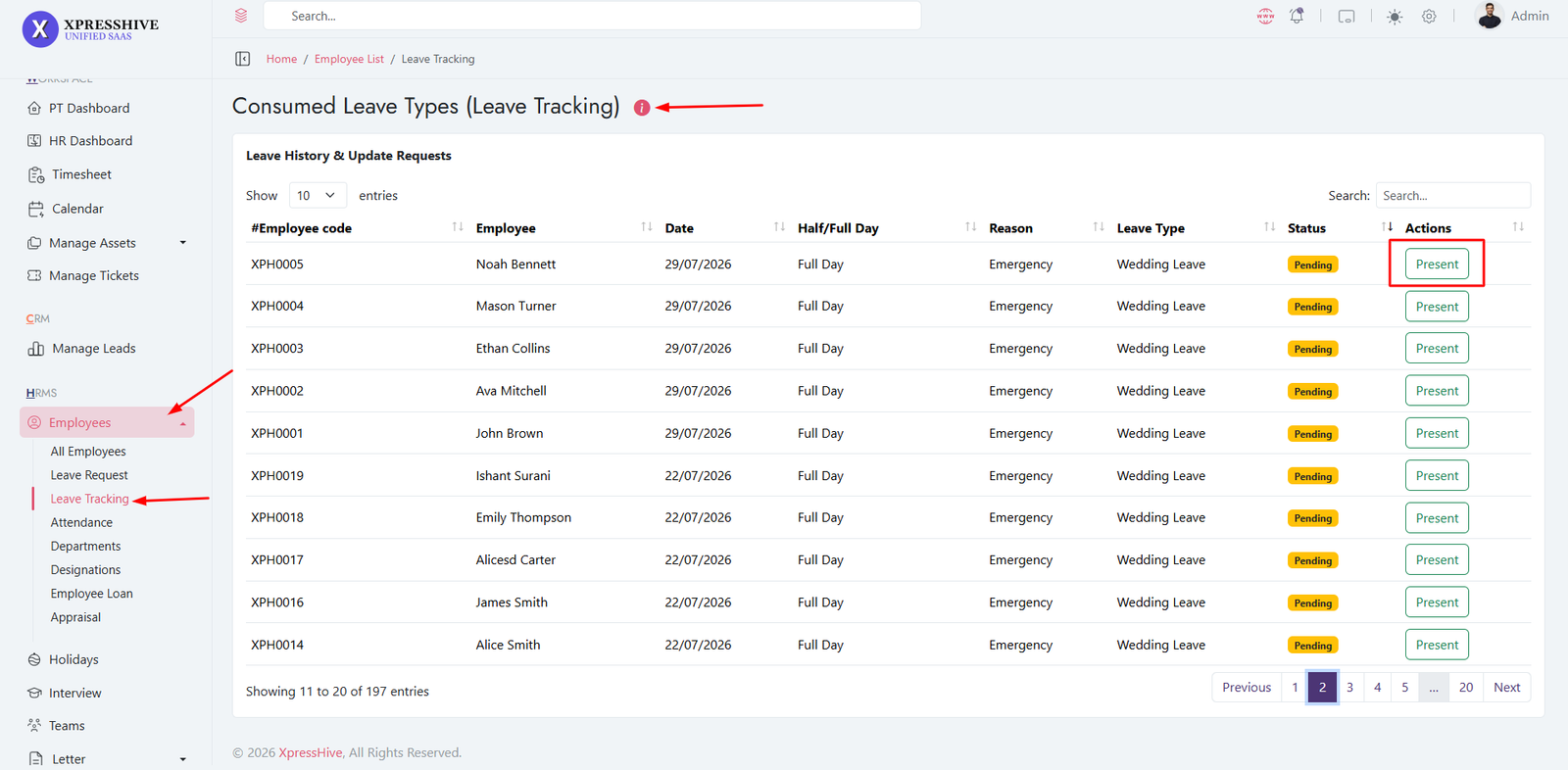
Consumed Leave Report

- Manage approved leave records
- Approve or reject leave requests
- Update attendance status based on leave
- Modify clock-in and clock-out timings if needed
- Track total consumed leaves of employees
Attendance Management

- View and manage employee attendance records
- Mark attendance manually if required
- Edit or update attendance details
- Track daily, weekly, and monthly attendance
- Used for payroll and reporting calculations
Employee Loan Management
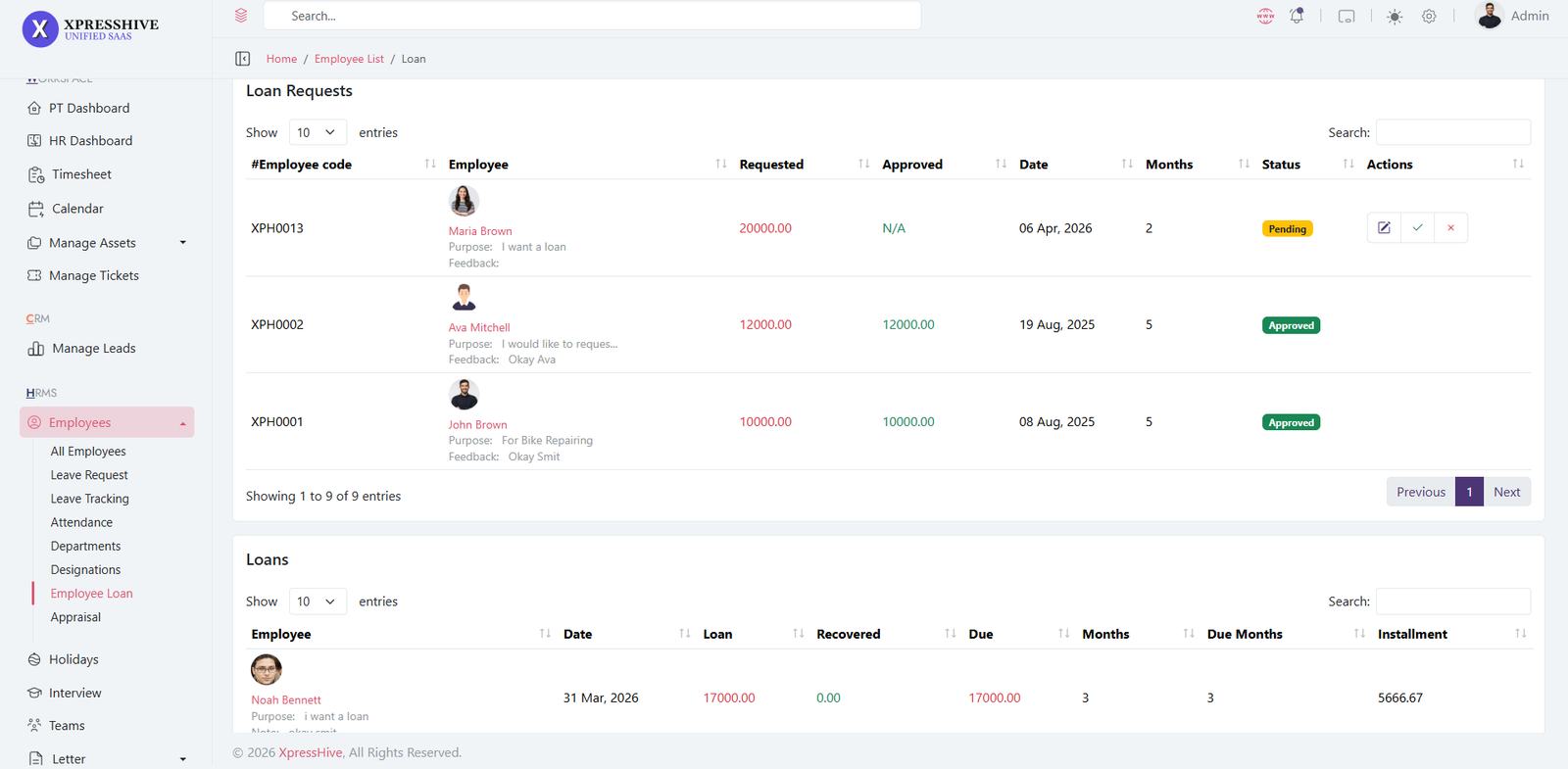
- Manage employee loan requests
- Add new loan entries with amount and details
- Approve or reject loan requests
- Edit or update loan information
- Track loan repayment and status
Appraisal Management

- Create employee appraisals (single or multiple levels)
- Evaluate performance based on defined attributes
- Review appraisal details and scores
- Approve or reject appraisal requests
- Maintain structured performance records
Employee Clock Management

- Employees can clock in and clock out daily
- Track working hours automatically
- View clock-in and clock-out history
- Helps maintain accurate attendance records
- Used for payroll and performance tracking
Asset Categories

-
Create and manage asset categories (Laptop, Mobile,
Accessories, etc.)
- Edit or update category details anytime
- Delete unused categories
- Used to organize hardware assets efficiently
Hardware Assets
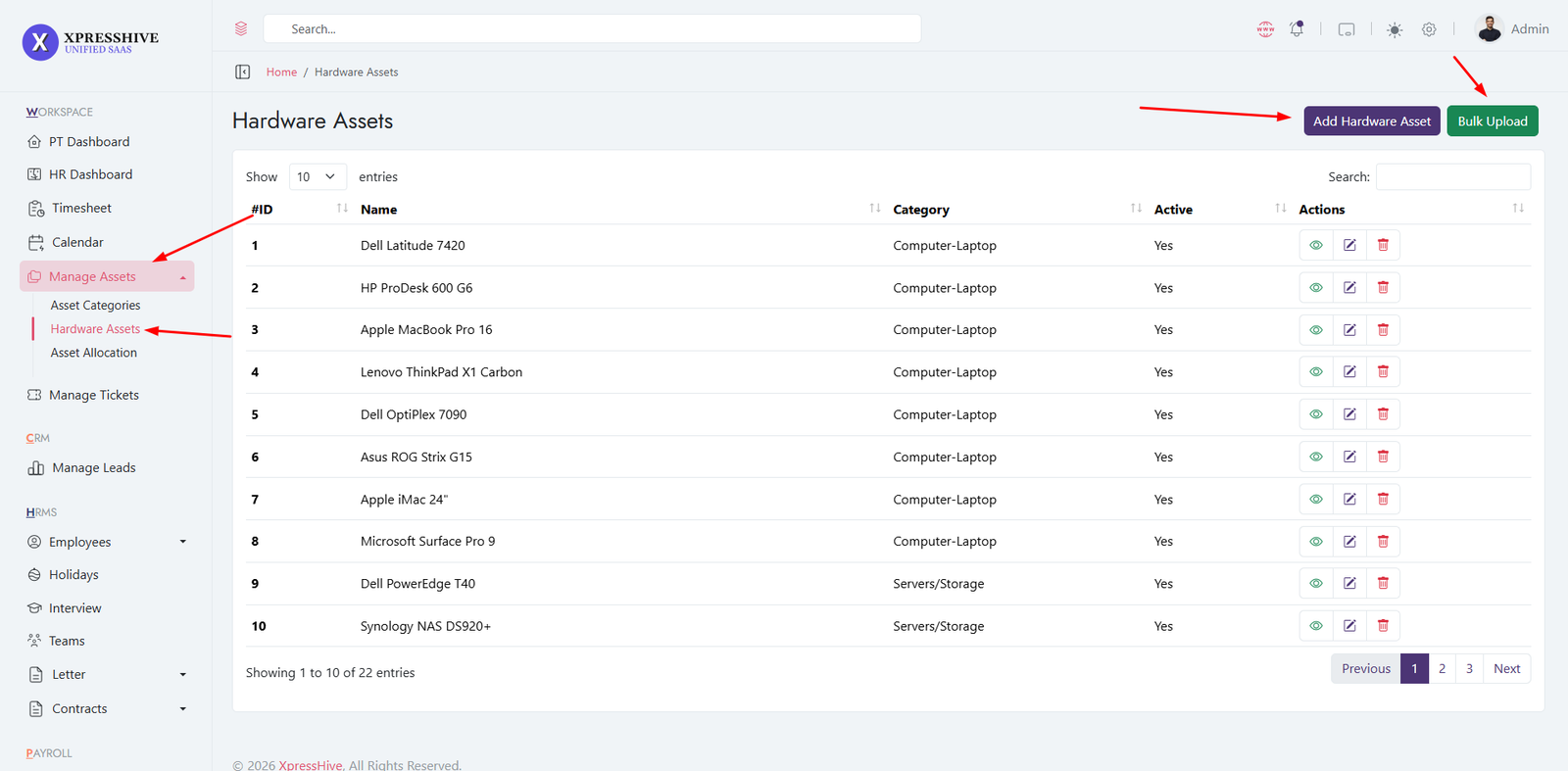
- Manage the list of all hardware assets
-
Add new assets with details (name, category, serial number,
etc.)
- Edit or update asset information
- Delete unused or inactive assets
- View complete asset details
Asset Allocation

- Assign hardware assets to employees
- Track which employee is using which asset
- Edit or update allocation details
- Manage asset return and reallocation
- Maintain proper asset usage records
Ticket Issue Management
Go to Ticket Issue
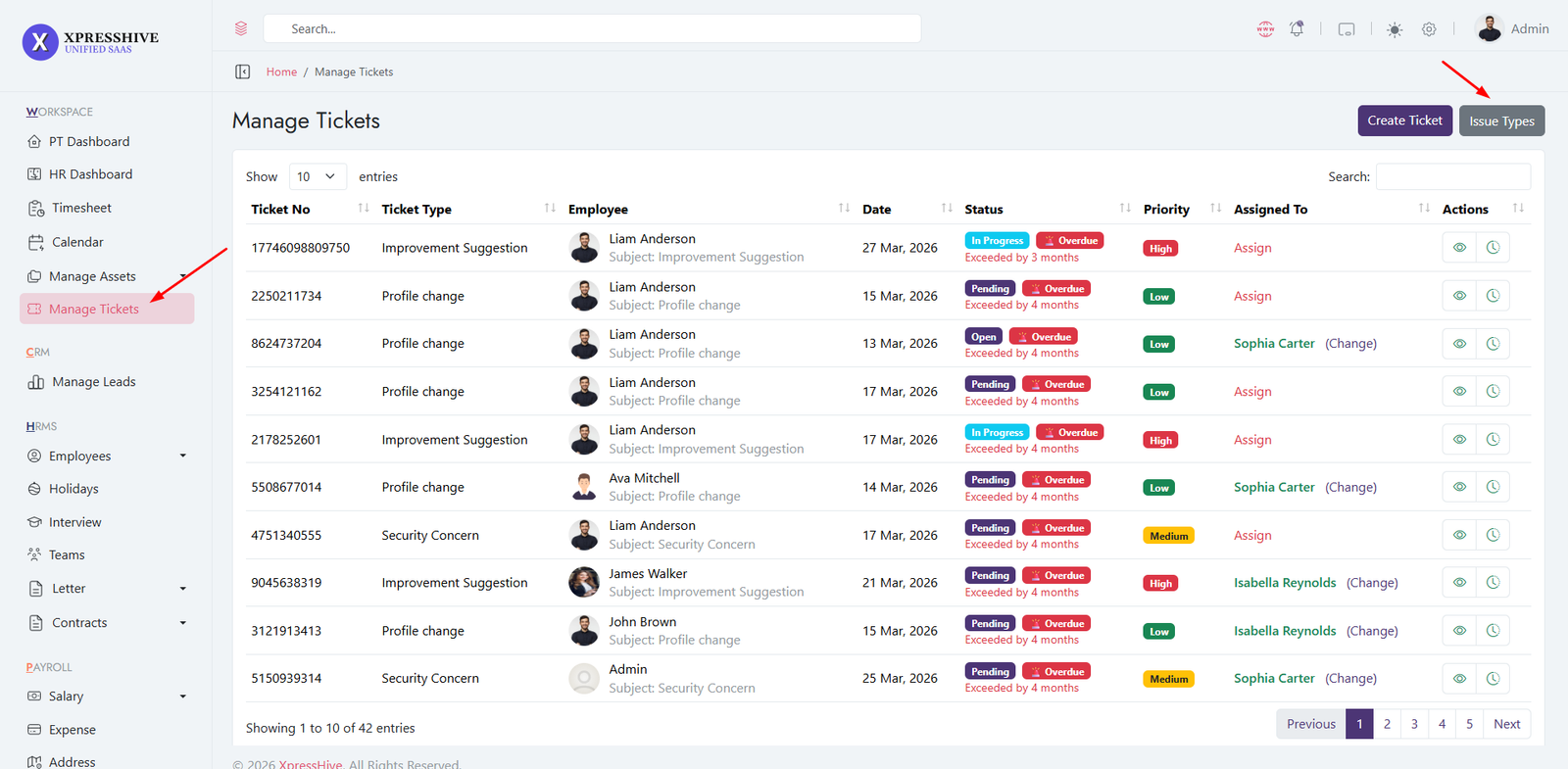
Ticket Issue List
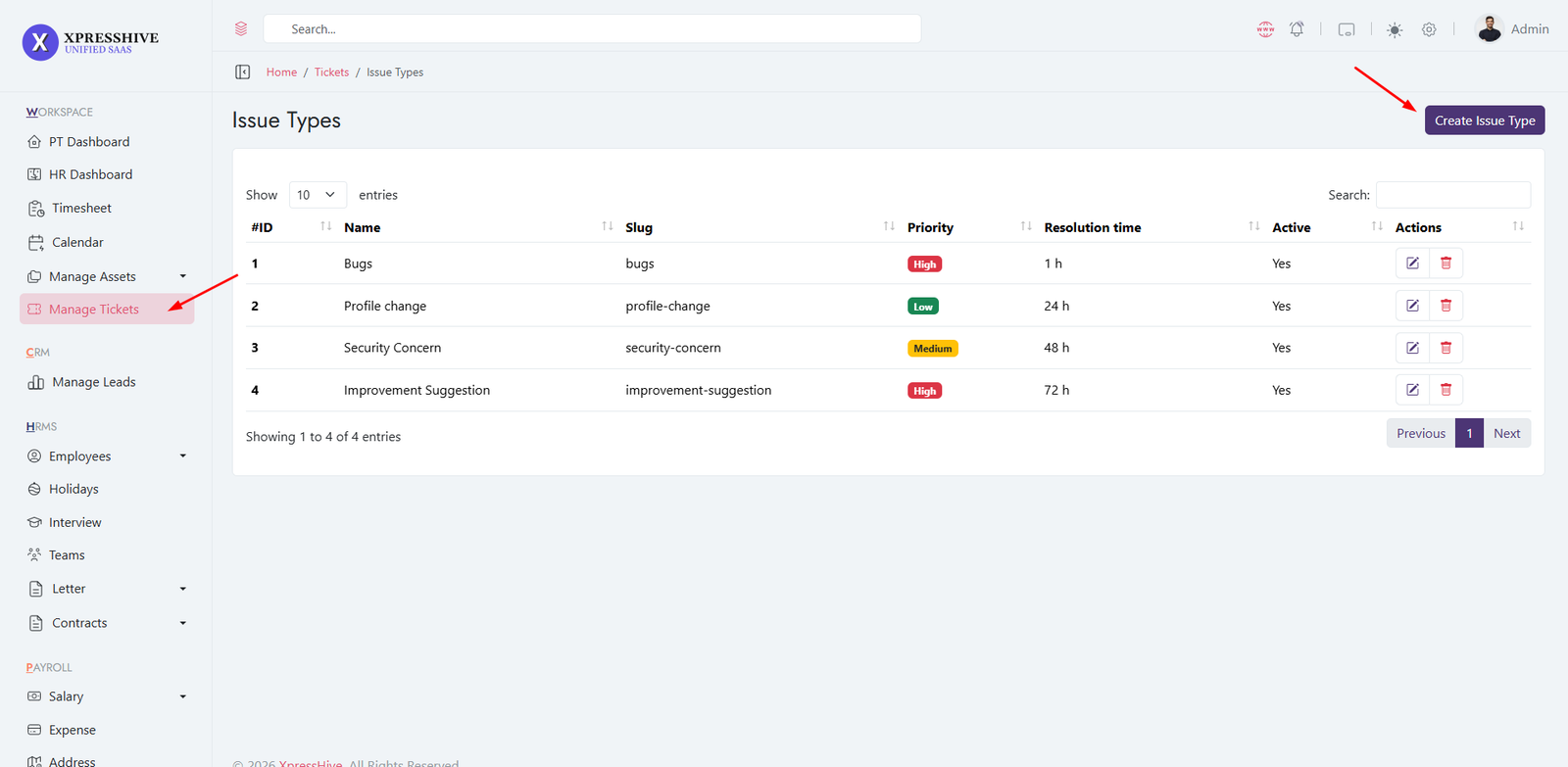
-
Define and manage ticket issue types (e.g., Hardware,
Software, Telecom)
-
Set priority levels and SLA resolution time for each issue
type
-
Helps categorize tickets for better tracking and reporting
- Edit or update issue types as business needs evolve
- Delete unused or outdated issue categories
-
Acts as a foundation for ticket assignment and SLA monitoring
Ticket Management Flow
Ticket List
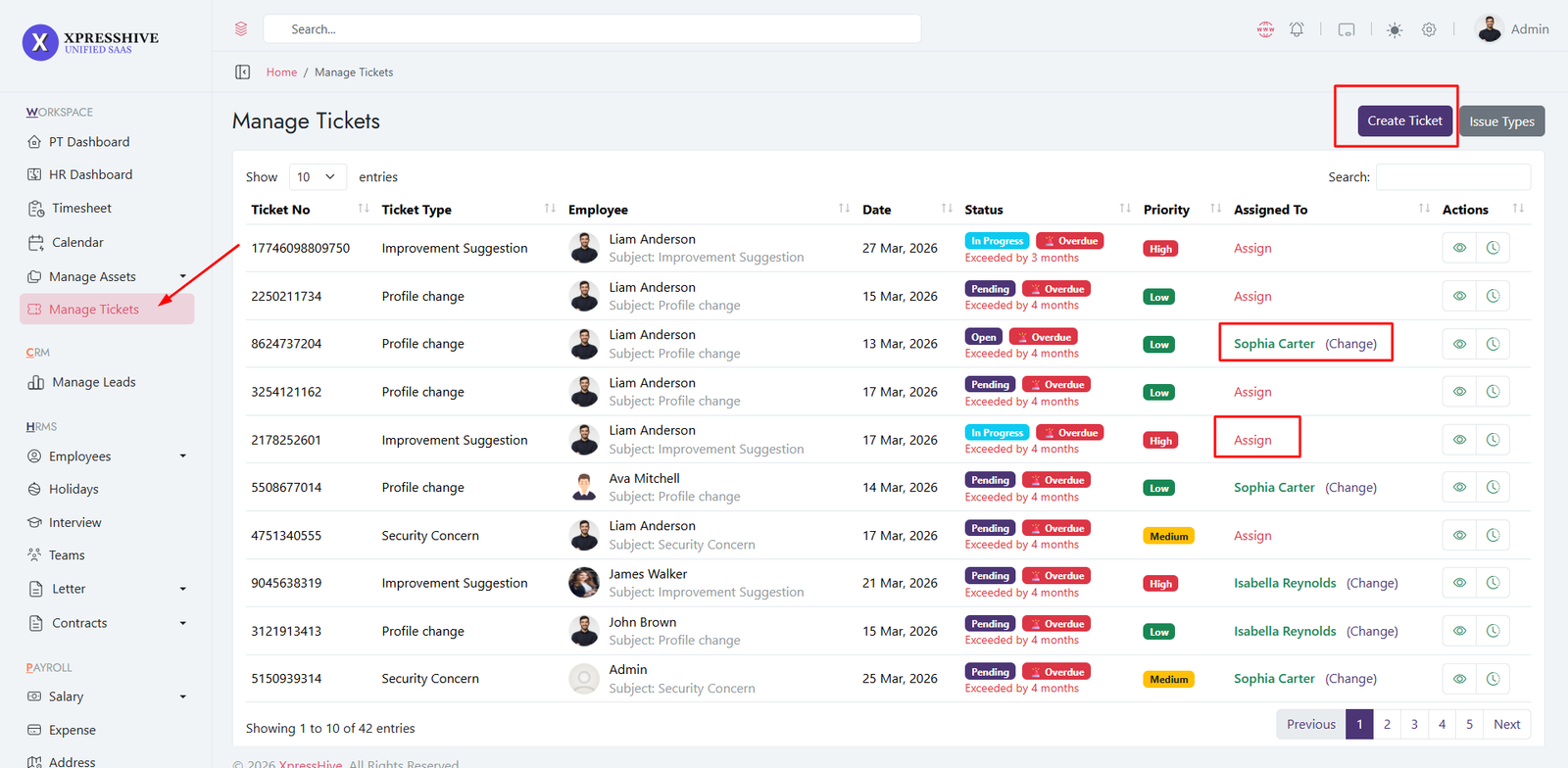
Ticket Details
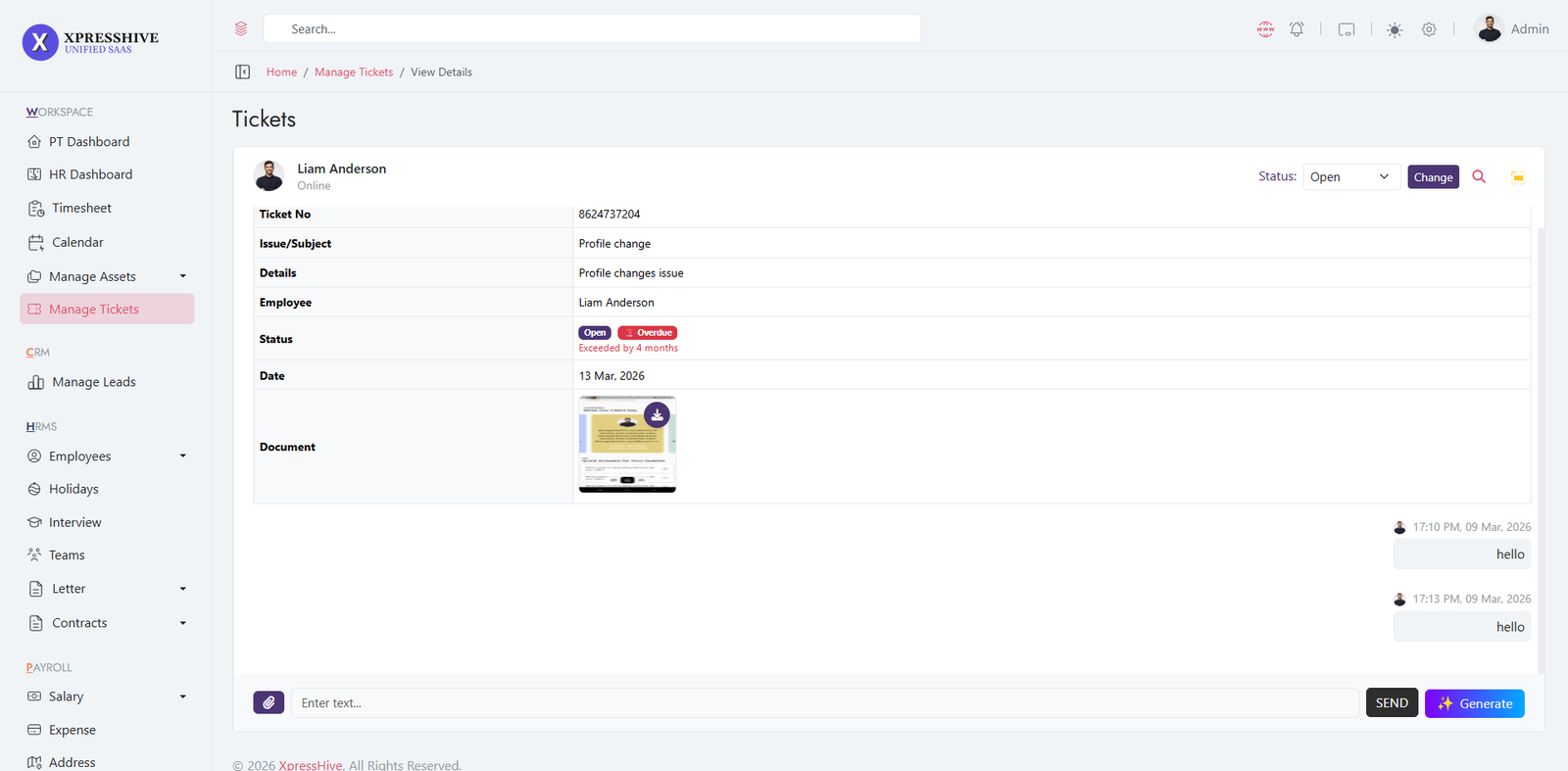
-
Users can create support tickets for issues related to
projects, systems, or services
-
Each ticket is categorized using predefined issue types for
better organization
-
Tickets are automatically assigned a unique ID and initial
status (Open)
-
Authorized users can assign tickets to specific employees or
departments
-
Resolvers can update ticket progress, add logs, and upload
attachments
-
Track ticket status through stages such as Open, In Progress,
Resolved, and Closed
-
SLA tracking ensures tickets are resolved within the defined
time limits
-
Notifications are triggered on ticket creation, assignment,
and status updates
-
AI-powered feature helps generate smart replies or suggested
solutions
-
Maintain complete ticket history including logs, actions, and
updates
-
Managers can reassign tickets or monitor team performance
-
Reports provide insights into SLA breaches and resolver
performance
Lead Management Flow
Lead Source List
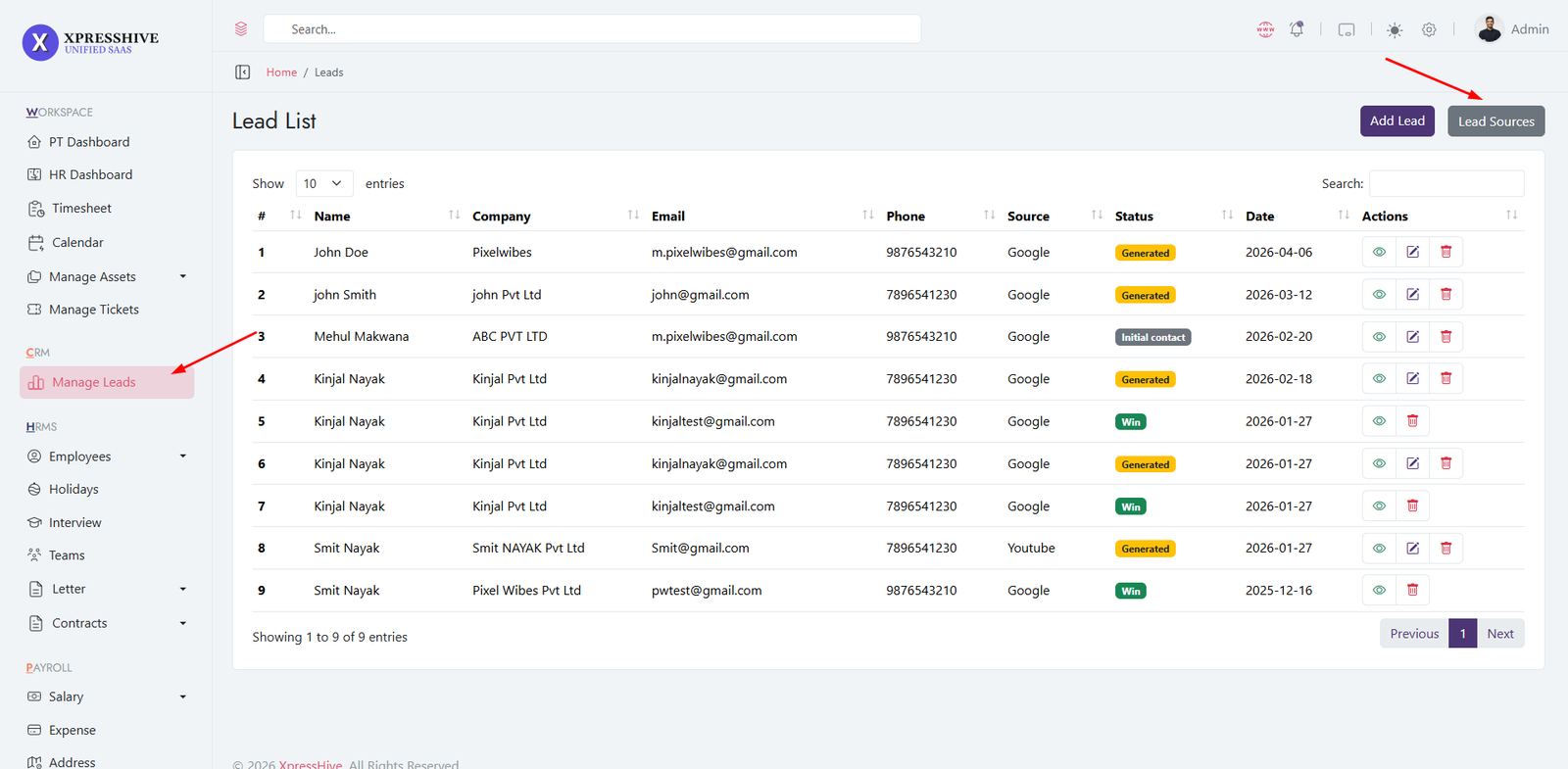
Lead List
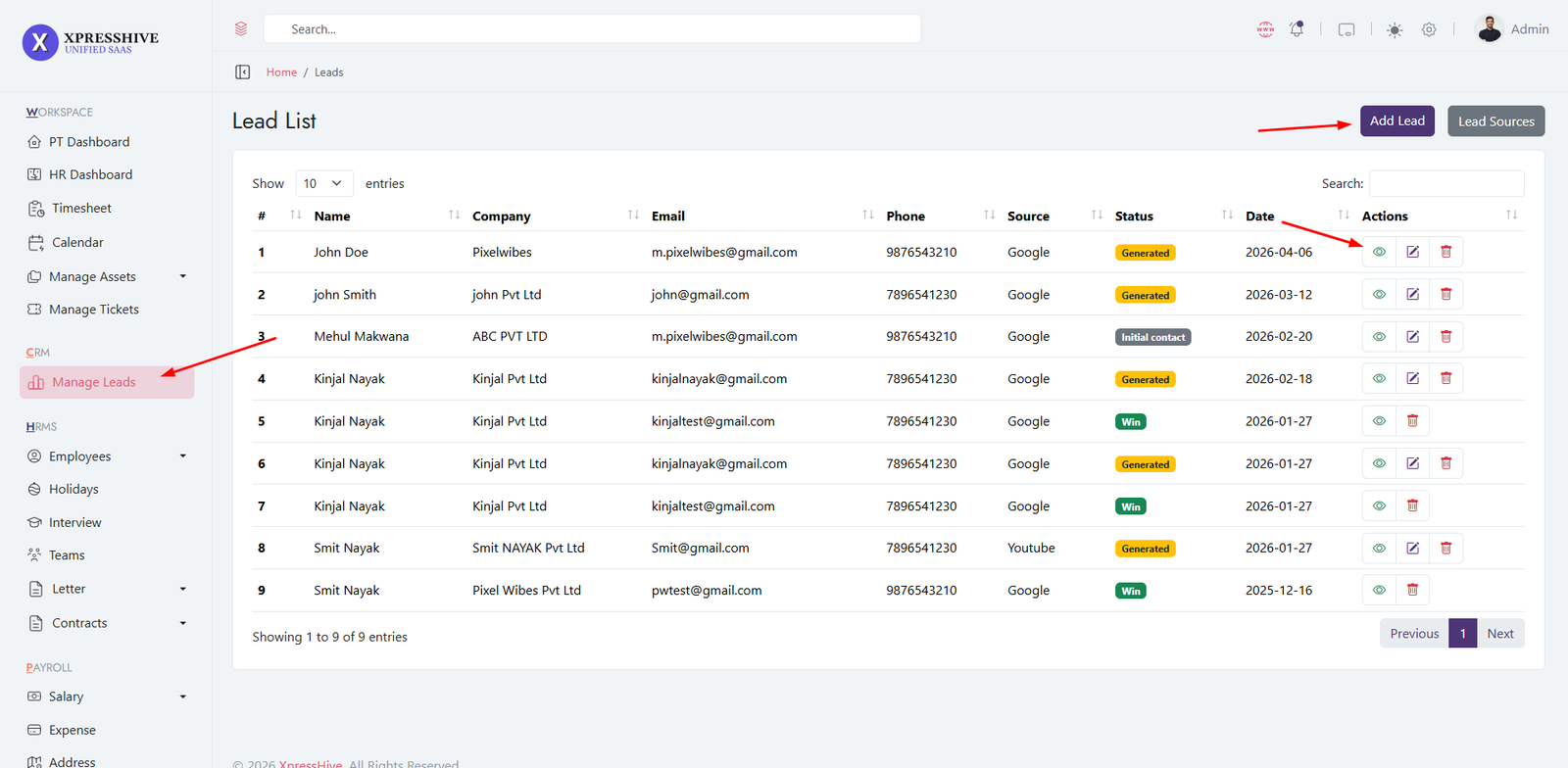
Lead Details View

- Admin can create and manage leads from the CRM module
-
Leads can be assigned a source (e.g., Google, Website,
Referral)
-
Track lead details including name, company, email, and phone
-
Manage lead status through stages (Generated, Qualified,
Initial Contact, Proposal Sent, Win, Lost)
-
Add follow-ups to track communication history with prospects
-
Add notes for internal discussion and important information
- Edit or update lead information anytime
-
Notifications are triggered on status updates, assignments,
and follow-ups
-
View complete lead lifecycle and activity in a single detail
page
- Export lead reports for analysis and tracking
Holiday Management
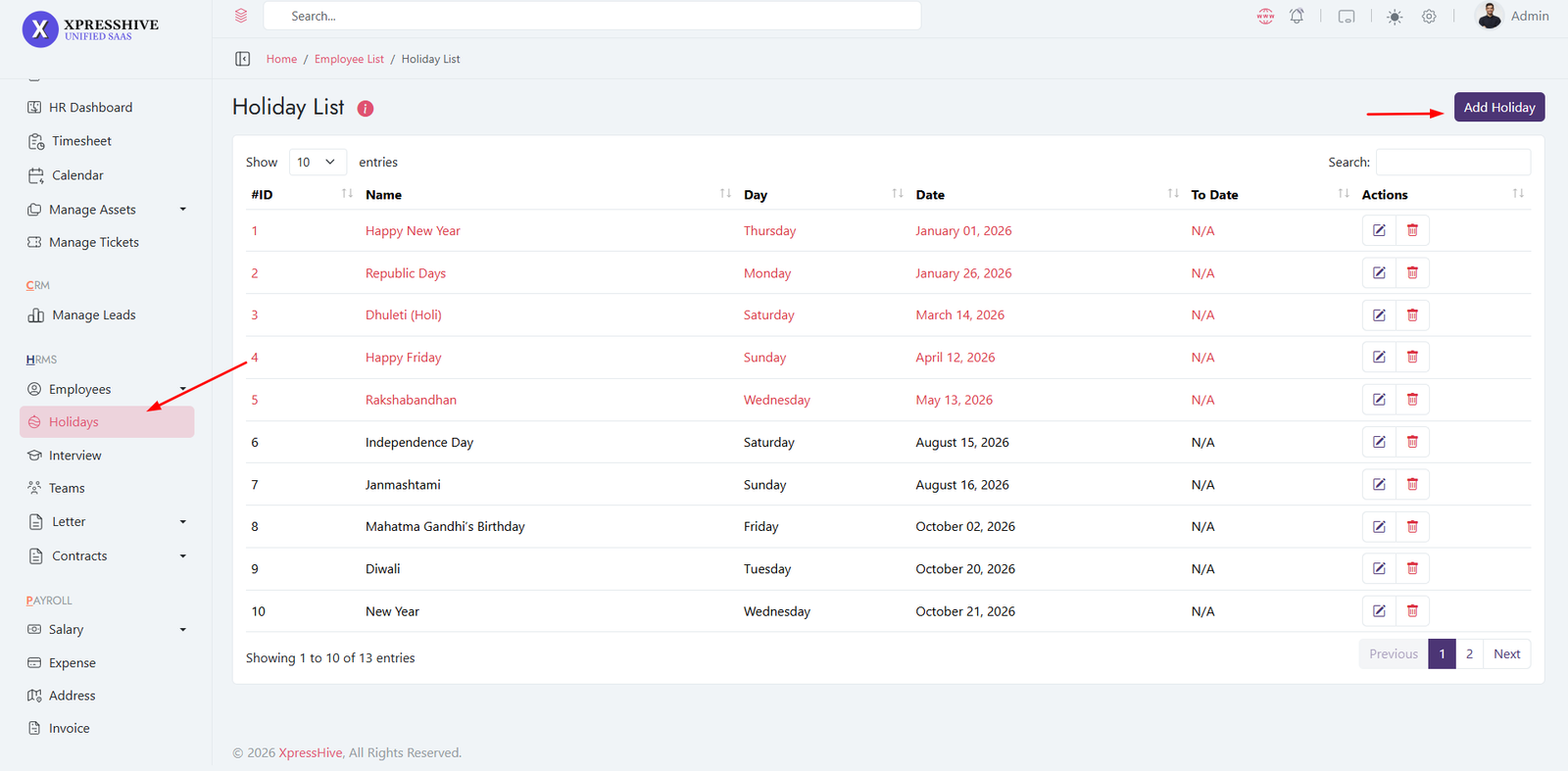
- Create and manage holiday list for the organization
- Add new holidays with date and description
- Edit or update holiday details anytime
- Used in attendance and payroll calculations
- Helps automatically exclude holidays from working days
Career Management (Job → Application → Interview)
Job Listing
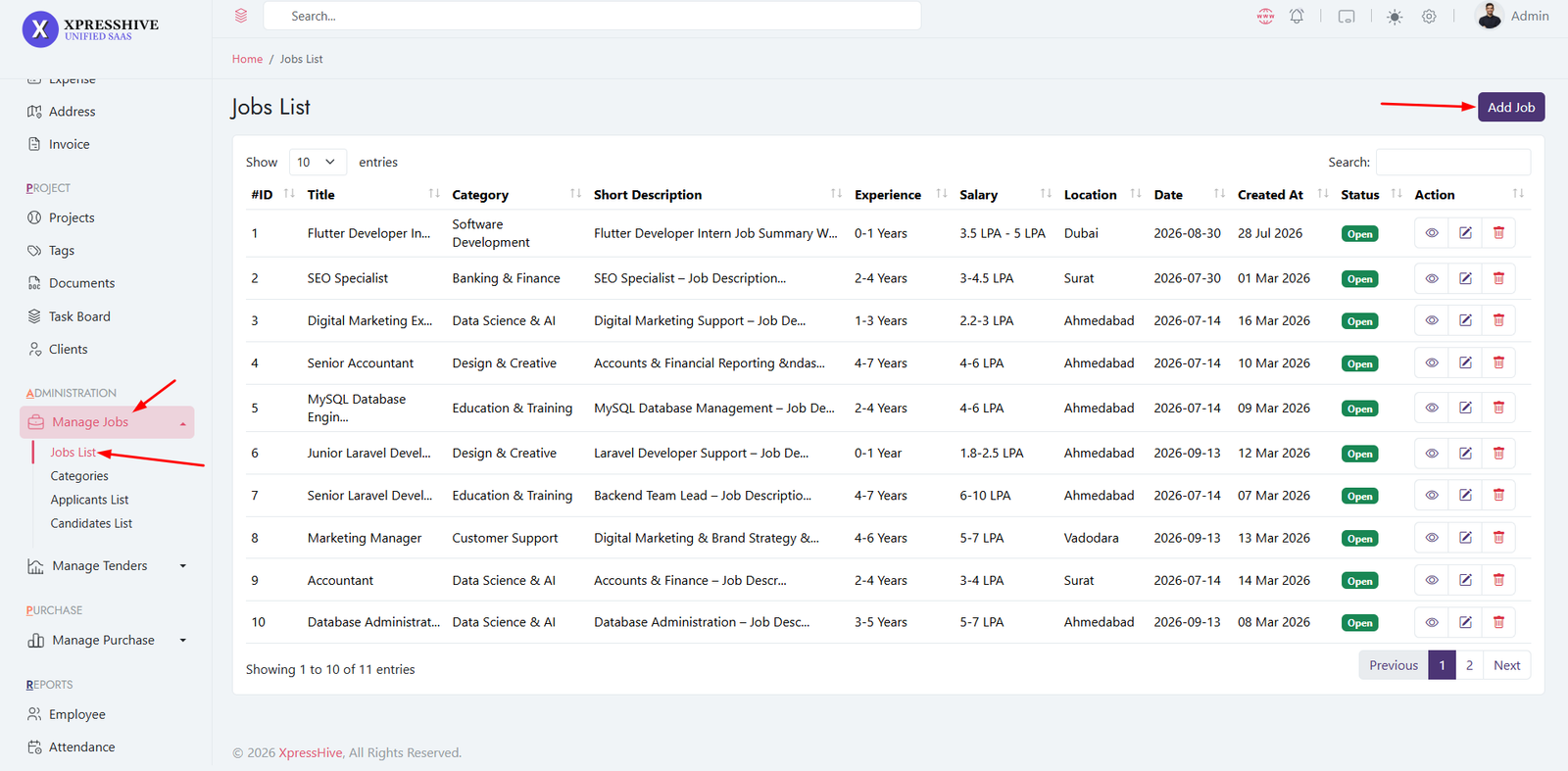
Applicants Management

Applicant Details

-
Create and publish job openings with required details such as
role, experience, and salary
-
Candidates apply through the career portal and submit their
details
-
All applications are managed in a centralized applicants list
- Shortlist candidates based on profile and requirements
- Schedule interviews for shortlisted candidates
-
Track application status (Applied, Shortlisted, Interview
Scheduled, Rejected, Hired)
-
Move candidates through the recruitment pipeline efficiently
Tender & Bidder Management
Tender List
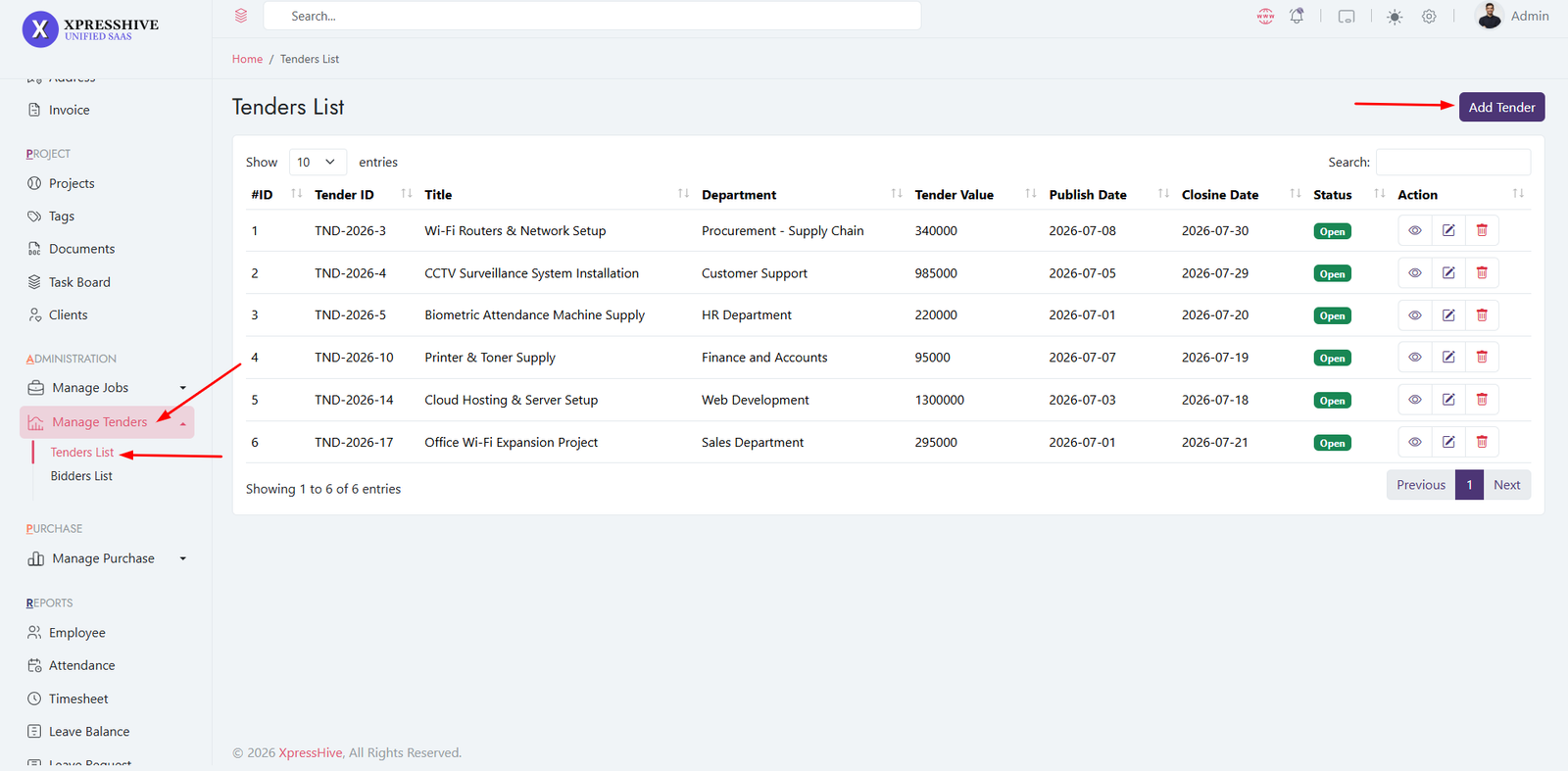
Bidders List
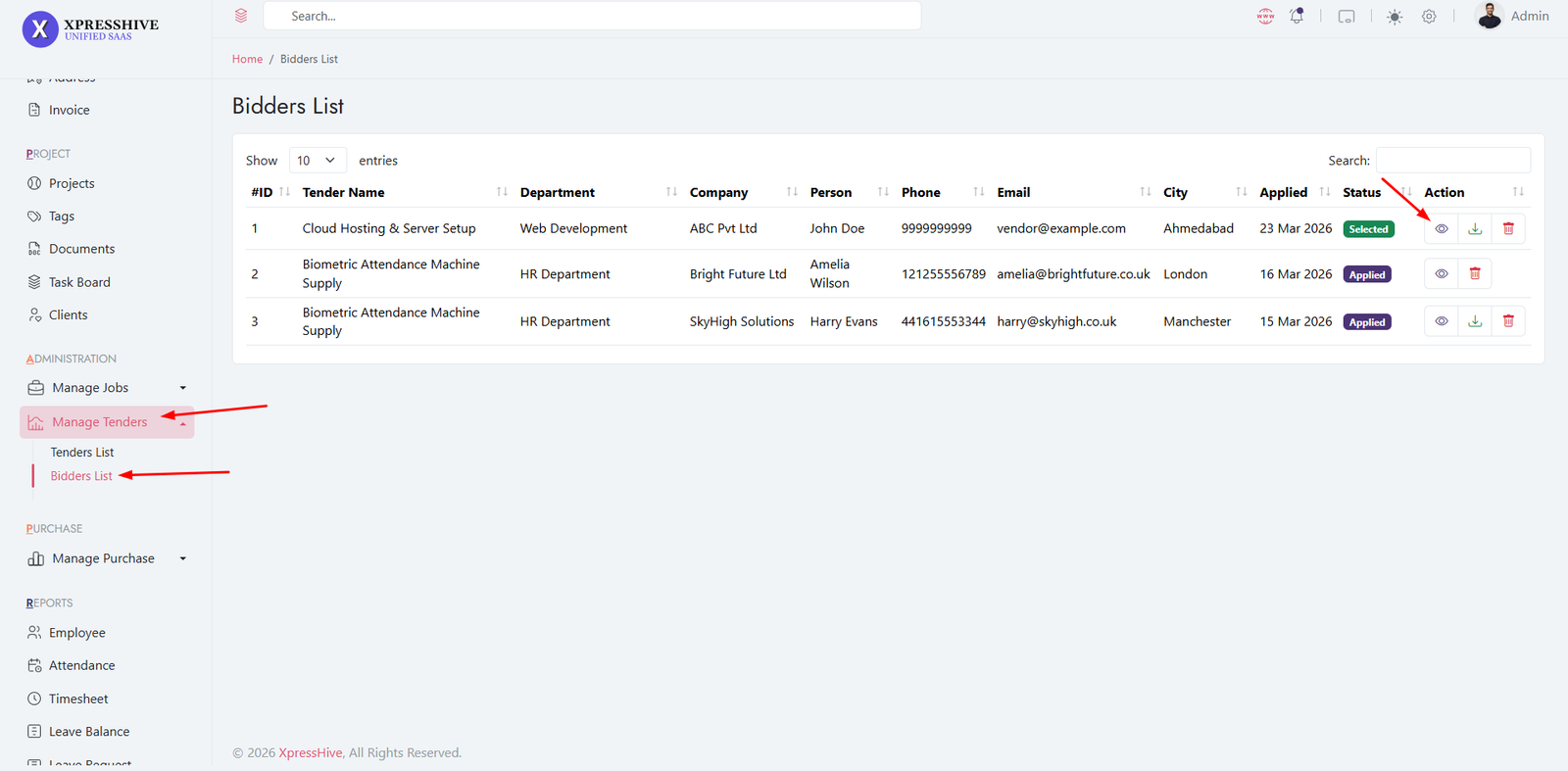
Bidder Details
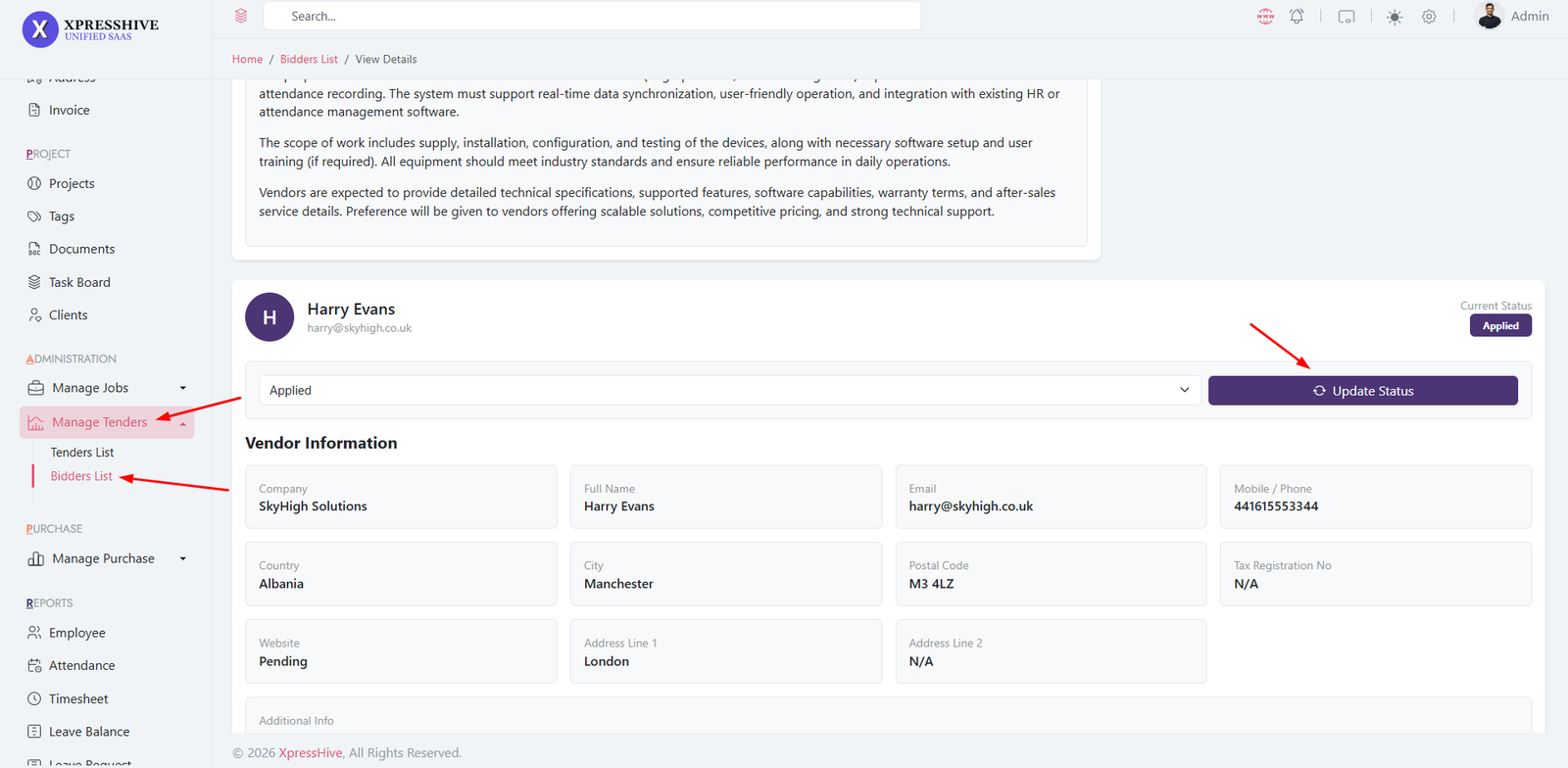
-
Create and publish tenders with details such as department,
value, and submission deadlines
-
Vendors can apply for tenders through a structured multi-step
application process
-
Manage all bidder applications in a centralized bidders list
-
Review bidder details including company information, contact
details, and submitted quotations
-
Download and verify uploaded documents such as quotations and
supporting files
-
Update bidder status through stages (Pending, Applied,
Shortlisted, Selected, Not Selected)
-
Shortlist qualified vendors based on evaluation criteria
- Select the final bidder and mark as winner(Selected)
-
Track complete tender lifecycle from publishing to final
selection
-
Generate reports for tender applications and bidding analysis
Vendor Registration & Tender Bidding Flow
Tender Landing Page
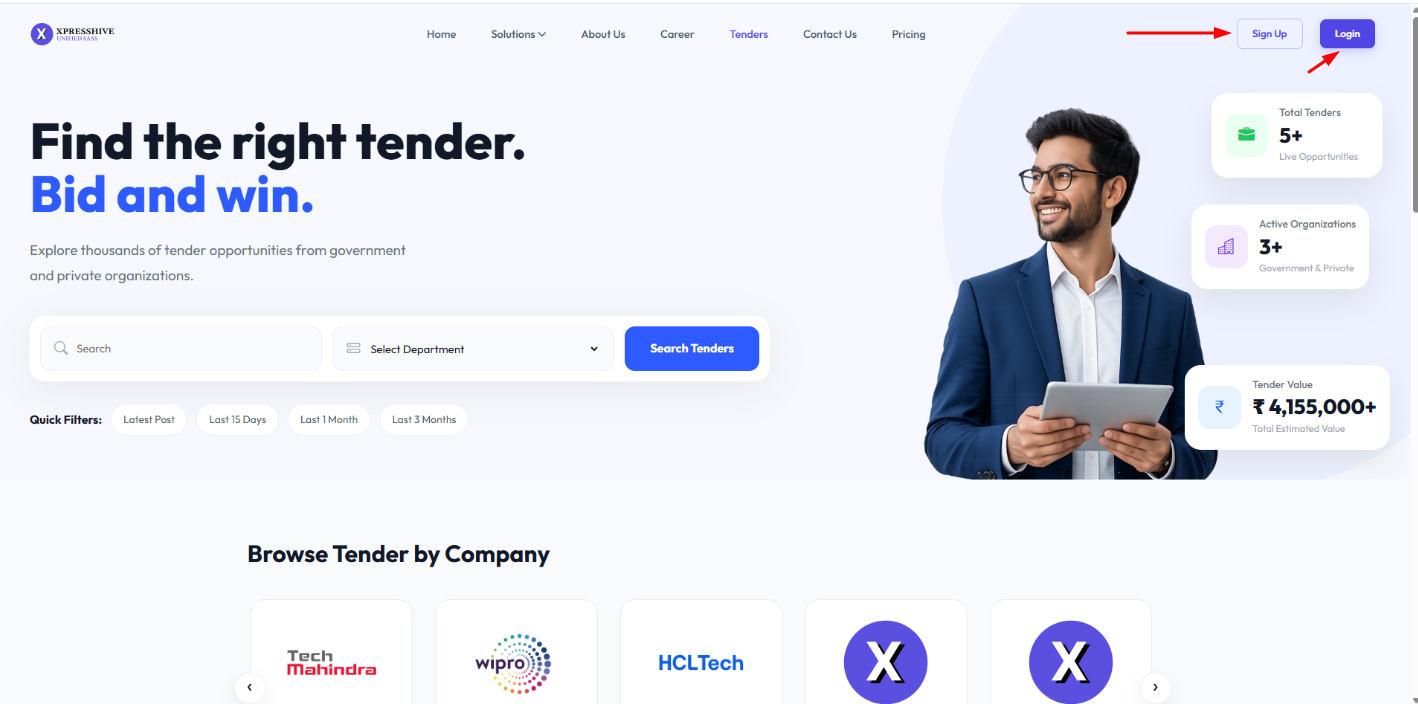
The Tender Portal allows vendors to discover government and private tender
opportunities. Vendors can search tenders, browse by department, filter
opportunities, and explore participating organizations before submitting
applications.
Vendor Registration

- Create a new vendor account using company information.
- Register contact details including company name, contact person, email, and phone number.
- Create a secure password for future access.
- Supports Google and Facebook social login.
Vendor Login

- Registered vendors can securely sign in using their business credentials.
- Social authentication is available through Google and Facebook.
- Authenticated vendors can manage bids and application history.
Tender Detail

- View complete tender information including project description.
- Review tender status, department, publication date, closing date, and tender type.
- Access publisher information and contact details.
- Click Apply Now to begin the bidding process.
Tender Application - Step 1
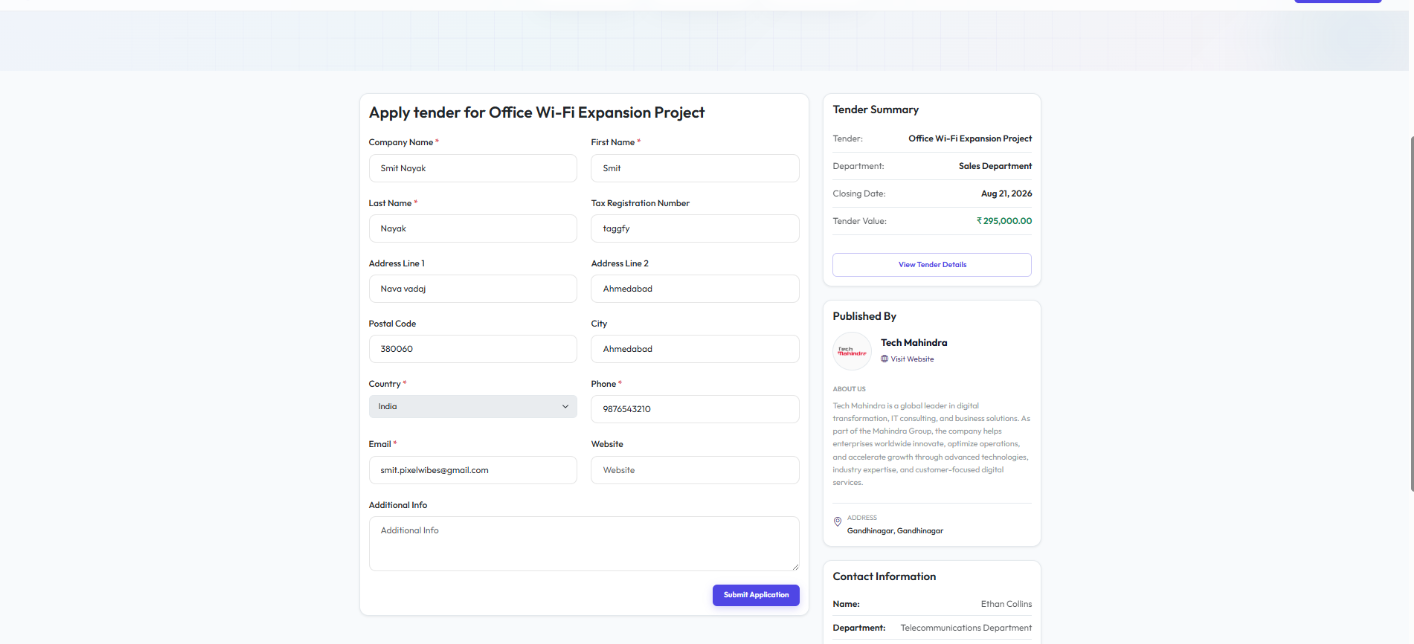
- Complete company profile and contact information.
- Provide tax registration number, address, phone number, and website.
- Review tender summary before proceeding.
- Validation ensures all mandatory fields are completed.
Tender Application - Step 2
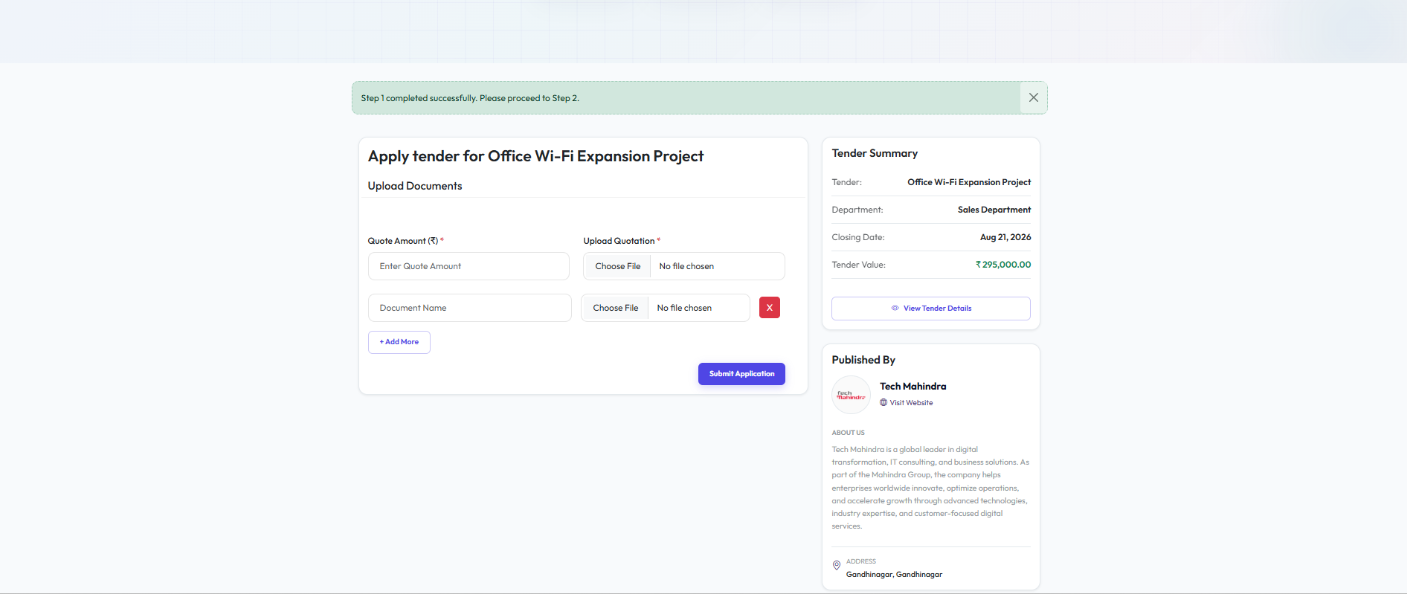
- Enter the quotation amount.
- Upload the official quotation document.
- Attach additional supporting documents.
- Add multiple attachments when required.
- Submit the completed tender application.
Application Submitted Successfully

- The system confirms successful submission of the tender application.
- Applications are securely stored and linked to the selected tender.
- Duplicate submissions for the same tender are prevented.
- Submitted quotations become available for administrator review.
Vendor Applications (Admin View)

- Administrators can review all submitted vendor applications.
- View company information, quotation amount, and uploaded documents.
- Download quotations and supporting attachments.
- Update application status (Pending, Applied, Shortlisted, Selected, or Not Selected).
- Track the complete bidding lifecycle from submission to final selection.
Candidate Registration & Job Application Flow
Career Landing Page

The Career Portal enables candidates to explore job opportunities from
multiple organizations. Users can search jobs by keyword, location,
experience level, browse featured companies, and discover the latest
openings before applying.
Candidate Registration
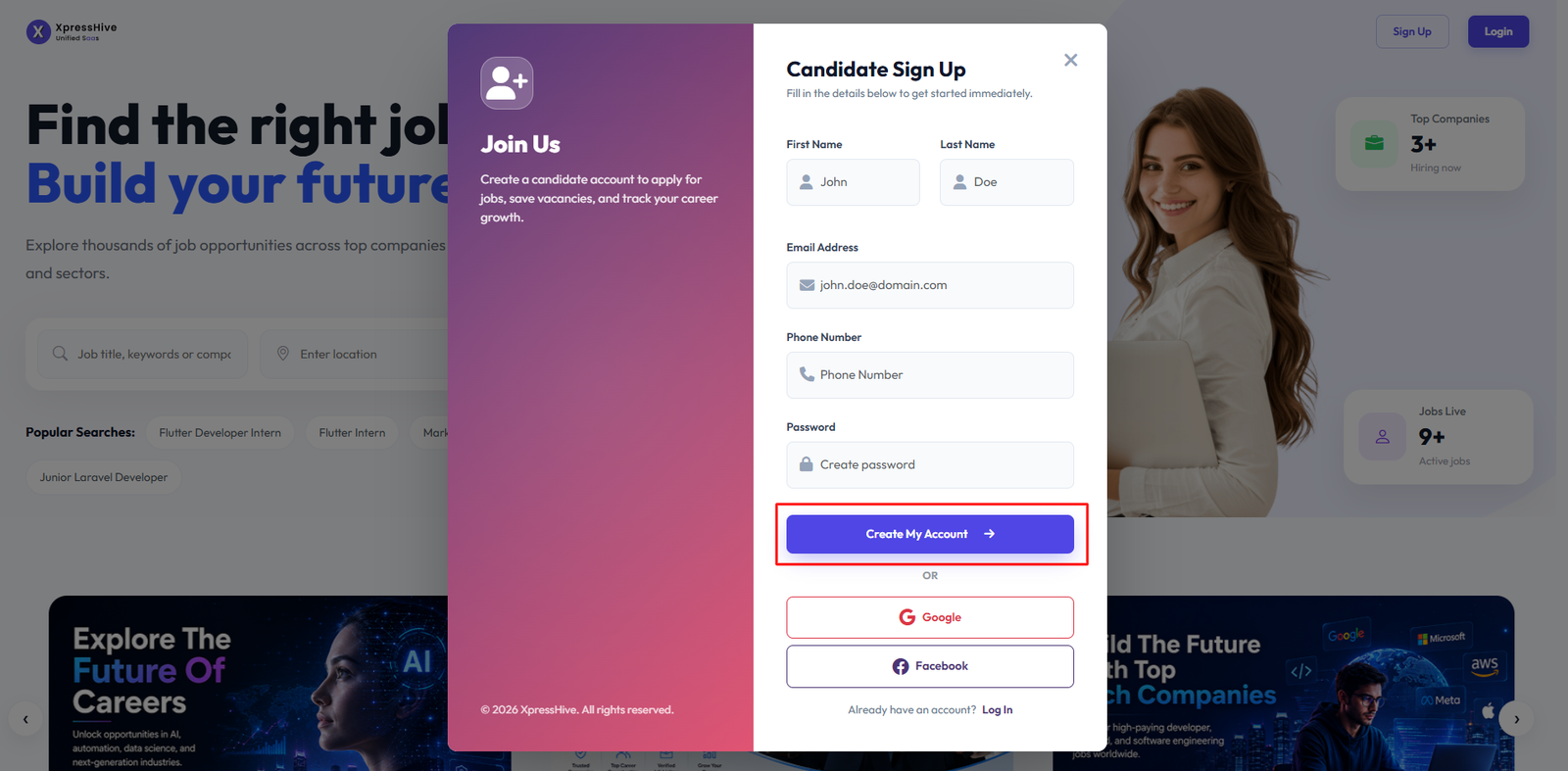
- Create a new candidate account using personal information.
- Register with name, email address, phone number, and password.
- Supports secure account creation with form validation.
- Google and Facebook social authentication are available.
Candidate Login

- Registered candidates can securely sign in to their account.
- Login using email address and password.
- Google and Facebook login options are supported.
- Access saved jobs, submitted applications, and profile information.
Job Detail
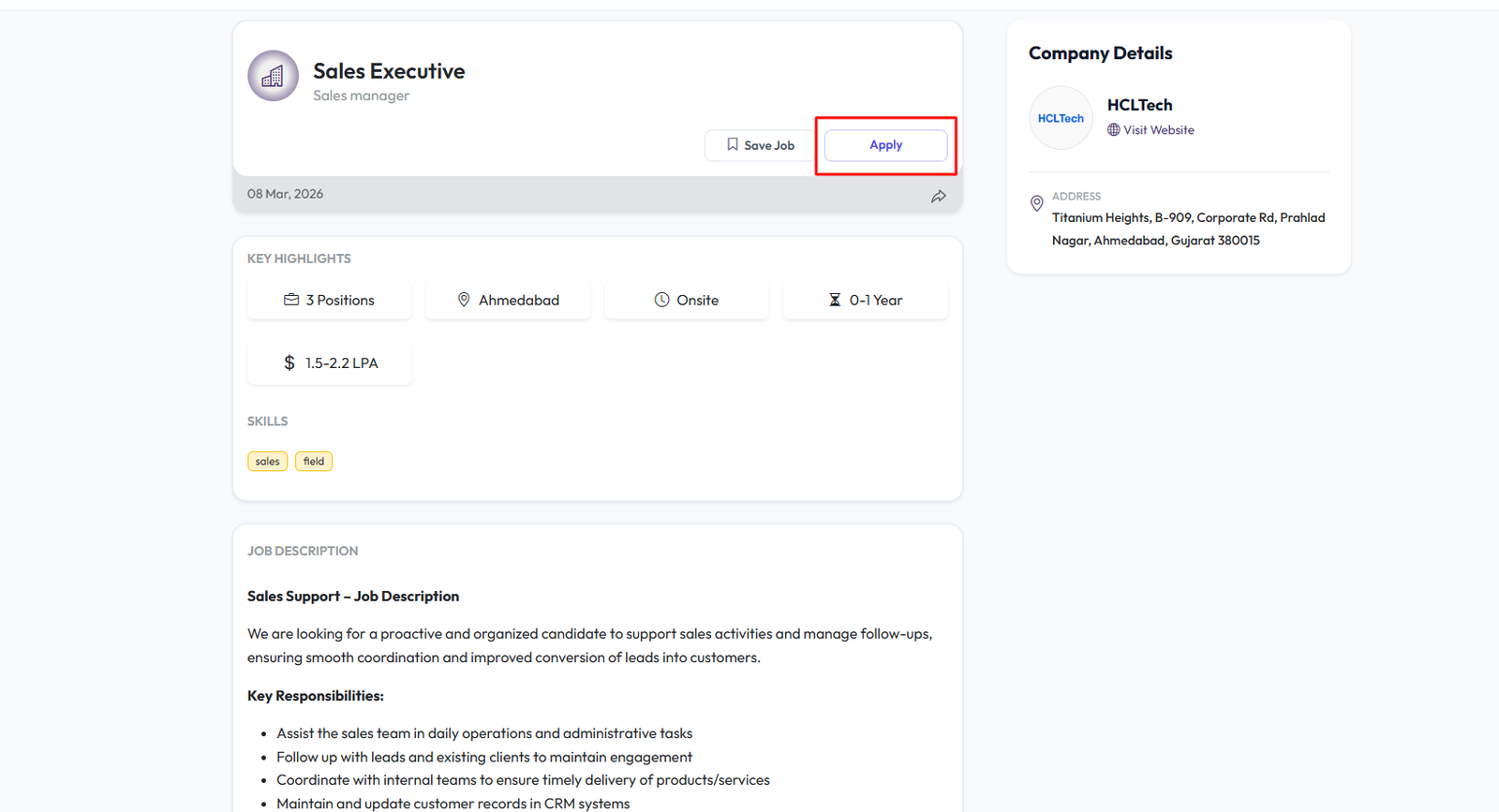
- View complete job information including description and responsibilities.
- Review company details, job highlights, skills, experience, and salary range.
- Save jobs for later or apply directly from the job detail page.
- Access company website and contact information before applying.
Job Application
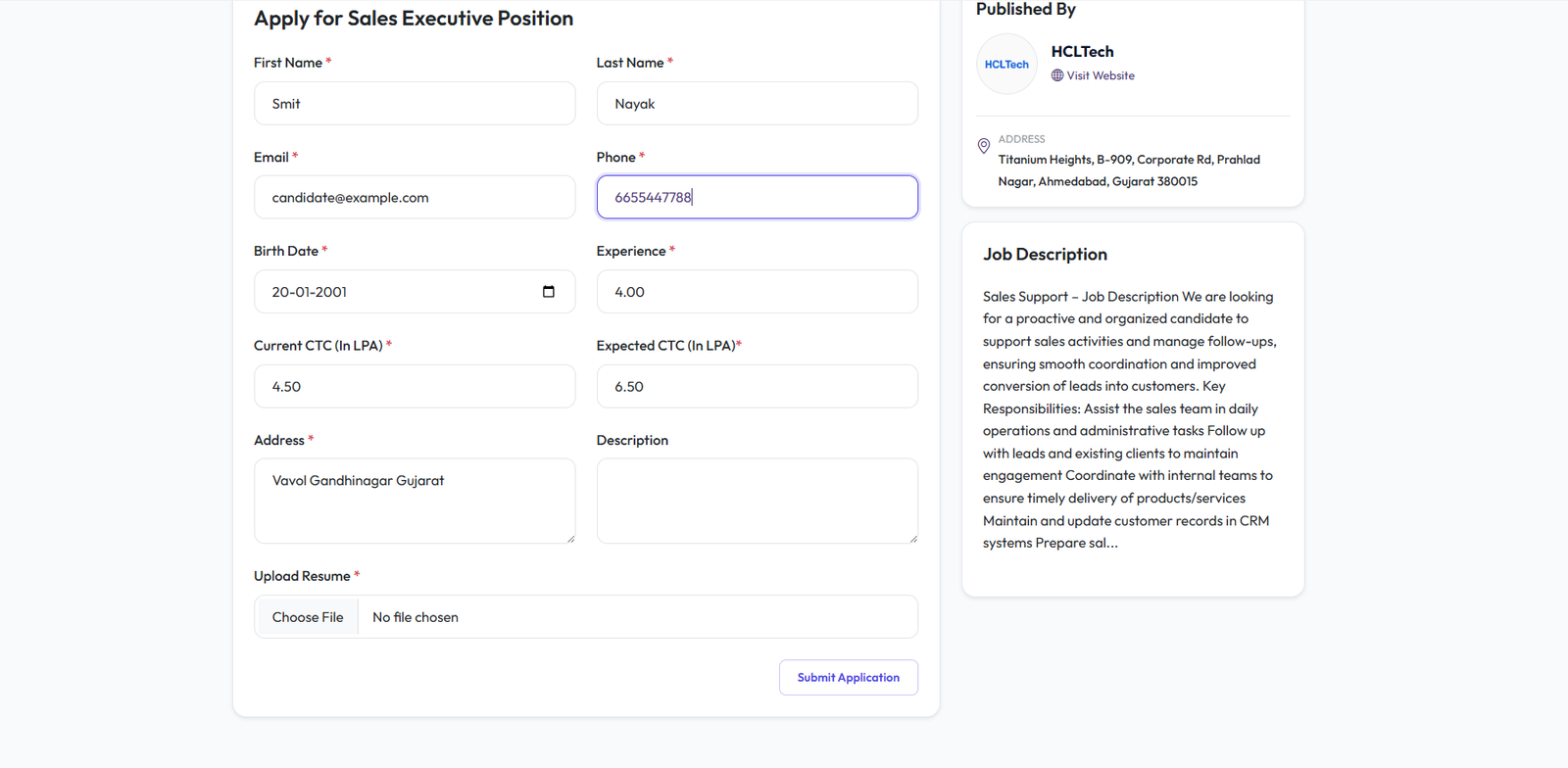
- Complete the job application form with personal and professional details.
- Provide experience, current and expected CTC, contact information, and address.
- Upload resume and additional candidate information.
- Submit the application directly to the selected company.
- Mandatory field validation ensures complete and accurate submissions.
Application Management (Admin View)
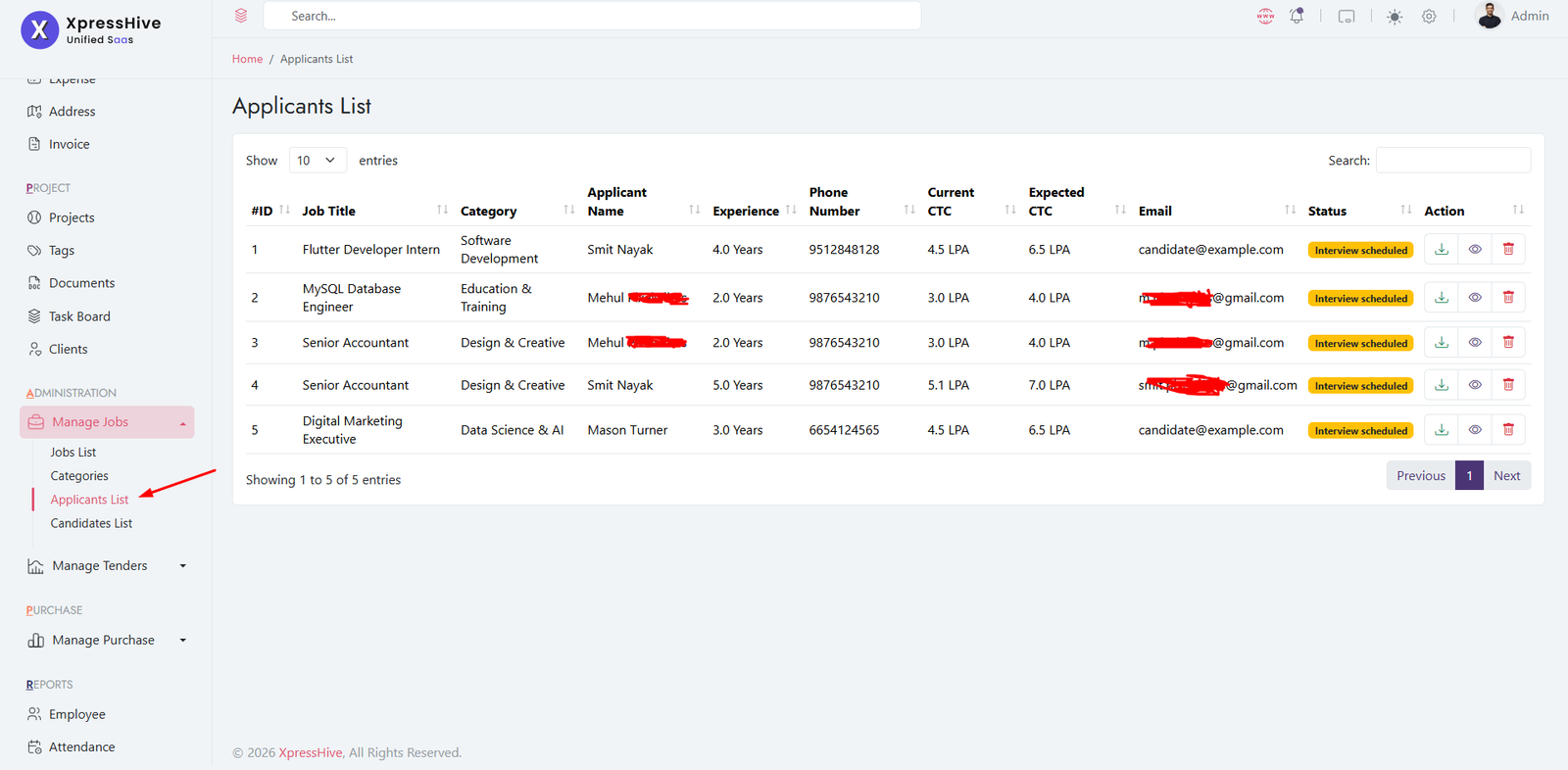
- Administrators can review all submitted job applications.
- View candidate profile, resume, experience, and application details.
- Download resumes and supporting documents for evaluation.
- Update application status throughout the hiring process.
- Track candidates from application submission to final hiring decision.
Purchase Order & Billing Flow
Purchase Order List

Generate Purchase Order

Bill Details
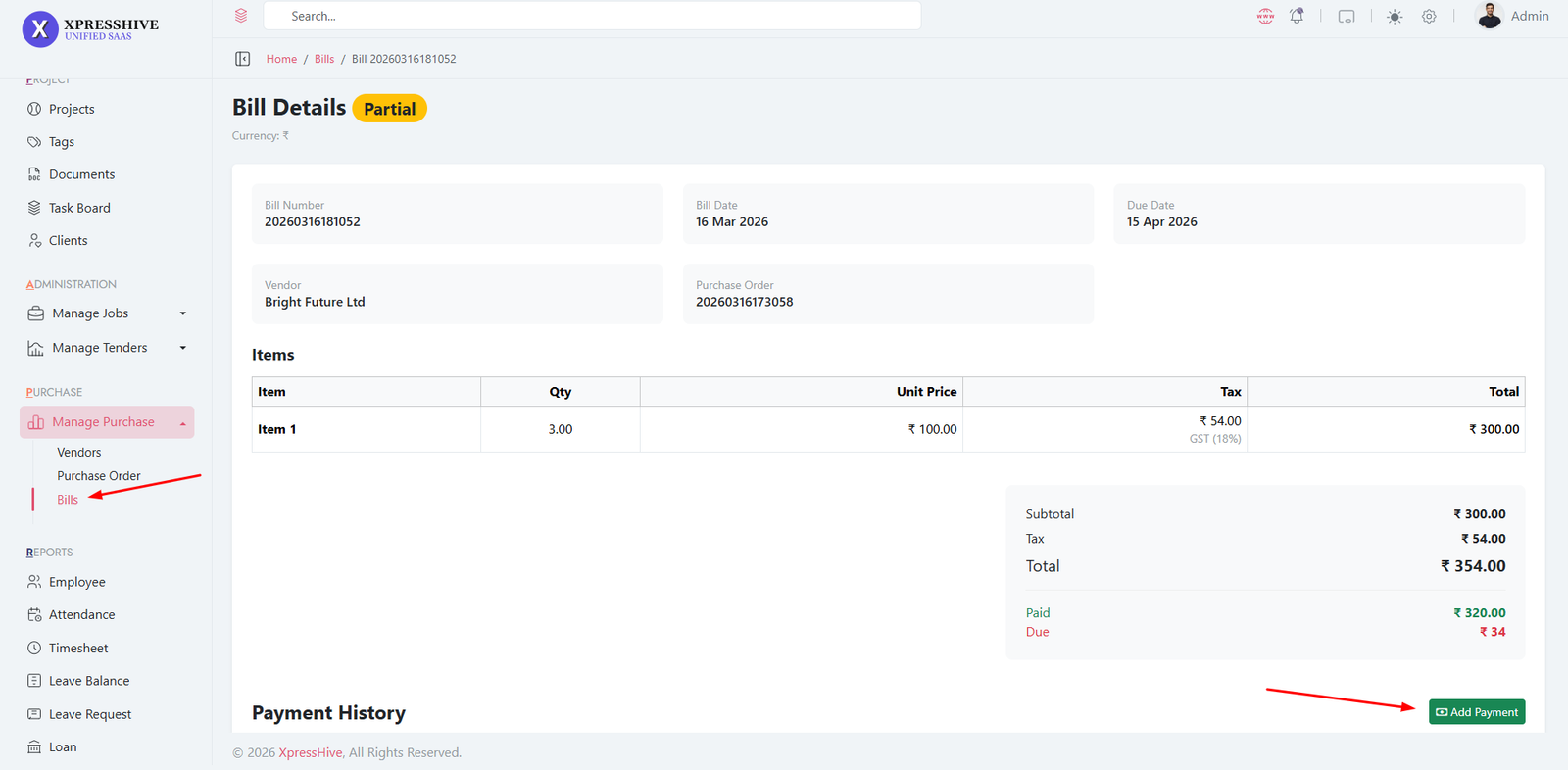
-
Create purchase orders by selecting vendor, items, quantity,
pricing, and tax details
-
System automatically calculates subtotal, tax, and total
amount
-
Track purchase order status (Not Started, In Transaction,
Delivered)
- Convert purchase orders into bills with a single action
-
Bill details are auto-filled from the purchase order including
items and totals
-
Manage bill status (Unpaid, Partial, Paid) based on payments
received
-
Add multiple payments and track payment history for each bill
- System automatically updates due and paid amounts
- Download purchase orders and bills in PDF format
-
Prevents editing or deleting purchase orders once billed
-
Ensures no duplicate bills are created for the same purchase
order
-
Provides complete financial tracking from order creation to
payment completion
Interview Management
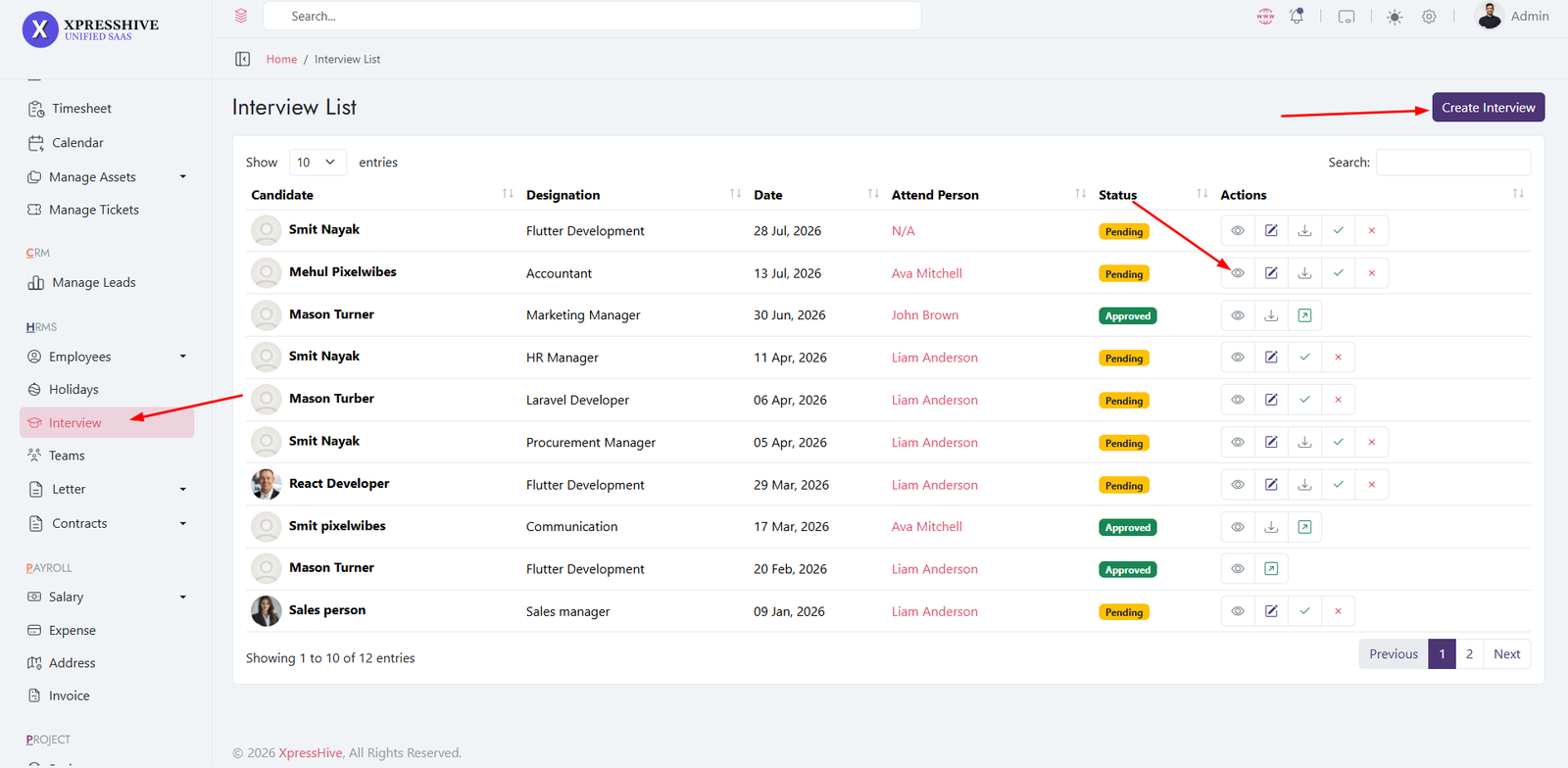
- Schedule interviews for shortlisted candidates
-
Add interview details such as date, time, and interviewer
- Update interview status and feedback
- Track candidate progress through interview stages
- Approve or reject candidates based on interview results
- Convert interviews to employee directly
Country Management
- Manage country list used in the system
- Set default timezone based on selected country
- Define default currency for financial modules
- Edit or update country details anytime
-
Ensure correct country selection for accurate system settings
Team Management
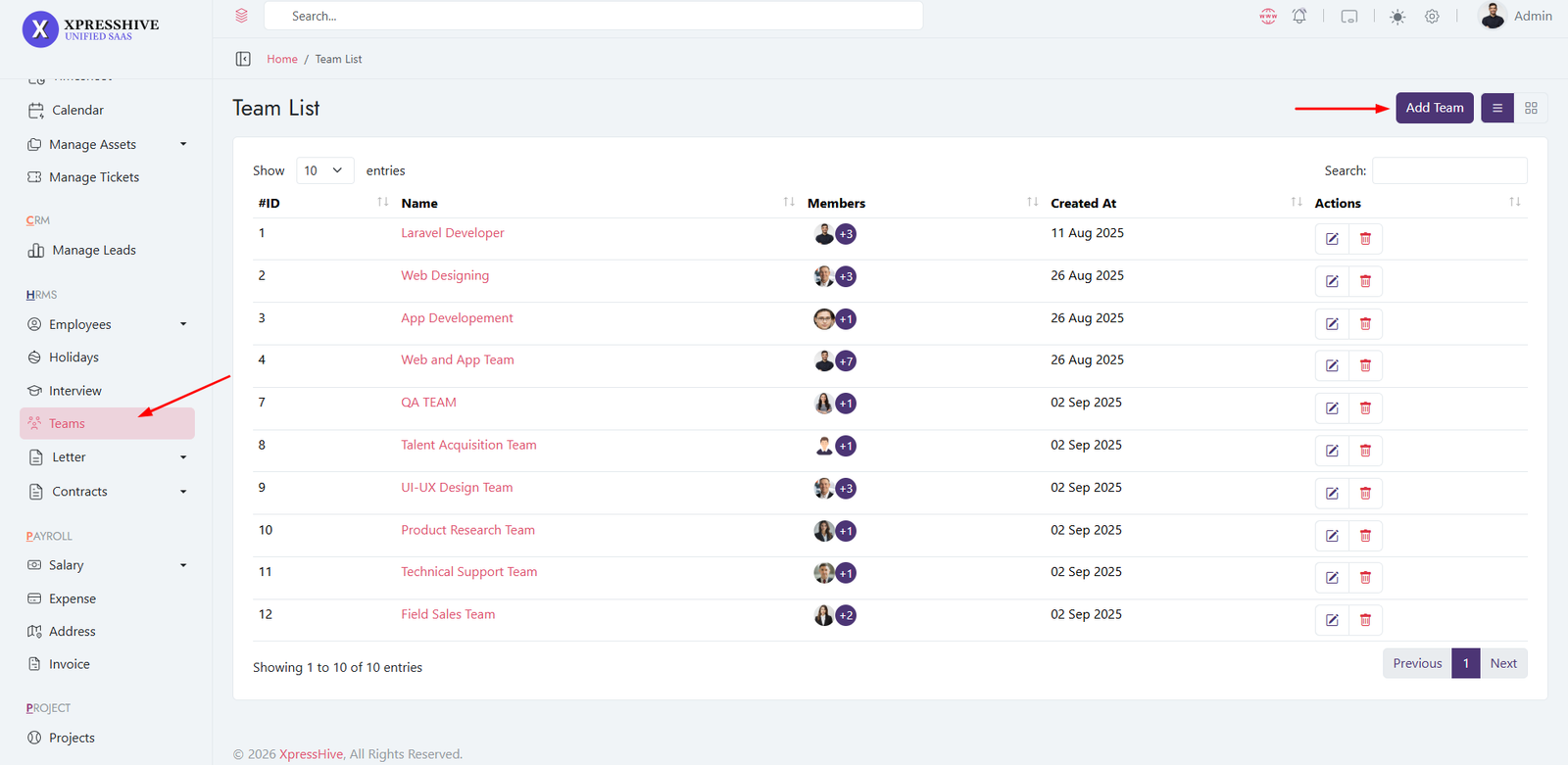
- Create and manage teams within the organization
- Assign employees to specific teams
- Edit or update team details
-
Organize employees for better project and task management
Letter Template & Generation
Create Letter Template
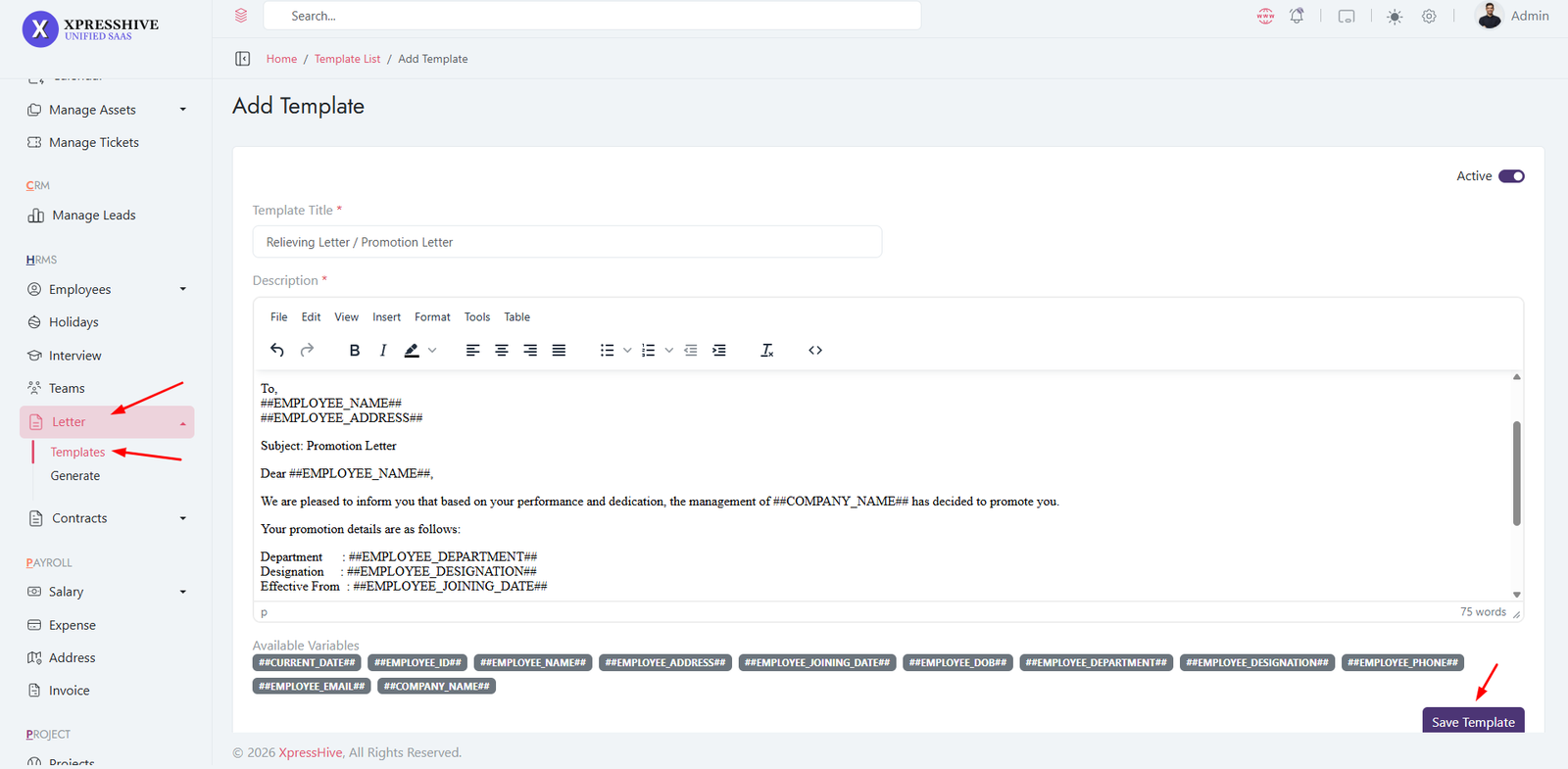
Generate Letter
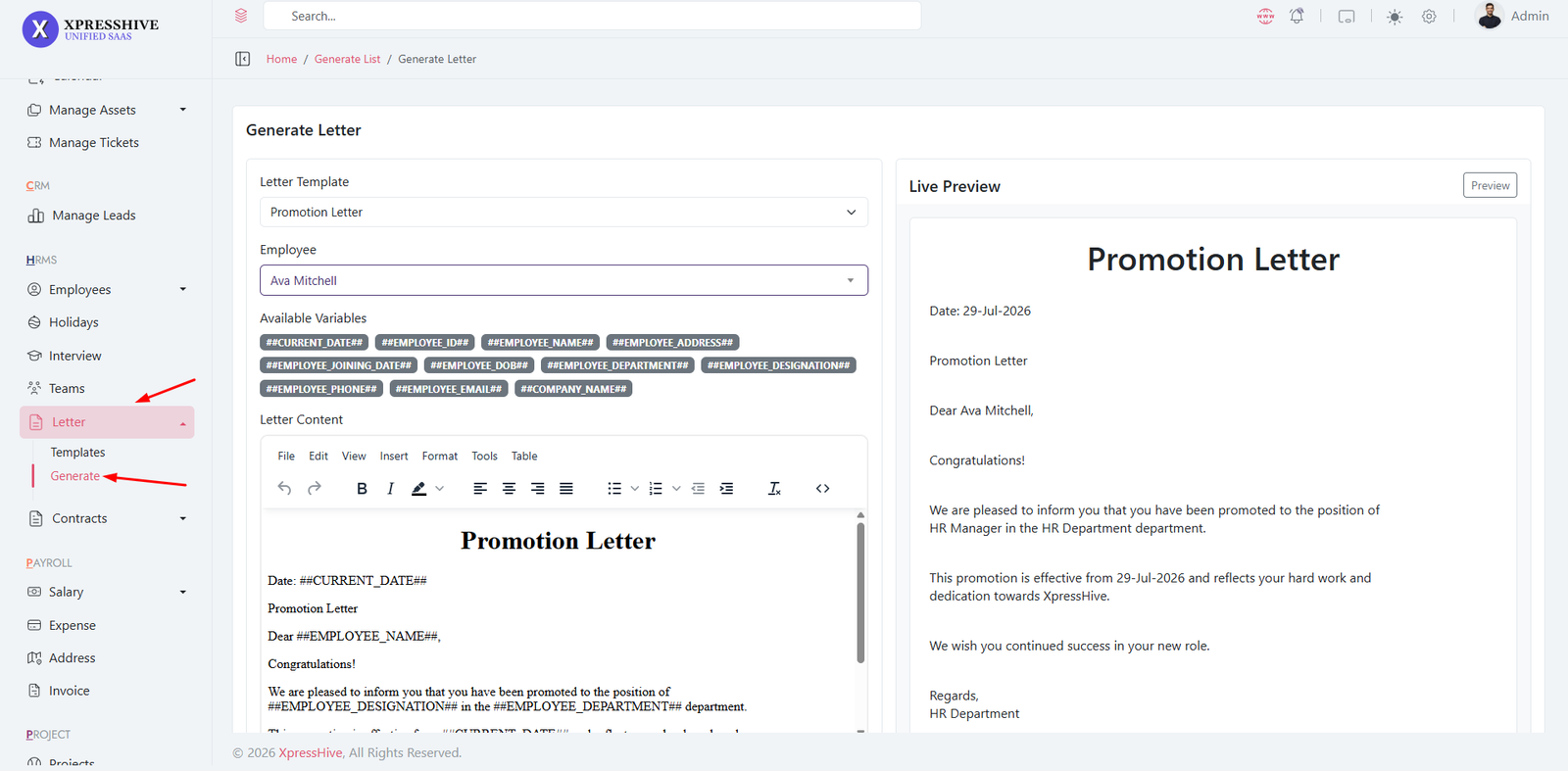
-
Create reusable letter templates for HR documents like offer
letters, promotion letters, and notices
-
Use dynamic variables (e.g., employee name, joining date,
company name) to automate content generation
-
Manage templates with rich text editor for formatting and
customization
-
Select a template and employee to generate a personalized
letter
- Preview the final letter with real data before saving
- Edit generated content if required before finalizing
-
Automatically replace variables with actual employee or
interview data
-
Download generated letters in PDF format for sharing or
printing
-
Maintain a list of generated letters for future reference
- Enable or disable templates using active status control
-
Supports both employee letters and offer/interview-based
letters
Contract Template & Signing Flow
Contract Template List
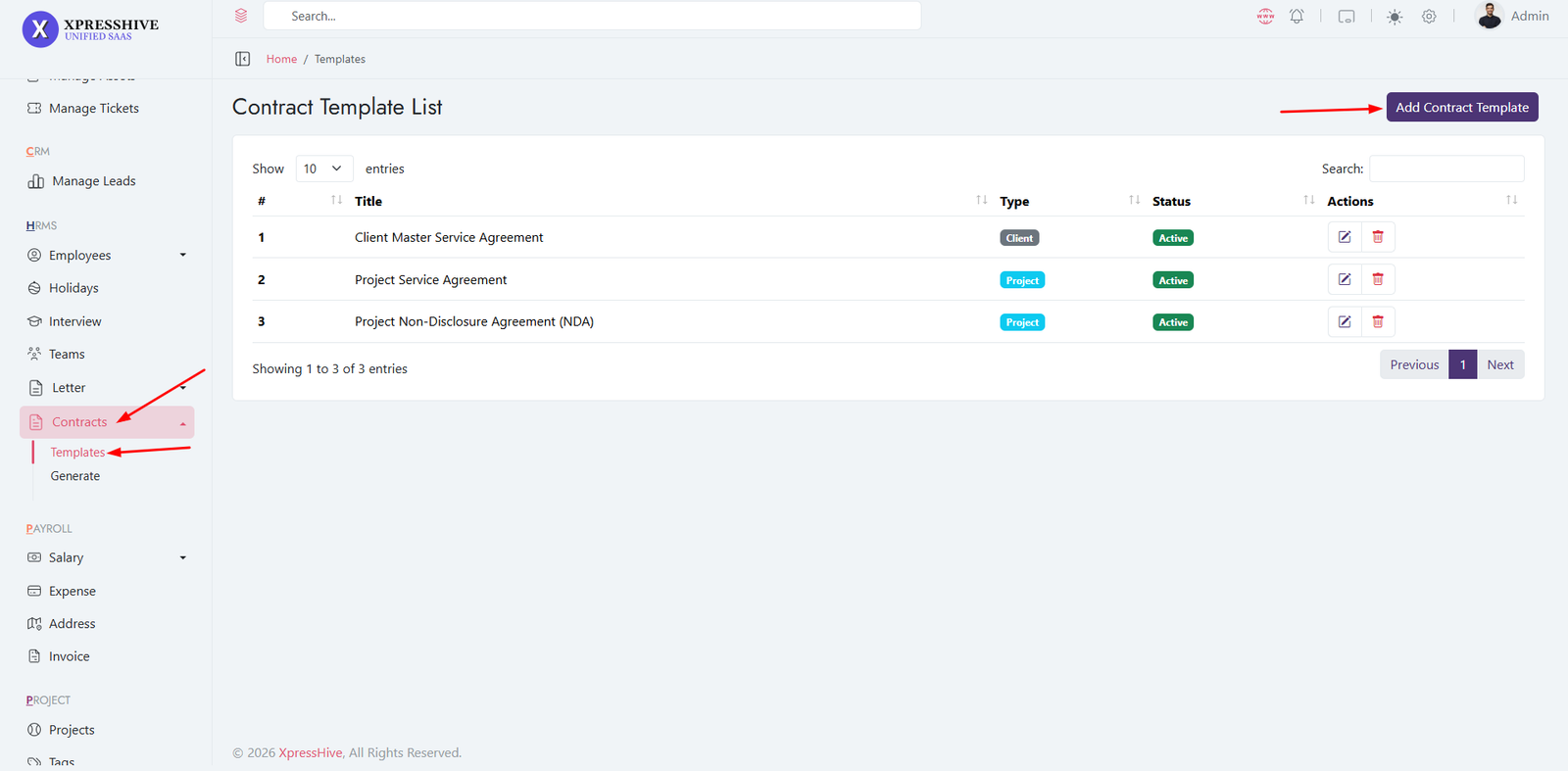
Generate Contract

Contract Signing
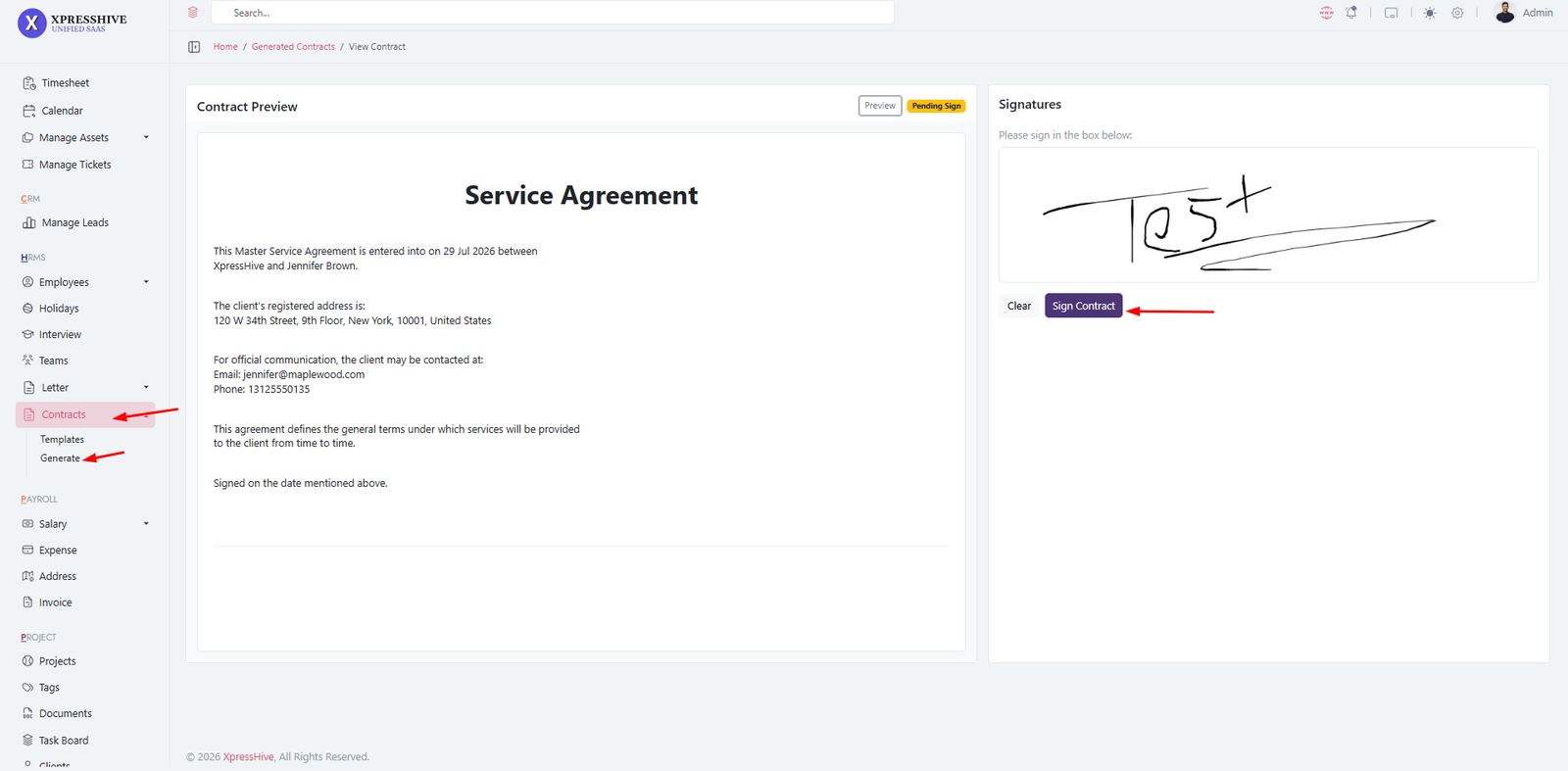
-
Create reusable contract templates for projects or clients
with dynamic variables
-
Define contract type (Project or Client) for accurate data
mapping
-
Use placeholders to automatically populate contract details
such as client name, project details, and dates
-
Generate contracts by selecting a template and associated
project or client
-
Preview contract content with real data before finalizing
-
Enable internal and/or client signing options based on
requirements
-
Share secure contract link using unique UUID for signing
-
Allow authorized users and clients to digitally sign contracts
-
Track contract signing status (Pending, Partially Signed,
Fully Signed)
-
Download signed contracts as PDF for legal or business use
-
Maintain a complete history of generated contracts and
signatures
Salary Payheads
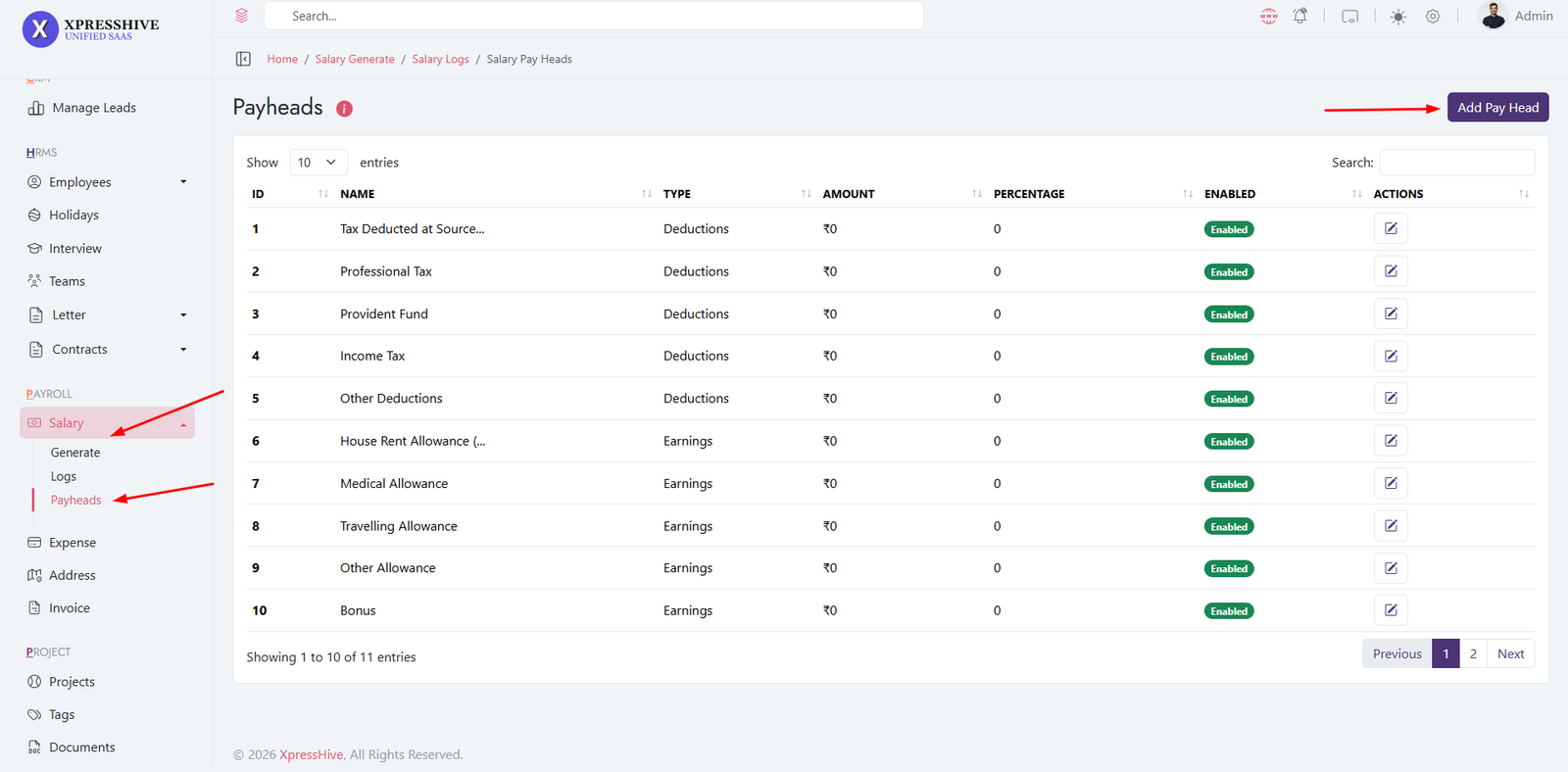
- Define salary structure components
- Create earnings (Basic, Bonus, Allowances)
- Create deductions (Tax, Loan, PF)
- Edit or update payhead details
- Used in salary generation and payroll calculations
Salary Generate

-
Generate salaries for employees based on attendance and
payheads
- Select month and employee details
- Automatically calculate earnings and deductions
- Edit or update salary records if required
- Used for payroll processing
Salary Logs
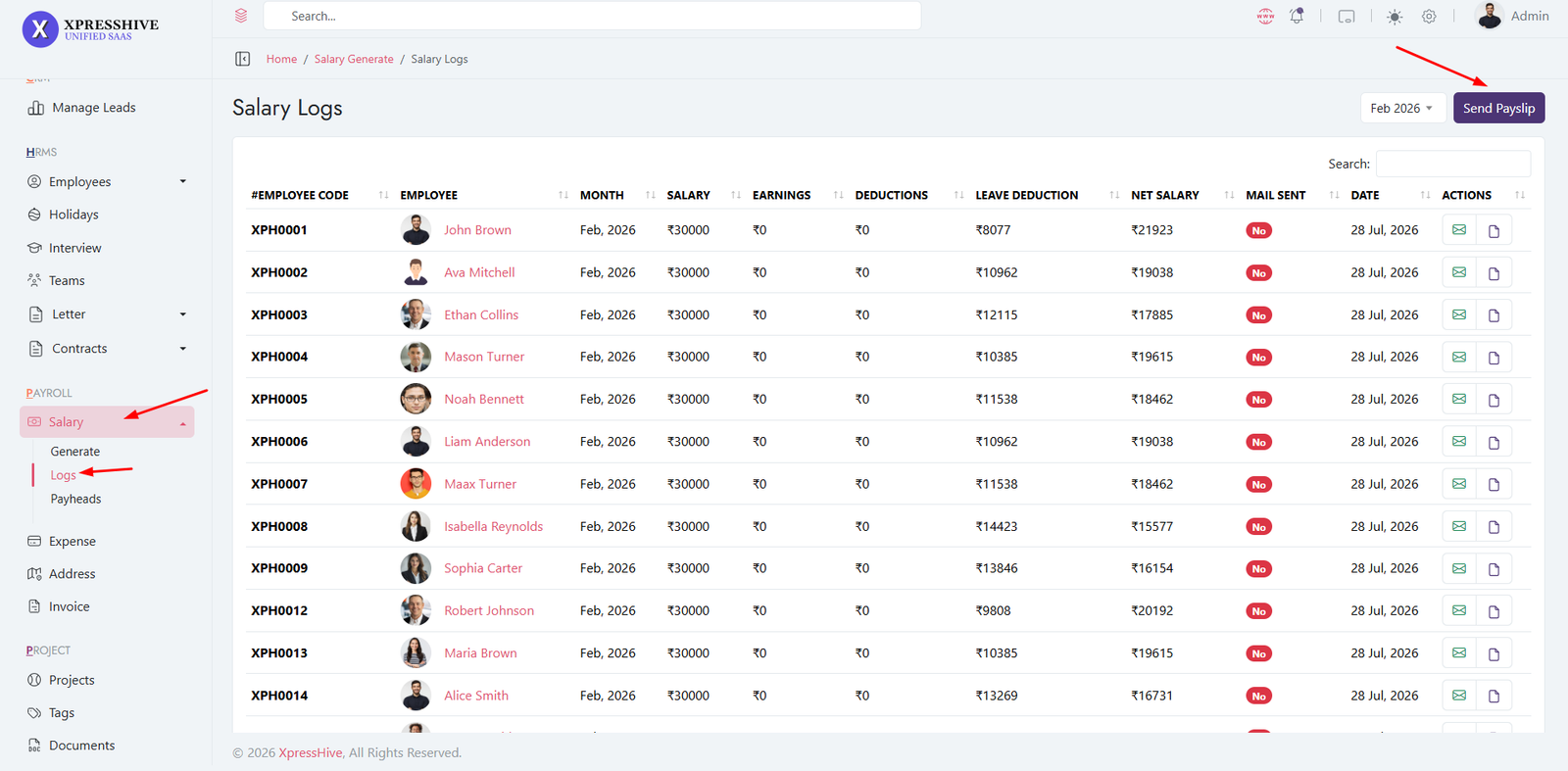
- View history of all generated salaries
- Track salary records for each employee
- Check detailed salary breakdown
- Used for auditing and reporting purposes
Expenses Management

- Manage all company expenses in one place
- Add new expense entries with details
- Edit or update expense records anytime
- Track spending and financial activities
- Used for financial reporting and analysis
Company Address
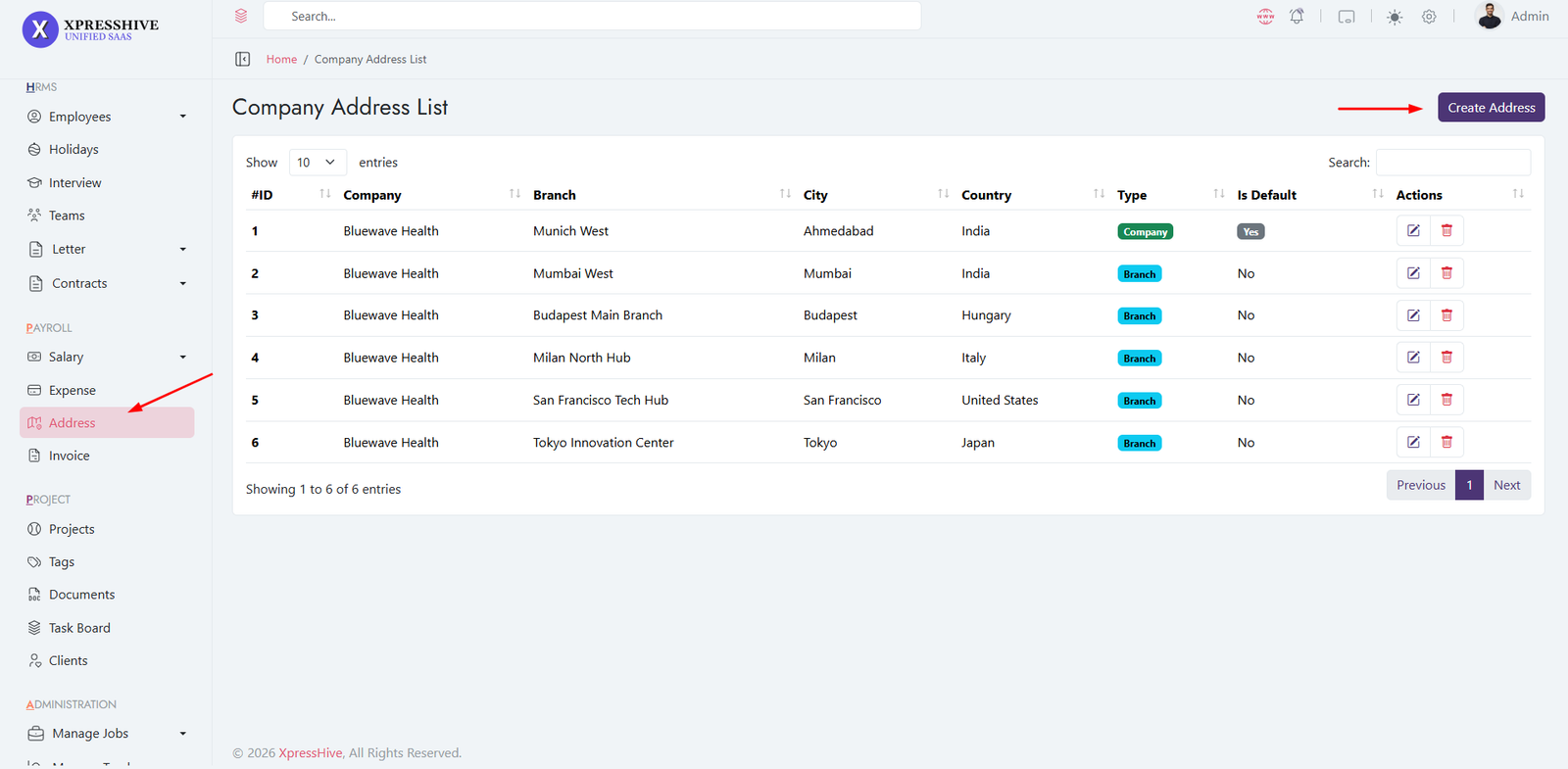
- Manage company address details
- Add multiple office locations if required
- Edit or update address information
- Used in invoices and official documents
Invoice Management
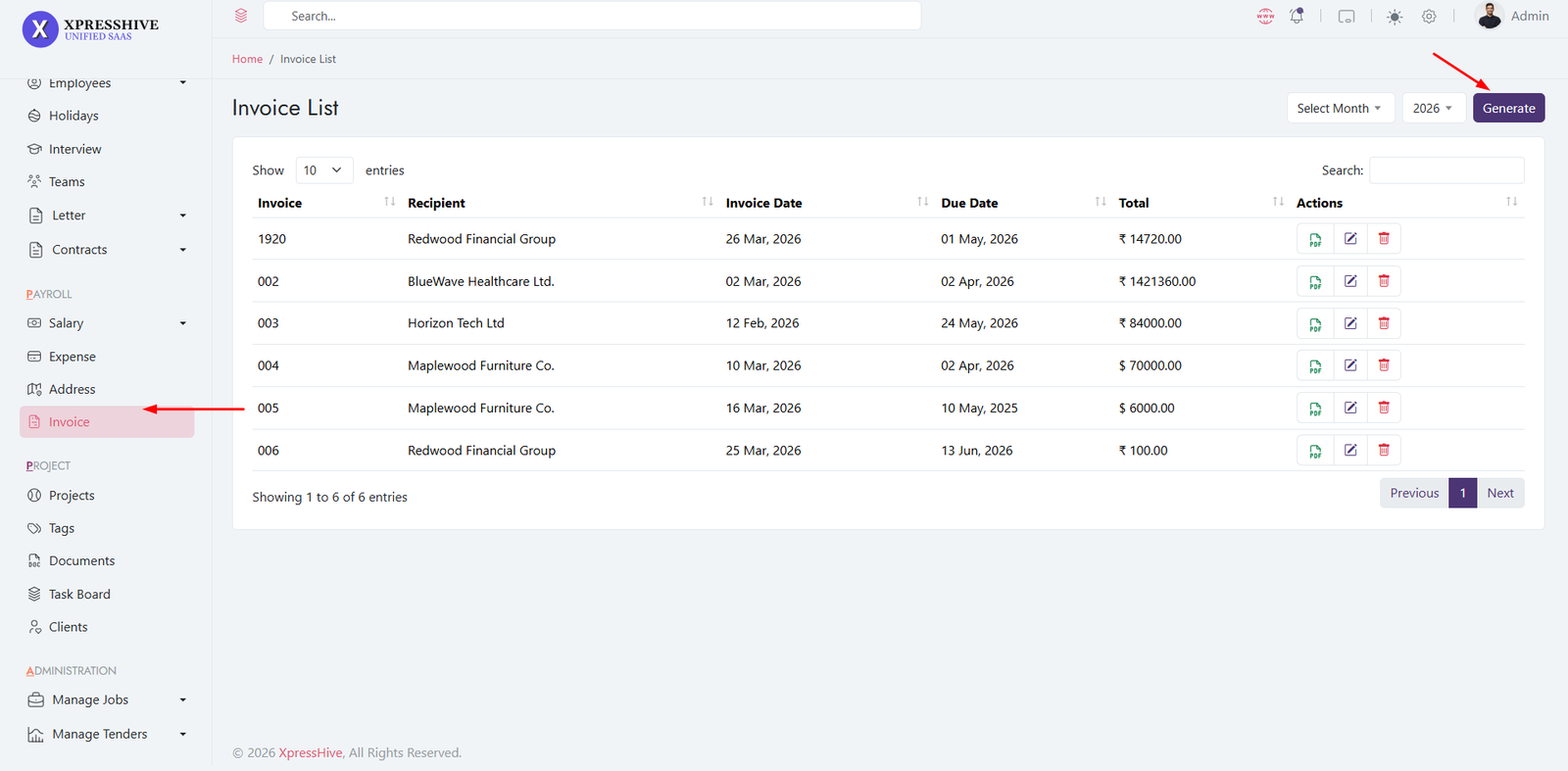
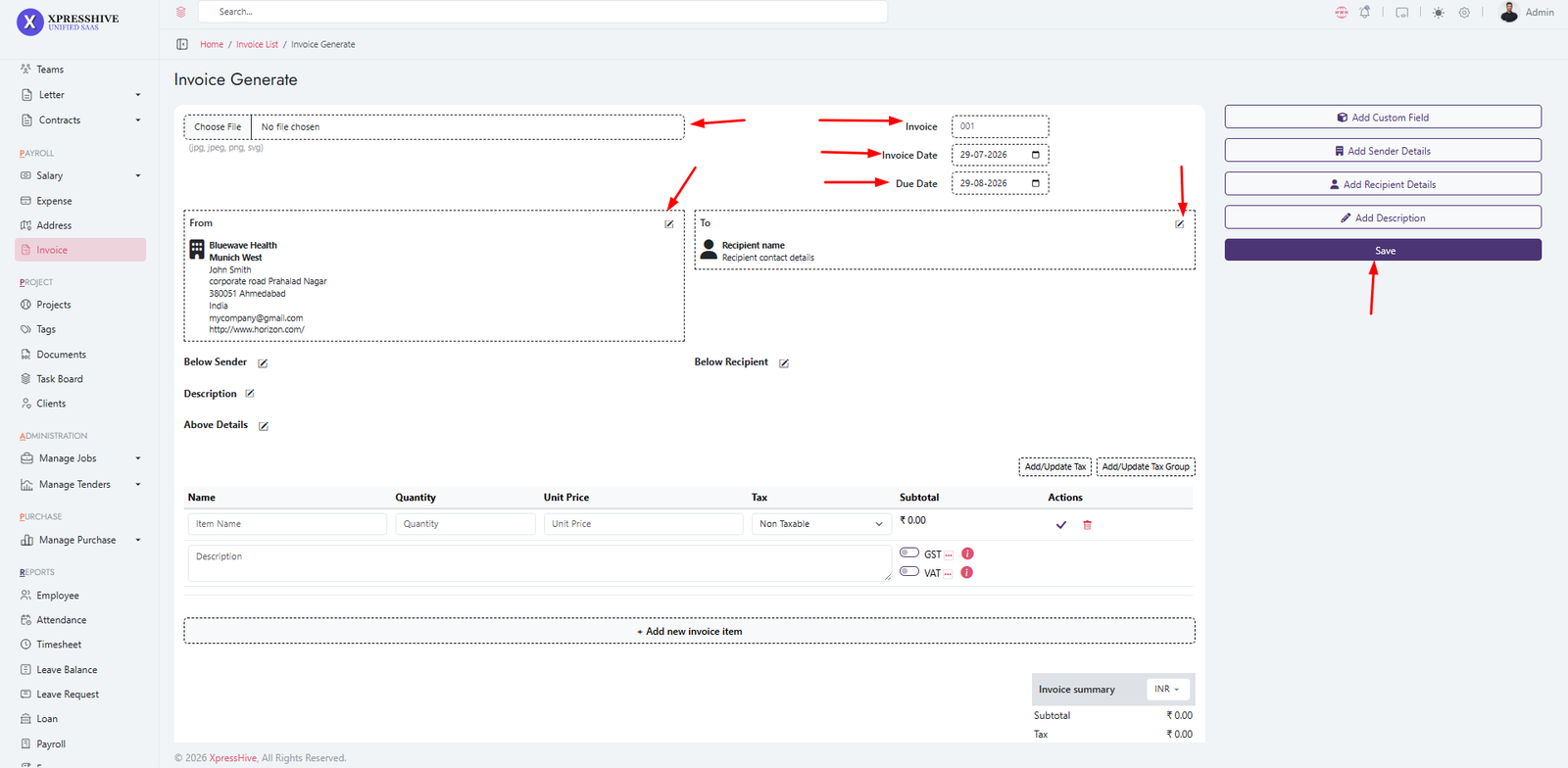
- Create and manage invoices for clients
- Add invoice details including items, taxes, and amounts
- Edit or update invoices anytime
- Track payment status and invoice history
- Used for billing and financial management
Project Management
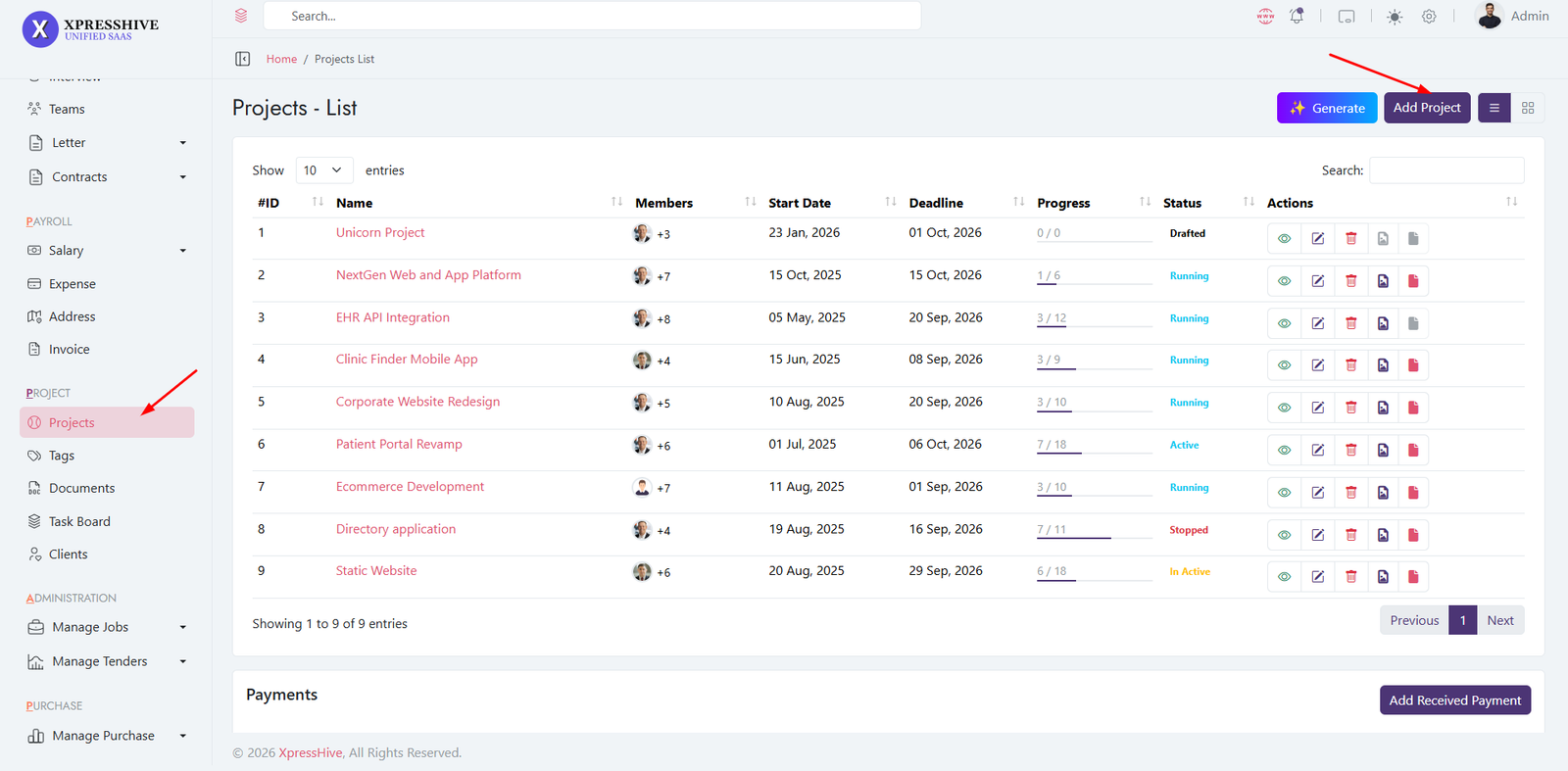
- Manage all projects in the system
- Create new projects with details
- Assign employees to projects
- Update project status and progress
- Link projects with clients and tasks
AI Base SRS Generate
Go to Projects > Generate SRS

Select Project and generate SRS
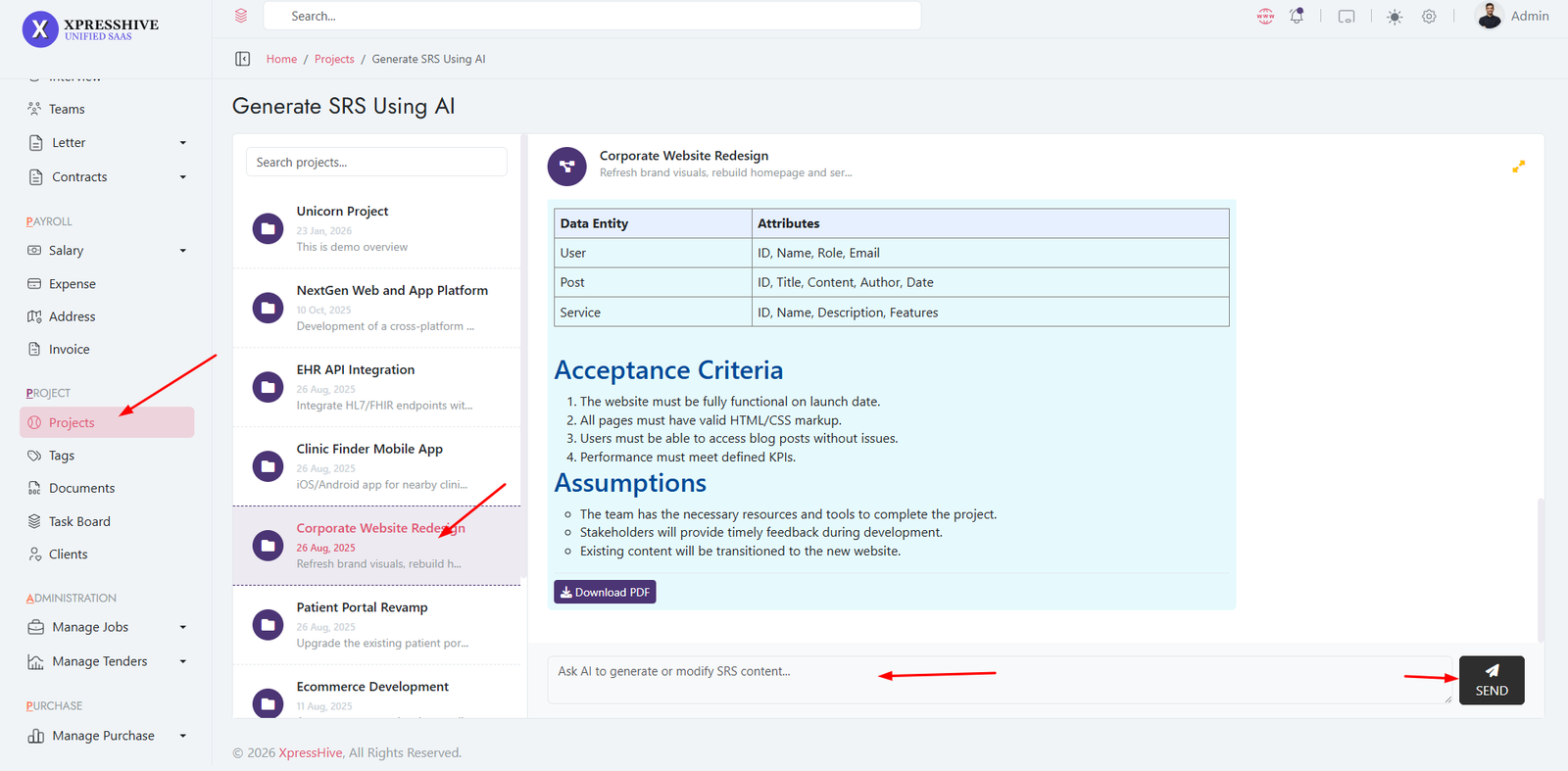
-
Generate Software Requirement Specification (SRS) using AI
- Select a project from the project list
- Click on the Generate button
- AI will create structured SRS content automatically
- Download and use the generated SRS document
- Helps save time and improve documentation quality
Payments Management
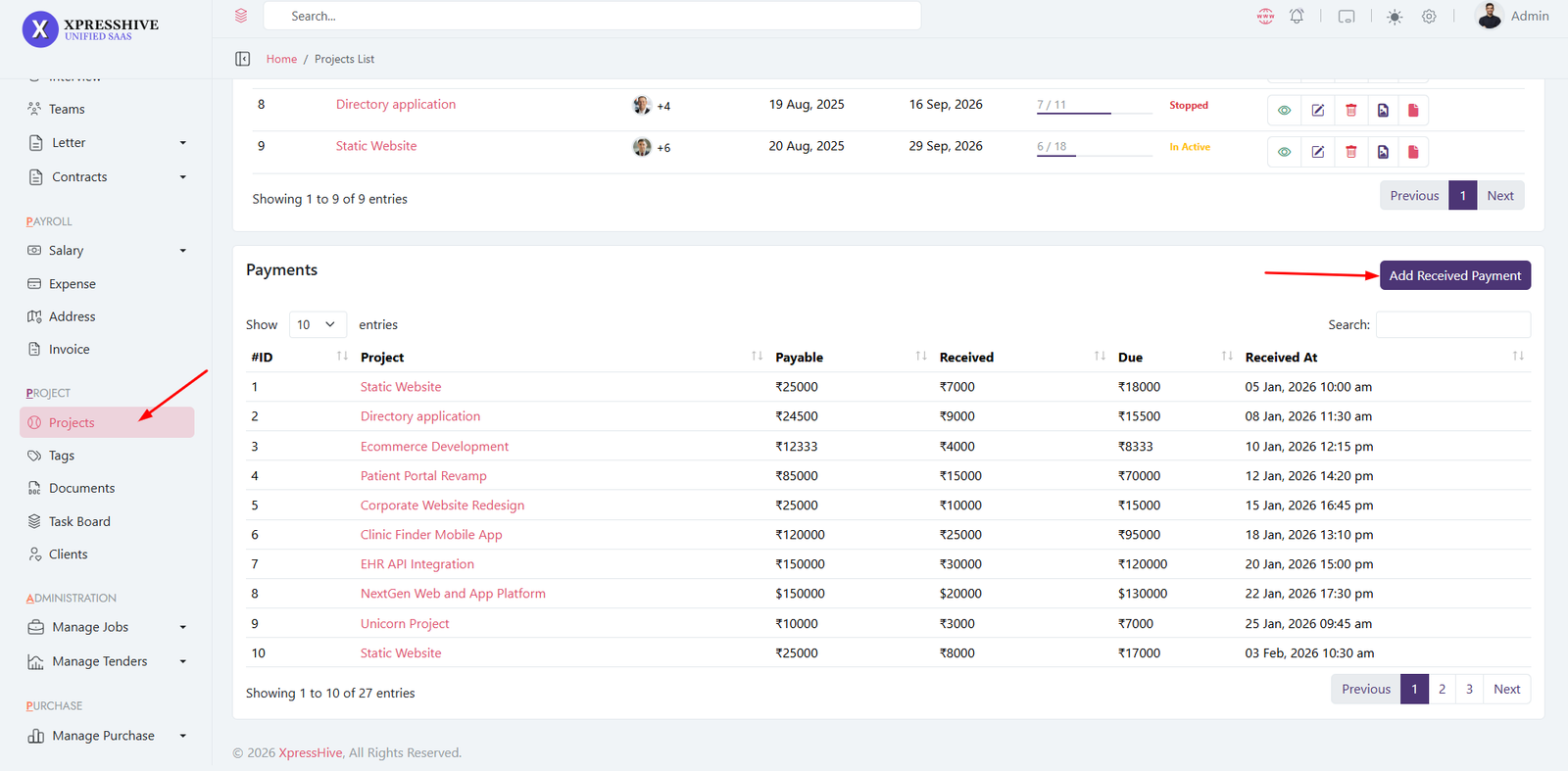
- Manage all payment records in the system
- Add new payments linked to projects
- Track payment details and history
- View complete payment records
- Used for financial tracking and reporting
Project Assets
Project Assets
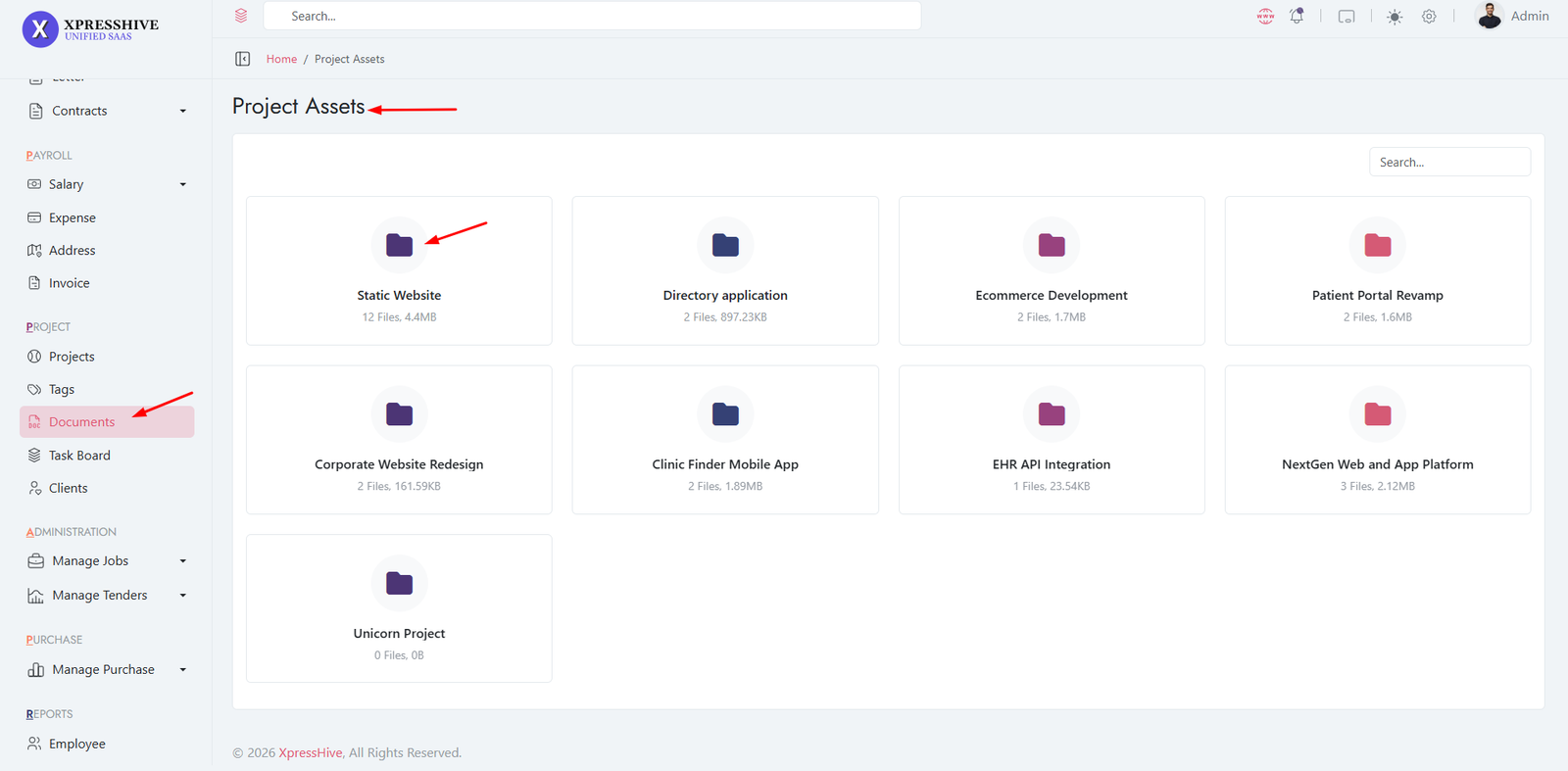
Project Asset Detail
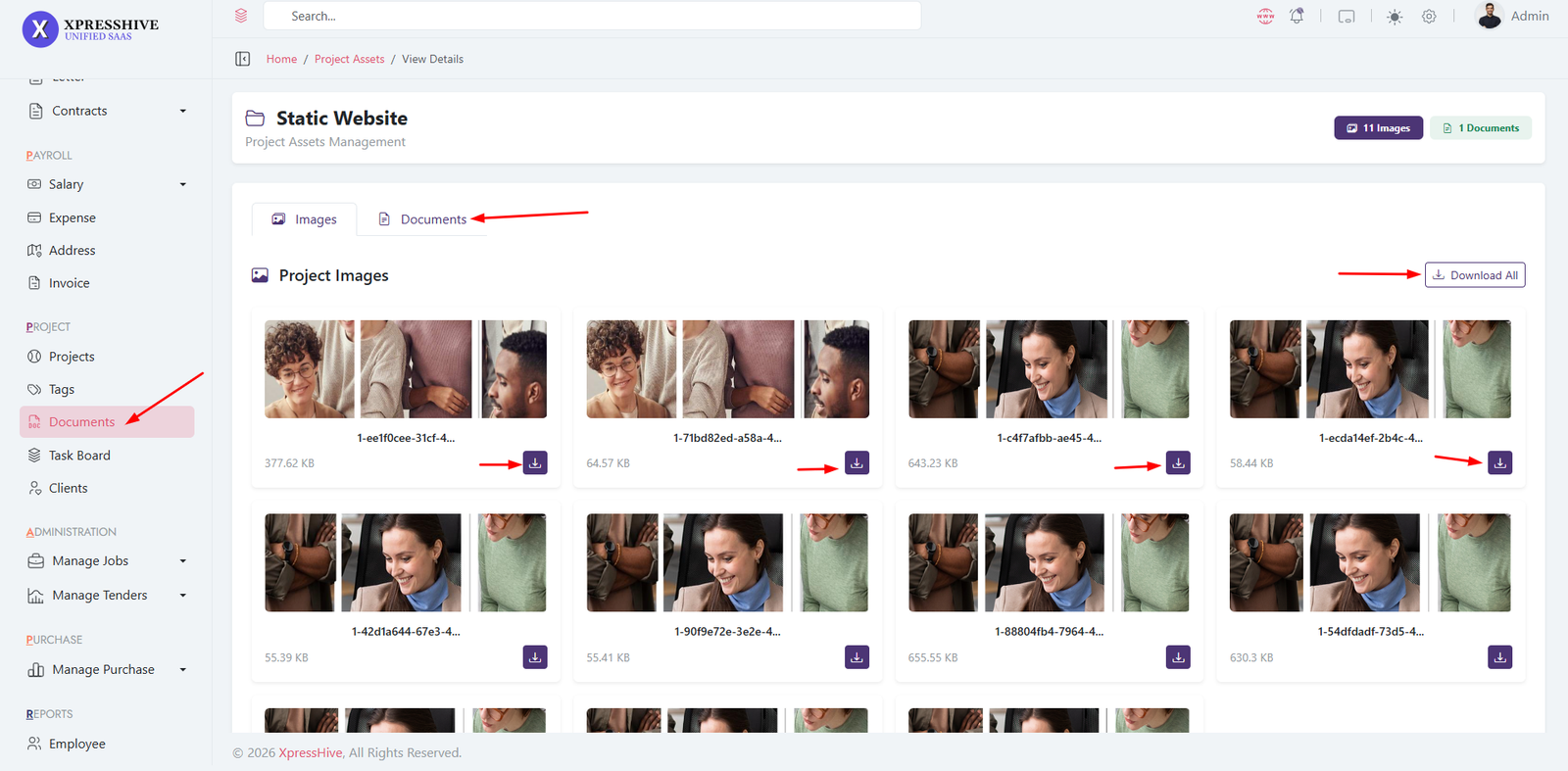
- Manage files and assets related to projects
- Upload documents, images, or resources
- Download and view project files
- Each project can have multiple assets
- Helps keep all project resources organized
Task Management
Task Kanban
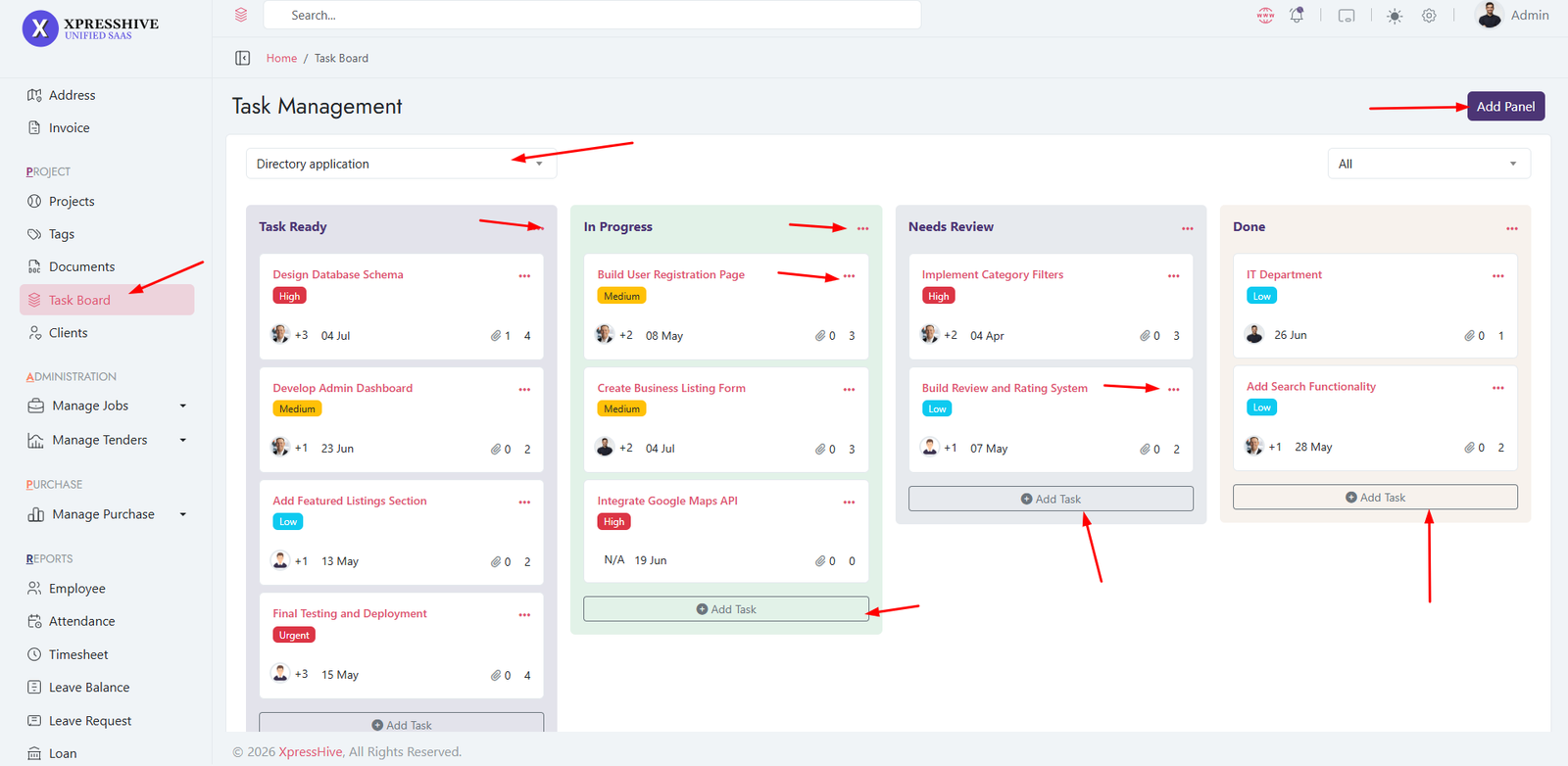
Task Detail
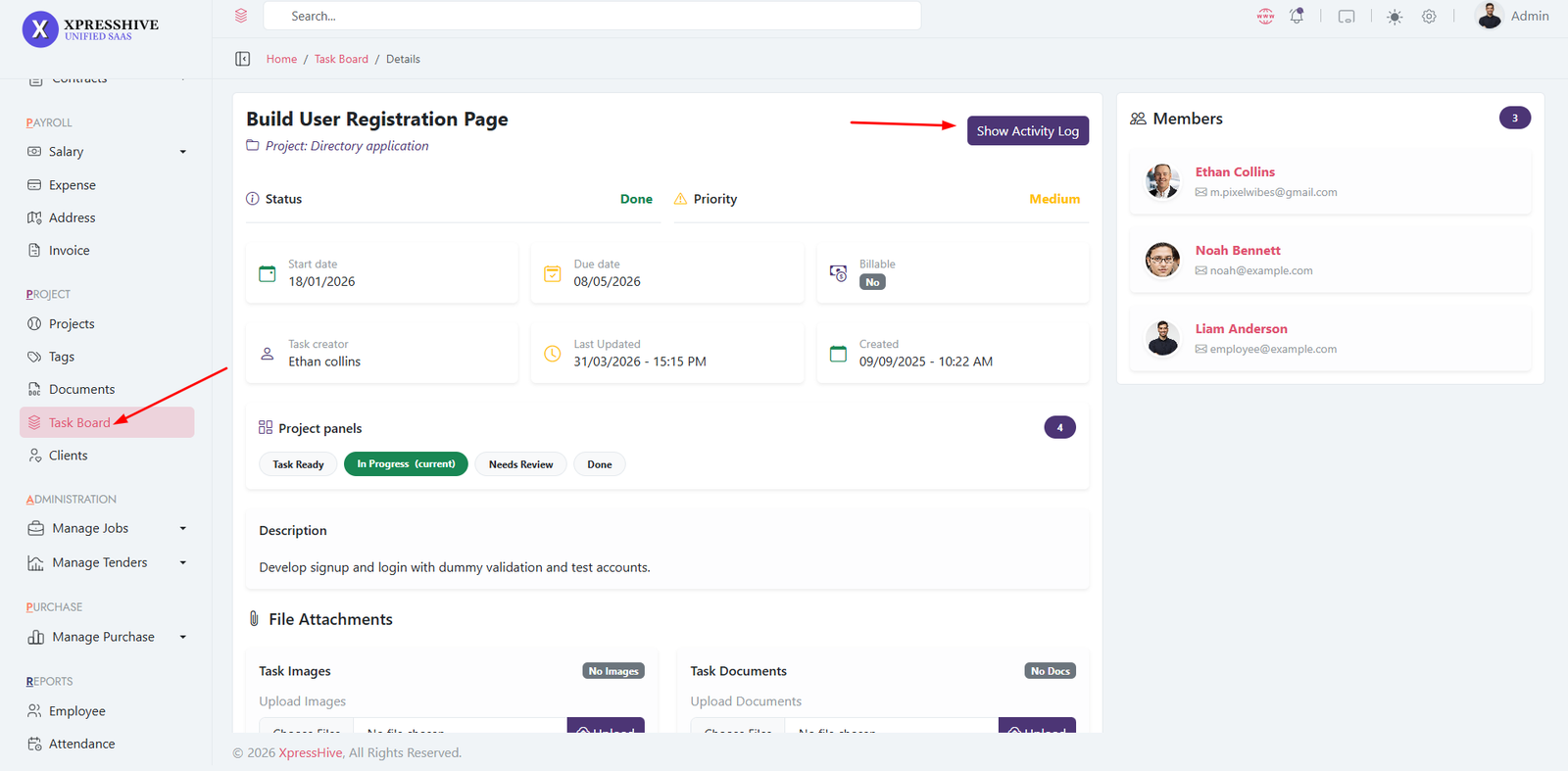
- Create and manage tasks
- Assign tasks to employees and projects
- Track task status and progress
- Edit or update task details
- AI Feature: Generate smart responses or suggestions
Client Management
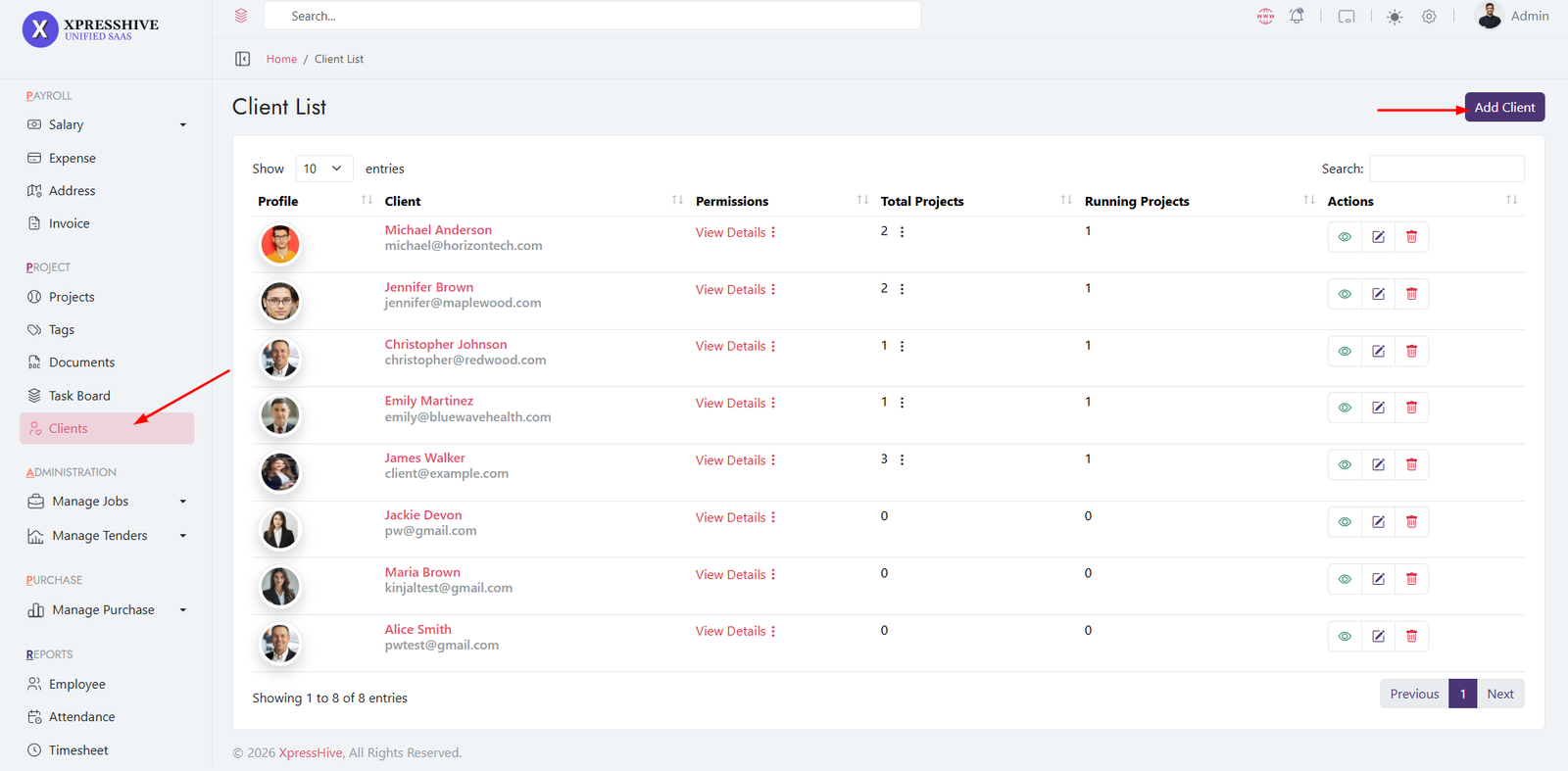
- Manage all client records
- Add new clients with details
- Edit or update client information
- View complete client details
- Used in projects and invoicing
Notice Management
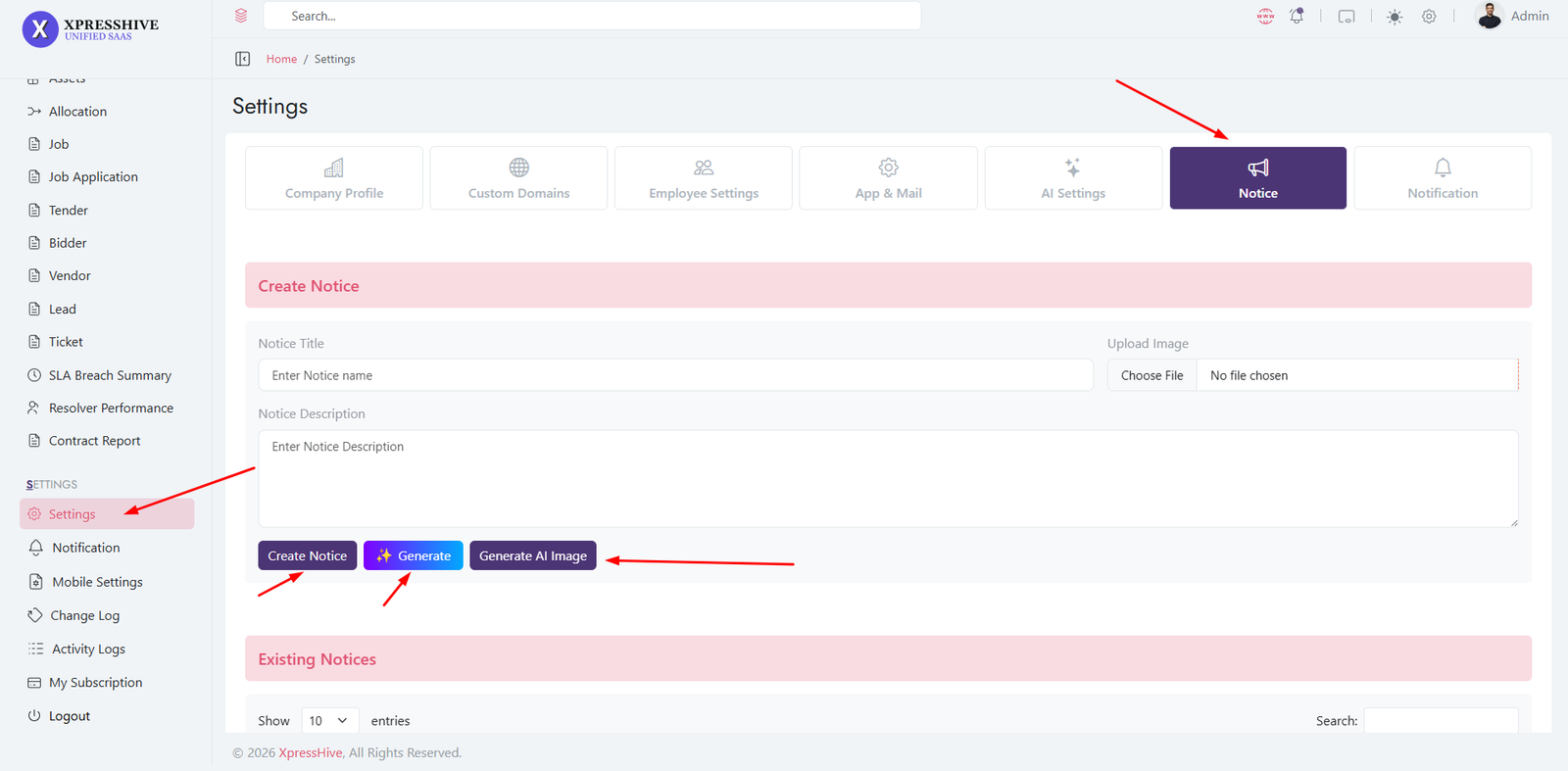
- Create and manage notices
- Share announcements with employees
- Edit or update notices anytime
- AI Feature: Generate notice content automatically
- AI Image: Generate images for notices
Report Generate
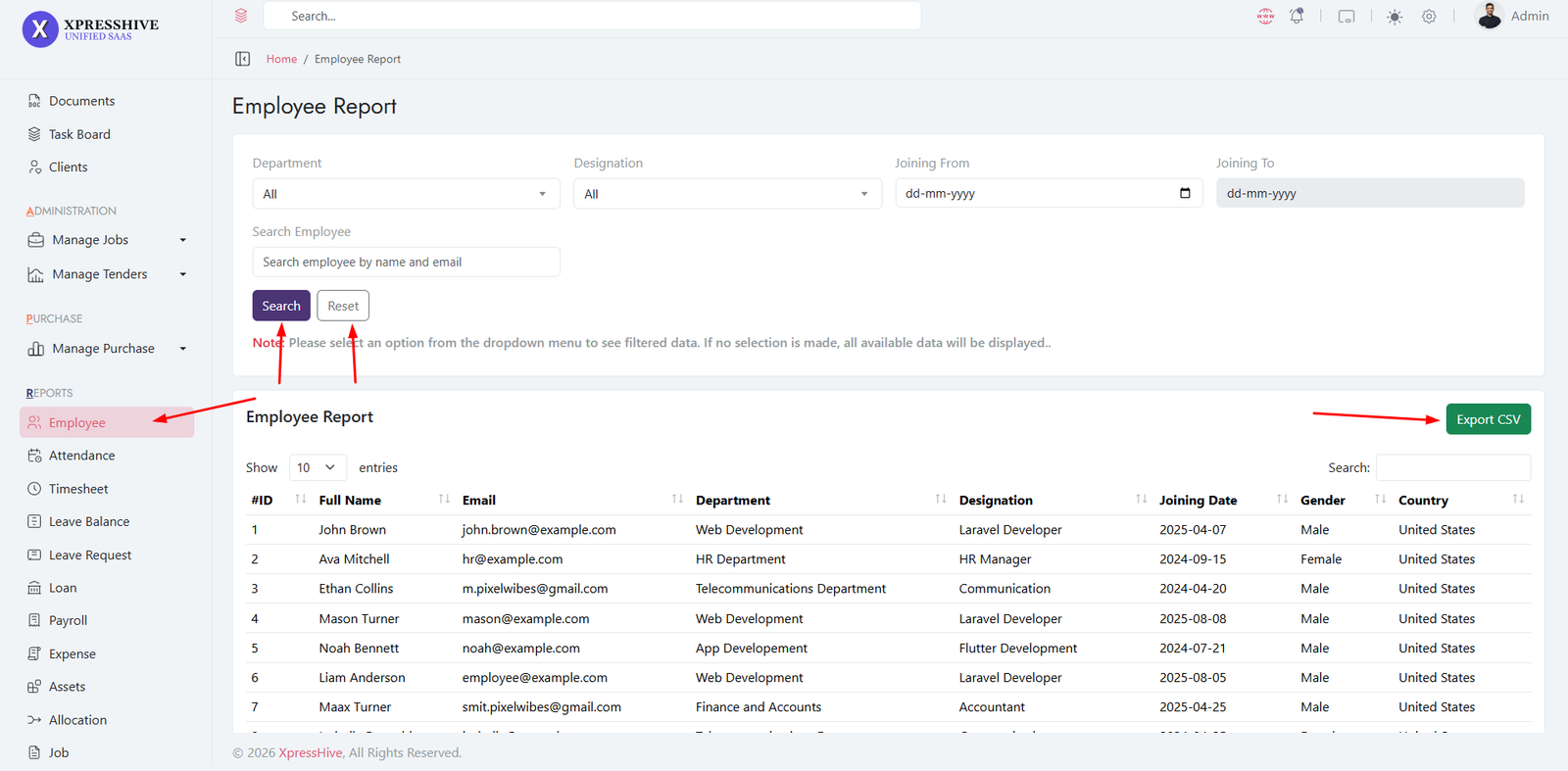
- Generate reports based on different modules
-
Reports include employees, attendance, payroll, expenses, etc.
- Filter data based on specific criteria
- Download reports in CSV format
- Used for analysis and decision making
Notification
Notification Settings
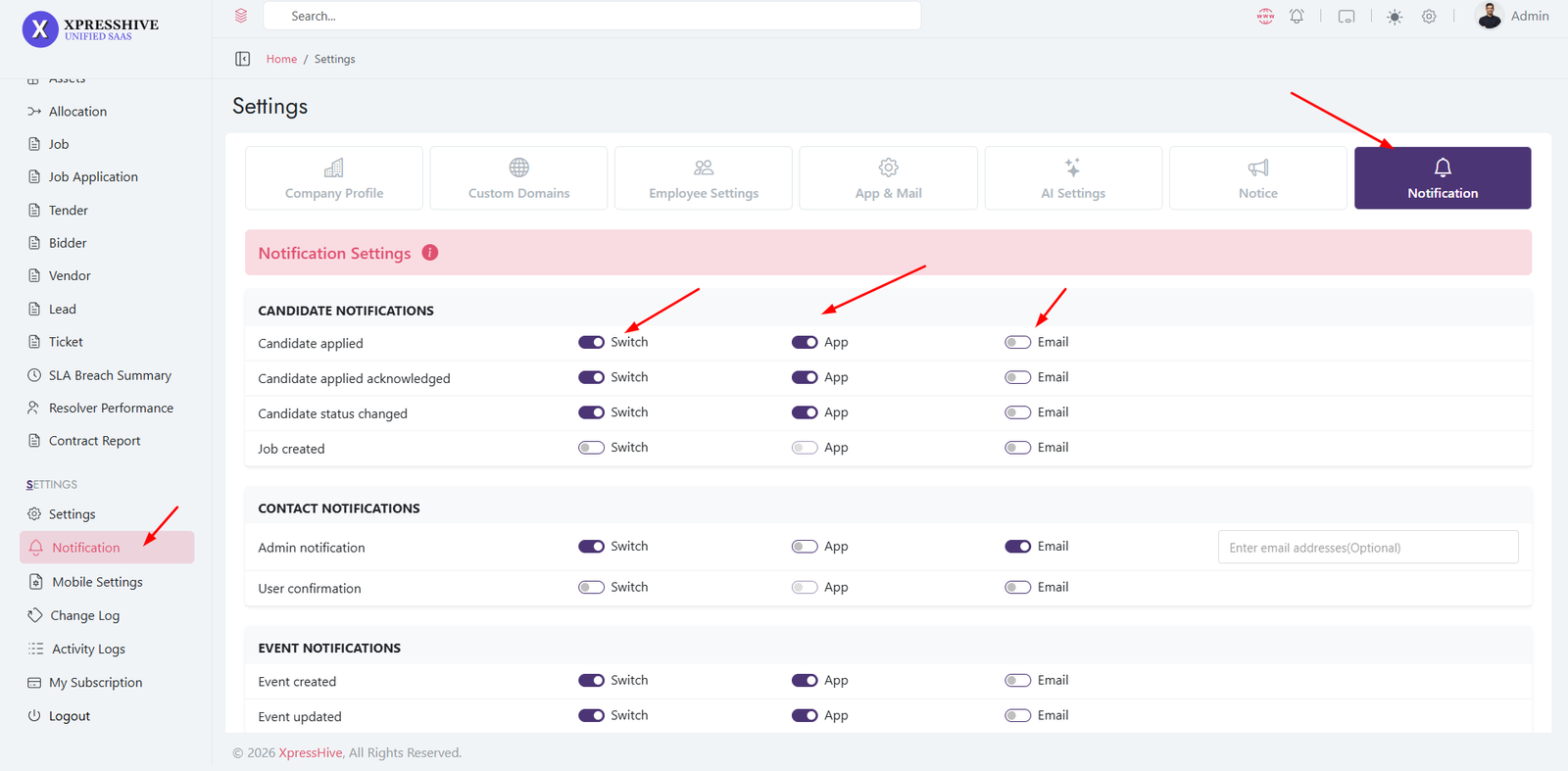
-
The Notification section allows you to control system alerts
and user notifications
-
You can enable or disable notifications for different system
events
-
Supports multiple channels like Database, App (FCM), and Email
- Helps keep users informed about important updates
Notification Channels
-
Switch: Enable or disable the notification
event
-
App: Send push notifications (Firebase / App)
- Email: Send email notifications
-
Custom Emails: Add additional recipients
(optional)
Notification Categories
-
Project Notifications: Member assigned,
status changed
-
Task Notifications: Task created, assigned,
updated
-
Ticket Notifications: Ticket created, comment
added, status changed
- Each event can be configured independently
Usage
- Notifies users about system activities in real-time
- Improves communication and workflow tracking
- Ensures no important updates are missed
Important Notes
- Enable only required notifications to avoid spam
- Ensure correct email configuration for email alerts
- Firebase setup is required for app notifications
-
Click Save Notification Settings after
changes
Mobile Settings - Manage Module
Module Settings
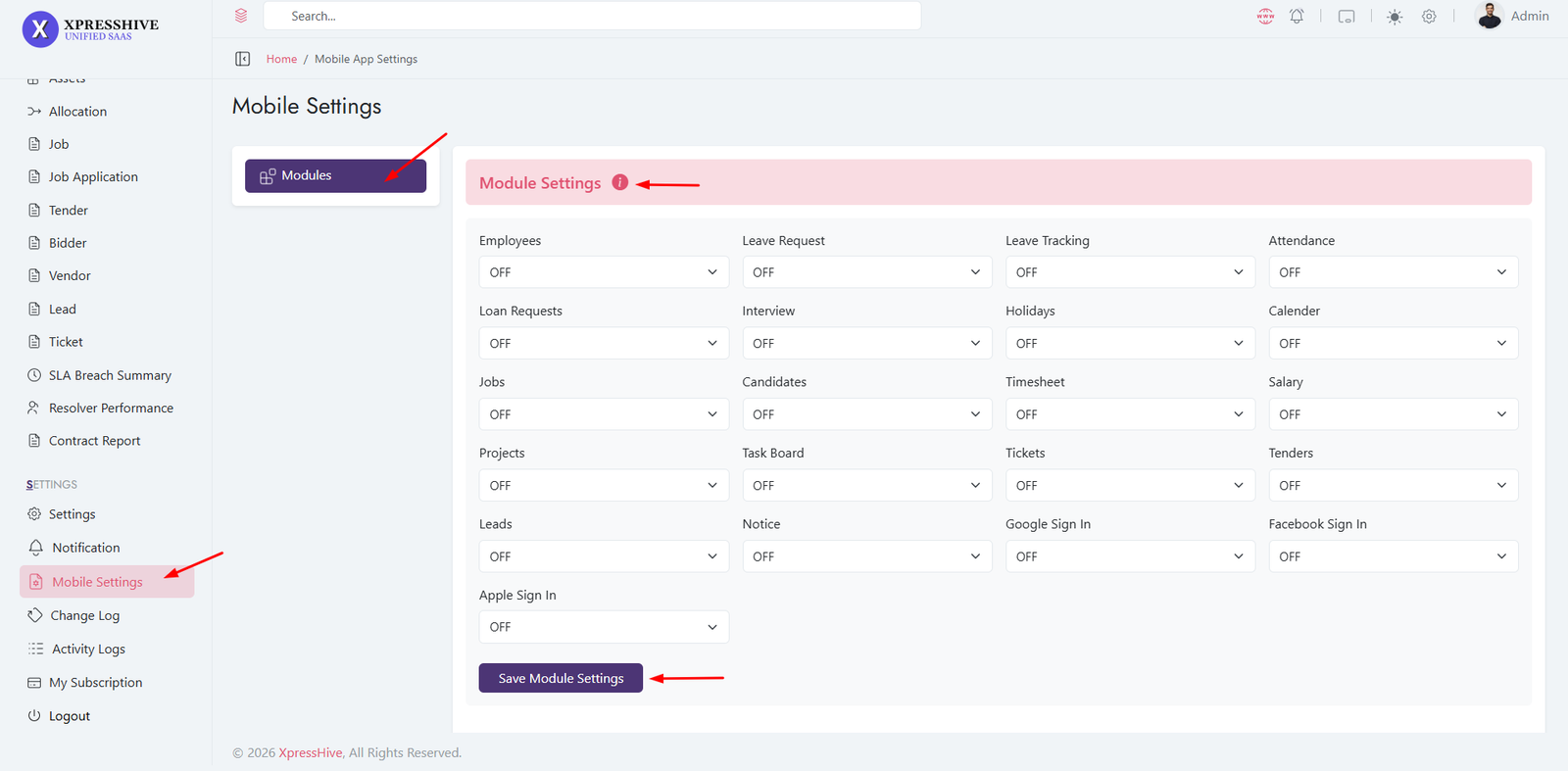
-
The Manage Module section allows you to control which features
are visible in the mobile app
-
You can enable or disable modules using simple ON/OFF options
-
This helps customize the mobile app based on business needs
- No coding is required to manage module visibility
How It Works
-
ON: The module will be visible and accessible
in the mobile app
-
OFF: The module will be hidden and not shown
in the mobile app
- Changes take effect after saving settings
Usage
- Customize mobile app features per organization
- Hide unused modules to keep UI clean
- Enable only required functionalities for users
Important Notes
-
Always click Save Module Settings after
changes
- Disabled modules will not appear in the mobile app
- Ensure critical modules are enabled before deployment
-
Useful for role-based or company-specific configurations
Employee App Features & Workflow
The Employee Mobile Application provides employees with access
to attendance, leave management, projects, tasks, payroll,
support tickets, company assets, notifications, and many other
HR-related services directly from their mobile devices.
Available Features
-
Attendance: Check In, Check Out, attendance
logs, and working hours tracking.
-
Leave Requests: Apply for leave and monitor
approval status and leave balance.
-
Projects: View assigned projects, team
members, priorities, and deadlines.
-
Tasks: Create, manage, and track task
progress.
-
Support Tickets: Submit issues, attach files,
and monitor ticket status.
-
Loans: Apply for employee loans and track
installment payments.
-
Salary & Payslips: View salary details and
download payslips.
-
My Profile: Manage personal information and
employee details.
-
Company Assets: View assigned hardware and
company assets.
-
Project Files: Access project-related
documents and attachments.
-
Notifications: Receive instant updates and
alerts.
-
Team Directory: Search employees and view
contact information.
-
Interviews: Manage interview schedules and
feedback.
-
Leads: Track business leads and follow-up
activities.
-
Timesheet: Log daily work hours and track
productivity.
-
Holidays: View company holidays and upcoming
events.
-
Notice Board: Read company announcements and
important notices.
Employee Usage Flow
- Login to the Employee Mobile Application.
-
Access the Dashboard to view attendance, tasks, and
notifications.
- Mark attendance using Check In and Check Out.
- Review assigned projects and daily tasks.
- Submit leave requests when required.
- Track support tickets and employee loan applications.
- View salary details and download payslips.
-
Access company assets, project files, and team directory.
-
Receive notifications, announcements, and holiday updates.
- Manage profile information and account settings.
Benefits
- Centralized employee self-service platform.
- Real-time attendance and leave management.
- Improved communication and collaboration.
- Easy access to payroll and employee records.
- Enhanced productivity through mobile accessibility.
Employee Mobile
Experience
The Employee App enables employees to perform daily HR
activities, manage work assignments, access payroll
information, and stay connected with the organization from
anywhere at any time.
Talent Application Flow
The Talent Application helps candidates discover job
opportunities, manage applications, track recruitment progress,
and stay connected with recruiters throughout the hiring
process.
Overview
- Browse and discover available job opportunities.
- Apply directly using your candidate profile.
- Track application progress from submission to hiring.
-
Receive instant notifications about recruitment updates.
-
Manage interviews and communication from a single platform.
Available Features
-
Smart Dashboard: View total applications,
saved jobs, interviews, and recent activity.
-
Advanced Job Filtering: Search jobs using
department, location, experience, and salary filters.
-
Precision Job Details: Review job
requirements, skills, qualifications, and salary information.
-
1-Tap Direct Application: Apply instantly
without repeatedly filling lengthy forms.
-
Application Tracking: Monitor application
status from applied to interview and hiring stages.
-
Instant Push Notifications: Receive updates
when recruiters respond or job statuses change.
-
Saved Jobs: Bookmark interesting
opportunities for future applications.
-
Profile Management: Update personal
information, resume, and professional details.
-
Interview Management: Track interview
schedules and recruitment progress.
Candidate Workflow
- Create an account or login to the Talent Application.
- Complete your profile and upload your resume.
- Browse available job opportunities.
- Use advanced filters to find relevant positions.
- Review detailed job descriptions and requirements.
- Submit applications directly from the application.
- Track application status through the My Jobs section.
- Receive interview invitations and recruitment updates.
- Attend scheduled interviews.
- Monitor final hiring decisions and onboarding updates.
Benefits
- Faster and simpler job application process.
- Real-time recruitment status tracking.
- Centralized job search and application management.
- Improved communication with recruiters.
- Better visibility into career opportunities.
Talent Recruitment
Experience
The Talent Application provides a streamlined recruitment
journey, helping candidates discover opportunities, submit
applications, track progress, and connect with employers
efficiently from a single mobile platform.
Vendor Application Flow
The Vendor Application enables vendors to discover tenders,
submit bids, monitor approval status, and manage procurement
opportunities from a single mobile platform.
Overview
- Browse available tenders and procurement opportunities.
- Submit bids directly through the mobile application.
- Track tender approval and bid status in real time.
- Receive instant notifications for tender updates.
-
Manage all tender activities from a centralized dashboard.
Available Features
-
Organize Tenders: Switch between Saved,
Applied, and Approved tenders using simple dashboard tabs.
-
Check Key Metrics: View project value, tender
closing dates, and current status instantly.
-
Department Filtering: Filter tenders by
departments such as IT, Sales, Operations, and more.
-
Quick Bidding Process: Review tender
requirements and submit bids quickly.
-
Live Notifications: Receive real-time alerts
for tender approvals and updates.
-
Tender Tracking: Monitor submitted bids and
approval progress.
-
Saved Tenders: Bookmark tenders for future
bidding.
-
Bid Management: Manage all active and
completed bids in one place.
Vendor Workflow
- Login to the Vendor Application.
- Browse available tenders from the dashboard.
- Use department filters to find relevant opportunities.
- Review tender details, requirements, and project value.
- Submit your quotation or bid proposal.
- Track bid progress and tender status.
-
Receive notifications when tenders are approved or updated.
-
Manage awarded tenders and ongoing procurement activities.
Benefits
- Faster tender discovery and bidding process.
- Centralized vendor procurement management.
- Real-time approval and status tracking.
- Improved visibility of business opportunities.
- Mobile access to procurement activities anytime.
Vendor Procurement
Experience
The Vendor Application simplifies tender management by
allowing vendors to discover opportunities, submit bids,
receive approvals, and track procurement activities
efficiently from their mobile devices.
Product: XpressHive SaaS |
Version: v1.0.0 |
License: Open Source Dependencies
📦 Libraries & Tools
Community Support
We appreciate the global open-source community for
continuous innovation and support that makes products like
XpressHive SaaS possible.
Disclaimer
All third-party libraries are used under their respective
licenses. No paid or copyrighted assets are included in this
product.
Support Policy
Scope of
Support
- Installation assistance
- Bug fixing & issue resolution
- Usage guidance
Not Included:
- Customization of code
-
Third-party integrations not included in the original package
- Server configuration or hosting issues
Response Time
We strive to respond to all support inquiries within 24-48
business hours. To help our customers, we constantly be in touch
with every customer if they need any assistance regarding our
product.
Support
Your feedback helps us improve
XpressHive SaaS. If you have suggestions, feature requests,
or
ideas, feel
free to share them with us.